- ...>All about clock ins
All about clock ins
Clock-ins
With the need of time-tracking ever more in demand, get to grips with how you can use Clock-ins to manage the clock ins, clock outs, breaks and locations all with a couple of clicks!
Everything You Need To Know About Who's In
Now, let's look at the Who's in section. Just head to 'Clock-ins' from the menu on the left of your account to get started!
Who Is Clocked In & Who Is Clocked Out
Our Who's in section will give you a real time look at which of your employees have clocked in with the Blip app and those who haven't.
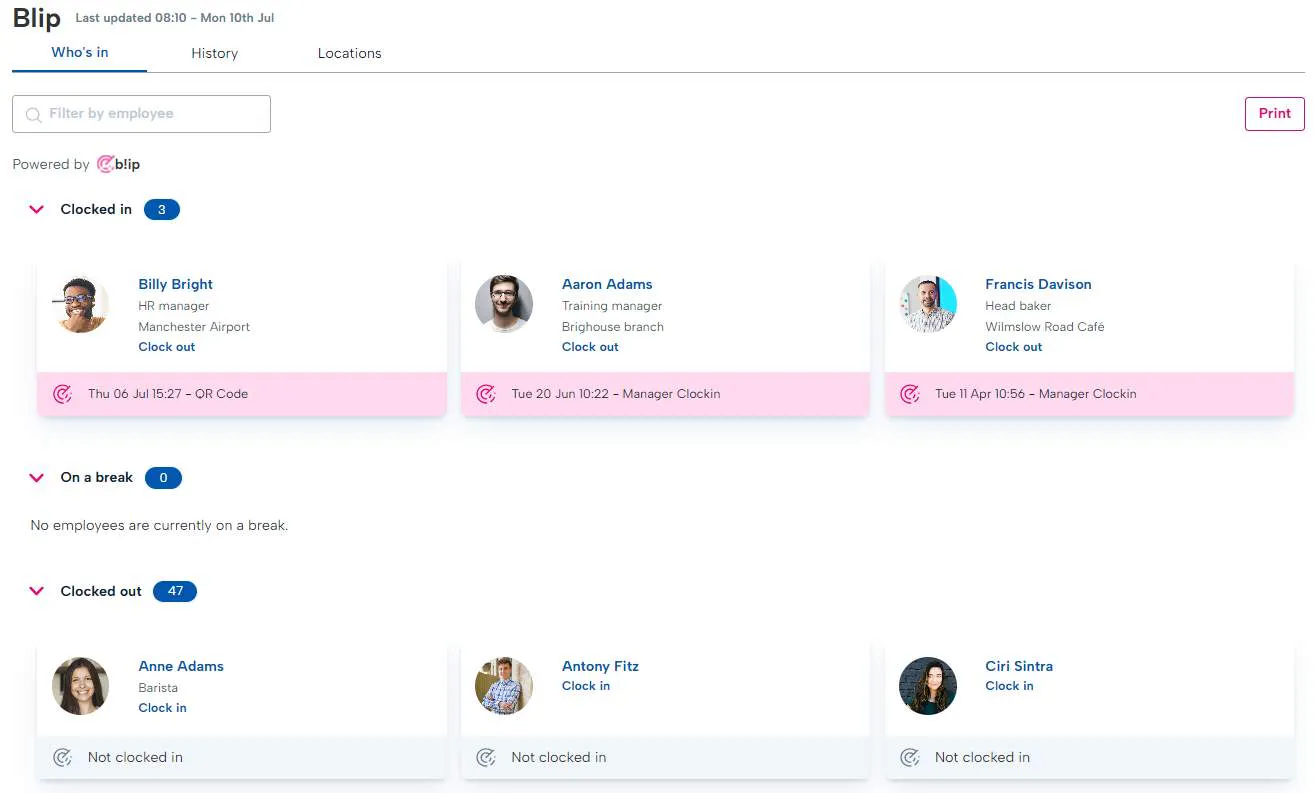
You can see details of their clock-in including, how they've clocked in, the location and the date and time!
How To Clock In A User
How To Clock Out A User
Printing A Real-time List Of Clock Ins
If you select the 'Print' option in the top left, this will allow you to print a real time list of who is clocked in and where, as well as who is currently clocked out.
Learning to use Timesheets
Next up in your time management tool kit is timesheets!
What is Timesheets?
Timesheets allows you to view a real-time log of every employees timesheet based on data collected in BrightHR.
This includes their scheduled hours, contracted hours, absences and actual logged start & finish time giving you an all-in-one look at an employees working schedule.
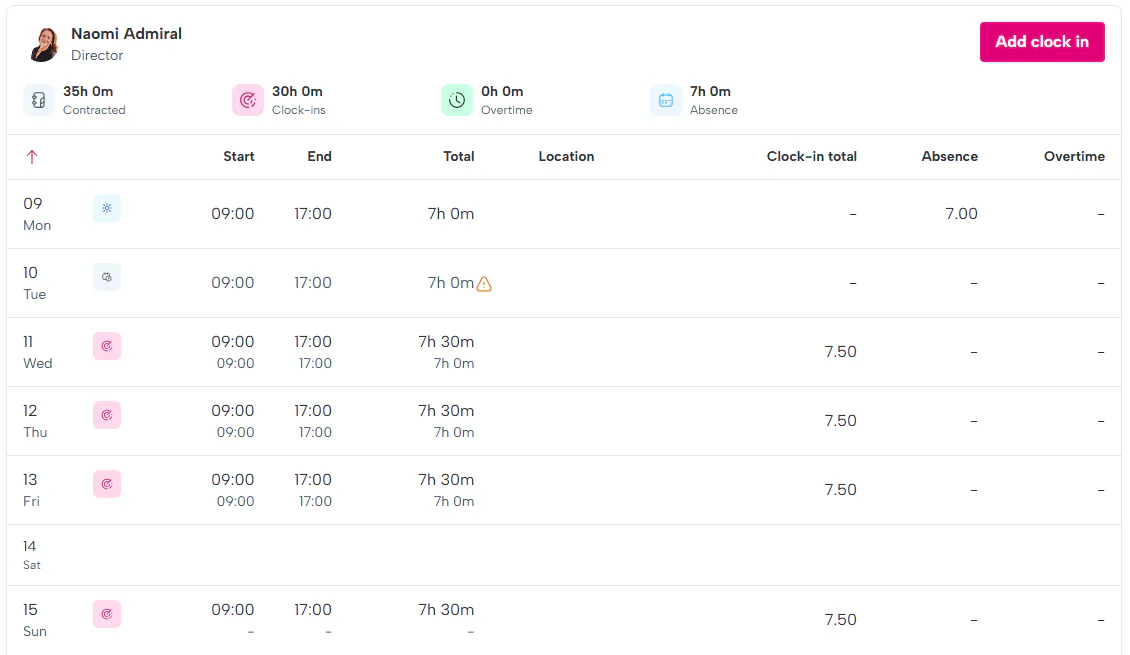
Contracted
Contracted hours show you what your employee should be working. This is taken from either their working time pattern for fixed users or the rota for variable staff. If a fixed employee is assigned to a rota, they will display contracted hours from the rota rather than working time pattern.
Clock-ins
Clocks-ins will give you the clock in, clock out as well as any breaks which you can view using the breaks toggle in the top right.
This allows the timesheet feature to apply daily variances as well as a total variance for the week.
Variances
The variance gives you a calculation of the variance between a clock in and the scheduled shift. So, for example, if an employee clocks in 10 minutes early and then leaves ten minutes later than they are scheduled to, this records a 20-minute variance.
There will be an indicator next to the shift which will provide the daily variance as well as a total of all variances recorded.
Please note, if there is no clock in, there will be a variance of the whole shift to indicate the employee hasn't clocked in.
Payable Overtime
Payable overtime will record exactly what it says, any overtime that is to be paid to the employee.
If an employee’s clock in includes overtime and it is logged on BrightHR you can view this on their time sheet, whether it is payable or TOIL it will display on the timesheet but only payable overtime is shown on the summary.
Absence
Any absences will be shown on the timesheet to give you a complete view of your employees working week.
There will be two absence types displayed here, absence and annual leave.
Absence will cover anything other than annual leave (sickness, medical appointments etc.)
Managing Clock In History
We've now got to grips with how to clock users in and out but let's now take a look at how to view the history, adjust the shifts and approve employee adjustment requests.
Viewing Clock In History
In the Clock-ins section, click on the 'History' tab to view historical information that your users have recorded using the Blip app.
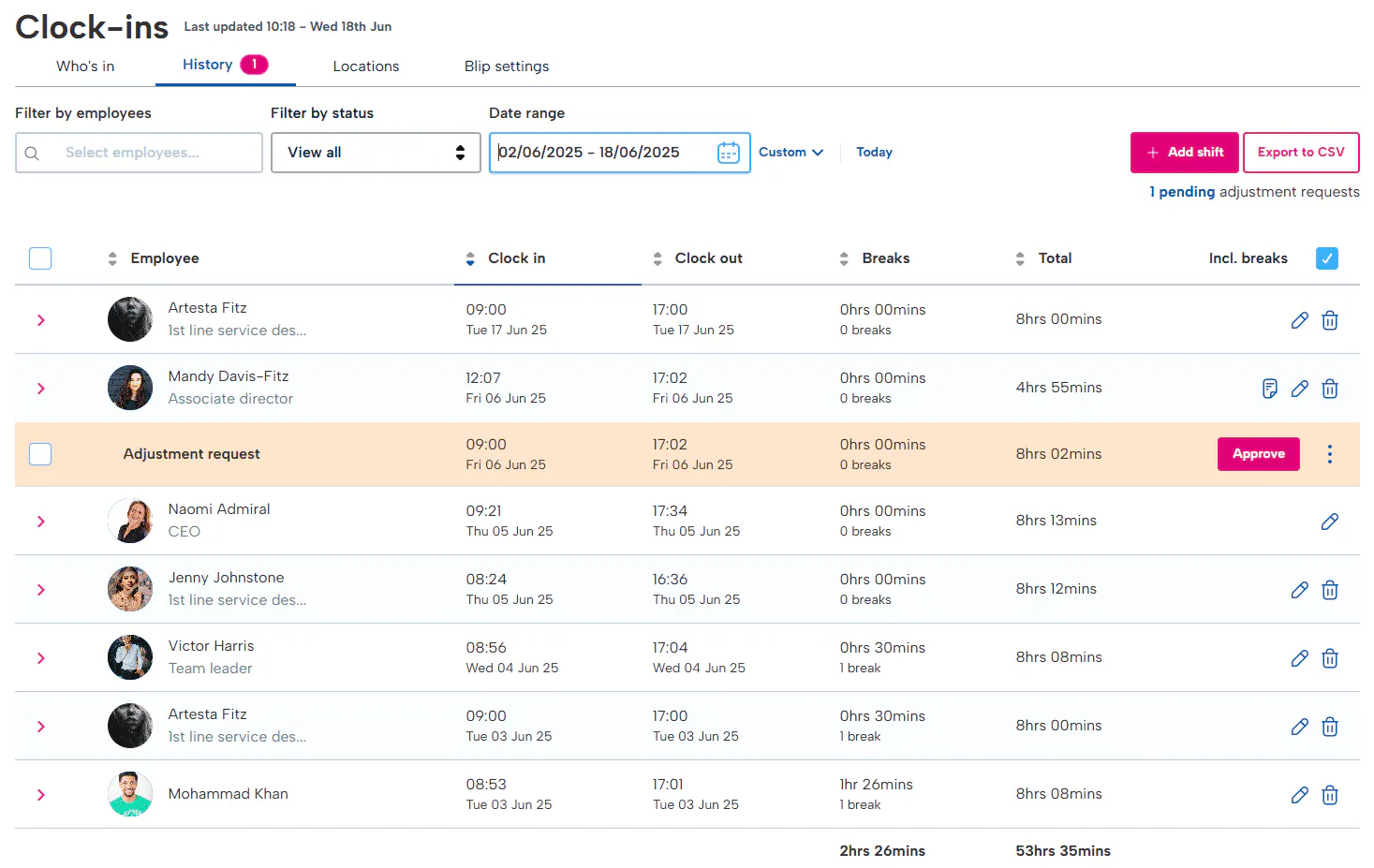
You can also pull a report using the export to CSV option in the top right.
You will be able to see the clock in time & date, the number of breaks & duration, the overall duration of the shift (including breaks) and notes that have been attached to the clock in from the employee.
Approving / declining Adjustment Requests From Users
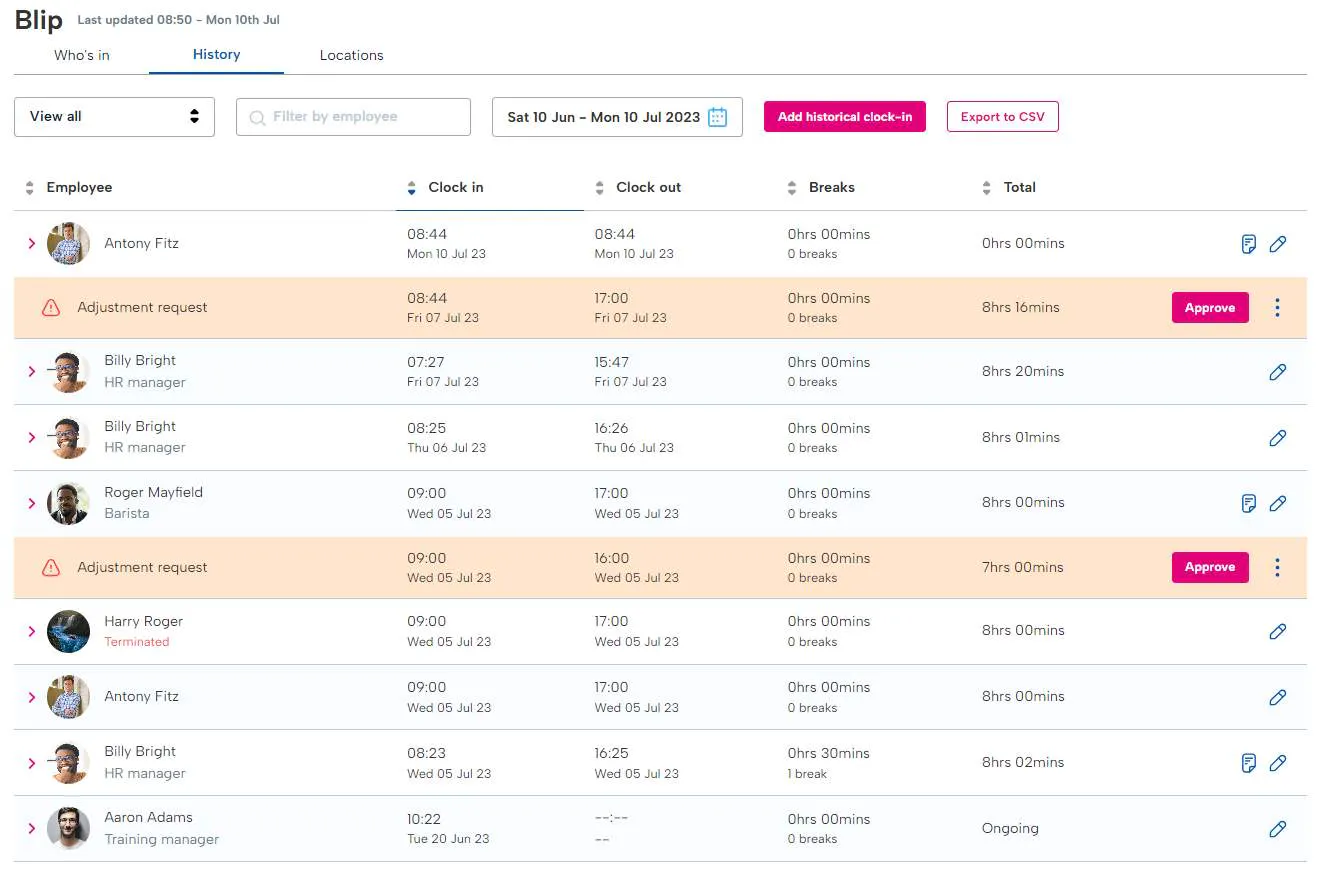
If an employee has forgotten to clock out correctly or has clocked in and out at the wrong times, it is possible for them to request an adjustment of the times from their logins on the Blip app. This will then come through on your app but it will also be possible to approve / decline the adjustment from the History tab of clock ins - just simply click approve or decline and leave a note for the user as to why.
Editing Shifts
Along with the ability for employees to request an adjustment to their shift, you can also do this directly for them. Just simply click the pencil next to the shift you want to adjust to get started. The form will then give you the option to adjust the start time, start date, break start time & date, break end date & time, shift end time & date and you can add notes too.
Please note, you cannot adjust the location they have clocked in to.


You will see the shift details which can be adjusted here.


You can then select a new date and time by clicking the calendar or clock icons.


You can add any breaks needed or edit breaks if already present by clicking the + button or the pencil icon to edit.
How To Retrospectively Add Shifts
As well as adjusting shifts, you can add retrospective shifts that have already happened in the past. Just simply click the 'Add shift' button in the top right and then select which employee you want to add the shift for.
You will then be given the option to select a start time, date, end time, date and any notes just like with editing a shift, however you will not have the option to add a break and if needed would need to be edited after adding the shift.
Deleting Clock-ins Or Breaks
If you need to delete a clock-in or break, you can do this by clicking the bin icon next to the shift or clicking the pencil icon next to the shift and then clicking the bin next to the break. You would only see this option for your staff and will not be able to delete your own.
Once a shift has been deleted, there is no way to reverse this and the data would be lost.
Locations & Settings
Now you've viewed, added and edited shifts, let's take a look at the location that these shifts are clocked in against.
In this guide we will find out how to set up, edit and deactivate locations as well as how to manage your clock-in settings.
Setting Up A New Location
To set up a new location, simply head to the 'Locations' tab and click 'Add new location' to get started!


First, enter the postcode of the location - the system uses Google maps data to find locations.


You can then give the location a name and amend the address if needed.


Next, you would set up the Geo-fence size or choose if you want to hide it (a geo fence uses a radius to allow the employees to clock in once inside the radius).


Finally select the locations privacy if public or private which will allow you to select which staff or teams can clock in to the location.
If you want to deactivate your location, select the location from the list, click the 3 dots next to it and then deactivate location. Please note, this will permanently delete the location.
Finding Your QR Code For Your Location
Firstly, click in to the location you want to generate or print your QR code for.
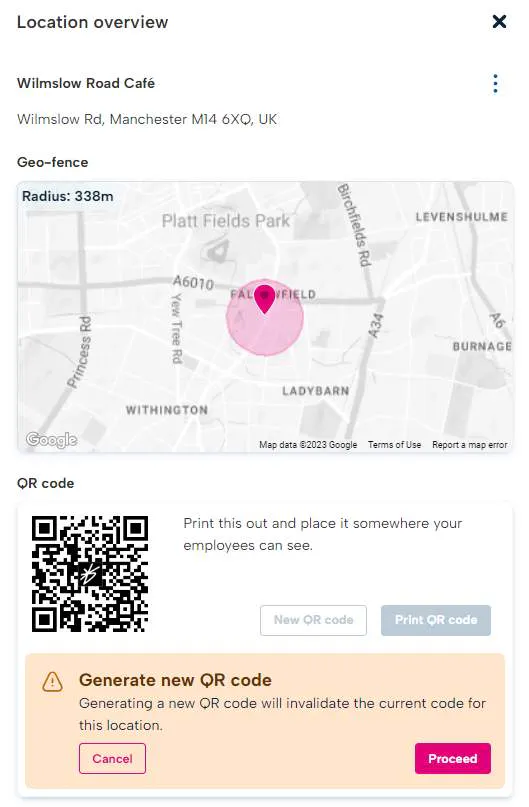
You can then choose to generate a new code (this will invalidate previous QR codes printed) or you can print it from here. The QR code can then be used for the employees to clock in on the app.
Adjusting Your Geo-fence Radius
In the same section where you can find the QR code, you will be able to view the current Geo-fence radius and adjust the radius.
Simply click the 3 dots next to it, edit the location and then adjust the scale or manually type the number of meters you want to adjust it to.
Settings
Clock-in settings will help you manage certain areas and features for your employees such as Clock-in on web.
Web Clock-in Settings
The Blip is used primarily to clock in and out however, in certain settings, employees may not be able to use a personal device which makes clocking in and out difficult.
With this setting, you can enable the ability for your staff to clock in from the website at on their laptop or PC therefore removing any limitation on using the app.
Employee Manual Entries
This allows for employees to add their own shifts without the use of clocking in or out. This allows them to record their shifts without the need of the app or real time clock-ins / clock-outs.
When enabled, employees will see the functionality in their quick actions list on the website as well as the clock-ins section.
Clock in / out Outside A Geo-fence Or Without A QR Code
This functionality allows you to enable the function for employees to clock in from wherever they are as opposed to being with a Geo-fence or using a QR code to clock in.
The app will take a screenshot of their location on the local map of where they have clocked in from so you can see their clock in location.
You can also tailor this to whoever you need to have the ability so users who need to clock in within a Geo-fence or use a QR code by selecting specific users from a list of your employees.
Please note, only an admin will have access to clock-in settings.