- ...>All about employee profiles
All about employee profiles
Learn how to manage employee profiles in BrightHR with this complete guide for admin users. Understand how to update contract and role information, edit salary and bank details, manage overtime and TOIL, update personal and emergency contacts, store documents, track leave, and navigate every section of an employee profile
Learn how:
Employee Profiles
This lesson teaches you all about your employee information, how to add this and get started filling in the blanks!
Now that you've added your employee's to the system, assigned them to teams and made any updates to their permissions the next step is to start storing your employee's data in one easy to find place.
Navigating around Employee Profiles
Let's start with the basics, below is an example of the absence section in a regular employees profile. Have a look at each section of their profile to see what it's used for.
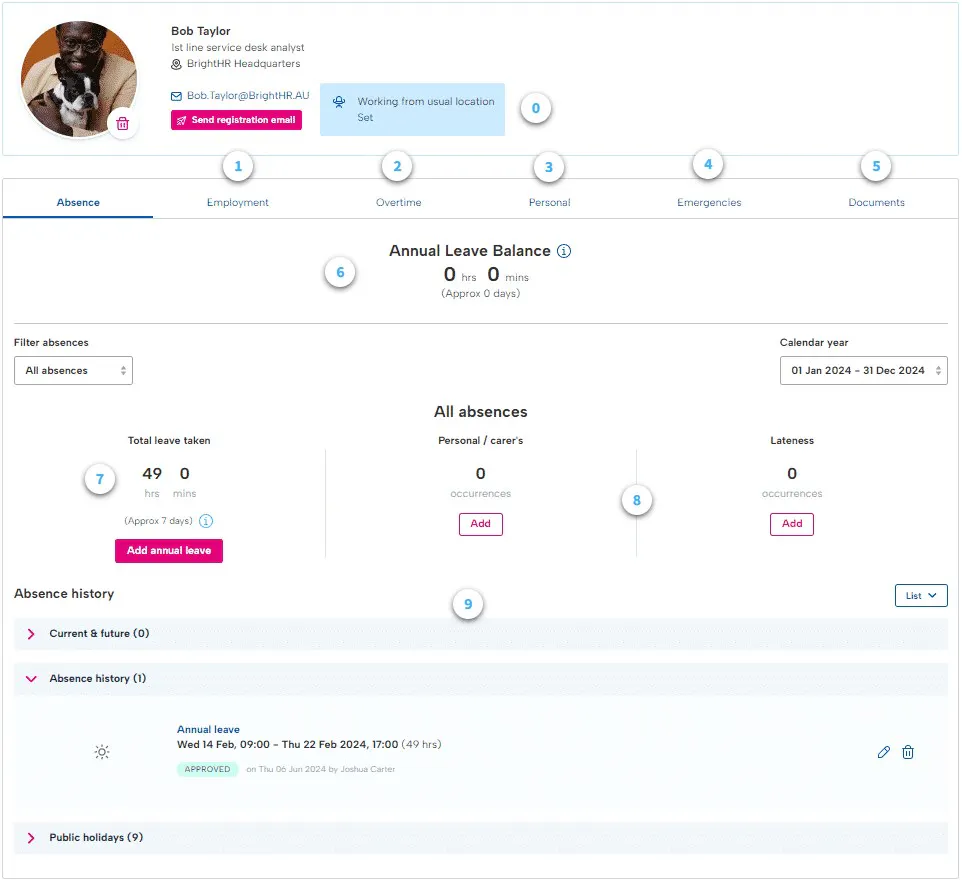
0. Employee Status - If enabled in your settings, each employee will have their current working status. This allows you to see whether the employee is working from their usual location, on a client visit , at another site or working from home. You can select the custom option and add your own custom status also!
1. Employment Tab - View contractual information for the employee including their start date, contracted hours and yearly entitlement. Just click on the pencil to edit these details.
2. Overtime Tab - View your overtime and TOIL balances to take and request TOIL absences and also request payable overtime in this section of your profile.
3. Personal Tab - Easily view and update personal details such as your employees contact number or address.
4. Emergencies Tab - Add and edit details of an employees emergency contact from this section of their profile.
5. Documents Tab - Quickly access any documents that have been uploaded for the employee using this handy tab.
- Annual leave balance - If your employee is a fixed employee, the profile will calculate their annual leave balance from their start date based on an accrual rate you can set in their contract or during the set up of the employee.
7. Total leave taken - Easily monitor your employees leave taken as BrightHR makes real time updates with each annual leave absence booked.
8. Personal/ carer's and lateness - On each employees profile you'll see a handy count showing you the occurrences of lateness and Parental/Carer's leave the employee has had this year.
9. Absence details - You can view and edit details of any upcoming absences in the 'Current & future' section of the employees profile.
Or to edit historical absences just open up the 'Absence history' section of the employees profile.
See details of the employees Public holidays in the 'Public holidays' section of their profile.
Adding or Updating Employee Contracts
When you set up your employee profile, you will have added their contract information such as their annual leave entitlement, selected a profile type and even added their working hours.
BrightHR will allow you to add to and even amend these details via the employee profile under the contract summary.
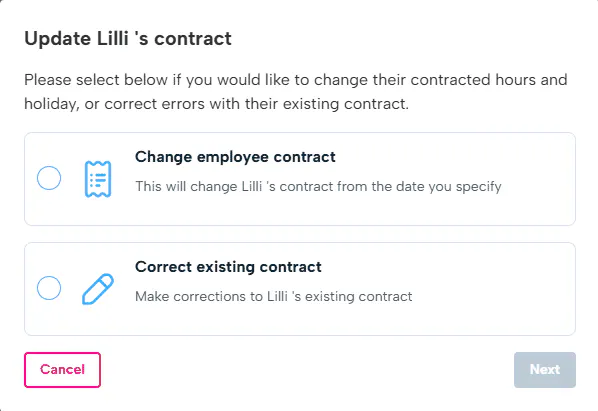
Change Employee Contract
By selecting the change employee contract option, you're essentially adding to their existing contract history. So for example, you would select a start date for the new contract which will add on top of the current contract they have been set up with.


Fixed Profile
First, let's take a look at a fixed profile.
The contract start date which will dictate when this new contract will apply from.
The employment type changed from this screen also from the fixed profile type to variable or casual (or vice versa). Please note, this change will only apply from the contract start date.
A working pattern, is something you would set up in the settings section.
This will outline the days the employee works and their start & finish times.
Finally, you will have to select the accrual rate if the employee is set in hours as this will accrue their annual leave balance.


Variable Profile
The variable profile will be all the same as the fixed profile apart from the working hours/days.
Instead of using a working pattern, you would simply enter the number of working hours and days.
Correct Existing Contract
Correcting the contract, will allow you to adjust the contract that is currently assigned to the employee. This will allow you to edit the information rather than add new details.


Working Hours - Variable
The first step is to adjust the working hours.
This is a variable profile, type in the number of hours they work per week and the number of days.


Working Hours - Fixed
Adjusting the working hours for a fixed profile would involve creating a new working pattern in the settings section and selecting it from the list here.
Adding Employment Information
Employees are able to view all areas of their profile except for the 'Notes' section but they can only edit their personal information, emergency contact details, absences and upload documents.
At the moment your employee profiles will only have the basic employment information stored on them. Now let's go into some more detail on how and why you should take the time to add in additional information for your employees.


Role Information
In this section, you can add in basic details like the employee's job title or contract type, but you also have the option to add more specific details like the employee's probation details.
BrightHR is here to help take the stress out of HR, and one way it does this is by sending you notifications based on the information you add to an employees profile.
Probation end dates are a great example of this when you add this information BrightHR will send you an email reminder, 7 days before and on the day that this is due.
The 'History' option, allows you to view their job role history including when it was changed and by who.


Pay details
Use this section to store the employee's pay details. Salary changes can be recorded as well as salaries set for future dates.
Please note - Only managers with payroll permission will be able to view pay information for their employees.


Bank Details
You can store you employee bank details here along with their salary details. The employee will be sent a notification to alert them when this is updated.
Please note - The employee will not be able to fill this in themselves.


Payroll information
Payroll and superannuation details can be recorded here including self managed super funds.
Account Setup
We've now covered all the sections that your employees aren't able to edit.
Why not login to your account and add some employment information to your employee's profiles.
Overtime
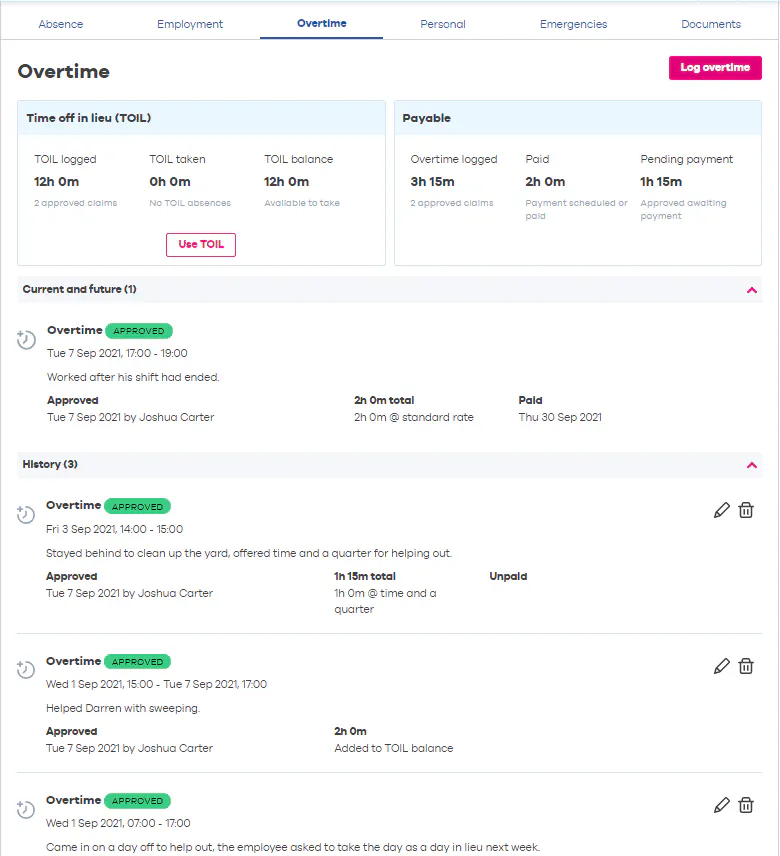
Now let's take a look at overtime in a little more detail. If enabled in your settings, this section will allow you to record overtime worked by yourself and your employee's. Then choose whether this over time will be rewarded with pay or time off in lieu (TOIL).
Just click the 'Log overtime' button, enter the dates this overtime was worked and add any notes. Then, if you're adding this for one of your employees, choose whether this will be rewarded with TOIL or Pay.
Once paid overtime is added you'll need to head over to the Payroll navigator to set a payment date for the overtime entry and mark it as paid.
How do I Edit Overtime?
It's as simple as ever to edit overtime! Firstly, head to the employee's profile you'd like to edit overtime for and select the 'Overtime' tab.
In here, find the overtime record you'd like to edit and click on the pencil next to it. You can then change the dates and times of the overtime record which will also update the overtime length.
Once you're done just hit the 'Update overtime' button to save your changes.
Please note: you have to head over to the payroll navigator to mark overtime as paid.
Personal & Emergency Information
Along with storing employment information you can also use BrightHR to ensure that you have the most up to date contact information for your employees.
Just head to the 'Personal' section of the employee's profile to add their, contact number, work extension and address details. You can even add their date of birth to receive a handy reminder when this is coming up.
Employees also have the option to add this themselves, click here to watch a handy video from our How-to-hub that shows you just how easy it is for them to add an emergency contact.
Top tip! Why not send a link to this video to your employees and get them to login and add an emergency contact.
Place of Work
Another handy feature is the ability to store your employees place of work.
Setting up a place of work is easy, all you need to do is head to the settings section of your account and select 'Places of work'.
In here just click the 'New place of work' button, fill in the address details and click 'Next'. Finally, just select the employees you want to assign to that place of work and click 'Confirm' to save your changes.
Working Status
Now that you've added your employee's normal place of work, BrightHR makes it easy to see whether your employees are working at that location, on a client visit, at another site or even working from home.
An employee's working status will show on their profile and in your employee hub so you can see where your employees are working at a glance!
Find out all about statuses on BrightHR in this helpful how-to video.