- ...>Get more out of BrightHR with our app
Get more out of BrightHR with our app
Getting Started
In this handy course we will go through how you can make the most out of our amazing mobile app to help save you time, complete things on the go and more!
Getting Anywhere, Anytime Access
We know managing HR is crucial within any business, that's why the BrightHR software is available to you 24 / 7 365 days a year.
Not only can you access the software anytime using our website, we've also created a handy mobile app so that you can access this software from anywhere!
Just head over to your app store to download this for free and login using your BrightHR email address and password.
On the app you'll be able to:
- View any upcoming shifts and rosters.
- Request absences on the go and see real time updates to balances.
- Approve and decline absences with a tap.
- See absence conflicts at a glance.
- View and update personal and emergency information.
- View the latest HR news.
- Request documentation consultation.
- View employee annual leave balances from your phone.
- View and update any personal goals you have been set.
Employee Info on the go
A well as using our website to add , edit or view employee information you can also use our handy mobile app to do this anywhere, anytime.
Adding Personal Information
Viewing Employment Information
Want to check the amount of hours an employee is contracted to? Just select 'Employment' to find this out.
In this section you'll find all the contractual and employment information that's been stored for your employee.
Now you'll always have this information to hand, wherever and whenever you need it!
Working Status
Along with employees being able to set a status through the BrightHR website they can also set this through their app with just a few quick taps. Just tap on the employees status in their profile to add, update or edit the working status set.
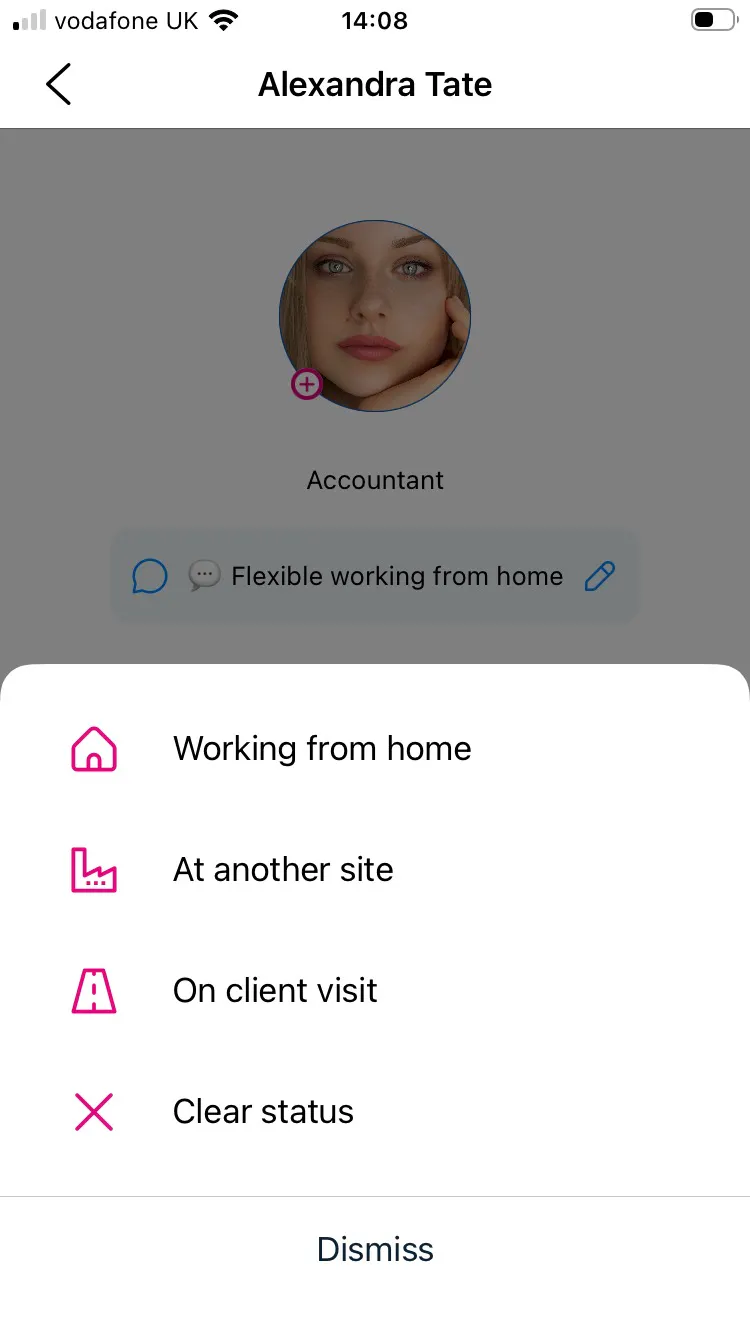
Now you know how, login to your app and set your status.
Absence Requests in a Tap
Want all the great features of our absence management software but in an app? Well that's what we've done!
You can do just about everything on the app, from checking your calendar to approving an absence request.
Just download it from your app store to get the most out of BrightHR.
Absence Requests
We know you and your employees aren't always at your desk when you want to request an absence. That's why we've put together our app.
Requesting absences on the app is easy, just tap the plus at the bottom of your app to get started. You can then select the type of absence you'd like to request, the date range of it and add any notes. Simple!


View your remaining absence balance.


Select your absence type.


Select your date range.

See any conflicts with your request.
Viewing your Calendar
On the app you'll have a 'Planner' section along the bottom.
This is where you can view your team's absences.
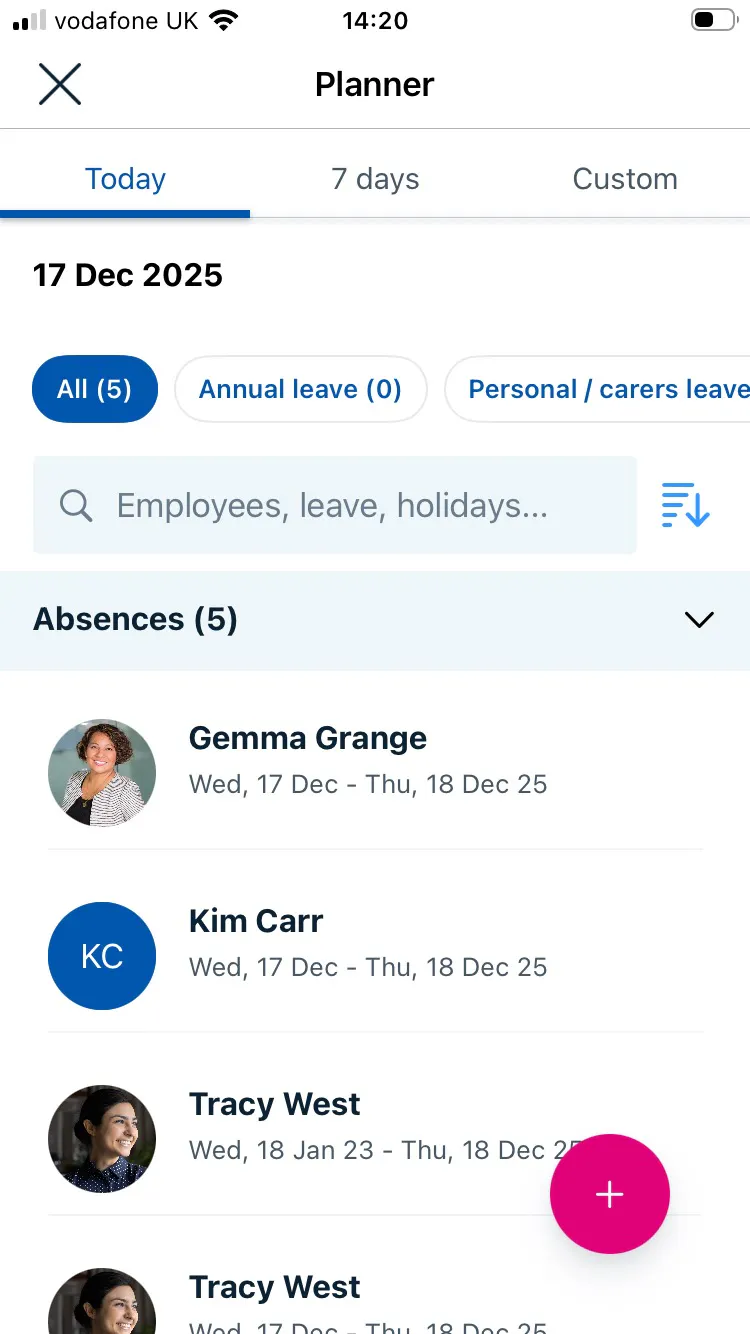
In your planner you'll see a detailed breakdown of all employee absences for today, including the absence type and date range.
You can also view upcoming absences in the next 7 days by selecting the '7 days' tab along the top.
Or you can select a custom date range to view absence information for, using the 'Choose dates' option along the top.
Approving & Declining Absences
Now you know how your employees request an absence, let's look at how to approve them on the app.
Just like on the website you'll find all your pending requests in a handy list on your calendar. To view this, open up your planner and tap on the pending icon in the top right corner of the screen. In here you can click on any of the pending requests to see the details of the request and approve or decline it using the tick or cross along the bottom of the screen. You'll also see any conflicts flagged at the bottom of the screen.
Your employees will then get a handy notification via email and on their app to let them know whether their request was approved or declined. Simple!
Performance Reviews in your Pocket
Pressed for time? Away from your desk? Skip the hassle and complete performance reviews on the go. With our mobile performance review feature, you can capture feedback instantly and finish the process in minutes—anytime, anywhere, right from your phone.
Performance Reviews
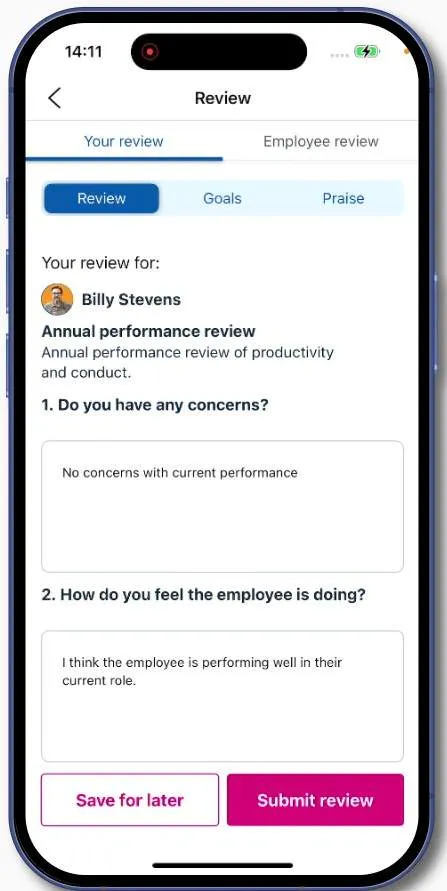
After setting up your cycles in BrightHR, they’ll pull straight through to our app—ready for you to review and update on the move.


View your pending, in progress and overdue reviews in a glance.


See an overview of the progress from manager and employee in one place.


Review answers added by the manager as well as the employee. You can also download a PDF version of the form here too.
Completing a Performance Review
To complete a performance review on the app is simple, click in to the review in question, add your answers, if there are employee questions get them to complete their side and then complete the review. Simple!
Viewing Shifts on the go
So you finally finish your Roster. Now, it’s down to your staff to pay attention and show up, this is where our app comes in handy.
Any Rosters you've published will all be available anytime, anywhere using our app. Now there’s no excuse that they didn’t see it pinned up on the wall in work.
Why use the App?
If that's not enough to convince you, here's all the ways BrightHR can help you with Roster planning through our handy app:
- Whenever you add staff to a new Roster or edit a shift, they get an automatic notification so they know where to be and when.
- Need to remind someone to do a task or be somewhere? Simply add a note to the shift for them to read from the app.
- View details from past, current and future Rosters whenever you need, and without having to find a paper copy in mountains of paperwork.
If you've not already downloaded the app, get this from your app store completely free!