- ...>Getting started with permissions
Getting started with permissions
Getting started with permissions
In this handy course you'll be guided through the process of setting up your BrightHR account, all with our easy to follow step-by-step guide.
You'll also find out how to make the most of all the time saving features BrightHR has to offer on both the website and with our handy mobile apps.
Permissions
In this lesson, we will cover the basics of permissions and what each permission level gives access to as well as how to sign direct reports to their managers.
Permissions
Permission levels determine who an employee reports to on the system, the person who can view their information and approve their holiday requests.
There are three different types of access you can have on the system, Admin, Manager and Employee.
As the main contact for your account, you will automatically be set as an admin and have full access to the account. When you add an employee they will be set as having employee access unless you choose to give them additional access.
Admins hold all the power. They can access all areas within BrightHR and all employee profiles. There’s nothing they can’t do—they’re your superusers.
Admins can:
- Raise, view and edit absences for anyone in the company.
- Approve or decline absence requests from anyone in the company.
- View and edit everybody’s profiles.
- Create working time patterns and rosters.
- Terminate and delete any employee.
- Upload and manage documents for everyone.
- Manage annual leave carry over.
- Add employees.
- Change user permission types.
- Receive notifications for everyone.
- Add / edit performance goals.
- Manage and delete praise.
Setting Up Permissions
Now you know all about the different types of permissions, let's take a look at how you can set these up in just a few simple steps.
Setting Up An Admin
Setting Up A Manager
Setting Up Payroll Permissions
Setting Up Recruitment Permissions
Setting Up A Learning Manager
Permission Settings
To allow you to customise what you would like your managers and employees to see or interact with, you can access the permission settings page.
This will allow you to select what details of the specific area you would like the user to either view and / or edit and for which employees.
Simply click the edit option next to the person you want to adjust the permissions for and select from the list.
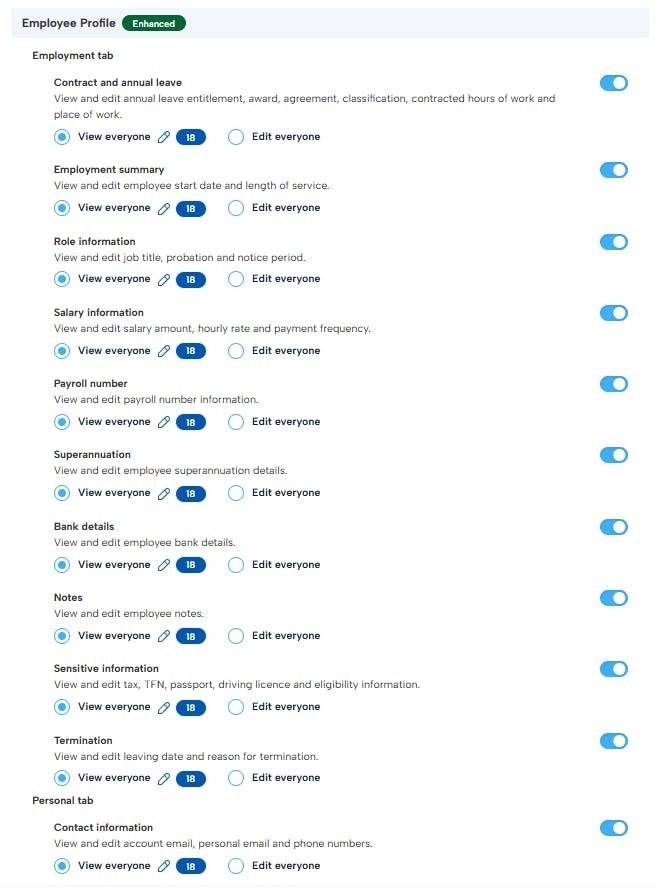
Please note: this will give the user access to view and / or edit everyone on BrightHR.