- ...>Absence management made easy
Absence management made easy
Discover how BrightHR simplifies absence management with automatic holiday entitlement calculations, easy contract‑based updates, tools for prorated leave calculations, and clear options for manually managing carryover—removing the need for time‑consuming admin.
Absence Management Made Easy
Absence management is what we do best - we've even won awards for it - so say goodbye to endless hours manually working out employee entitlements and checking work calendars for holiday conflicts!
Absence Management made Easy
Absence Entitlement
When you add your employees onto BrightHR it will automatically calculate their holiday entitlement, just fill in a few details about their working hours and we do all the rest.
But we know that sometimes job roles change or an employee may need to change their working hours, so we've made sure that BrightHR keeps your employee's entitlement up-to-date so you don't need to worry about messy holiday calculations.
Let's take a look at just how easy it is to update employees working hours on BrightHR...


First, head to the employee's profile and select the 'Employment' tab.
Scroll down to the contract summary section and click the 'Edit' button to get started.


For any changes that may affect an employees holiday calculation select 'Change employee contract'. Or if you need to make a quick change that won't affect the employee's entitlement you can 'Edit their existing contract'.


Next, we'll choose the date that this new contract will start from, select the employees new working pattern and click 'Next step'.


BrightHR will then calculate the pro-rated entitlement for any of the employee's old contracts and their new contract then add this together to give you the employees new entitlement. Simple!
Want To Know Exactly How We Calculate Entitlement?
BrightHR calculates prorated annual leave by dividing the minimum annual leave entitlement entered by 365 (or 366 if it's a leap year) to work out how many days or hours entitlement the employee accrues per day.
We'll then take the amount that the employee accrues per day and times this by the number of days that the employee worked for the duration of their contract.
We'll repeat this for any additional contracts that have been added, add it all together and round it up to the nearest half day or hour.
Annual Leave Balance Calculator
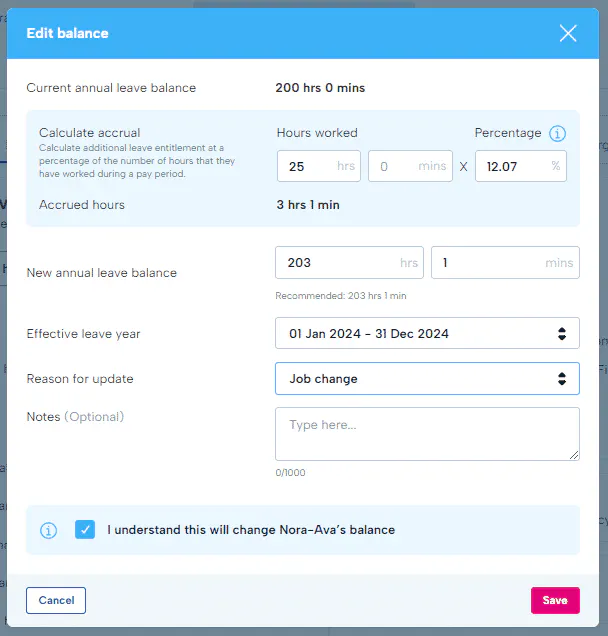
If you have variable employees set up in hours, you can use our annual leave calculator to calculate their accrual.
You can find this in the current annual leave balance section when you select the edit option.
Simply add in the amount of hours they have worked over a specific pay period (Of up to 28 days) and BrightHR will do the work for you. This will allow you to build their annual leave allowance as they accrue it.
Carryover
Carrying over holiday entitlement from one year to the next is super simple. With just a few clicks you can set it up, watch our how-to-video to see how...
Absences
Now you've set up your employee's entitlement's let learn about how they use this entitlement. There are several different types of absences that can be recorded on your account to cover everything from a holiday to training.
Annual Leave
Annual leave is the only absence type that will deduct time from an employees holiday entitlement.
When a regular employee requests an annual leave absence, BrightHR will take a quick look at the working pattern assigned to the employee and work out the amount of time that should be deducted for their absence.
So, if your employee is assigned to a Monday, Wednesday, Friday working pattern and they book Monday to Friday as annual leave the system will only deduct the 3 days they would normally work on from their entitlement.
Absence Requests
Requesting absences on BrightHR is super simple, all employees need to do is head to their profile and click the 'Request time off' button. Here's a quick video showing you how an employee can add, edit and delete absences in just a few clicks.
Watch the video below to see it in action...
As long as you have enabled absence notifications in your settings you'll receive email updates when employees add, edit or delete one of their absences.
Sickness & Lateness
Employees are able to request every absence type except sickness and lateness, these can only be recorded by the employee's manager or an admin.
When you open up an employees profile you'll have an 'Add time off' button to add an absence for your employees. In addition to the absence types, your employees see you can also select 'Sickness' and 'Lateness' from this list.
Sickness - When adding a sickness you'll need to enter the date the employee was sick, whether this is an ongoing sickness, if it is paid or it has an end date and any notes.
Lateness - When adding a lateness you'll need to enter the date the employee was late and the duration of time that they were late for.
Adding & Managing A Sickness
Sickness absences work differently to other absence types and give you the ability to record more details and even upload documents such as sick notes.
Watch our how to video to see how you can make the most of our sickness feature!
Attaching Files To A Sickness & Fit Notes
When you've added a sickness to an employees record you'll have the option to attach a file to the sickness, just click on the pencil next to the sickness to see the details of it then click the 'Attach a file' button.
In here you can also click 'Request fit note' this will send a notification to your employees letting them know that this needs to be added.
Filtering Sickness
To help with things like sickness triggers, you can use BrightHR to filter the number of sickness over a leave year, a 3 month period, a 6 month period or a rolling 12 month period.
Simply use the filter absences option on the employee profile to select sickness and select the desired period on the right.
Approving & Declining
Now you've got some absence requests coming through from your employees you need to know how to approve and decline them.
All absence requests will have a 'Pending' status until they're approved or declined by an admin or manager. Just head to your calendar and click on the 'Pending requests' tab to find a list of requested absences that need approving or declining.
Watch our how-to-video below to see it in action...