- ...>All about notifications and who receives them on BrightHR
All about notifications and who receives them on BrightHR
All About Notifications & Who Receives Them On BrightHR
In this guide, we will teach you all about notifications, when they're received, for what and by whom.
Notifications are important to make you aware of expiry's and follow-ups, so it is even more important to understand what you will receive them for and who will receive them.
This guide will outline each notification type, who would receive it and in what increments.
Employee Profile Notifications
Notifications from employee profiles could be some of the most important notifications you will need from BrightHR for things like visa expiry, contracts and more...
Employment notifications
Contract expiry
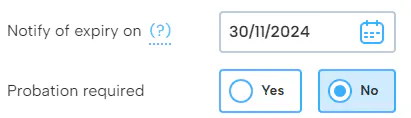
This refers to an employee with a fixed term contract. Once set, the system will notify based on the expiry date.
This is found in the employment tab of an employees profile in the role information section.
- An email notification is sent.
- A notification will be sent 7 days before expiry date.
- A notification will be sent on the day of expiry.
- A notification is sent to all admins and the manager(s) of the employee.
Probation
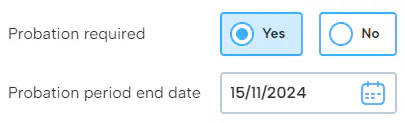
Probation refers to the probationary period set at the start of employment or potentially at the start of a new role.
This is found in the employment tab of an employees profile in the role information section.
- An email notification is sent.
- A notification will be sent 7 days before expiry date.
- A notification will be sent on the day of expiry.
- A notification is sent to all admins and the manager(s) of the employee.
Passport Expiry
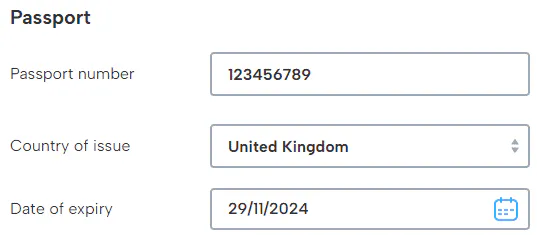
Passport expiry can be found under the sensitive information section in the employment tab.
- An email notification is sent.
- A notification will be sent 30 days before expiry date.
- A notification will be sent 7 days before expiry date.
- A notification will be sent on the day of expiry.
- A notification is sent to all admins and the manager(s) of the employee.
Driving Licence Expiry
Driving Licence Expiry can be found under the sensitive information section in the employment tab.
- An email notification is sent.
- A notification will be sent 30 days before expiry date.
- A notification will be sent 7 days before expiry date.
- A notification will be sent on the day of expiry.
- A notification is sent to all admins and the manager(s) of the employee.
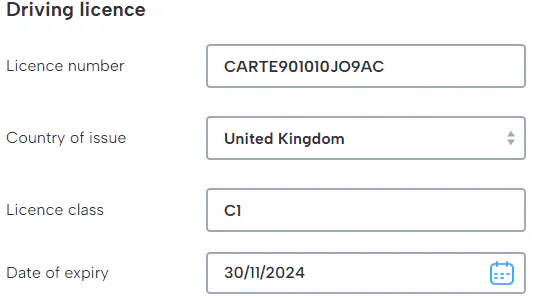
Visa Expiry
Visa expiry can be found under the sensitive information section in the employment tab.
- An email notification is sent.
- A notification will be sent 30 days before expiry date.
- A notification will be sent 7 days before expiry date.
- A notification will be sent on the day of expiry.
- A notification is sent to all admins and the manager(s) of the employee.
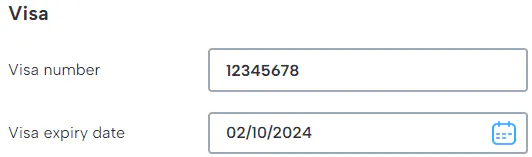
DBS check
A DBS (Disclosure and Barring Service) initial date can be set and a follow-up date added. This can be found under the sensitive information section in the employment tab.
- An email notification is sent.
- A notification will be sent 30 days before expiry date.
- A notification will be sent 7 days before expiry date.
- A notification will be sent on the day of expiry.
- A notification is sent to all admins and the manager(s) of the employee.
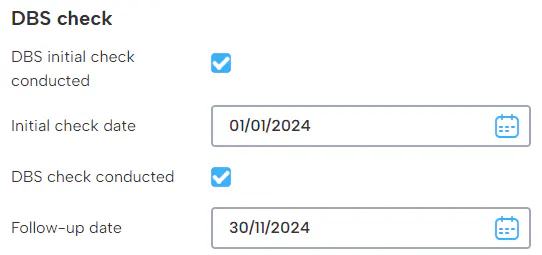
Working time pattern
A working time pattern is used for a fixed employee to allocate their working times and can be applied via the contract summary under the employment tab of the employee profile.
- An email notification is sent when the change is made.
- A notification is sent to all admins, the manager(s) of the employee as well as the employee themselves.
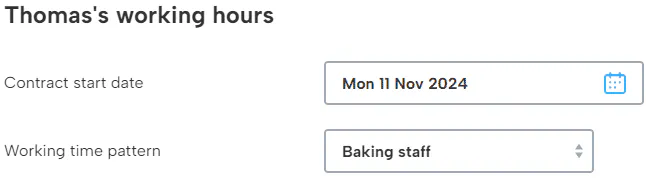
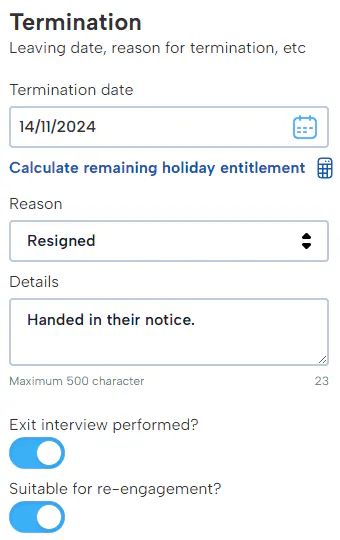
Termination is a date you can set for when the employee is set to leave. You will set a date which will immediately archive their profile after midnight for the date entered.
- An email notification is sent.
- A notification will be sent 30 days before termination date.
- A notification will be sent 7 days before termination date.
- A notification is sent to all admins and the manager(s) of the employee.
Right to work expiry
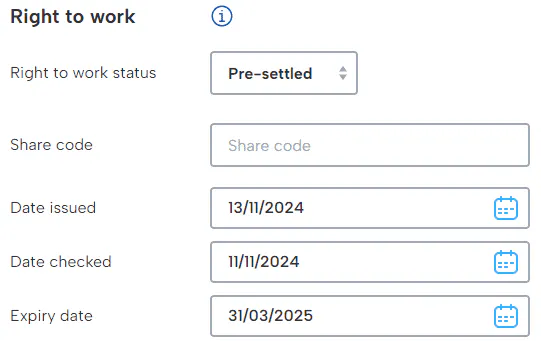
These fields only apply to EU and overseas workers. Information can only be recorded if volunteered by the employee.
An expiry can be entered if the status is pre-settled.
- An email notification is sent.
- A notification will be sent 7 days before expiry date.
- A notification will be sent on the day of expiry.
- A notification is sent only to all admins.
Personal Details
Birthdays
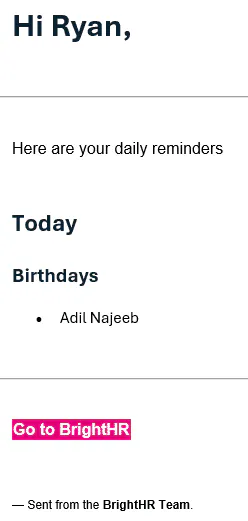
If a date of birth has been entered with at least 7 days in between the current date and the employees birthday, a notification will be sent to remind you!
- An email notification is sent.
- A notification will be sent 7 days before the birthday.
- A notification will be sent on the day of the birthday.
- A notification is sent to all admins and the manager(s) of the employee.
This can be disabled in settings.
Personal details
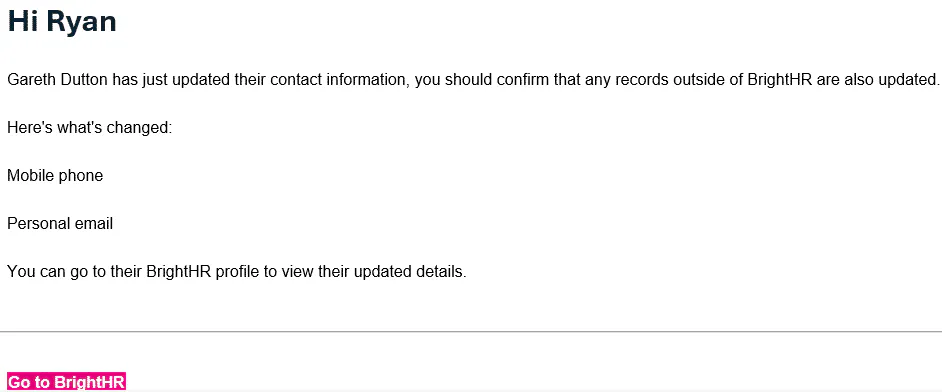
A notification is sent whenever an employee makes a change to their contact information or address details under the personal tab of their profile.
- An email notification is sent immediately when the change is made.
- A notification is sent to all admins and the manager(s) of the employee.
- Separate notifications stating what was changed under categories of contact details and personal details.
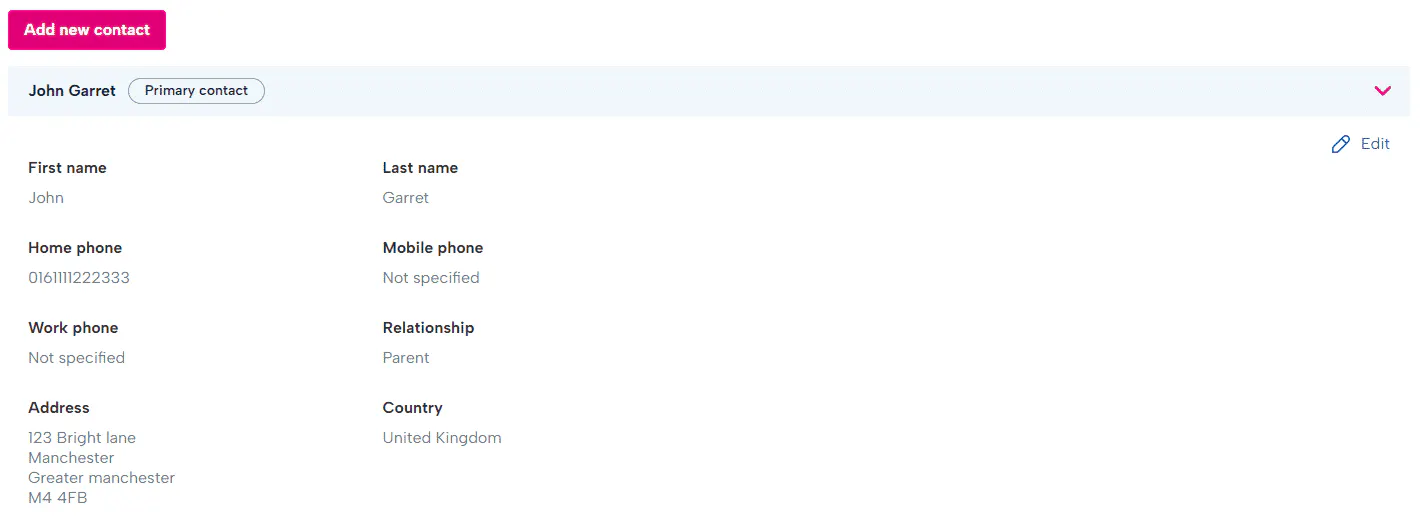
Emergency contact
An employee can add up to 2 emergency contacts on BrightHR and we understand it is important to have at least one contact. There is a tab in the employee profile specifically for recording emergency contacts.
- Notification email and push notification received when new emergency contacts are added.
- Daily notification emails include employees who are missing at least 1 emergency contact.
Document Notifications
Notifications are received in relation to documents that have specific actions required as well as when the document is uploaded, if the option to notify has been selected.
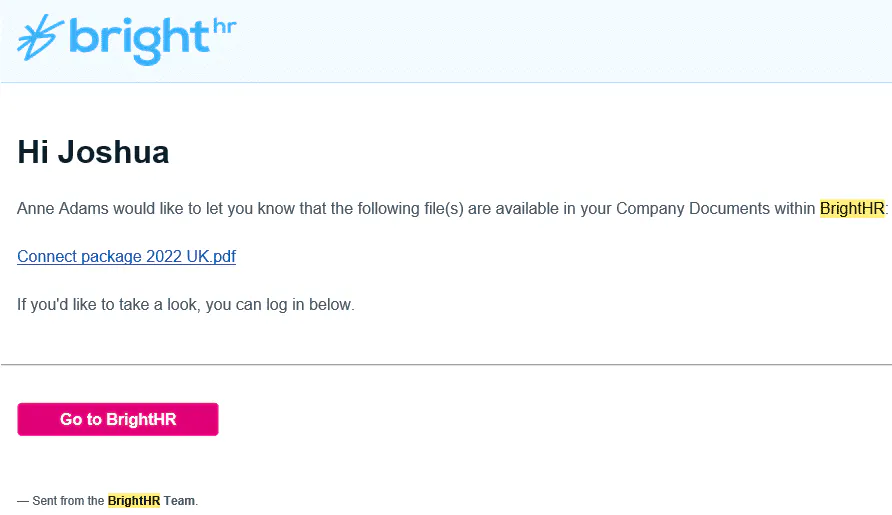
Notify of upload
If selected, the notify of upload will send a notification to make the users who have access aware that you have uploaded a document they can access.
- A notification email as well as a notification through BrightHR and the app is received immediately when the document is uploaded either in an employees folder, or in the company folder.
Read receipts & acceptance
When you upload a document whether that be for an individual employee, a group of employees or the whole company, you will be given the option to set a read receipt as well as an acceptance of the document. These tasks are backed by notifications to remind users of the actions they need to take with the uploaded document.
- A notification email as well as a notification through BrightHR and the app is received immediately when the document is uploaded with a request for read & acceptance.

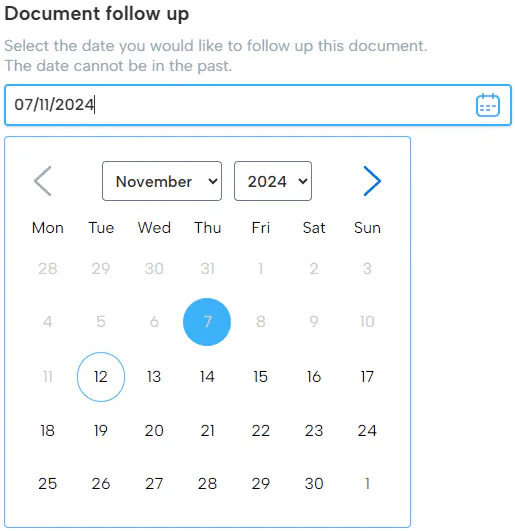
Document follow-up expiry
When uploading a document, one of the options you can add is a follow-up date which will send notifications based on this.
- A notification is sent by email and a notification on BrightHR as well as the app.
- Notification received 7 days before expiry.
- Notification received on the day of expiry.
- Notification when overdue every 7 days on daily notifications.
Rota Notifications
Notifications for rotas will not only inform the employee of assigned shifts or shift changes, it can also serve to notify the creator of the rota if an open shift is accepted for example.
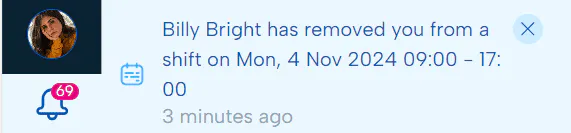
When a shift is assigned, amended, or deleted
Whenever a change is made to a shift you're assigned to, you will receive a notification. This only applies to rotas that have been published.
- Push notification only.
- Sent immediately when change made to a published rota.
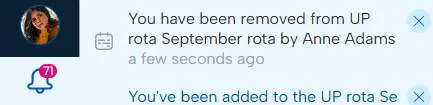
When the rota is created, amended or deleted
After being assigned to a rota, a notification is sent as well as any changes to the rota too.
- Push notification only.
- Sent immediately when change made to a published rota or if deleted.
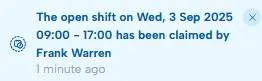
When an open shift is claimed by an employee
Once an open shift has been accepted by an employee, admins and managers of the employee will receive a notification to confirm.
- Push notification only.
- Sent immediately when the shift is accepted.
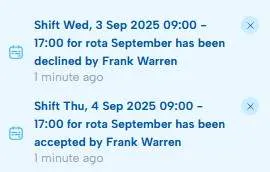
Shift accepted / declined by employee
If you have selected an employee to accept / decline shifts, you will receive notifications when they're accepted or declined.
- Push notification only.
- Sent immediately when the shift is accepted.
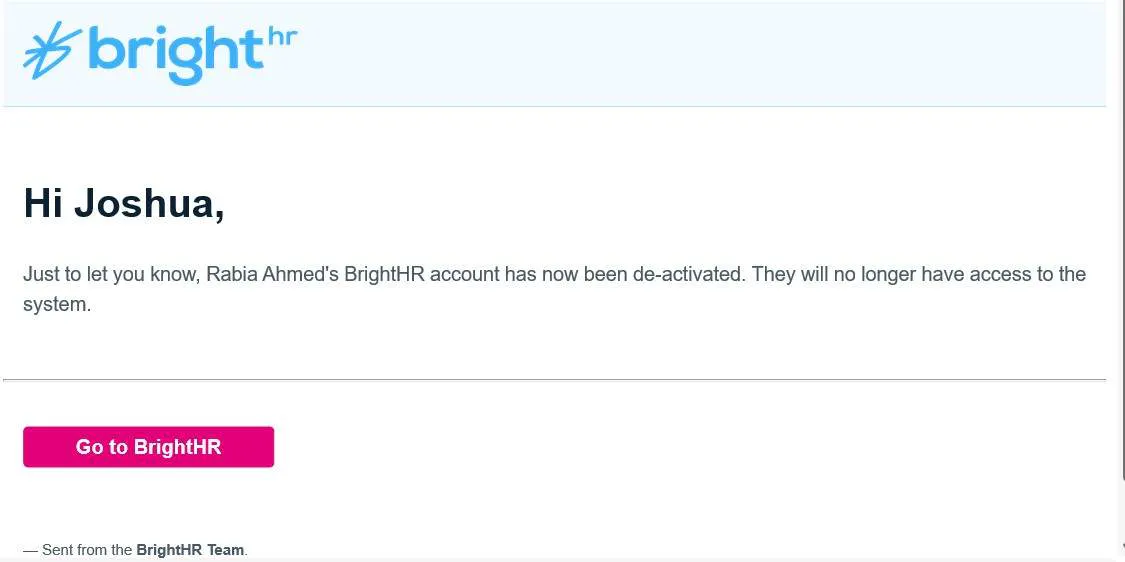
Employee has been terminated
After an employee has been terminated either by yourself, an other admin or manager, you will receive a notification.
- A notification is received after the termination date has passed.
- An email notification is received only.
Absence Notifications
Most likely the most common notification type you will see are for absences. Let's explore what you will get notifications for.
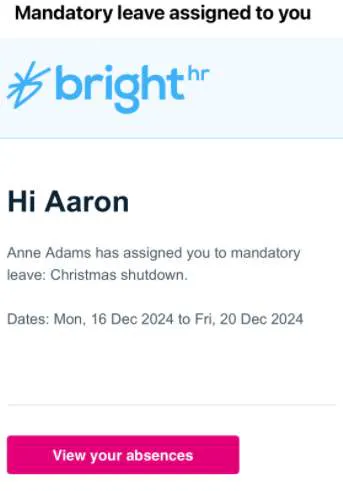
Mandatory Leave added / deleted / unassigned
Mandatory absences can be assigned by the system admin and will generally be absences during a shutdown period.
These absences can be set to deduct or not deduct from your entitlement.
Fit note request
When a sickness has been added and a fit note requested, the employee will receive a notification to let them know they need to provide this.
- Push notification received via BrightHR only.
- Notification only sent once, immediately when requested.

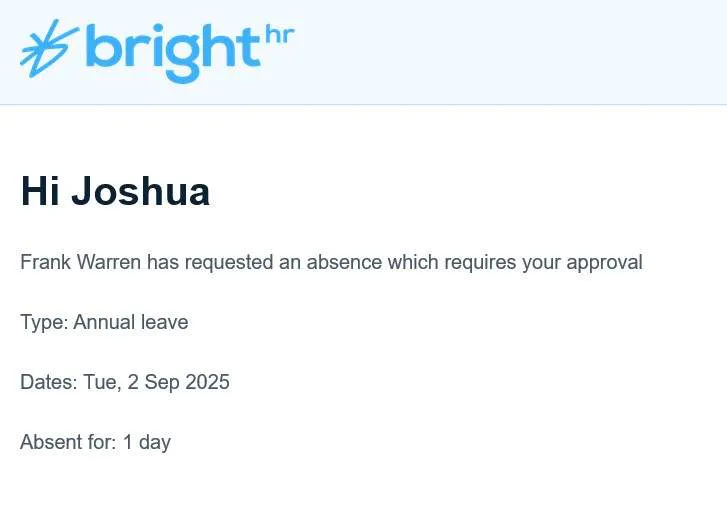
Absence requested / edited by Employee
When an absence is requested or edited by an employee, a notification is sent to their manager and any admins. Additionally, the employee will receive an email confirming their absence request.
- Push notification received immediately.
- Email notification received immediately.
- Employee email confirmation of request received immediately.
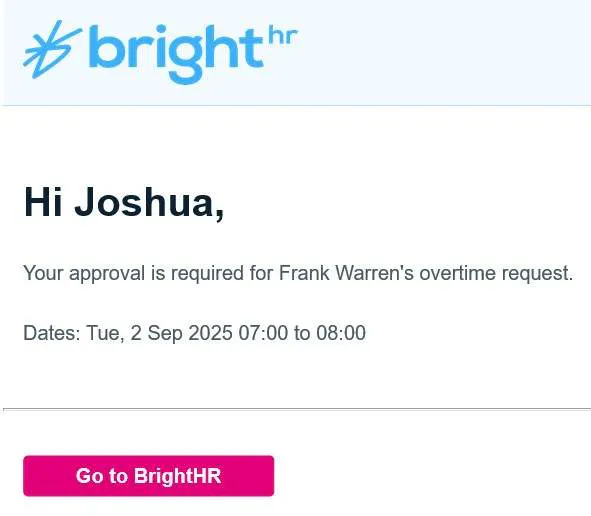
Overtime
When overtime is requested by an employee, a notification is sent to their manager and any admins. Additionally, the employee will receive an email once their overtime request is approved / declined.
- Push notification received immediately.
- Email notification received immediately.
- Employee will receive a push notification & an email notification when approved / declined.
Learning Management Notifications
Next, let's take a look at the notifications you will receive when E-Learning is assigned to you.
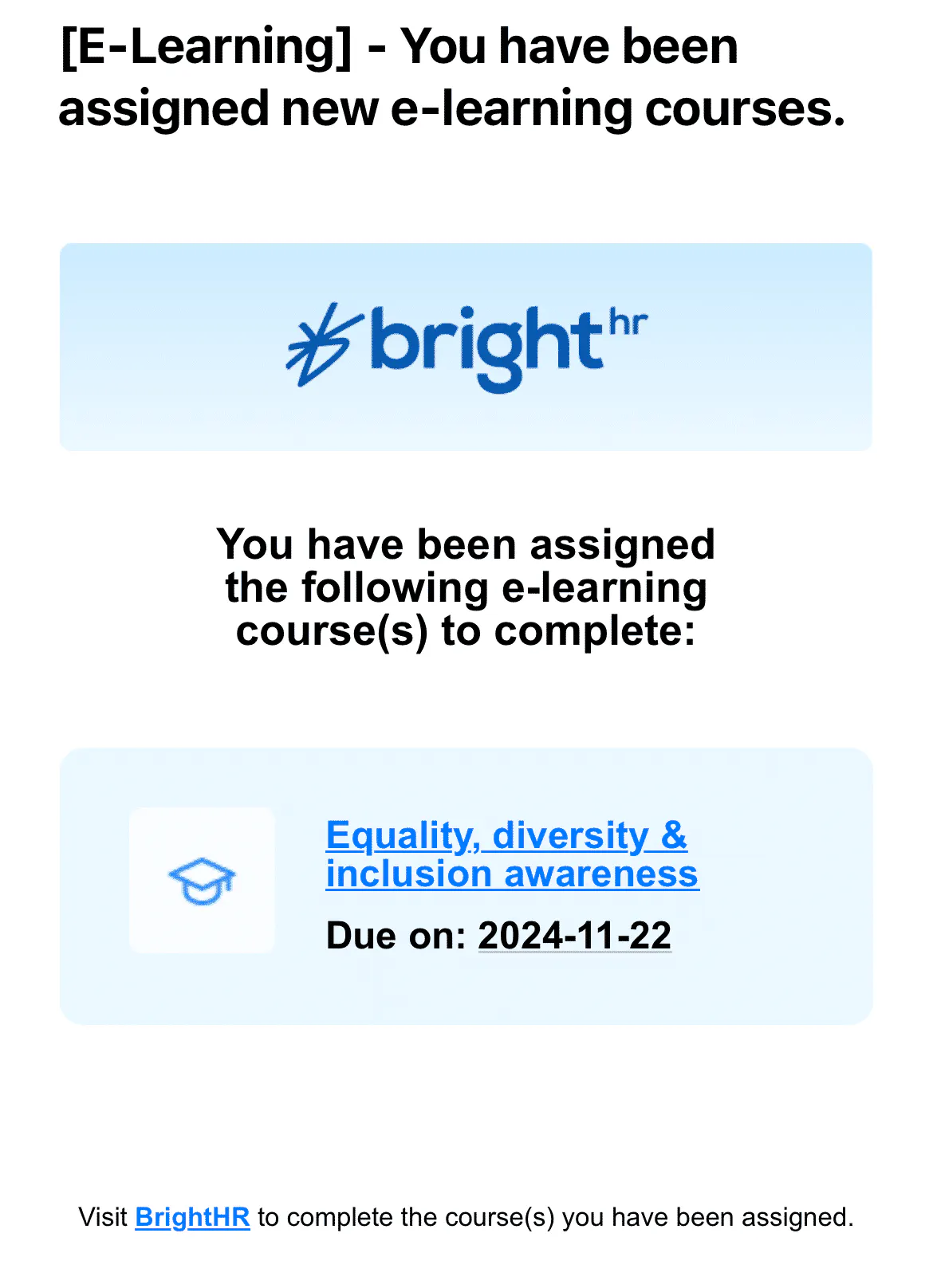
E-Learning course assigned
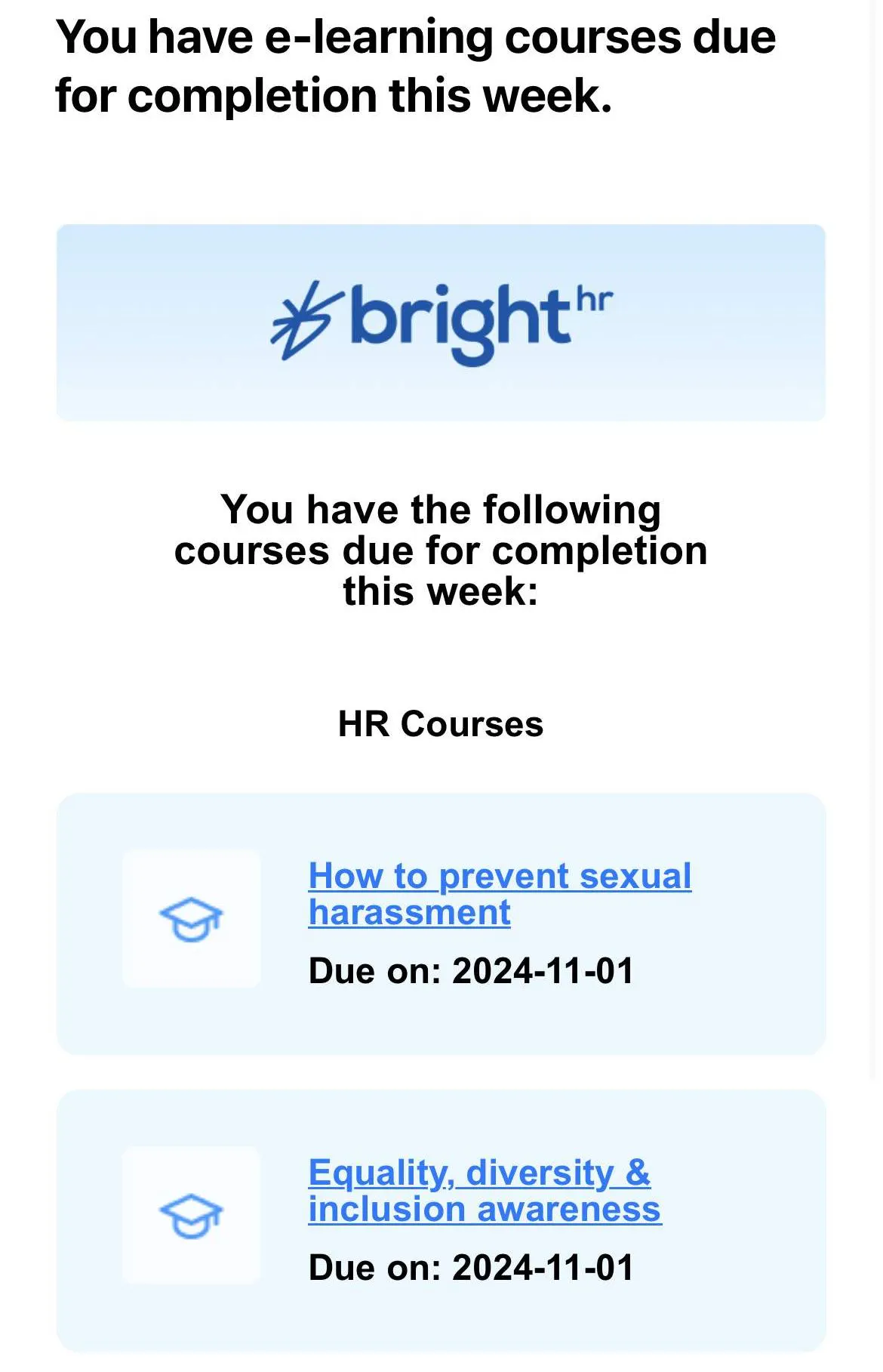
When a course is assigned, BrightHR notifies you to let you know it has been assigned and is due for completion.
- A notification email is sent when an E-Learning course is assigned to you.
Reminder when due dates are outstanding
To keep on top of your assigned courses, you will receive a notification when they're due to be completed so you don't miss the deadline.
- An email is sent at the start of the week (Monday) when the course is due to be completed.
Performance Management Notifications
Let's take a look at performance related tasks when assigned, updated and completed.
Goal created / completed
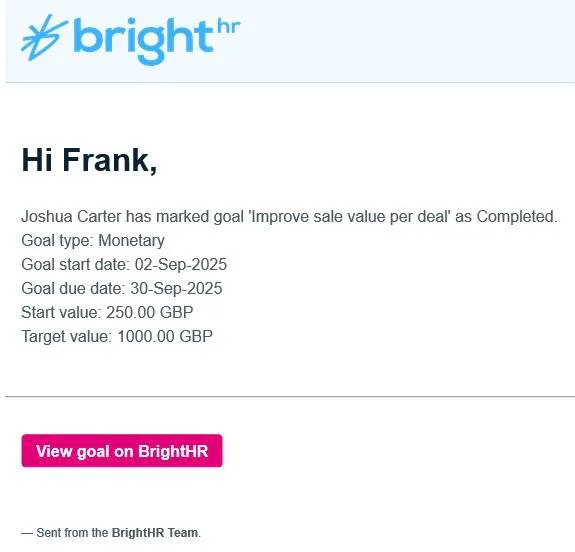
When a goal is created or completed, you will be notified of the new goal and when it has been completed.
- Push notification is sent immediately.
- Email notification is sent immediately.
Performance reviews
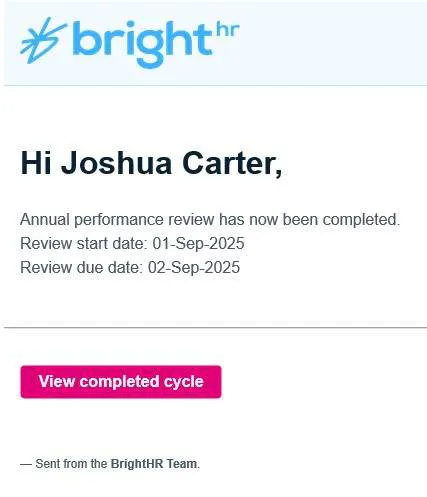
When a review cycle is added for one of your managers or even yourself, a notification will be sent to confirm it has been assigned. Once the review questions are complete for the manager, the employee will receive a notification and vice versa. Once the review has then been completed by the manager, a notification will be sent to the admin who created the cycle as well as the employee.
- A push notification is sent to the employee and manager when the review cycle is created.
- An email notification is sent to the employee and manager when the review cycle is created.
- A push notification is sent to the creator of the review cycle when the manager submits their review.
- An email notification is sent to the creator of the review cycle when the manager submits their review.
- A push notification is sent to the manager when an employee submits their review.
- An email notification is sent to the manager when an employee submits their review.
- A push notification is sent to the employee, manager and the review cycle creator that the review has been completed.
- An email containing a download link for a PDF copy of the review is sent to the employee (they can print and sign this).
- A confirmation email is sent to the manager when the review has been completed.
- A confirmation email is sent to the admin when a review cycle has been completed.