- ...>All about Recruitment and your Payroll Console
All about Recruitment and your Payroll Console
Learn how BrightHR’s recruitment and payroll tools streamline applicant tracking, payroll navigation, reporting, overtime management, and employee information checks—all in one easy‑to‑use console designed to simplify HR processes.
Recruitment and Payroll
In this handy guide we will take you around our recruitment and payroll tools which support in the recruitment and payroll process.
Track your applicants and position status with our recruitment tracking tool and navigate all payroll-related content held on BrightHR, all in one place for your convenience.
The Payroll Navigator
Want to make payroll within your business easier? BrightHR's payroll navigator is here to help!
With BrightHR's payroll navigator you'll get access to some handy features that will help make managing payroll within your business easier than ever.
Payroll Permission
Let's start with the basics, who can access the Payroll Navigator?
The Payroll Console
From the payroll console, you'll find: 1. A handy count of any absence requests that are awaiting approval, so you can ensure any absences included within your payroll period are up-to-date. 2. A count of the number of employees that have missing information on their profile so that you can ensure that all the details needed for payroll are to hand and included in your payroll reports. 3. Details of employees with the payroll permission to give you peace of mind that all of your employee's payroll information is safe and secure on your account. 4. Our payroll reporting tool. Allowing you to generate all of the reports you'll need for payroll - in a few simple steps! 5. Your payroll report archive so that you can refer back to any reports that you've generated within the last 90 days. 6. The overtime tab will allow you to view any pending to be paid or already paid overtime requests, as well as revert them back to pending.
Generating Payroll Reports
Generating payroll reports is super simple, all you need to do is head to the 'Payroll Reports' tab at the top, select your payroll period, choose which reports you need for payroll, and hit the 'Generate payroll reports' button.


The Information Checker
From an employees payroll number to their pension contribution details in the 'Information checker' tab at the top of the payroll navigator, you'll find all of the employee information needed for payroll in one place.
Even better - if an employee has missing information this will be highlighted in orange. So that you can ensure your payroll reports include all of the details needed and make payroll a breeze!
Overtime
From this section, you can easily mark overtime that has been logged and approved as paid, and even set a payment date for it!
It's super simple to do this, just head to the overtime entry you'd like to set as paid, set a payment date for it and hit the 'Mark as paid' button. Or, click the checkbox next to multiple entries to set payment dates in bulk.
Made a mistake? Don't panic! You can just as easily revert overtime back to a pending state, just filter your overtime records to 'Payment date set' and click undo next to any of the entries you want to revert.
The Glossary
We've even put together a glossary of key terms that may come in handy for payroll in your business, just open up the 'Payroll Glossary' tab to access it.
Managing Recruitment
Tracking recruitment couldn't be easier with the Turbo talent navigator.
Create new job openings and add new applicants like a pro in a few simple steps.
Recruitment Permissions
Let's start with the basics, who can access the Turbo talent Navigator?
Please note - only admins will be able to assign permissions on the Turbo talent navigator.
My Recruitment
From the My recruitment section, you'll find:
- A handy count of any jobs you have created that are unfilled or have been filled.
- The option to create a new job opening and view all previously added in the Turbo talent navigator.
- A job description template can be downloaded to help you create the perfect job description.
- Our Handbook for holding a recruitment interview wont steer you wrong when preparing to hold interviews to choose your perfect candidate.
- Once you have chosen the ideal suitor for your new job opening, make the right first impression with our Offer letter template!
- Our HR AI will give instant help with any employment questions you have so you can confidently breeze through the recruitment process.
Adding a new Job Role
Creating a new job opening couldn't be easier! Include all of the important details in a few simple steps - making sure you have all the right information documented!
Add applicants, record a trail of changes from the application all the way to being hired.
If you need help with deciding the salary amount for a particular role, click here to use our salary calculator!
Adding Applicants to your Job
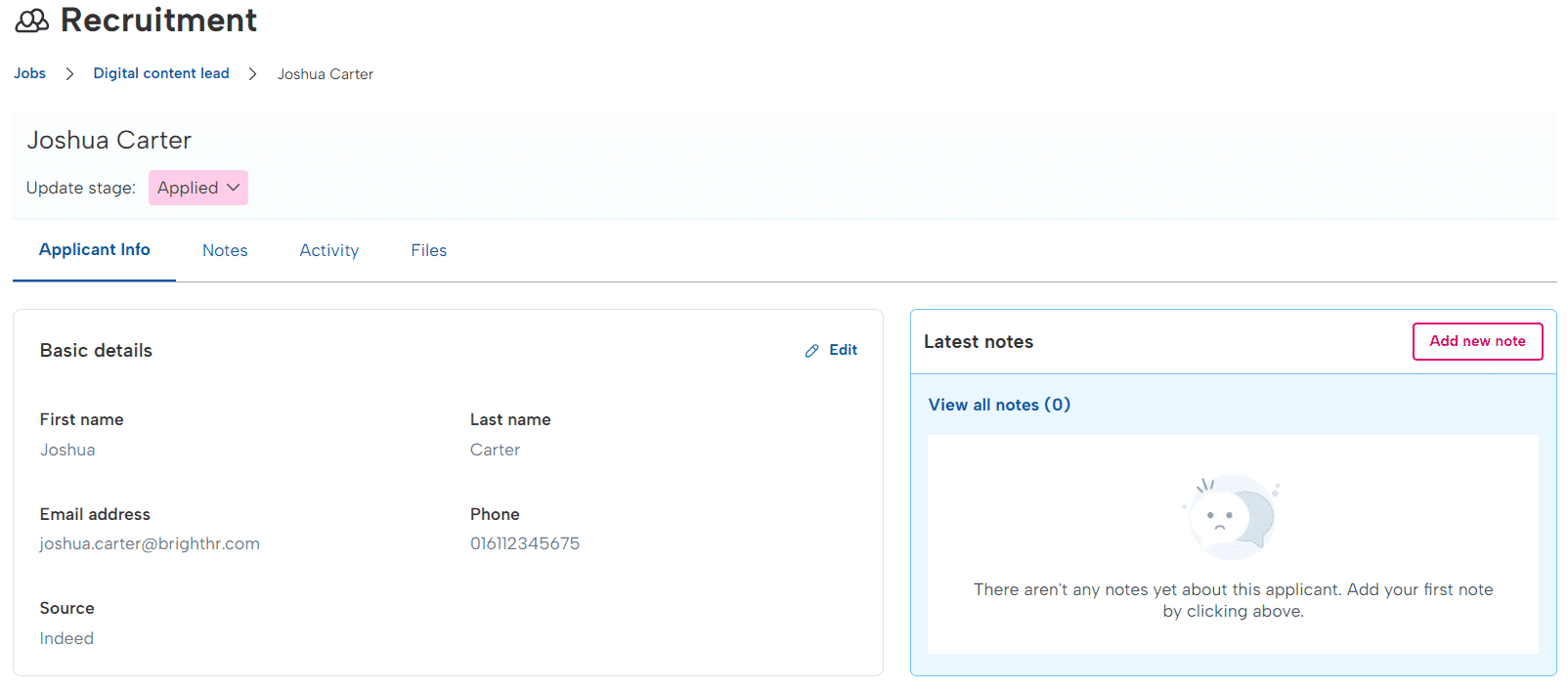
The most important part of recruitment is of course, the applicants - your potential new employee's! Easily add and track where an applicant is up to as well as upload important documents such as CV's or cover letters.
View details for your applicant and even add important notes!
Adding them to BrightHR
After you have updated them has having been sent the offer, you will be given the handy option to set them up on the BrightHR system tying the recruitment process to the beginning of employment.

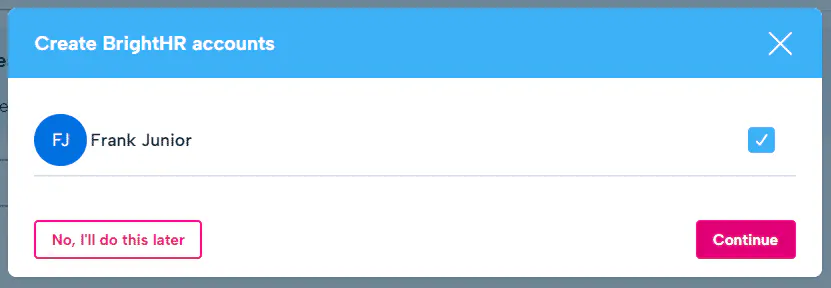
BrightHR will even start the setup with all the details you entered during the recruitment process to get you off to a head start!
After the Job has been Filled
Once you have picked the lucky candidate who will be joining your business, you will want to record that the job has been filled.
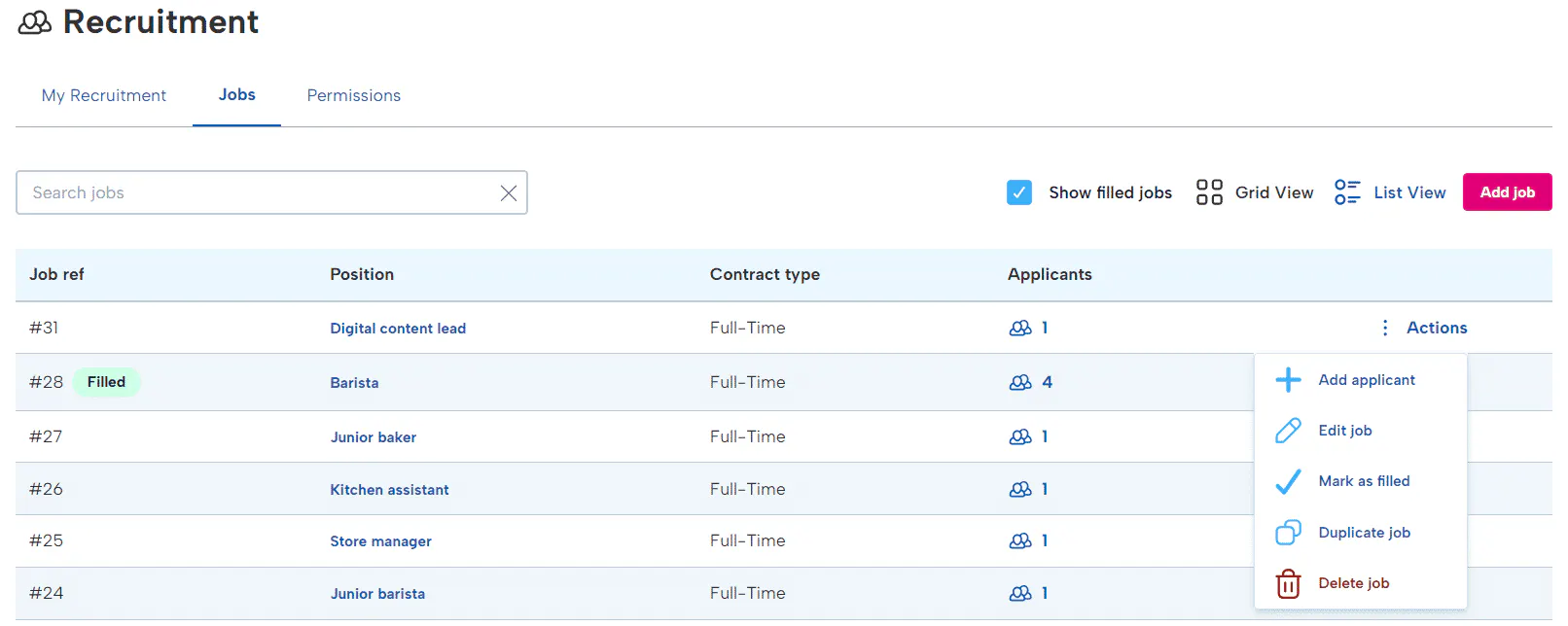
You can mark the position as filled once all positions have been offered.