- ...>All about Setting up your Employees and Teams
All about Setting up your Employees and Teams
This BrightHR setup guide explains how to add employees, define working time patterns, set up teams, and build organisational charts. It provides step‑by‑step instructions for configuring employee profiles, managing working hours, applying public holiday rules, and structuring teams for accurate HR administration.
Employees, Teams and Organisational Charts
In this handy guide you will be taken through the process of setting up your employees and your teams to get started with BrightHR.
As a bonus, we will even walk you through how you can create your very own organisational chart.
Setting up your Employees
Welcome to BrightHR! In this first lesson, we'll cover the basics of getting started with BrightHR.
All you need to do is follow each of the interactive steps and you'll have your new account set up in no time.
First Step
The first step to setting up BrightHR is adding your employees to the system, then you'll be able to add things like documents, holidays and shifts for them.
You'll need to have these details for your employees to hand:
- Start date.
- Email address.
- Working hours.
Employee Types
Fixed
Fixed employees will follow a working pattern - this can be as straight forward as a Monday - Friday 9AM - 5PM or you can create more flexible patterns such as a 4 days on / 4 days off, one weekend on / one off, split shifts etc.
Variable
Variable employees will work different days and hours every week. i.e. Employee works 20hrs per week but the days they work varies each week.
How do I Set up my Part-time Employees?
If the employee is part-time but works the same hours/days each week (i.e. 9 am- 1 pm Mon, Wed, Fri) they would be added as a regular worker.
If the days they work vary from week to week, they'd be added as a variable employee.
Creating a Working Time Pattern
If you have selected the above profile type as 'Fixed', you will need to create a working time pattern which will allow you to tell BrightHR what their working days / hours are from week to week.
You can set them up via settings or you can set them up using the add option next to the working time pattern field when adding your employee.
Creating a Standard Pattern
If an employee works the same shift from week to week, a working pattern can be simple to create.


First of all, you will need to give the pattern a name to identify it such as "Mon-Fri 9-5".
You can also set the pattern as a default for new fixed employees you add to BrightHR as well as copy the settings for an existing pattern.
Finally, select the start date of the pattern - this allows the system to set a starting day / date from which to repeat from.


Next, you can set up the days they work as well as the start and finish times.
Click the boxes next to a day to select or unselect it and click the clock icons to adjust the start and finish times.
Please note, break duration will deduct from their overall working hours and is intended for unpaid breaks only.


Finally, you will need to select how you would like the public holidays to be applied to the employee.
Deducted will apply them as automatic public holidays that will be deducted from their overall leave.
Not deducted will still apply them automatically as absences, but will not remove the days from their leave.
works public holidays will not apply the absences at all and will give you the freedom to add them manually.
Working patterns can either be assigned during setup or later on for example if their pattern changes, this can be updated via their profile in their contract summary which will be covered later in this guide.
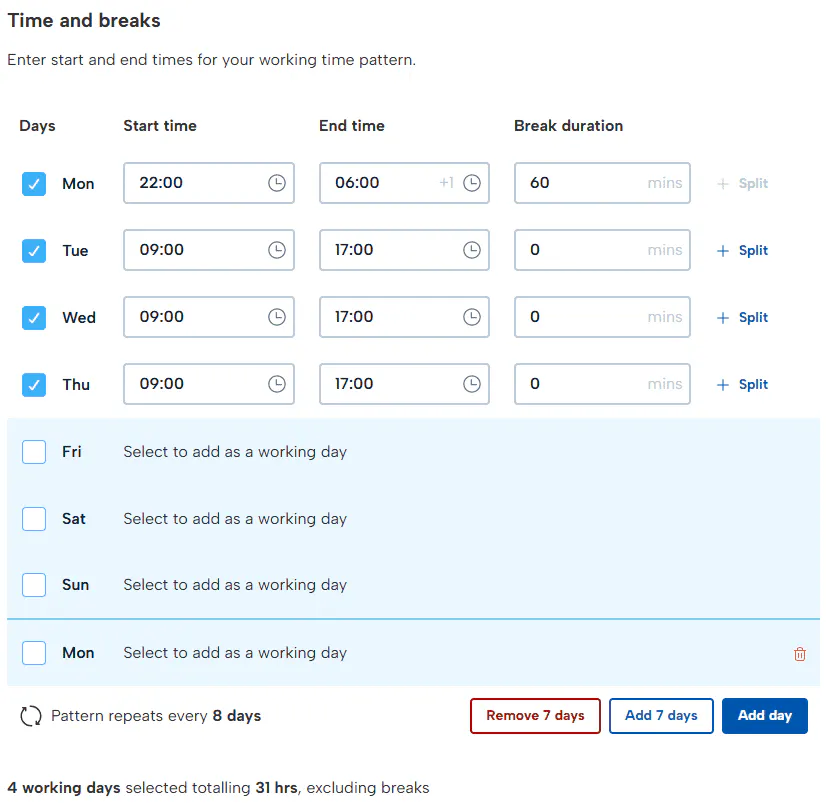
Creating a Night Shift Pattern
To create a night shift on a working pattern, you can follow the same process as above but simply add the start and finish of the night shift.
The working pattern will then display a +1 next to the end time to indicate the shift will end on the day after it started on.

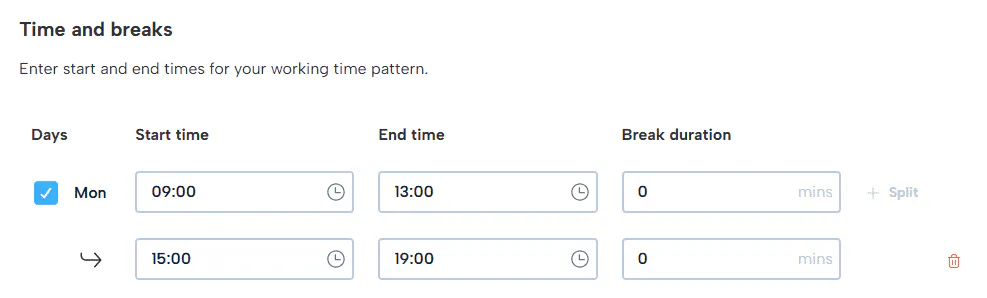
Creating Split Shifts
Adding a split shift is simple! click the '+ Split' option next next to the day which will add a 2nd shift to that day below the first. Add the start and finish times of both shifts.
Creating a Flexible Working Time Pattern
If you need to create a more flexible working pattern, you can follow the same process and use the options to extend the pattern. You could use the option to create a pattern that has a slight variation from week to week such as working a Saturday every two weeks simply add another 7 days and add the Saturday shift to the 2nd week to instruct BrightHR to repeat this.
A more complex flexible pattern may be if your employee works for example a 4 days on and then 4 days off pattern. This will mean their working days will vary from week to week.
The example below shows a 4 day on / 4 day off week.
How to Add your Employees
Adding Fixed, Full, or Part Time Employees
Short Hours or Variable Employee
Bulk Importing your Employees on BrightHR
Make adding your employees on to BrightHR quick and easy using our bulk import option.
Let's get Started Bulk Importing your Employees
- Click on Employees.
- Select Add employees.
- Go to Bulk import employees.
- Download Template.
Why did my Bulk Upload Fail?
The main reason why a bulk upload would fail is due to the format of the spreadsheet being changed before upload.
To ensure a smooth upload with no issues, try downloading the form again and ensuring the sheet is not changed such as columns being re-sized, fields being moved etc.
The only action that is valid on the spreadsheet is the input of your employee data and providing this is all that is added, your upload should be successful.
Have a watch of the issue in action...
Adding Employee Information


You can get started by reviewing the information uploaded via the bulk import template.


- Select your jurisdiction for the public holidays.
- Add your place of work (select pre-existing or add new) based on the jurisdiction.
- Select the employee type (Fixed or Variable).
- The company's full time working week.


If you have selected your employee type as fixed, you will need to enter: 1. Working time pattern (select existing or add new). 2. Company's full time working week.


Next, you will need to enter: 3. Entitlement unit (days or hours). 4. Full time annual leave entitlement equivalent. 5. Leave year start date the system will then make calculations for:
- Leave entitlement (a calculation based on a full year)
- Leave allowance (A calculation for the current year which would only be different if the employee started part way through the year).


Any missing information will be flagged before you can save and continue.


Copy employment details by selecting the copy record option and selecting which fields you wish to duplicate to another employee.


Once you have completed all steps you will get a breakdown of all successfully added employees and any that have failed - you can also see which sections you skipped on the import template.


Finally, you will be able to select and deselect who you want the registration to be sent to.
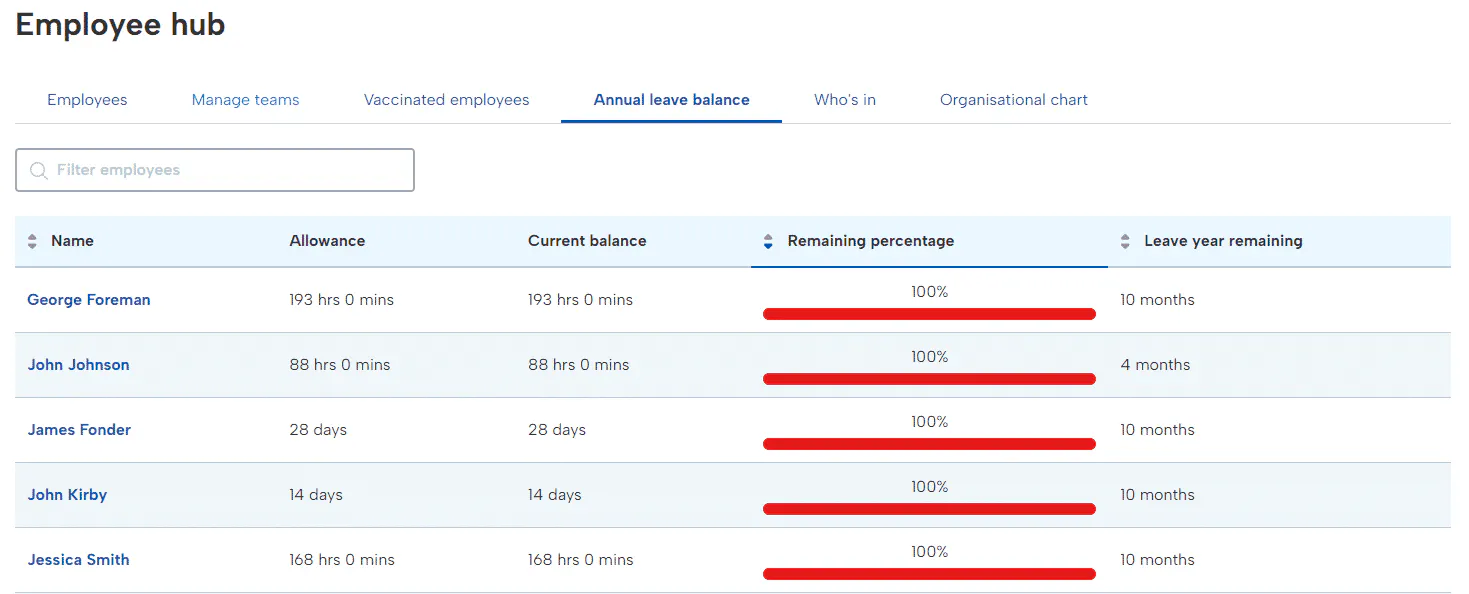
Annual Leave Balances
Annual leave entitlement is important to employees and as such important to maintain and keep on top of.
With our annual leave balance summary, keep on top of this all in a single glance.
- View your employees allowance and remaining balance.
- An easy on the eyes percentage remaining bar for each member of staff putting things in perspective.
- A breakdown of how long of the leave year is left in months to give you an idea of how much leave your staff have taken or need to take.
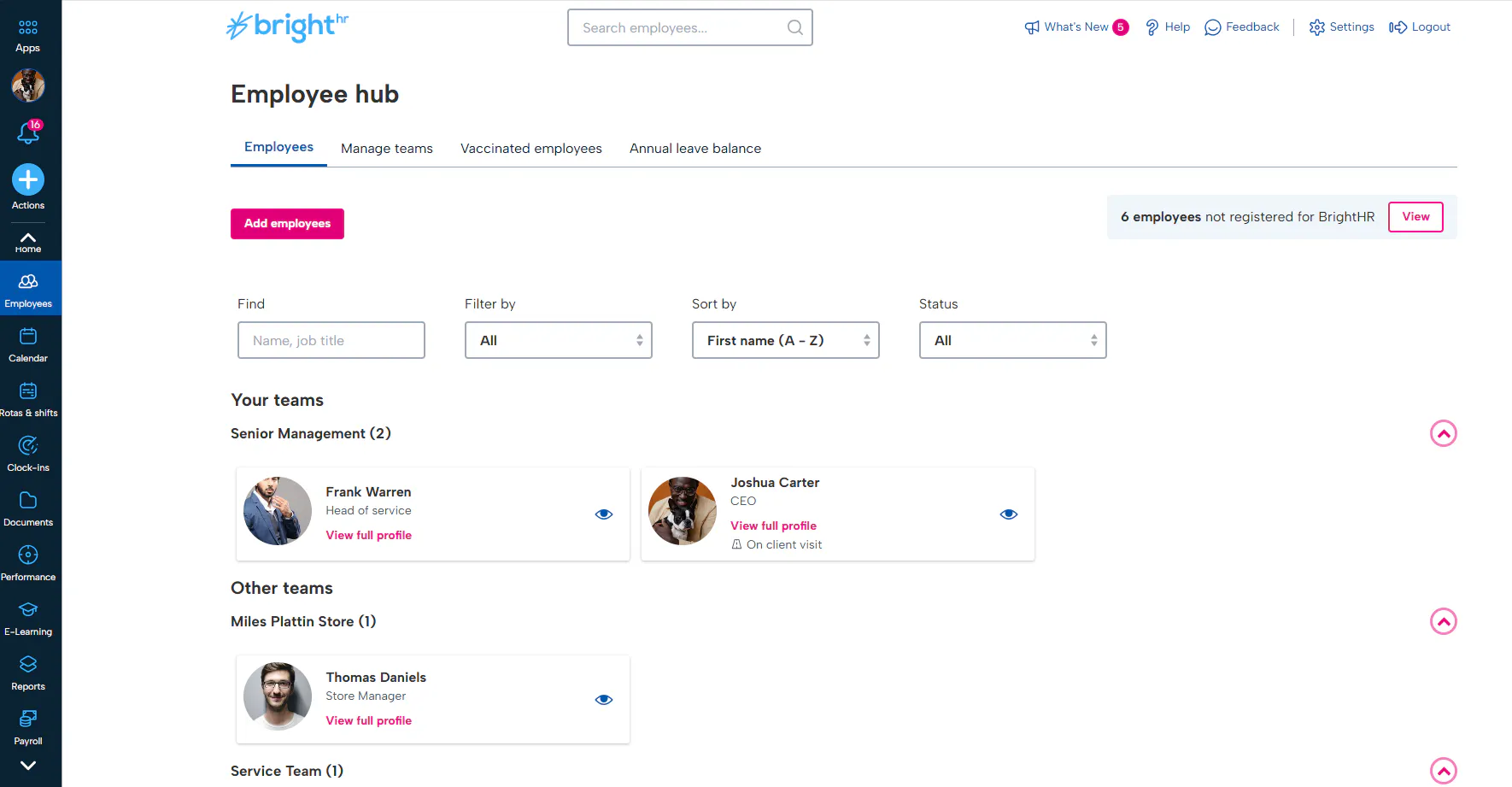
Now that you've added your employees to the system they will all have their own profile on your BrightHR account, with employment details & a holiday entitlement specific to them.
To view employee profiles at any time just head over to the 'Employees' section of your account and click 'View full profile' on the employee you want to see details for.
All About Teams
In our next lesson, we will be covering everything you need to know about setting up teams and what this means for your employees.
Creating Teams
Once you've created your employees the next step is to group them together using teams. When you create a team, not only does it make finding an employee in your employee hub easier, but it also allows you to see holiday conflicts between employees in the same team, assign manager access to a team with a click and filter absences in your calendar to see who's off at a glance!
Top Tip! Create teams that suit your business. You could create teams based on departments, who the employees report to or even different sites you have.
Now that you know all about teams, let's get started. Here's a handy video from our How-to-Hub, Watch below to see how easily you can create a team on your account.
Building Your Organisational Chart
In this lesson, we'll learn how to create and build your own organisational chart visible to your company in a few simple steps to showcase your reporting lines and hierarchy.
Starting your Organisational Chart
First, you will need to ensure the feature has been enabled in the 'BrightLabs' section in settings.

Once enabled, you can find the function as one of the tabs available in the employees section. Click 'Create your chart' to begin.
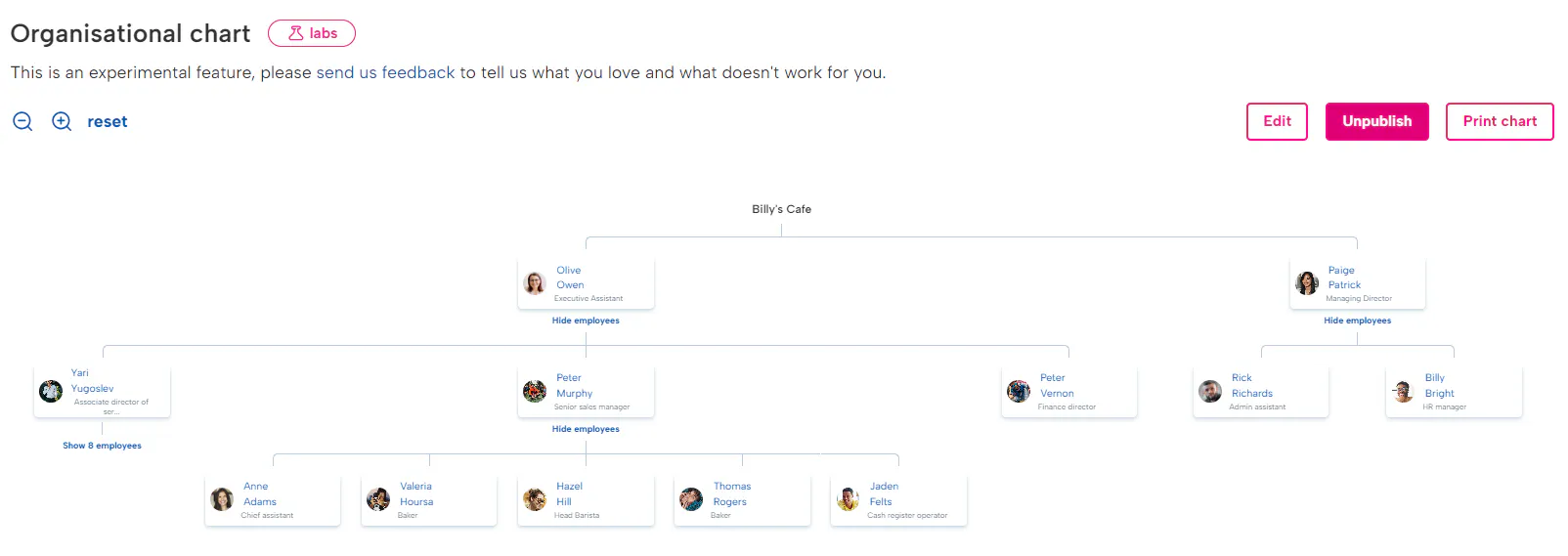
You can print or download a copy of your organisational chart using the 'Print chart' button.
How to Create your Organisational Chart
Check out our how to video below to see just how easy it is to create your own organisational chart in a few minutes.
The organisational chart does not mean you have assigned your employees to report to their manager and this would need to be assigned in the permissions section of settings.