- ...>Everything you need to know about Bright Safe
Everything you need to know about Bright Safe
Everything you need to know about BrightSafe
We've put together this handy step-by-step course to help you make the most of BrightSafe's time-saving features. Just follow each of the interactive steps to get the most out of your account and find out some of our BrightSafe top tips along the way!
Getting Started
Introduction
What is BrightSafe?
BrightSafe is our easy to use Health & Safety management software that helps you keep on top of all your H&S tasks, so you can protect your people and your business.
Key Features of BrightSafe
With BrightSafe you'll get access to a whole host of features allowing you to:
- Create and manage Risk assessments to HSE standards using our handy template library.
- Add tasks for yourself and your staff to help you manage control measures and reduce potential hazards within your workplace.
- Record accidents with a click and carry out investigations to reduce risks and protect your people.
- Securely store policies and documents in one easy to find place with our unlimited document storage.
- Access a variety of CPD accredited E-learning courses and share these with your employees to make H&S training even easier.
Now that you know a little more about BrightSafe, let's get started!
Your BrightSafe Dashboard
When you log in to BrightSafe the first thing you'll see is your dashboard, this gives you a handy breakdown of any key H&S information and tasks that are upcoming.
Let's take a tour of the dashboard...
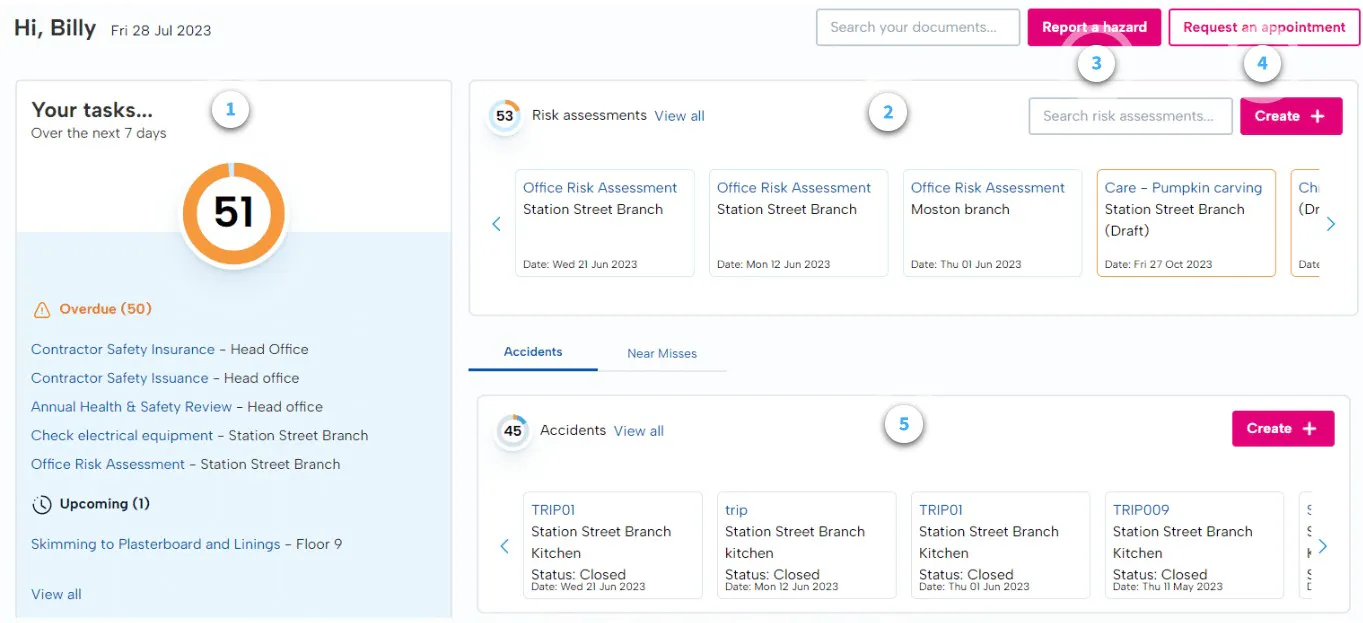
Tasks See whether any tasks are upcoming or overdue, at a glance, in the handy tasks section.
Risk Assessments View, search and add risk assessments directly from your BrightSafe dashboard in the Risk assessments section.
Hazards Click here to quickly report a hazard right from your dashboard!
BrightSafe appointment Request an appointment with a BrightSafe advisor for any health & safety questions you have!
Accidents Keep an eye on accidents reported within your business and record new ones straight from your dashboard in the accidents section.
Getting to Grips with Permissions
First Step
So that you can share E-learning courses with your employees, assign tasks to them and record accidents the first thing you'll need to do is get your employees set up on BrightSafe. Don't worry- it's easier than it sounds!
Once you add your employee's to BrightHR they'll automatically show on BrightSafe, so you won't have to spend hours adding the same information. We've done this for you.
Adding Employees Not added your staff to BrightHR yet? No problem, check out this handy how-to-video below that'll show you how to get started.
Setting up Permissions
Now your employees are added you can start to set up permissions for them. There are three different permission types on BrightSafe; Employees, Users and Admins.
As the main contact for your account, you will automatically be set as an admin and have full access to the account. When you add an employee they will be set as having employee access unless you choose to give them additional access.
Admins hold all the power. They can access all areas within BrightSafe. There’s nothing they can’t do—they’re your superusers.
Admins can:
- Create and review risk assessments.
- Report accidents and near misses within the company.
- Change user permission types.
- Upload and manage documents for the company.
- Create and re-assign tasks for all employees.
- Access and complete E-learning courses.
- Update users and other admins as a learning manager to manage E-learning assignment and reporting.
Additional Permissions
Responsible Person
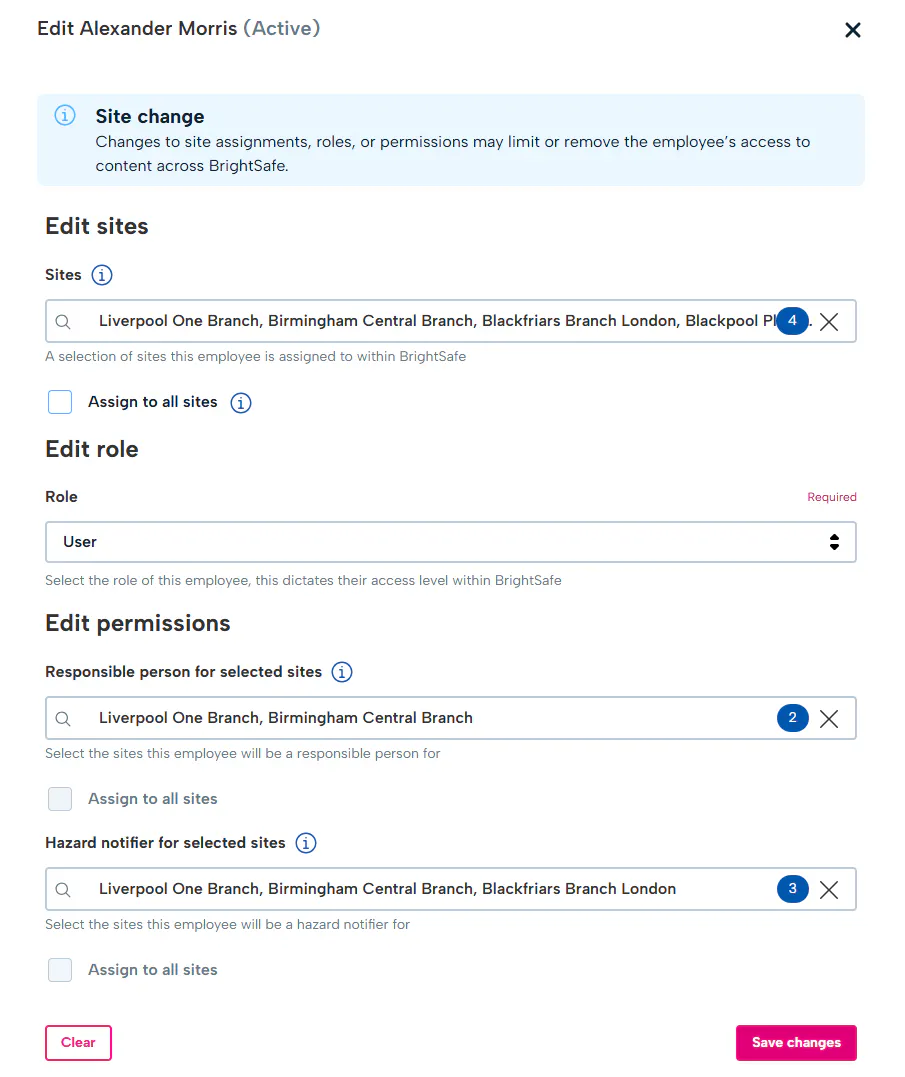
On top of these permissions, you can also set Users and Admins as a 'Responsible Person'. When you set someone as a responsible person this gives them access to complete a follow-up investigation on BrightSafe for any accidents reported within the business as well as export them, close accident reports after the investigation is complete and delete open accident reports.
Hazard Notifications
In addition, you can also set Users and Admins to 'Receive hazard notifications'. When set this person will receive an email notification when a hazard has been added or closed on your BrightSafe account.
Learning Manager
This setting accessed via 'E-learning' will allow admins, users or employees to assign, access certificates, monitor progress and pull reports on E-learning that has been assigned and completed.
Sites
When setting up 'Users' and 'Admins' you can choose whether to assign all sites to that person or just a specific site.
If you're assigning someone a specific site then this is chosen using 'Places of work' on BrightHR.
Whichever place of work they're assigned to on BrightHR will be the same site they're assigned to on BrightSafe.
Need a little extra help setting up places of work on BrightHR? No problem, just check out this handy how-to video showing you everything you need to know.
Storing H&S Information
Creating Risk Assessments with Ease
Creating Risk Assessments on BrightSafe is super simple and can be done in just a few easy to follow steps.
Creating a new Risk Assessment
All you need to do is click the 'Create risk assessment' button to get started and follow each of the interactive steps to add details of each hazard within your workplace.
Let's go into each section of creating your risk assessment in more detail.
Step 1
Details
In this first section, you'll need to enter some basic details for the risk assessment you're creating including:
- A name for your risk assessment.
- The date you conducted the risk assessment.
- Which site the risk assessment was conducted at.
- The exact room, area or workspace for the risk assessment.
You can also choose to add in a reference for the risk assessment and a task description if needed.
Once filled in just click 'Save and Continue' to move on to the next step.
Step 2
People
In the next section, you'll need to enter some details of the people involved in the risk assessment including:
- Who the risk assessor was.
- Who assisted the risk assessor (if needed.)
- Details of any non-employees.
- Who the people at risk are.
Once filled in just click 'Save and Continue' to move on to the next step.
Step 3
Hazards
In this step, you'll need to enter some details on any hazards. Just click 'Add a new hazard' to get started.
You'll then need to add:
- A name for your hazard, you can either select one from our handy list or type something new.
- Details of the possible harm.
- Any control measures you have in place to prevent, eliminate or reduce the occurrence of the hazard.
Once filled in click 'Add Hazard' to save and add your hazard.
Step 4
Actions
Now that you've added a hazard you add details for any follow-up actions you may need to take.
To add an action just hit the 'Add your first action' button then fill in:
- Your action title.
- Details of the required action.
- Who you'd like to assign this action to.
- The date this action is due to be completed.
Once filled in click 'Add action' to save and add your action, this will also automatically create a task for the assigned person.
Once all your hazards and actions are added click 'Save and continue' to move onto the next step.
Step 5
Review
In this last step, you'll need to fill in some details on when this risk assessment is due to be reviewed including:
- The date of the review.
- Who will be assigned to conduct the review.
We'll automatically create a task for the reviewer so that they know when this is due.
Once completed just click 'Save and complete' to complete and save your risk assessment. A copy of this will also be securely stored in the risk assessments section of BrightSafe so you can always refer back to it.
The Risk Assessment Library
If you don't want to create your risk assessment from scratch or just want to get an idea of what you need to include in your risk assessment we have hundreds of template risk assessments available in your library.
Just head to the 'Library' section at the top, search for a template you want to view and click on the name to open it up. Use the handy 'Copy' button to copy over all the details in the template to a new draft risk assessment on your account.
Changing views & using Filters
To help find what you're looking for easier, we have several filters and two different views of how to find and navigate your risk assessments.

We have also provided you with two views so you can choose your preference. Simply use the enable table view button to toggle between them.


Copying, Deleting & Archiving Risk Assessments
To copy a risk assessment you've already started just click on the three dots in the top right corner of the risk assessment and select 'Copy' to duplicate it.
If you no longer need a risk assessment and it's still in the draft stage just click on the three dots in the top right corner of the risk assessment and select 'Delete' to permanently remove this from your account.
If you no longer need a risk assessment and it's been completed click on the three dots in the top right corner of the risk assessment and select 'Archive', this will move the risk assessment into an archive, so that it's no longer active on your account but you'll still have a record of this should you need it.
And don't worry you can always move risk assessments from the archive back into the active section if you need them again in the future.


Hazardous Substances Risk Assessments (COSHH)
A COSHH risk assessment is an assessment that purely concentrates on the risks and hazards from any hazardous substances you have in your workplace. This assessment is required by the Control of Substances Hazardous to (COSHH) Regulations.
To create a COSHH risk assessment, head in to the Hazardous Substances Risk Assessments under the risk management menu and click 'Create assessment'.
Step 1
Details
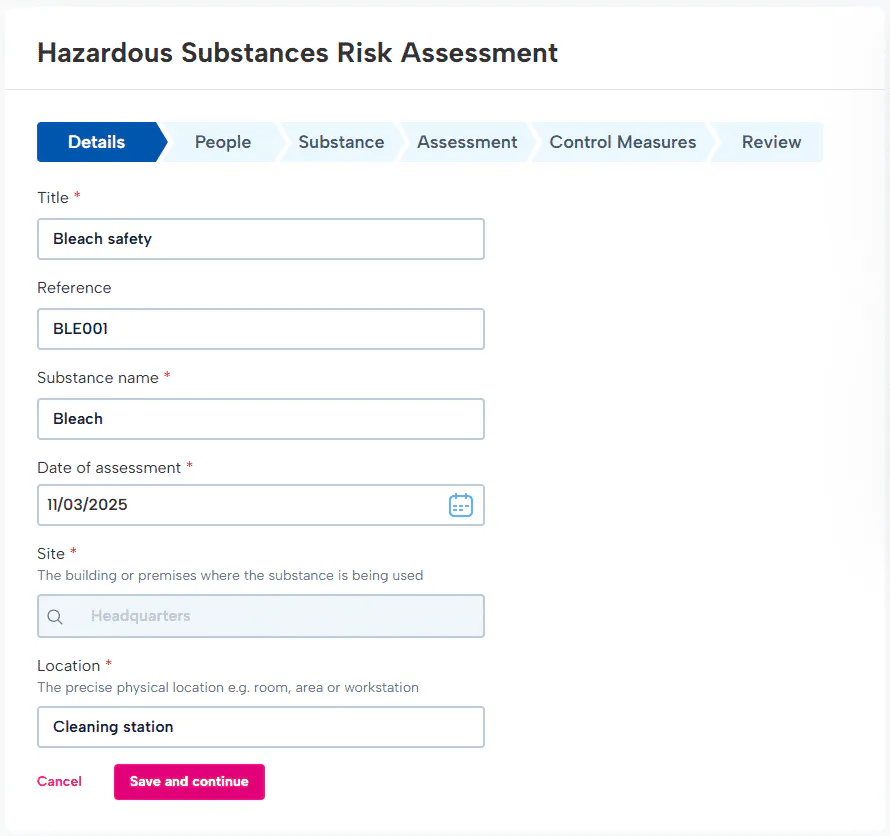
In this first section, you'll need to enter some basic details for the COSHH you're creating including:
- A name for your assessment.
- A reference if needed.
- The name of the substance.
- The date of the assessment.
- The site the assessment is conducted for.
- The exact room, area or workspace for the assessment.
You can also choose to add in a reference for the assessment if needed.
Once filled in just click 'Save and Continue' to move on to the next step.
Step 2
People
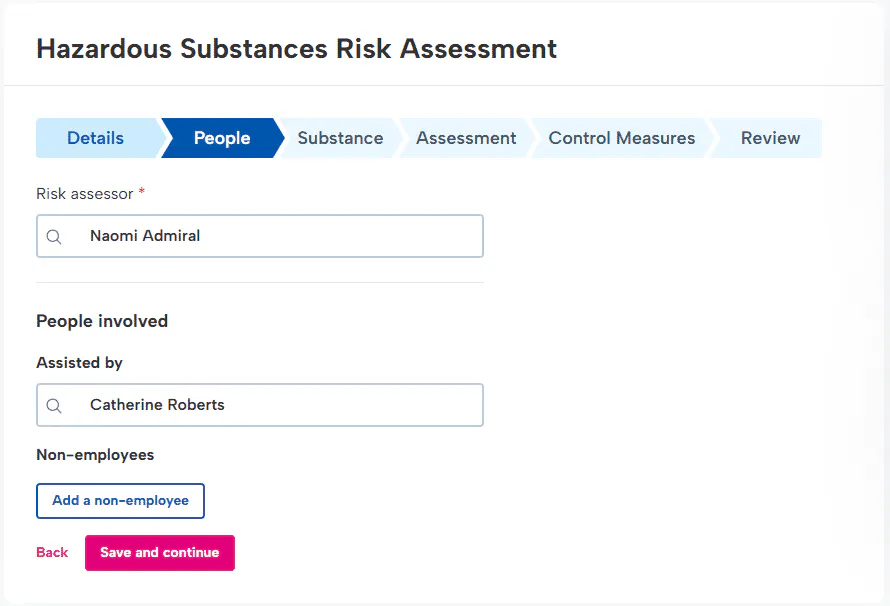
In the next section, you'll need to enter some details of the people involved in the risk assessment including:
- Who the risk assessor was.
- Who assisted the risk assessor (if needed.)
- Details of any non-employees.
- And who the people at risk are.
Once filled in just click 'Save and Continue' to move on to the next step.
Step 3
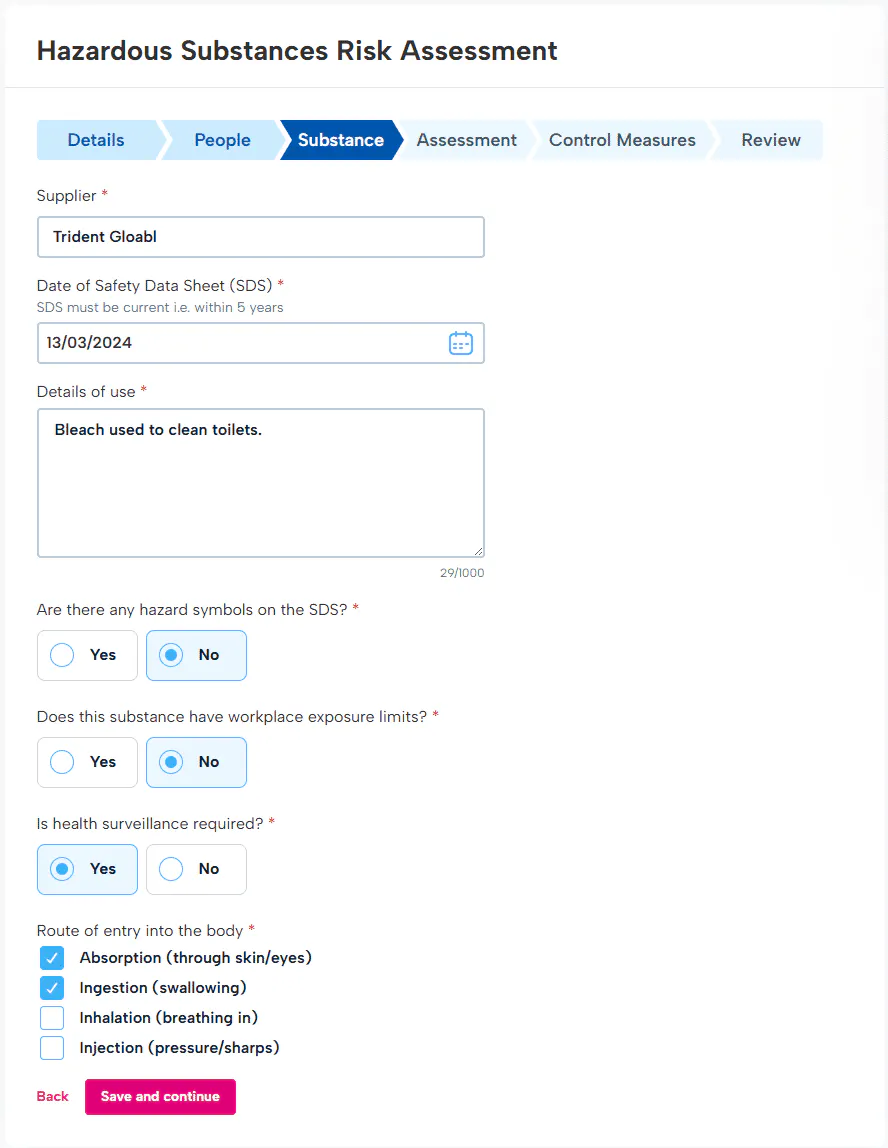
Substance details
In this step, you'll need to enter some details about the substance:
- First, the name of the supplier it was provided from.
- The date the Safety data sheet (SDS) was created.
- The details of how the substance is used in the workplace.
- Enter any hazard symbols included on the SDS.
- Include details of any exposure limits if there are any.
- Select if health surveillance is required.
- Finally, select what the route of entry into the body would be for the substance.
Once filled in click 'Save and Continue' to proceed with the assessment.
Step 4
Assessment
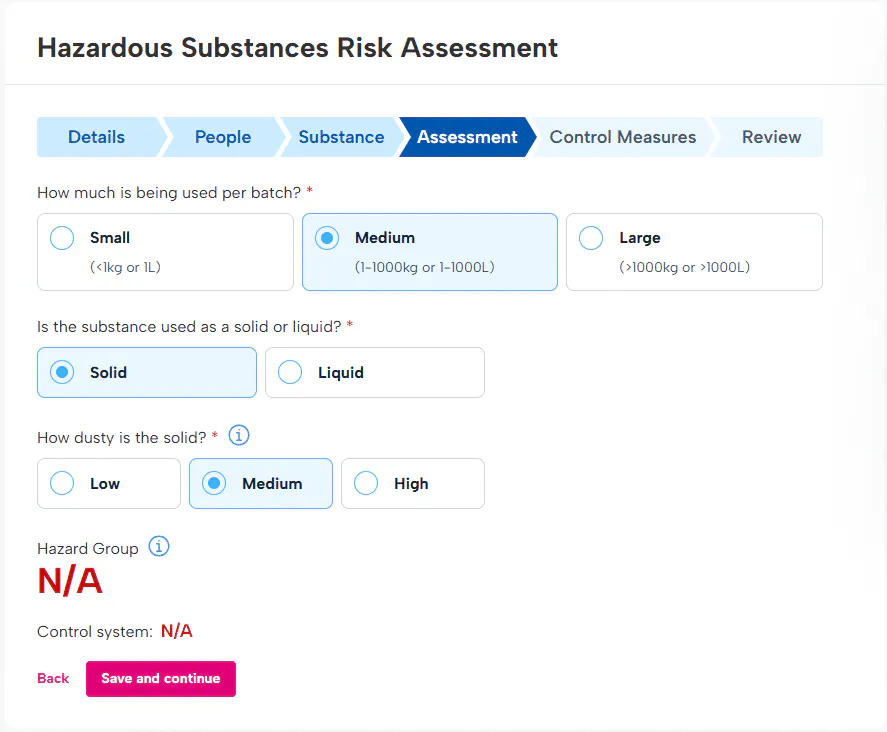
Now that you've added details about the basics, the people involved and some details about the substance, it is time to further complete the assessment with additional details such as:
- How much of the substance is used per batch
- If the substance is used as a solid or liquid
- Providing on whether it is a liquid or a solid, you will need to select low, medium and high for either how dusty a solid is, or how volatile a liquid is.
Once you have entered these details, the substance will be given a 'Hazard group' and 'Control system'.
Once you have entered these details click 'Save and continue' to move onto the next step.
Step 5
Control measures
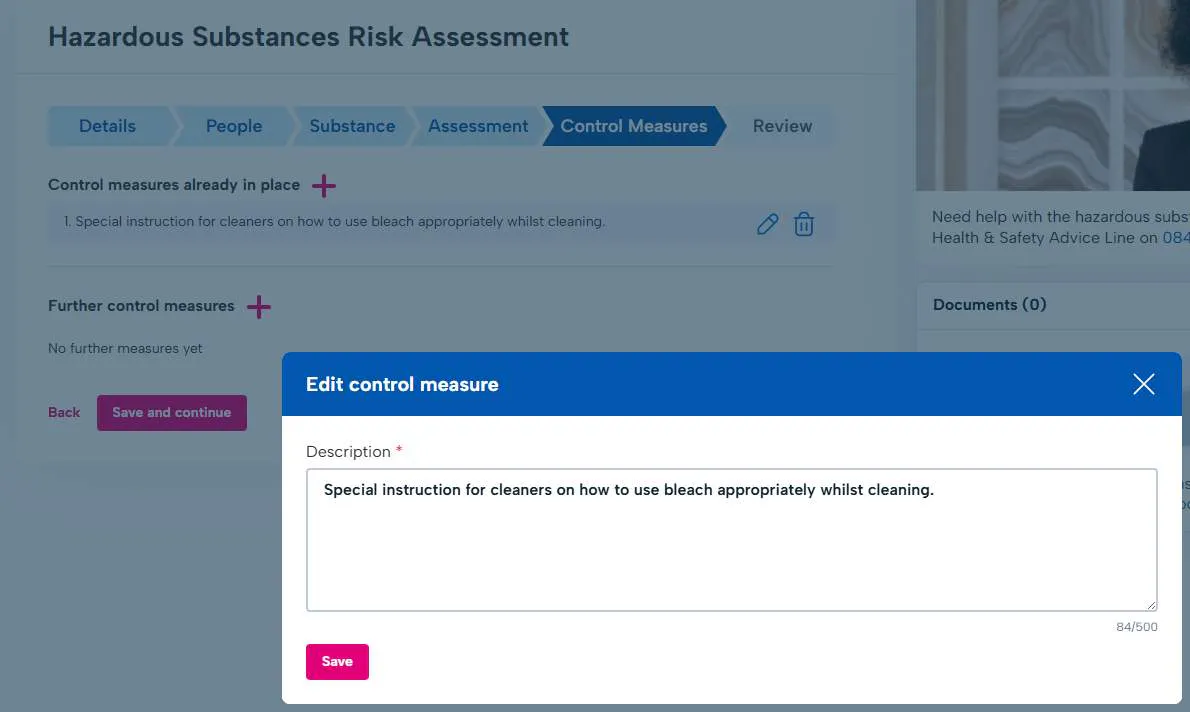
Next, you will provide details of the control measures in place when the substance is in use to avoid any incidents.
There are two types of control measures you will need to add:
- The control measures that are already in place.
- Any further control measures that need to be put in place.
Simply add the details in the description section.
Once completed just click 'Save and complete' to move on to the final step of your COSHH risk assessment.
Step 6
Review
In this last step, you'll need to fill in some details on when this risk assessment is due to be reviewed including:
The date of the review. Who will be assigned to conduct the review.
We'll automatically create a task for the reviewer so that they know when this is due.
Once completed just click 'Save and complete' to complete and save your risk assessment.
A copy of this will also be securely stored in the Hazardous Substances Risk Assessment section of BrightSafe so you can always refer back to it.
You can also copy and archive COSHH risk assessments just like a normal risk assessment.
How to Create a Method Statement
Creating method statement's on BrightSafe is super simple and can be done in just a few easy to follow steps.
Creating a new Method Statement
All you need to do is click the 'Add a new statement' button to get started and follow each of the interactive steps. Let's look at each section of creating your method statement in a little more detail.
Step 1
Statement Details
In this first section, you'll need to enter some basic details for the method statement you're creating including:
- A title for your method statement.
- A reference number if needed.
- The date that this statement was prepared.
- A description of the activity.
- Your organisation name, country, and the location of the site.
- The plan/Area if needed.
Once filled in just click 'Save and Continue' to move on to the next step.
Step 2
People
In the next section, you'll need to enter some details of the people involved in the method statement including:
- Who prepared the statement.
- Their job title (if needed.)
- The project/works manager.
- Some contact details for them.
- Who the people at risk are.
Once filled in just click 'Save and Continue' to move on to the next step.
Step 3
Work Activities
Now that we've got some basic information about the statement you're creating and the people involved in this, next you'll need to select which high-risk activities will be carried out.
Once you have selected at least 1, you can then head to the bottom and select 'Save and continue' to move on to the next step.
Step 4
Equipment
On this step, you'll need to select what equipment would be used. Just select any equipment that is applicable to the statement.
If the protective personal equipment (PPE) required is not an option, you can add this manually. Just add the name of the PPE into the Equipment box and click the 'Add another' button.
Once you have selected all the equipment needed, you can then head to the bottom and click 'Save and continue'.
Step 5
Activities
You'll now need to add details for any hazards, risks and what follow-up actions you may need to take. To do this you'll need to add;
- The step title (describing the activity.)
- Details of the potential hazard.
- The risks presented from the hazard.
- The control measures required.
Once filled in click 'Save current step' to save and add your action.
You can then click the pink plus button at the top to add any additional steps that may be required. Once you've added all of the steps needed you can click 'Save and continue' to move on to the next step.
Step 6
Review
In this last step, you'll need to fill in some details on when this method statement is due to be reviewed including:
- The date of the review
- Who will be assigned to conduct the review
We'll then automatically create a task for the reviewer so that they know when this is due.
Once completed just click 'Save and complete' to complete and save your method statement. A copy of this will be securely stored in the 'Method statement' section of BrightSafe under 'Risk management' so you can always refer back to it.
The Method Statement Library
If you don't want to create your method statement from scratch or just need a hand on what to include in your method statement we have a generous suite of templates available in your library.
Just head to the 'Library' section on the right, search for a template you want to view and click on the name to open it up to view the details and activities. You can then use the handy 'Copy' button to copy over all the details in the template to a new draft method statement on your method statement section.
Need to leave a method statement partway through? No problem, we'll keep a draft copy for you to continue whenever you're ready in the method statement section of your account.
Copying, deleting drafts and downloading Method statements
To copy a method statement you've already started, just click on the three dots in the top right corner of the method statement and select 'Copy' to duplicate it.
If you no longer need a method statement and it's still in the draft stage just click on the three dots in the top right corner of the method statement and select 'Delete' to permanently remove this from your account.
Get Started with Hazard Reporting
Managing H&S hazards is vital within every business, that's why we've introduced our handy Hazard reporting tool to BrightSafe. With this, you and your employees can record any potential hazards in just a few simple steps. Let's get started!
Reporting a Hazard
- Click 'Report a hazard' to start adding your hazard.
- Add a name for your hazard.
- Select the site of the hazard.
- Enter the location of the hazard.
- Choose a hazard reporter - this could be yourself or if you're adding the hazard on behalf of someone else just select their name.
- Add your hazard details including as much information as you need.
- Click 'Report this hazard' to save and report your hazard.
Closing a Hazard
If you've set up the 'Receive hazard notification' permissions you'll receive an email notification to let you know when a hazard is added. Just follow the handy link in this email to view the details of the hazard. Or, click the three dots in the top right corner of the hazard you'd like to close and select 'Edit'.
Once closed the hazard will move to the 'Closed' section of hazard reporting on your account, so that you'll always have this to hand if you need it.
All about Accidents
With BrightSafe you can securely store details of any accidents reported within your business in just a few steps.
Reporting an Accident
To get started click the 'Create accident report' button.
Step 1
Details
First, you'll need to enter some basic details about the accident you're reporting including:
- A reference for this accident.
- The jurisdiction in which the accident occurred.
Once done click the 'Save and continue' button to move onto the next section.
Step 2
Injured person
Next, you'll need to enter some details on the injured person.
Select whether the injured person is an employee or a non-employee and enter their address and contact details.
If the injured person was a non-employee you can select 'Not known at present' if you don't currently have this information.
Once done click the 'Save and Continue' button to move onto the next section.
Step 3
Reporter
Next, you'll need to record some details of who reported this accident.
If the person is the same person that was in the accident we'll add in any address and contact information you've already added.
If the reporter is a different person you'll need to add their address and contact details.
Once done click the 'Save and Continue' button to move onto the next section.
Step 4
About the accident
Finally, you'll need to add some details about the accident including;
- The date, time and location the accident occurred.
- A description of what happened.
- Whether first aid was given and if so who the first aider was as well as the treatment that was given.
Once done click the 'Review report' button to view a summary of your accident.
If you're happy with the report just click 'Confirm submission' then 'Complete' to submit this to a responsible person for investigation.
Completing your Investigation
Once an accident report is submitted a follow-up investigation will need to be completed by a responsible person on your account.
If you have been set as a responsible person you can complete an investigation by heading to your open accident report, clicking on the three dots and selecting 'Edit'.
Step 1
Further Investigation
You'll need to enter some details of whether or not an investigation was performed
- The type of accident.
- The cause of the accident.
- The severity of the accident.
Step 2
Add an Injury
Next, you'll need to add some details on the injury and the body parts affected.
You can add multiple injuries by clicking the 'Add another injury' option.
Lastly, select whether the injured person was taken to the hospital.
Once complete click the 'Save and Continue' button to move onto the next step.
Step 3
Next steps
Finally, add in the length of time that the injured person was unable to carry out their normal work activities and whether the accident was reportable to the enforcing authority.
Once complete click the 'Save' button to save your investigation then click 'Close' and 'Close accident report' to complete and set the accident report as closed.
Exporting Accidents / near Misses
Once you have completed your accident reports, you will be given the option to export this to a CSV.
Click the 'Export to CSV' option which will download a report with all of the accident or near miss report details.
The CSV will include all accident reports which can then be filtered using functions of the spreadsheet software such as dates and sites.
Only Users or Admins with the Responsible person permission can export an accident / near miss.
The Responsibility Navigator
The responsibility Navigator allows you to create one-off or recurring responsibilities within your business and set due dates for these tasks to make managing H&S within your business even easier. Let's get started!
Creating a Responsibility
To get started click the 'Add a new responsibility' button.
Statutory responsibilities - We've put together a whole host of template responsibilities so all you need to do is choose one of these to get started when adding a statutory responsibility.
Bespoke responsibilities - A flexible option allowing you to enter custom details when adding a responsibility bespoke to your business.
Adding a Statutory Responsibility
Click 'Statutory responsibilities' and choose which category you'd like to view responsibilities for.
You'll see a list of all the responsibilities that fall under that category.
Just click the first responsibility to get started.
This will then give you a form to create the responsibility.
Adding a Bespoke Responsibility
Click 'Bespoke responsibilities' then enter a category for your responsibility.
Select a category and a reason for your responsibility from the drop-down list.
Add a title and description of the responsibility.
Responsibilities Planner
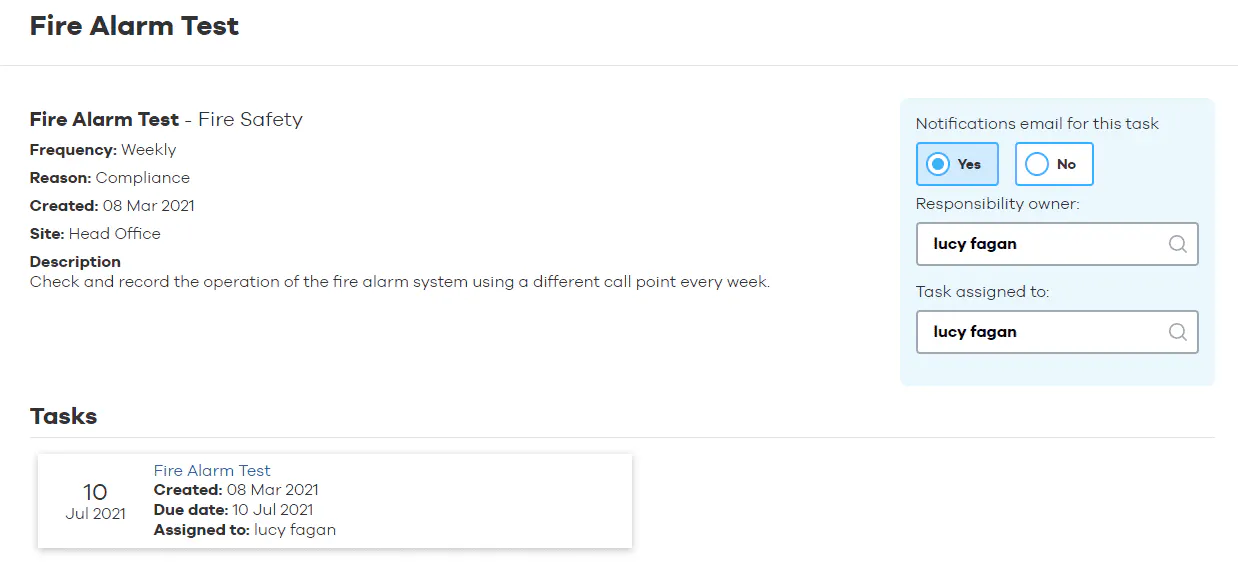
Editing a Responsibility
Once an ongoing responsibility it setup you can edit whether the task is included in your weekly notification email from BrightSafe, who the task owner is and the person assigned to the task.
Setting up Tasks
Once you've created your risk assessments, added some hazards actions and created responsibilities you'll have tasks waiting to be completed so let's take a look at how you can manage and complete tasks on BrightSafe - with a click!
Types of Tasks
There are three types of task, lets go through each of them...
When creating your risk assessments you will have added details of any hazards. When you add a follow-up action that needs to be completed to that hazard BrightSafe will automatically create an action task for the person that action has been assigned to.
Re-assigning Tasks
In the tasks section of your account, you'll have a section for 'Tasks assigned to me' which shows you any tasks that you've been assigned and 'All tasks' which will show you every task set on your account. As well as the person that the task has been assigned to. Any tasks that are overdue will also be highlighted in orange so you know, at a glance, that these need to be completed.
Re-assigning tasks are easy, just head to 'All tasks' and select any action or review tasks you want to re-assign using the tickbox to the right of it then click the 'Bulk Re-assign' button. This will bring up a box to select the person you'd like to assign the task to, once you're done just hit the 'Save' button to save your changes.
To re-assign a responsibility task you'll need to head to the responsibilities planner and click on the three dots to edit the task, before selecting the new task owner.
Completing Action Tasks
Completing Responsibility Tasks
Completing Review Tasks
When you open up a review task you'll be taken to the risk assessment the review will need completing for. To get started just click 'Start a review' this takes you through each section of the risk assessment so that you can complete your review.
Once you've been through each section for your risk assessment you will need to add a reviewer, from the drop-down and select a review date. Once done so you can ‘Save and complete’ the risk assessment.
E-learning
Making the Most of E-learning
E-learning allows you to digitally share up-to-date training with your staff so you can get your people up-to-date with the latest health & safety laws in no time. They'll even get a certificate on completion, which you can assign, track and even pull reports on.
E-learning courses
Within the E-learning section of your BrightSafe account, you'll find a whole host of CPD accredited training courses, all you need to do to get started its find the course you'd like to complete and hit the 'Start course' button or using the 'Assignment' section you can directly assign them to staff to complete for a specific date!
Once you've chosen your course, you'll then be taken through a series of interactive steps showing you everything you need to know about your chosen topic.
Assigning E-learning courses
Anyone with the Learning manager permission will be able to assign courses to staff in bulk and set a date for completion which will then show to the employee in their E-learning section.
But don't worry, if you need to share a course with a non-employee you can do this too! Just copy the link at the top of your browser to the e-learning course and send this over to them.


You can first see a handy breakdown of your employees and how many courses they have to do!


Click assign employees and you can then see the E-learning courses available. Select the ones you want to assign first.


Next, select which employees you want to assign the courses to!


Finally, assign the dates you want to set the date of completion for.
Tracking your Employees Progress
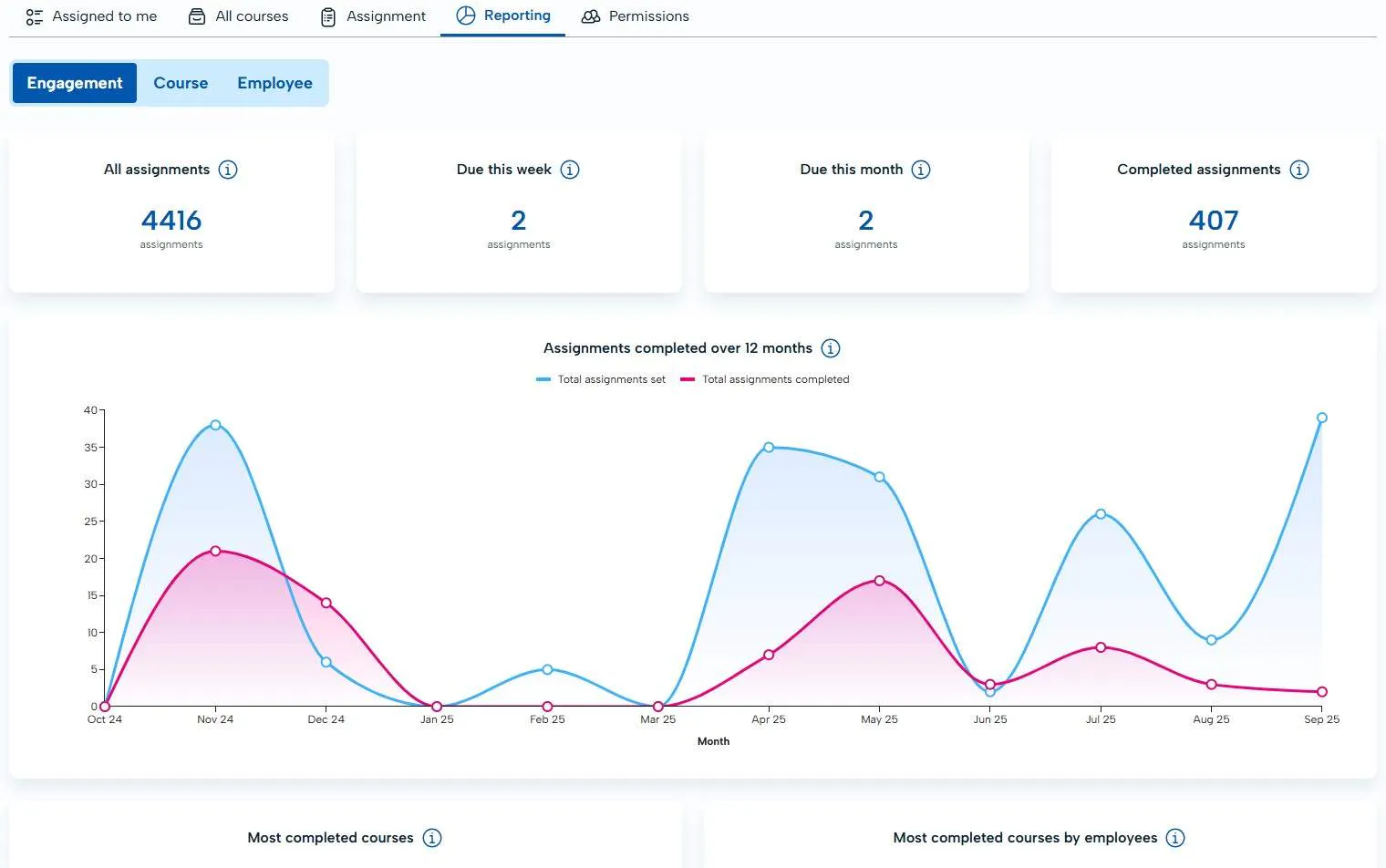
You can see a summary of courses assigned, completed and more in the engagement tab to easily get a glance of employee progress.
Exporting Data & Viewing Completion Rate
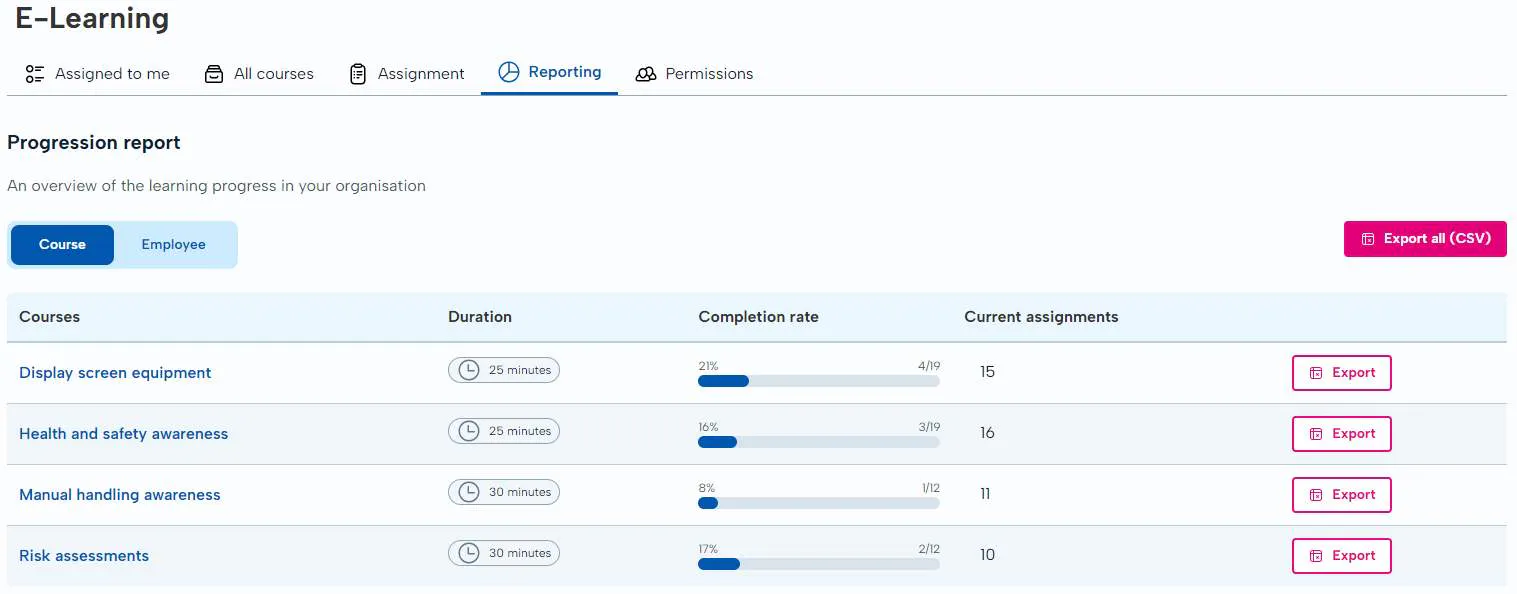
Easily see where your employees are up to with the courses you've assigned to them and export this information in the click of a button!
Downloading a Certificate of Completion
Documents
Securely storing your H&S Documents
With BrightSafe you'll gain access to unlimited cloud-based storage so you can keep all your policies and documents in one secure easy to find place.
Document Templates
When you open up the documents section of BrightSafe you'll find two folders, the Company documents folder and the Health and safety hub. The Health and safety hub has all of your H&S document templates and more! We've added these to your account so that you have everything you need to make H&S management a breeze within your business.
Just click on any of the documents to download a copy to use within your business.
Folders
On BrightSafe, you will have the ability to create and manage your own folders.
To do this, simply click the 'New' button in the top right and select folder.
You can create folders in the documents section and in the company folder but not in the health and safety hub.
Uploading documents
As well as the suite of H&S documents we've added to BrightSafe you can also upload and store any additional documentation you need to in the Company documents folder or any custom folder you create. Let's take a look at just how easy it is to upload documents to your account.
Once the documents have been uploaded, you will also have the ability to rename them on BrightSafe if needed.
- Click the 'New' button and then 'Document'
- Click 'Browse' to select the document you want to upload or drag and drop the file into the box shown.
- Select a category to assign this document to from the drop-down list.
- Select the site(s) you want to assign the document to or tick the 'Assign to all sites' box to assign the document to all sites.
- Click 'Save' to save and upload this document to BrightSafe.
Simple! You know all about uploading documents on BrightSafe, and don't worry if you need to delete a document, edit the category or change the site a document is assigned to you can always click the three dots to the right of the document you've uploaded and select 'Edit' or 'Delete'.
Moving documents
Once you have uploaded a document, you will be given the option to move the document if needed.
Simply select the box next to the document and click the move icon that appears to the right. This will allow you to move the document to your chosen folder, however, the health and safety hub folder is read only and documents cannot be moved here.
Or alternatively, simply drag the document and drop it in the desired folder, easy!