- ...>The Care Navigator
The Care Navigator
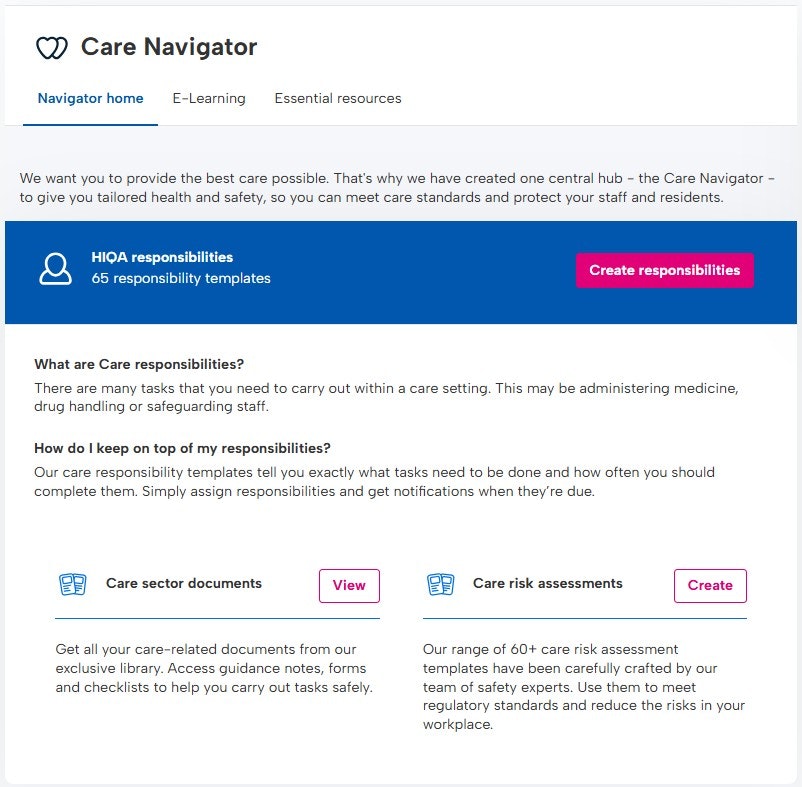
Care Navigator
We've created this handy step-by-step course to help you make the most of BrightSafe's Care Navigator. Just follow each of the steps to get the most out of your account and find out some of our BrightSafe top features along the way!
What is the Care Navigator?
We know that meeting Health and Safety regulations can be a daunting task, so we've made that easier for you. From the Care Navigator, you'll find all of the handy care-related resources you need to make sure your business has Health & Safety covered. Let's get started!
What's Included in the Care Navigator?
The care Navigator brings a whole host of useful features to BrightSafe including:
- Create responsibilities for your team and easily manage recurring Heath & Safety tasks that need to be carried out.
- Get your hands on guidance notes, forms and checklists to help you carry out Heath & Safety tasks in your business.
- Complete and share E-learning courses with staff, and educate your team on the latest Health & Safety laws.
- Manage risk assessments - Either from our library of templates or from scratch and use them to meet regulatory standards and handle risks in your workplace.
Summary
Now you know what the Care Navigator is and all of the great features you'll have access to, let's go into a little more detail.
Essential Resources & E-learning
Now, let's look at some of the handy care resources and E-learning courses that you can access. Just head to 'Care' from the 'Navigators' section of your account to get started!
E-learning
Firstly, to get to our library of e-learning courses, click on the 'E-learning' section at the top of the Care Navigator.
Here, you'll find a suite of courses which are tailor-made for the care sector.
So, whether you need training for new starters or long-term staff, our online courses can help you educate your team on the latest laws - with a click!
How to View & Share the Course
To start a course, just click on the course you want to start and hit the 'Start course' button to begin.
Sharing the course with your employee's is super simple,head in to the 'E-learning' section of your BrightSafe account, search for the course under assignment and select the employees you want to assign it to!
Check out our how to video below to follow the steps to assign courses.
Care Sector Essential Resources
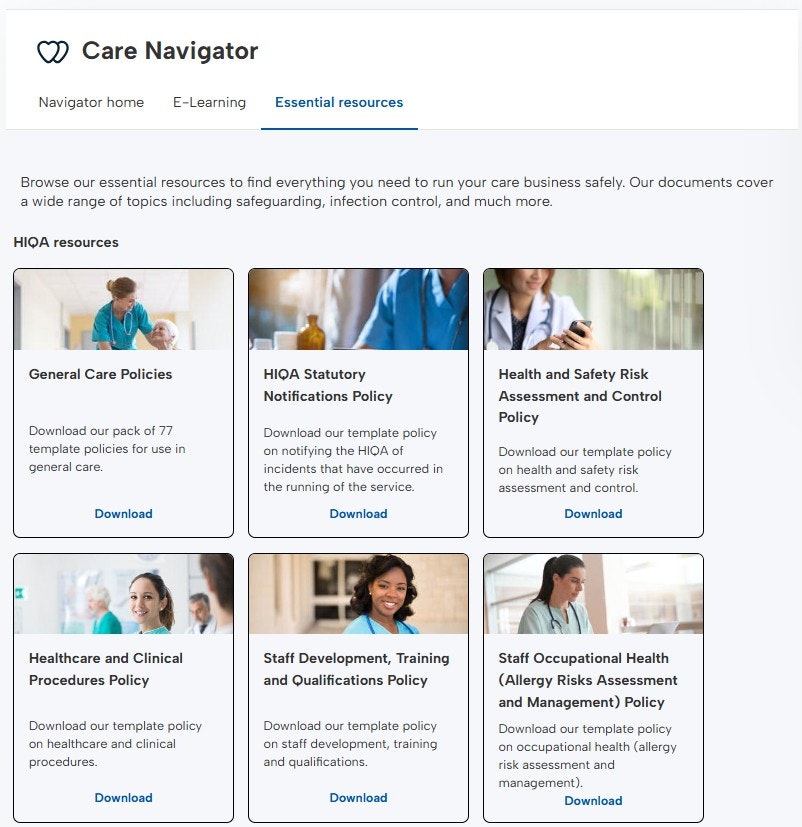
At the top of the care navigator, you can click the 'Essential resources' tab, to find everything you need to run your business safely.
Our documents cover a wide range of topics specific to the care sector, including safeguarding, infection control, and much more.
You'll find downloadable templates covering:
Staff Development, Training and Qualifications. Health and Safety Risk Assessment and Controls. Residential Care Policies, General Care Policies and much more!
Summary
Now you know where to access all of our handy resources to support you with Health & Safety within your business. Let's move on to how you can set up some responsibilities for yourself and your staff.
Managing Responsibilities
Now we've gone through E-learning and resources, you've read our guidance on the best approach to take. What's next?
Now we can look at assigning responsibilities, what these are and also how to keep on top of them.
What are Care Responsibilities?
There are many tasks that you need to carry out within a care setting. This may be administering medicine, drug handling or safeguarding staff, but don't worry! With Brightsafe it is as simple as ever to set up responsibilities to ensure everyone knows which tasks they need to carry out..
How do I keep on Top of my Responsibilities?
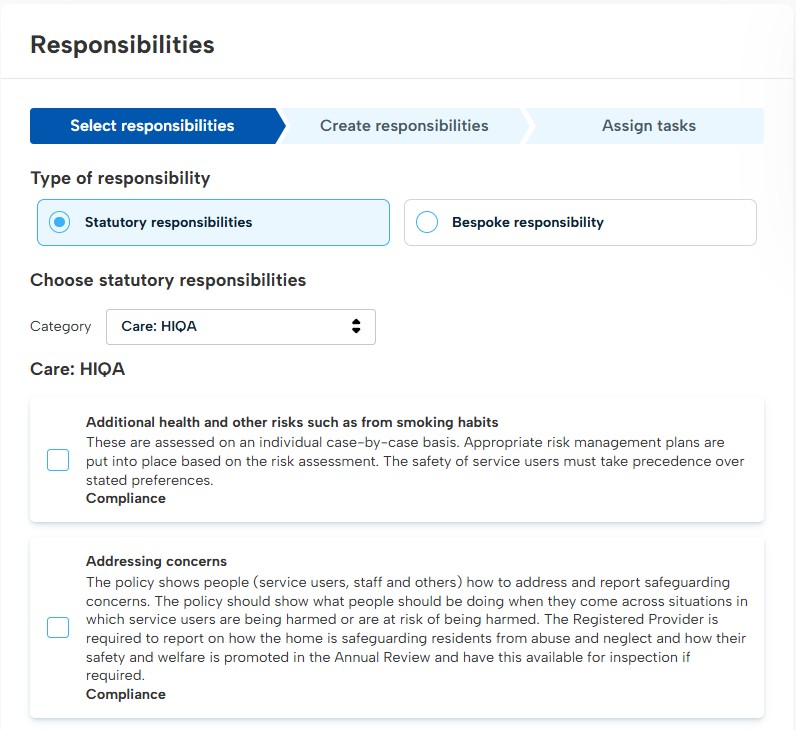
Just click on the 'Create responsibilities' button in the Care navigator to get starts. Our care responsibility templates tell you exactly what tasks need to be done and how often you should complete them, it's that simple!
Let's look at how easy this is to set up...
Firstly, let's start by selecting which responsibilities we want to assign.
Responsibilities Planner
Next, let's have a look at the responsibilities that we have created. We will see any ongoing or overdue responsibilities.
Editing a Responsibility
Once an ongoing responsibility is set up, you can change certain parts of information so you can change for example who the responsibility would be assigned to. See below just how easy it is!


To edit your responsibility, just click on the three dots next to it and select 'Edit'.


Once an ongoing responsibility is set up, you can edit whether the task is included in your weekly notification email from BrightSafe, who the task owner is and the person assigned to the task.
Summary
You now know just how easy setting responsibilities is with the care navigator. next up, let's take a look at adding some Care Risk Assessments.
Risk Assessments
Let's take a look at how you can create and manage risk assessments in just a few simple steps.
Creating a new Risk Assessment
We have a whole host of risk assessment templates specific to the care sector, that have been expertly crafted by our Safety team. Use them to meet regulatory standards and reduce the risks in your workplace.
All you need to do is click the 'Create' button next to care risk assessments in the care navigator to get started. Then just follow each of the interactive steps to add details of each hazard within your workplace. Let's go into each section of creating your risk assessment in more detail.
Step 1
Details
In this first section, you'll need to enter some basic details for the risk assessment you're creating including:
- A name for your risk assessment.
- The date you conducted the risk assessment.
- Which site the risk assessment was conducted at.
- The exact room, area or workspace for the risk assessment.
You can also choose to add in a reference for the risk assessment and a task description if needed.
Once filled in just click 'Save and Continue' to move on to the next step.
Step 2
People
In the next section, you'll need to enter some details of the people involved in the risk assessment including:
- Who the risk assessor was.
- Who assisted the risk assessor (if needed.)
- Details of any non-employees.
- Who the people at risk are.
Once filled in just click 'Save and Continue' to move on to the next step.
Step 3
Hazards
In this step, you'll need to enter some details on any hazards. Just click 'Add a new hazard' to get started.
You'll then need to add:
- A name for your hazard, you can either select one from our handy list or type something new.
- Details of the possible harm.
- Any control measures you have in place to prevent, eliminate or reduce the occurrence of the hazard.
Once filled in click 'Add Hazard' to save and add your hazard.
Step 4
Actions
Now that you've added a hazard you add details for any follow-up actions you may need to take.
To add an action just hit the 'Add your first action' button then fill in:
- Your action title.
- Details of the required action.
- Who you'd like to assign this action to.
- The date this action is due to be completed.
Once filled in click 'Add action' to save and add your action, this will also automatically create a task for the assigned person.
Once all your hazards and actions are added click 'Save and continue' to move onto the next step.
Step 5
Review
In this last step, you'll need to fill in some details on when this risk assessment is due to be reviewed including:
- The date of the review.
- Who will be assigned to conduct the review.
We'll automatically create a task for the reviewer so that they know when this is due.
Once completed just click 'Save and complete' to complete and save your risk assessment. A copy of this will also be securely stored in the risk assessments section of BrightSafe so you can always refer back to it.
Changing views & using Filters
To help find what you're looking for easier, we have several filters and two different views of how to find and navigate your risk assessments.