- ...>Welcome to BrightHR - Employee
Welcome to BrightHR - Employee
Learn how to register and use your BrightHR employee account, including how to request holidays, view real‑time entitlements, check your rota, access employment documents, log overtime, receive notifications, and navigate your dashboard.
Learn how:
- Introduction
- Registering & Logging in
- Getting Anywhere, Anytime Access
- All about your Profile
- Your Info on the go
- Absences made Easy
- Absence Requests in a Tap
- Storing Documents on BrightHR
- All about Clock-ins
- Expenses
- Performance
- All about Praise
- Making the most of E-learning
- Viewing your Rota
- Viewing shifts on the go
- Account Security Awareness
Welcome to BrightHR - Employee
In this handy course you'll be guided through the process of setting up your BrightHR account, all with our easy to follow step-by-step guide.
You'll also find out how to make the most of all the time saving features BrightHR has to offer on both the website and with our handy mobile apps.
Introduction
What is BrightHR?
Your employer has signed up to BrightHR, our handy absence management system, and you've received one of our registration emails.
With this handy course we'll guide you through setting up your new BrightHR account and show you how you can do everything from viewing your rota to requesting holidays - let's go!
What does BrightHR do?
- You can now see real-time updates to your entitlement when you request holidays so you always know how much time off you've got left to take!
- Receive quick notifications as soon as your holidays are approved by your manager.
- Say goodbye to long-winded holiday forms and use BrightHR to request holidays with the click of a button.
- If your manager is using our Rota planning tool you can see this anytime, anywhere so you never miss a shift again.
- View any employment documents that have been uploaded such as your contract or appraisals which are all stored in one easy to find place.
- View your overtime logged and even log this yourself if your company has set this up for employees.
- Give praise to your colleagues and earn points for the praise leaderboard - the company needs to enable this.
Learning how to use your Dashboard
The first page you see when you login. Let's learn all about it.
Let's take a look at the important first step - getting registered and logged in!
Registering & Logging in
Welcome to BrightHR! In this first lesson, we'll cover the basics of getting started with BrightHR.
All you need to do is follow each of the interactive steps and you'll have your new account set up in no time.
First Step
The first step to setting up BrightHR is registering to your new BrightHR account. Registering is super simple, all you have to do is click the 'Get started' button on the registration email you've received and enter the password you want to use!
So that your account is secure your password will need to be more than 12 characters long, include a number or symbol and an uppercase letter.
Resetting your password
Already registered but forgot your password? Not a problem! Watch our handy video showing you how you can reset your password.
Top Tip! If you haven't received a password reset link after requesting one, double check which email address has been used on your profile with your account administrator.
Getting Anywhere, Anytime Access
Now you've registered your BrightHR account is available to you 24/7 365 days a year. Not only can you access the software anytime using our website, we've also created a handy mobile app so that you can access this software from anywhere!
Just head over to your app store to download this for free and login using your BrightHR email address and password.
Click here to download the app for IOS Click here to download the app for Android
On the app you'll be able to:
- View your upcoming shifts and Rotas.
- Request absences on the go and see real time updates to your entitlement.
- Receive handy notifications as soon as your absence requests are approved or declined.
- Check the calendar to see who's off in your team.
- View and update your personal and emergency information.
- Give your colleagues praise.
- Request overtime & TOIL as well as view a summary.
All about your Profile
Now that you've logged into the system, let's take a look around your account.
Employee Hub
Let's start with the basics. On your account, you'll have a section on the left called 'Employees'. In here you can see everyone who's been added to BrightHR from your company, the employees in here will have been grouped together in teams. You won't be able to open up any of the other employee profiles but you can do this on your own.
Just find your name in the employee hub and click on 'View full profile'.
Your Profile
Now you know how to open up your profile, have a look around the different areas of it to see what information can be stored on BrightHR.
Working Status
BrightHR makes it easy to see whether you're at your normal working location, on a client visit, at another site or even working from home.
Your working status will show at the top of your profile and in your employee hub so you can see where your colleagues are working at a glance!
To set your status just click the 'Set Status' button at the top of your profile and select where you're currently working. Remember to save this!
Employment
View your employment details such as who you report to, job title, the team you're in, sensitive information and more.
This section serves to simply show you this information and in order to edit this, you would need to speak to your manager or an admin.
Overtime
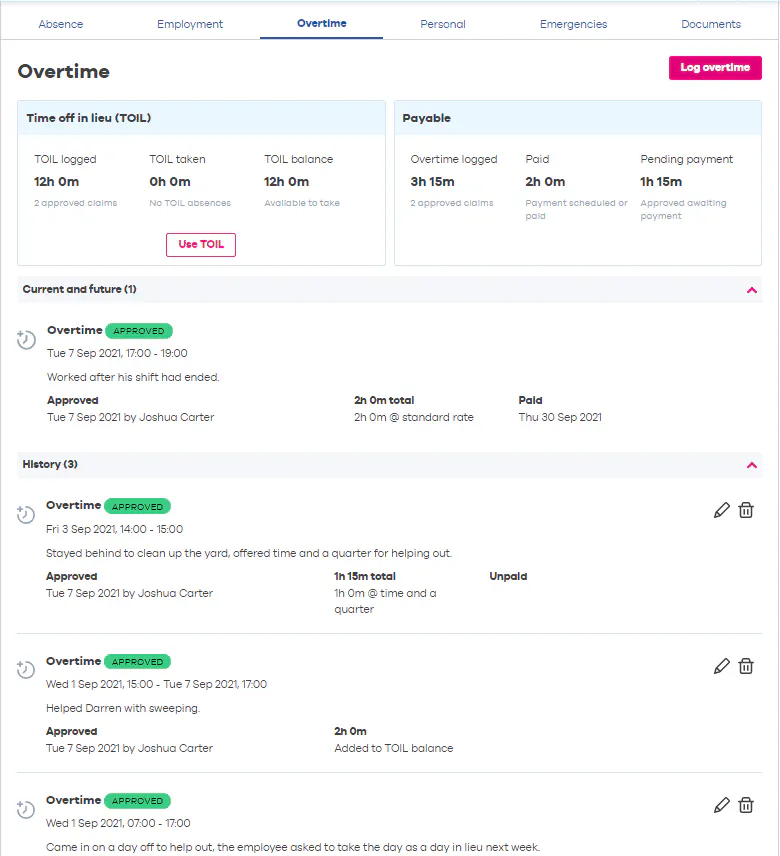
Now let's take a look at overtime in a little more detail. If enabled by your account administrator, this section will show you how much time off in lieu (TOIL) you have accrued so far and the amount of overtime that has been paid.
You will also be able to request an update of both TOIL and overtime, by clicking the 'Log overtime' button. Your request will then wing its way to your manager for approval, it's that easy.
How do I edit Overtime?
It's as simple as ever to edit overtime! Firstly, head to your profile and select the 'Overtime' tab.
In here, find the overtime record you'd like to edit and click on the pencil next to it. You can then change the dates and times of the overtime record which will also update the overtime length.
Once you're done just hit the 'Update overtime' button to send this request through to your manager.
Personal & Emergency Information
You can also use BrightHR to ensure that your employer has your most up to date contact information. Just head to the 'Personal' section of your profile to add your contact number, date of birth and address details.
Along with your personal information you can also add and update emergency contact details. To add emergency contacts, just select the 'Emergencies' section of your profile, click the 'Add new contact' button and fill in their details. Simple!
You'll also see details of your Covid-19 vaccination status in this section. Not added yet? Just get in touch with your manager who can update this for you.
Documents
In the documents tab, not only can you access your company related documents such as your contract, you will also be able to upload your documents if requested.
Accessing your Documents
Jump in to your documents tab and start downloading your documents with the click of a button or view specific details before you do!
Let's see just how easy it is to access, view and download your documents.


Document details/preview
Before you download a document, you will be given a preview and also the details of the file and who uploaded it - documents can also display a follow up date here if set by your employer. Please note, only certain file types can be previewed and others may need to be downloaded first.
Now you know how to find, preview and download your documents on BrightHR!
Can't see a document that has been uploaded? get your employer to check the visibility has been set for you to view the document.
Read Receipts, Acceptance & Follow ups
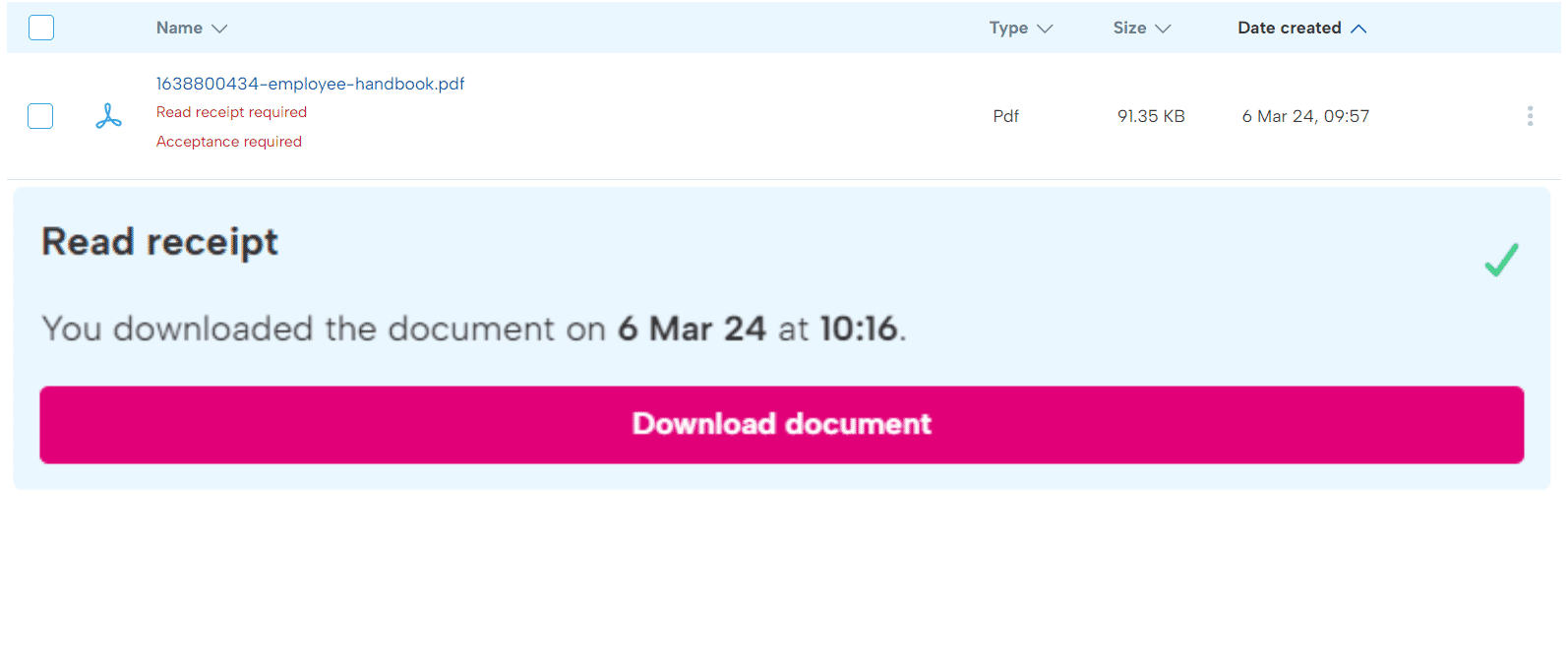
When your employer uploads a document for you to access, they may add the requirement of a read receipt, acceptance of the document and even a follow-up date for the future.
Read receipts are simple, once you have downloaded the document, BrightHR will make a note of the date and time you have downloaded the document and record this information for your employer to view!
Your Info on the go
A well as using our website to add, edit or view your personal and emergency information you can also use our handy mobile app to do this anywhere, anytime.
Adding Personal Information
Working Status
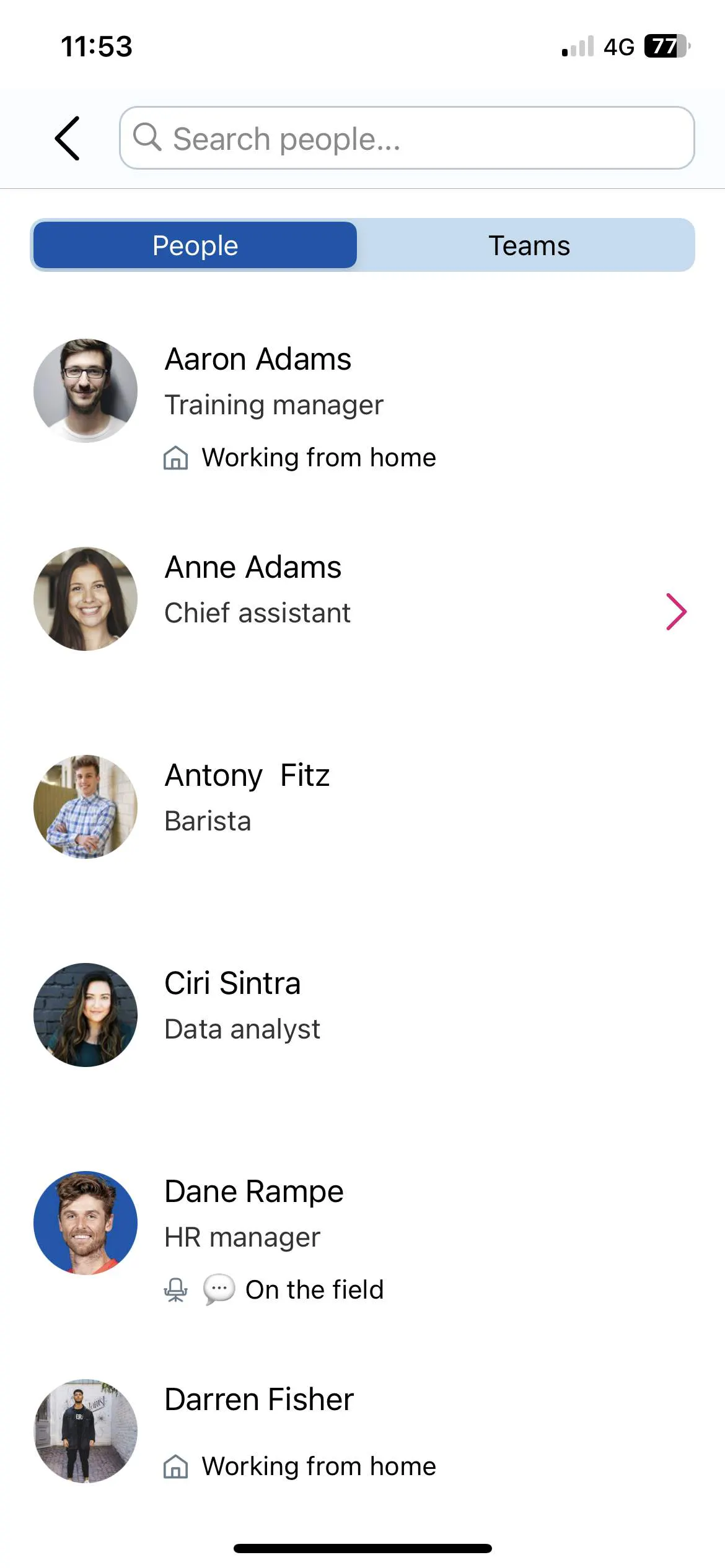
Along with being able to set a status through the BrightHR website you can also set this through your app with just a few quick taps. Just tap the pencil icon in your profile to add, update or edit the working status set.
Once set you and your colleagues will see each other's statuses in the 'Employees' section on the website - working statuses are not currently visible on the app.
Now you know how, login to your app and set your status.
Absences made Easy
Absence management is what we do best- we've even won awards for it- so say goodbye to endless hours filling in holiday forms and checking work calendars for holiday conflicts!
Absences
Now the important part - how to take time off for your holidays! There are several different types of absences that can be recorded on your account to cover everything from a holiday to events/training.
Annual leave is the only absence type that will deduct time from your holiday entitlement.
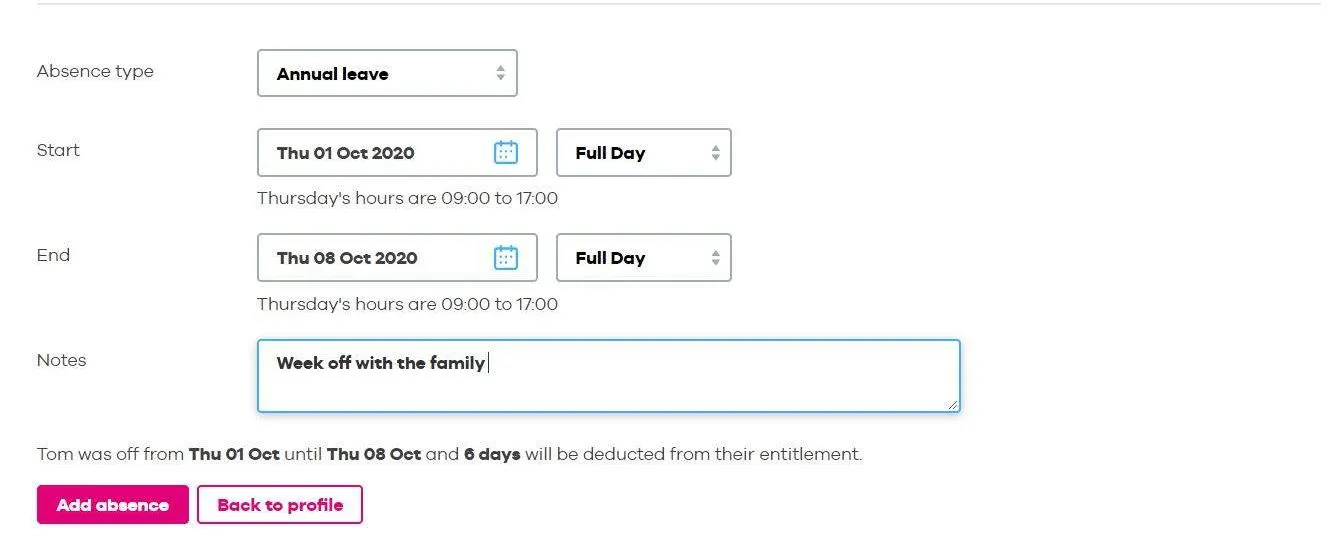
Requesting absences on BrightHR is super simple, all you need to do is head to your profile and click the 'Request time off' button.
This will then bring up a quick form you'll need to complete, just select the type of absence you're requesting, the date range, and fill in any notes.
Sickness & Lateness
You are able to request every absence type except sickness and lateness, these can only be recorded by your manager or an admin.
Calendar
Easily check who's off in your team to make sure your absence will be approved with our handy calendar.
On your account, you'll have a 'Calendar' section on the left. This is where you can see who's absent in your team.
And don't worry if your colleague logs in they'll see when you're absent but they won't see any details of the type of absence, so if you're off sick this week they'll just see that you were 'Absent' on their calendar.
As well as seeing your team's absences on BrightHR you can also sync this with your own personal calendar.
See our calendar in action in our handy how to video below.
Profile Calendar
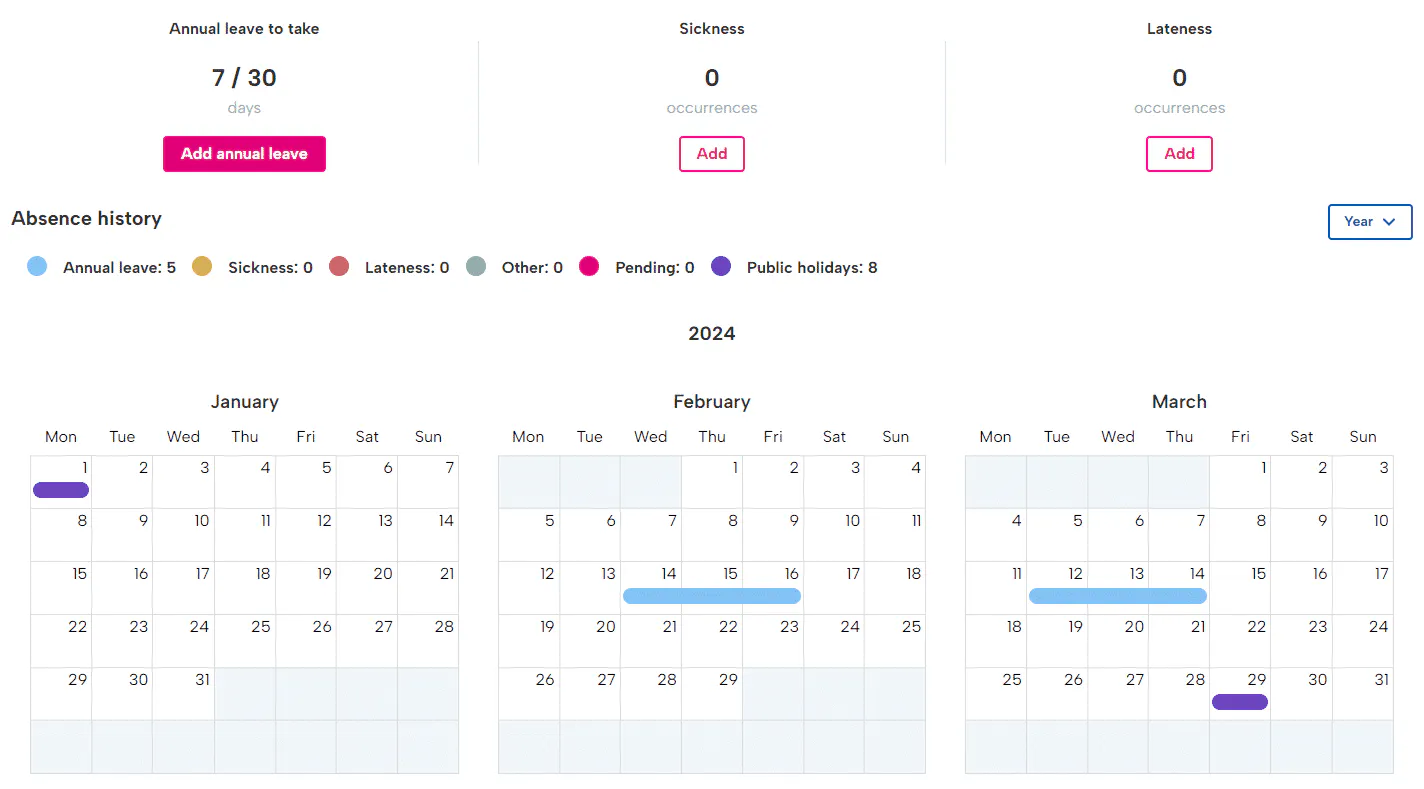
As well as the calendar, you can also view your absences in the form of a calendar on your profile! simply select the box labelled 'List' and select which type you want - either a month calendar view, or a yearly calendar view.
You're becoming a BrightHR expert! Now you've learnt all about booking holidays with BrightHR.
Absence Requests in a Tap
Want all the great features of our absence management software but in an app? Well, that's what we've done!
You can do just about everything on the app, from checking your calendar to requesting a holiday. Just download it from your app store to get the most out of BrightHR.
Absence Requests
We know you aren't always at your desk when you want to request an absence. That's why we've put together our app! Requesting absences on the app is easy, just tap the plus at the bottom of your app to get started. You can then select the type of absence you'd like to request, the date range of it and add any notes. Simple!
Follow this step by step guide to requesting absences on the app.
Adding an absence through the app is easy and convenient. Learn how here in these simple steps.


To get started, simply tap the plus button to begin requesting an absence.

Select which type of request you are making either an absence, using TOIL to book an absence or logging overtime worked. Please note, these options may not be available as this is subject to your employer's activation.


Choose what absence type your request applies to and if the option isn't available, maybe try using the 'Other' option. Please note, only annual leave requests will affect your entitlement which will deduct as soon as you request it.

Now select a start date and an end date for your absence and if it is just one day, just select that day.

You can tailor if you want half a day on the first and last absence or specific hours if you are set up in hours.

Review the details you have chosen are correct you can also view any conflicts below.

If there are any conflicts within your team for the dates you're requesting, tap the conflict box to view specific details.

Tap the tick icon in the pink circle to send your request off to your manager and await a decision on approval. You can also see a snap-shot of any other absences for the current leave year.
Now you know how to request absence whenever and wherever you need to all from the palm of your hand!
Viewing your Calendar
On the app you'll have a 'Planner' section along the bottom. This is where you can view your team's absences.
Storing Documents on BrightHR
Along with all the great features for absence management, you can also access unlimited document storage on BrightHR which is all securely stored in the cloud.
Document Folders
Company Wide Documents
If you head to your documents on BrightHR you'll see we've already created some folders for you. One of these is the folder with your company name on it, which is your company-wide folder. This means that everyone will be able to access documents uploaded in here.
Documents uploaded for the whole company may also require read receipts, acceptance and follow up.
My documents
In your documents you will also see a folder for 'My documents', this folder is for any of your own personal documents, only your manager or another admin will see documents uploaded in here.
You can upload documents that you want to share with your manager or admin, here's how:
- Head to the folder you want to upload a document to.
- Click the 'Upload' button.
- Select the document you want to upload.
- Click 'Upload' to add your document.
Document to-do List
To keep you on track with any document requirements your employer has for you, we have added a handy feature that will show you all outstanding tasks you have associated with any documents that require your attention.
Read receipts - A read receipt may be required when a document is uploaded which will give your employer a time-stamp of when you downloaded the document.
Acceptance - Acceptance of your document may be required to let your employer know you accept the contents of the document. You can only accept a document after downloading it.
Follow-up dates - If a follow-up date has been applied, you will see this in your to-do list but don't worry, follow-up dates won't need any action on BrightHR from you and would be updated by your employer but may suggest your document may need some action or need to be reviewed (check with your employer to make sure).
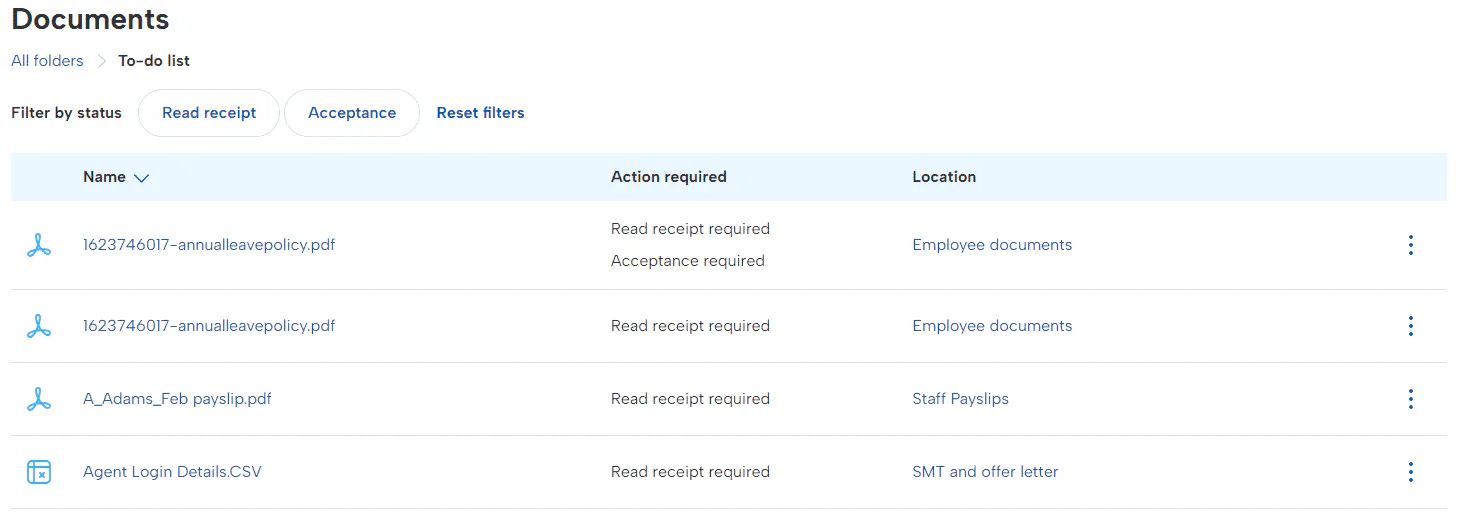
This can include tasks for group documents or your own personal documents.
All about Clock-ins
If your employer is using Blip and you're clocking in and out everyday, you can clock-in and view this information on BrightHR! let's learn all about how you can access this information on the website.
Clocking in on BrightHR
If you do not wish to use the app on your mobile device or maybe struggle with your connection, you can simply clock-in on our website with the click of a button!
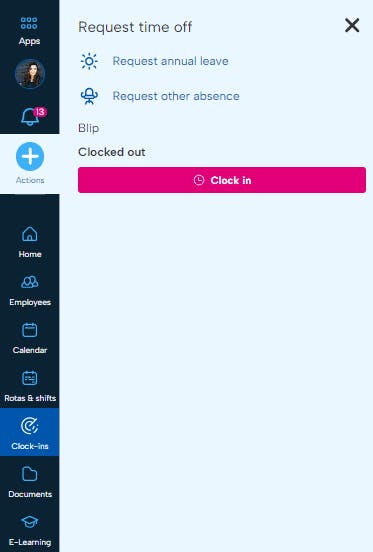
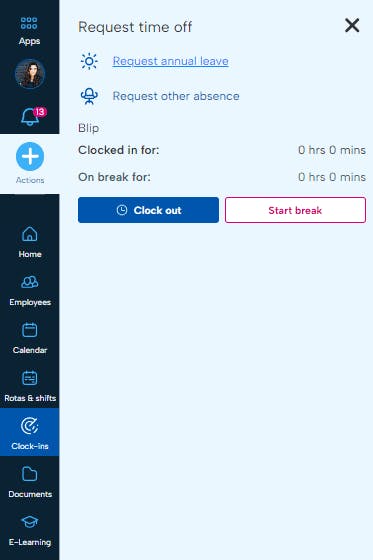
You can find this option in the actions menu on your navigation bar on the left - simply click the + button and select clock-in - you can even add your breaks and clock-out too.
Viewing your Clock-ins
You can view your clock-ins from the 'Clock-ins' section on the left. This handy addition to BrightHR, allows you to view all of your clock-in history right there on the website.
Manual Clock in Entries
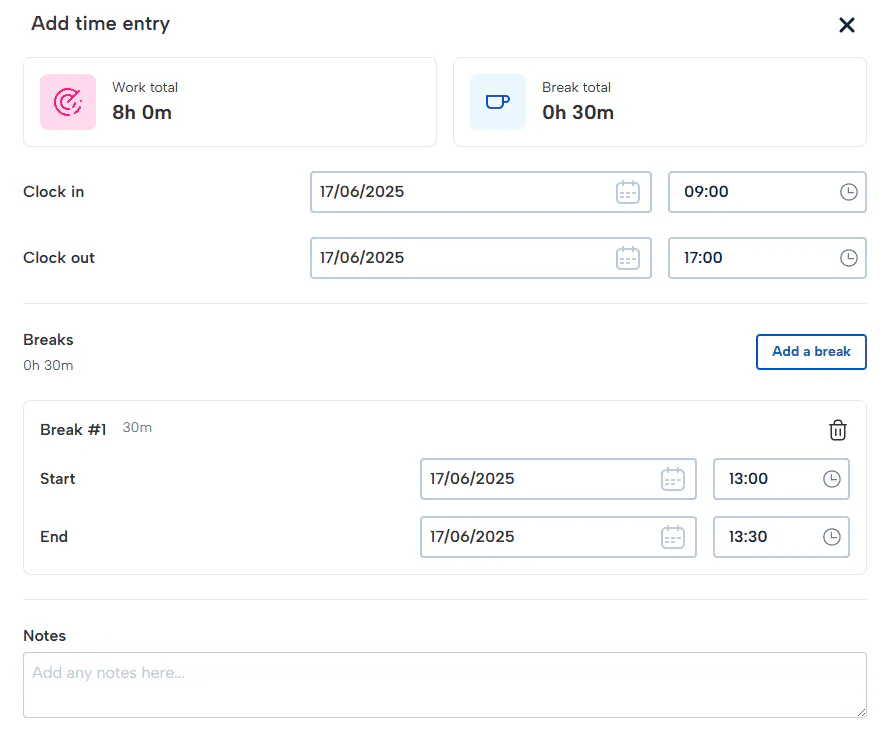
If your employer has enabled this, you will have the option to add a shift manually as opposed to clocking in real time.
If enabled, you will see the 'Add shift' option which will allow you to select a date, start and end time as well as add any breaks.

Making an Adjustment Request
If your shift doesn't look quite right and the time you arrived and left are incorrect, you can always request an adjustment to this. Simply click on the pencil next to the shift in question, enter the new start & finish time and send this over to your manager for approval. Don't forget to leave any notes to explain your request.


Click the pencil next to a shift to open the shift adjustment section.


Select the clock next to your clock in/out time to select a new time.


Leave a note to explain why the change is needed and then click 'Request adjustment'.


Your manager will now receive a request like the one above to approve your change which once approved, will update the clock/out times on your timesheet.
Expenses
Logging expense requests is easy with our expenses section on BrightHR!
Let's take a look at how we can do this...
Adding an Expense on BrightHR
Adding an expense couldn't be easier! follow these steps to add your expense to BrightHR for approval:
Once submitted your expense will go through an approval process and eventually marked as paid by your manager or an admin.
Performance
When it comes to performance tracking, BrightHR has you covered!
Performance allows your manager to assign goals and even complete performance reviews all in one place.
So easily keep on top of your performance in the form of goals / objectives as well as appraisals or 1 to 1 outcomes.
Goals
Goals allows your manager to set you a goal which you can update whenever you make progress.
For example, maybe your manager assigns you a goal to make 5 extra sales this month.
You can then head in to your goal and click 'Update progress' where you can then either update your current progress or set the goal as complete if you have reached the target!
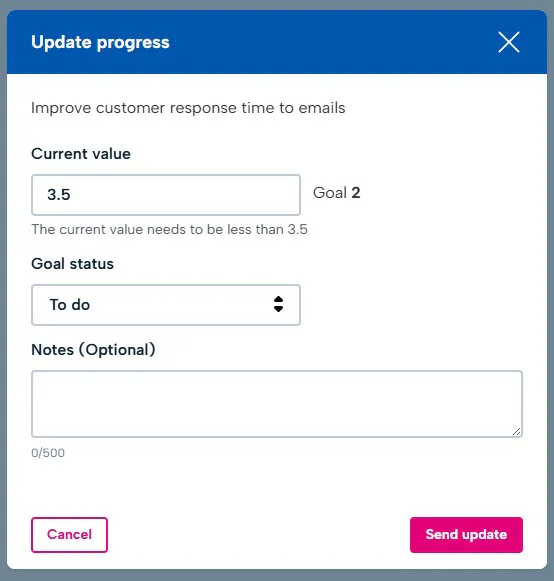
Once completed or updated, your manager will receive a notification of your update to the goal!
Whats even better about our feature, you can update it using our app from anywhere, anytime.
Performance Reviews
Whether it's a monthly 1 to 1 or your yearly performance review, it can all be completed through BrightHR!
Our performance review feature allows your manager to assign a review to you along with a set of performance based questions for you and them.
This will allow you to answer the review questions and submit it for review.
Simply answer the questions assigned to you and submit it for review, simple as that!
Once your manager has completed the review you will receive an email containing a PDF copy of your performance review for your records.
All about Praise
Here at BrightHR, we like to recognise and celebrate our employees' successes. Praise allows you and your colleagues to give recognition to your co-workers for their amazing work. It's to celebrate your hard work and achievements!


Learn how to use our amazing feature, Praise! Giving your colleagues the recognition they deserve.


When you give praise on BrightHR, as well as company values you can select one of four options to say how well your colleague did and even gives points to contribute to a leaderboard! This can be used just for fun or even company incentives.


You can give praise from both the website and from our handy app and it is really easy too - just write a nice message, select a value and then an award.


Give your colleague an award of points and a badge with their praise! choose from Good job! 5 points, Impressive! 10 points, Exceptional! 15 points and for those who have really gone above and beyond you can award Exceptional! for 20 points.


You can also view the history of all praise you have given and have received. Just click 'View activity' in the top right.
Now you know how to give praise, how it works and who can access, why not start straight away and give some praise to someone you think deserves it.
View our how-to-video below to watch it in action!
Making the most of E-learning
E-learning allows you to digitally complete training assigned by your employer. You'll even get a certificate on completion, which you can upload for your employer to access.
E-learning courses
Within the E-learning section of your BrightHR account, you'll find a whole host of CPD accredited training courses, all you need to do to get started is find the course you'd like to complete and hit the 'Start course' button or using the 'Assigned to me' section you can directly complete any training you have been assigned to complete.
Once you've chosen your course or started your assigned course, you'll then be taken through a series of interactive steps showing you everything you need to know about your chosen topic.
Marking your Course as Completed
After you have completed your course (congratulations) you will need to mark the course as completed by uploading your certificate for your employer to access.
Watch our how to video to see this in action.
Viewing your Rota
On your BrightHR account, you'll have a 'Rota' section at the top of your account.
If you have been assigned to a shift on a BrightHR Rota you'll see it in the Rota planning section of your account, along with any notes that your manager has added for you.
So that you know you've been assigned to a shift you'll also receive a handy notification, on your app, to let you know you've got a new Rota to view.
Navigate your Rota
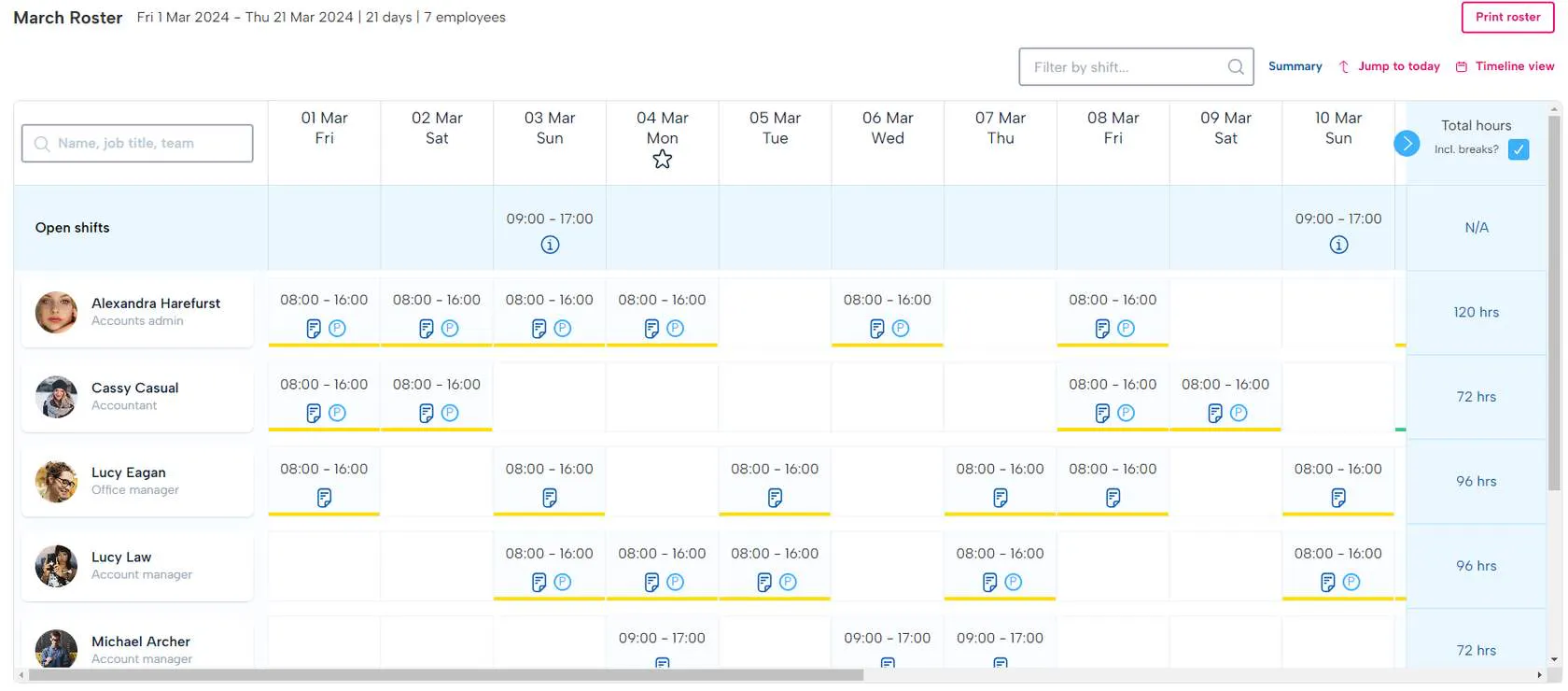
Rota name - Here you'll see the name of your Rota. the date range of it and the number of employees included. Day of week - Check which days you'll be working on using the date shown here. Print rota - Here, you can print a rota or even use the 'Save as PDF' option to save a digital copy. Filter - Use the filter to search for specific team members, job title or specific employees. Pending shifts - If your employer selects you to accept or decline shifts, you will need to click in to the shift and make your employer aware of your availability. Total hours - Here you will see a total number of hours worked that week based on the rota. Notes and colour coding - Shifts can be added with additional notes or even colour coded to indicate specifics.
Watch our rota in action in our handy how to video...
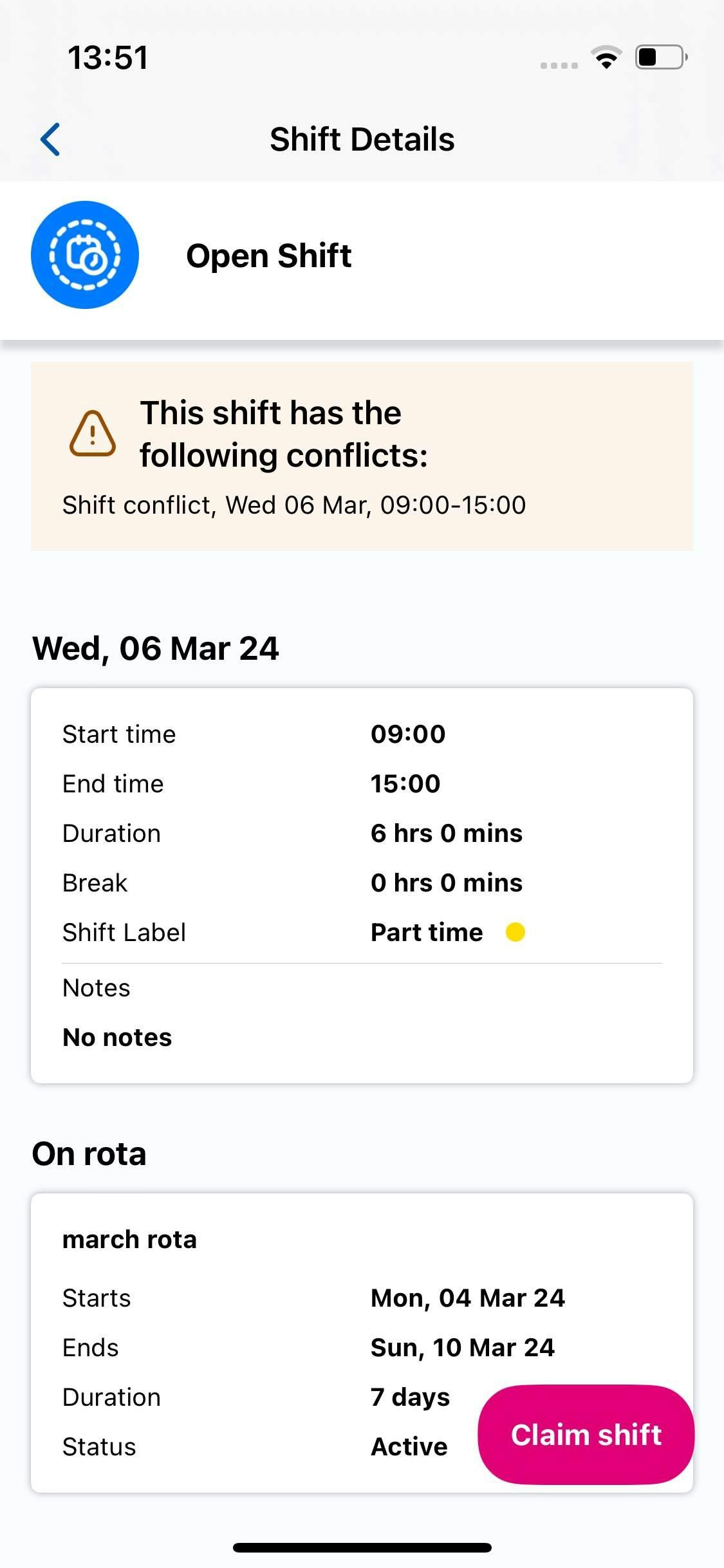
Open shifts
Open shifts allows your employer to allocate a number of shifts open to claim - maybe this is for overtime or extra days.
View our how-to-video below to watch it in action.
Viewing shifts on the go
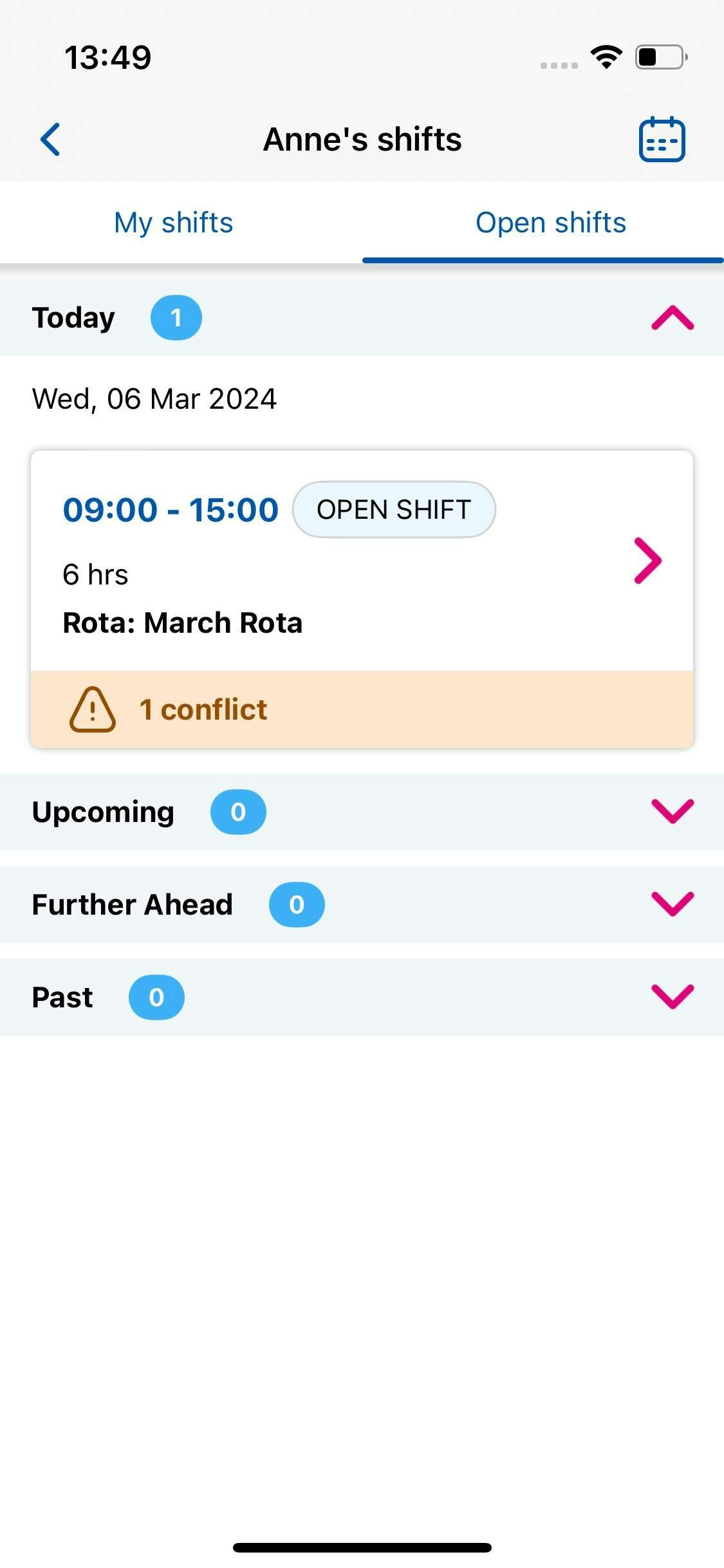
Any Rotas you've been assigned to will all be available anytime, anywhere using our app.
Whenever you're added to a new Rota or your shift changes, you'll get an automatic notification so you know where to be and when.
Open Shifts
View and accept open shifts all from our handy app to let your employer know you're happy to pick up an extra shift.
Account Security Awareness
Keeping your account safe and secure is important to us at BrightHR.
Let's learn all about the features BrightHR offers to help keep your account secure.
Resetting Your Password
To keep your account secure, you may want to regularly update your password. This is quick and easy to do within your account - see below how you can do this in a few steps...


First, head in to the 'My account' section of your BrightHR account.


Next, click 'Change password' in the Password management box.


Finally, enter your current password and confirm your new one below conforming to the password rules in the middle - If the password is not valid, we will flag this up for you to amend.
Once your password has been updated, this will be ready for you to start using straight away the next time you log in.
You may want to update any stored login details with your new password for the next time you log in.
What If I Have Forgotten My Password?
Not to worry! It happens to all of us. From the login screen, you will find a link below the password box to request a password reset.
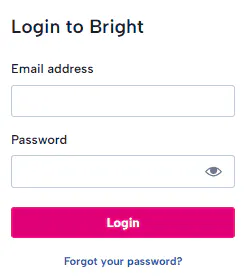
Just simply click 'Forgot your password?' and enter the email address you use to log in with and check your inbox! You should have an email now waiting for you from us with a link to reset your password safely and securely. Set your new password according to our password rules, and you're good to go!
If you have not received an email, be sure to check your junk / spam folder or maybe double check the email you have requested the reset to. If you are unsure which email has been used, ask your employer to check this for you.
Why Am I Locked Out Of My Account?
Be careful to not repeat login attempts if your password or email is incorrect as you will eventually get locked out for 30 minutes. This is an additional security measure to keep your account safe from unauthorised access.
Single Sign-on
What Is Single Sign-on?
Single sign-on (SSO) is an authentication tool that lets you securely access multiple applications and services using just one set of credentials. Put simply, our SSO feature means you can log in to your BrightHR services in one go, with details you’re already familiar with. Just link a Microsoft, Google, Apple or Facebook account, sign in once, then move between Bright applications in a single click.
Watch our handy how-to video to see just how easy it is to set this up...
Two-factor Authentication (2FA)
What Is Two-factor Authentication?
Two-Factor authentication – sometimes called “2FA” – works by adding an additional layer of security to your online accounts. It requires an additional login credential – beyond just the username and password – to gain account access, and getting that second credential requires access to something that belongs to you.
How To Enable Two-factor Authentication
You can set this up in a few steps using your BrightHR account and a secondary authentication app such as Microsoft authenticator.


Step 1 - Turn On Two-factor Authentication
First head over to the 'My account' section and select 'Turn on' in the Two-factor authentication box.
You will then be presented with a code and a QR code - both can be used on your authenticator app to connect your account.

Step 2 - Connect Your Authenticator With Your BrightHR Account
Once you have connected the app using the code or QR code, you will then be given a code on your authenticator to type in to BrightHR. Enter this code into BrightHR which will fully connect your account. Don't forget to copy or download your recovery codes which will help you if you lose access to your authenticator app.

Step 3 - Start Logging In To Your Account Safely & Securely
Now you are fully connected with your authenticator app, you will be prompted with the 2nd layer of security after entering your email and password to confirm your identity using your authenticator app!
You can turn off two-factor authentication at any time via the my account section where you first enabled it.
Using A Shared Device
When using shared devices such as a company PC or laptop, it is important to logout of your account to prevent unauthorised access.
We have added a handy option when logging in to state you're using such a device and this will remind you when logging out to close any other instances of the app that is running in other browsers or tabs.