- ...>Your account settings
Your account settings
Explore how to manage your BrightHR account settings, including company‑wide preferences, employee visibility options, email privacy controls, and overtime and TOIL configurations to tailor the platform to your business needs.
Account Settings
Account Settings
With BrightHR you have the option to enable or disable certain settings depending on your business needs. In this lesson, we'll go through each of your settings and how to adjust these.
Company Wide Settings
Company Name
As this suggests, you can update the company name in regards to how it appears on your account to you and the rest of the company.
Just simply type the new name in the box and update your changes, it's that simple!
Employee Settings
Employee Status
One great feature of BrightHR is the ability for you or your employees to set a current status so you know, at a glance, whether an employee is working from home, on a client visit or at their normal working location.
Hide Email Addresses
This setting allows you to either 'Show' or 'Hide' your employee's account emails from each other. If this is set to 'Show' then employees will see all other employees email addresses in the employee hub and on the mobile app.
To change this just select the 'Hide' option and click 'Update' at the bottom of the page to save your changes.
Hide Employees
A great option to have if you want to keep your employees details private! 'Enable' this to hide employee details from other employees.
Admins and Managers are unaffected by this setting. This will take effect across all BrightHR products.
Overtime & TOIL
Allow Overtime
If you 'Enable' this setting you will have an overtime section on each employees profile to record additional hours that the employee has worked and any additional time off in lieu (TOIL) or payable overtime that they may have gained from this.
If you 'Disable' this setting, all mentions of overtime will be hidden on your account and the employees.
Record Overtime
If overtime is enabled, you will have additional settings that can be adjusted based on your business needs.
One of these settings is the option to allow employees to request overtime that they have earned be added to their balance- i.e. An employee works 3 hours overtime on Monday.
If this setting is set to 'Everyone' then the employee will be able to request that 3 hours are added to their overtime balance for working that overtime on Monday. Their manager would then receive the request and be able to approve, decline or edit this.
If this setting is set to 'Managers' then only the employees manager would be able to record that they worked 3 hours overtime on Monday.
Use TOIL Balance
Similar to recording overtime, if this is set as 'Everyone' then employees will be able to request absences using TOIL hours they have earned, the request will then go to their manager who is able to approve, decline or edit the request.
If this is set to 'Managers' then only managers will be able to add absences, using TOIL, on behalf of the employee.
Absence & Entitlement
Absence Conflict when not in Teams
When you add employees they aren't automatically assigned to a team, instead, they will sit within a section of the employee hub called 'No Team', until you assign them to a team.
If you 'Enable' this setting it will allow you to see absence conflicts between employees who have been automatically added to 'No Team'. If you 'Disable' this setting you won't see absence conflicts between employees who have been automatically added to 'No Team'.
Annual Leave Carryover
On BrightHR you have the option to carry over any unused holidays from one holiday year to another.
If you 'Disable' this setting then the carry over option will be hidden on each employees profile.
Prevent Employees Cancelling Future Annual Leave
This setting allows you to enable or disable whether employees are able to cancel upcoming absences they have been added.
If this is 'Disabled' then employees will have the option to cancel any future absences that have been added, this will remove the absence from their profile and re-add the days or hours that were previously deducted back into their holiday entitlement.
If you 'Enable' this setting then employees won't have the option to cancel any upcoming absences themselves, this would have to be removed by their manager.
Rotas
Restricted Rota Permissions
When enabled, this setting allows you to specify which 'Managers' you'd like to give permission to edit and delete rotas, on a rota per rota basis.
Please note: permissions are only valid for rotas created after this setting is applied and cannot be used for existing rotas.
Hide Shift Labels In Rota From Employees
Enabling this setting will prevent employees from seeing any colours and labels assigned to shifts on your rotas.
Ability to Accept & Decline Shifts
If you enable this setting, you will be able to assign permissions to specific or all employees to give them the ability to approve or decline a shift once you have assigned it to them.
Activate Open Shifts
Enabling this setting will allow employees to assign themselves to available open shifts. Only admins and managers can create open shifts.
Please note: Amending these settings will only impact shifts assigned after changes are saved.
Blip Settings
Web Clock-in Settings
This option allows you to set whether you would like your employees to have the option to clock in to Blip via the website instead of just through the Blip app.
This does not allow the employee to select the location they're clocking in from.
Geofence Settings
Select how users interact with your geofence locations by allowing custom settings or permissions on weather to clock in / out within, or outside of the geo-fence.
Users must clock in and out inside a geo-fence, or by using a QR code.
You can also use the 'Employee specific' options to provide the above permissions to individuals as opposed to the whole company.
Please note: Only administrators can adjust this setting.
BrightLabs
We are always releasing great new features to take BrightHR a step above and thoroughly test them before we release them, however, some features are that great we want to get them to you sooner rather than later.
This is where BrightLabs comes in to play! This allows us to release things early as 'Beta' features that can be switched on / off.
Organisational Chart
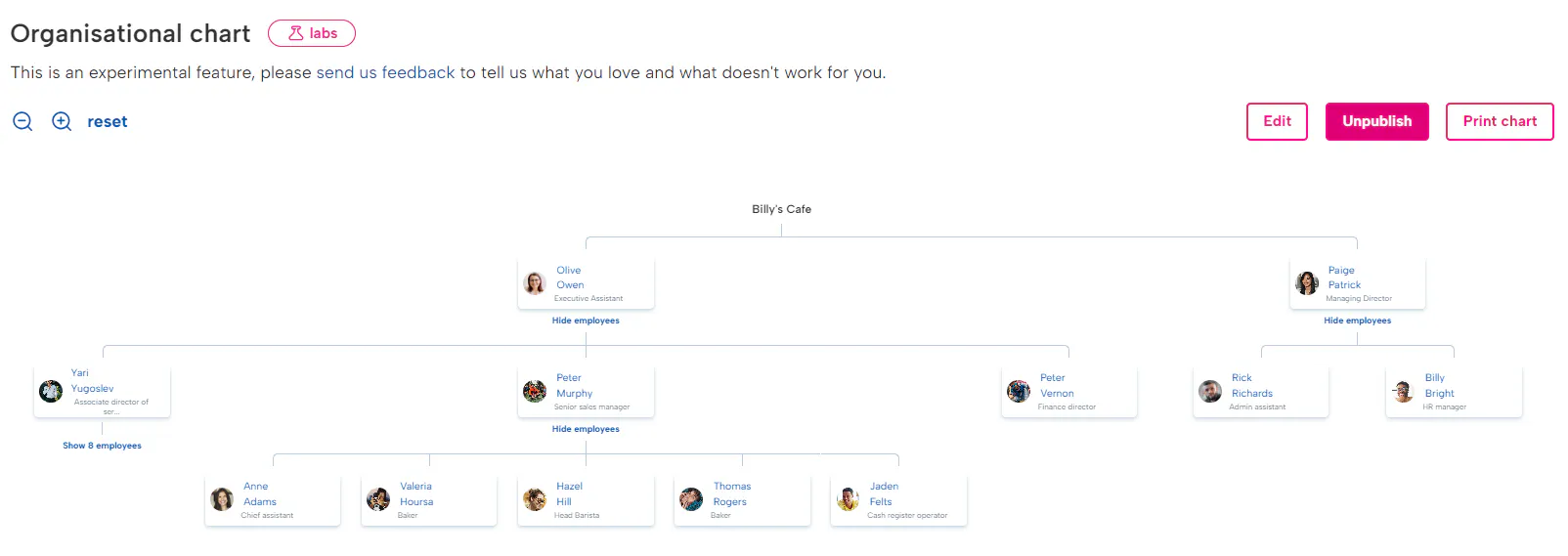
Create a customisable chart displaying your team's hierarchy using your new organisational chart feature located in the employee hub. Share your company structure instantly, update in real-time on BrightHR, and export as a PDF, or print. Enable or disable this to access in the employee hub.
Praise
Praise allows you and your employees to give recognition to your co-workers for their amazing work. It's to celebrate your colleagues hard work and achievements!
Enable this feature to see the praise option appear on yours and your employees dashboards.



Learn how to use our amazing feature, Praise! Give your employees the recognition they deserve.


First, you will want to set your company values and points limit that can be allocated when praise is given. This allows your staff to reflect which of the company values their colleague shown for their praise. You can add up to 10 of your company values.


When you give praise on BrightHR, as well as company values you can select one of four options to say how well your colleague did and even gives points to contribute to a leader board! This can be used just for fun or even company incentives.


You can give praise from both the website and from our handy app and it is really easy too - just write a nice message, select a value and then an award.


Give your colleague an award of points and a badge with their praise! choose from Good job! 5 points, Impressive! 10 points, Exceptional! 15 points and for those who have really gone above and beyond you can award Exceptional! For 20 points.


You can also view the history of all praise you have given and have received. Just click 'View activity' in the top right.
Now you know how to activate praise, how it works and who can access, why not announce this to your employees and get them praising each other for their efforts!
Want to show your employees how to give praise on BrightHR? Why not send them the video below.
Zapier - Integrations
The Zapier integration feature allows you to use the third party company Zapier to connect your BrightHR to other apps available through their service allowing you to integrate repetitive tasks
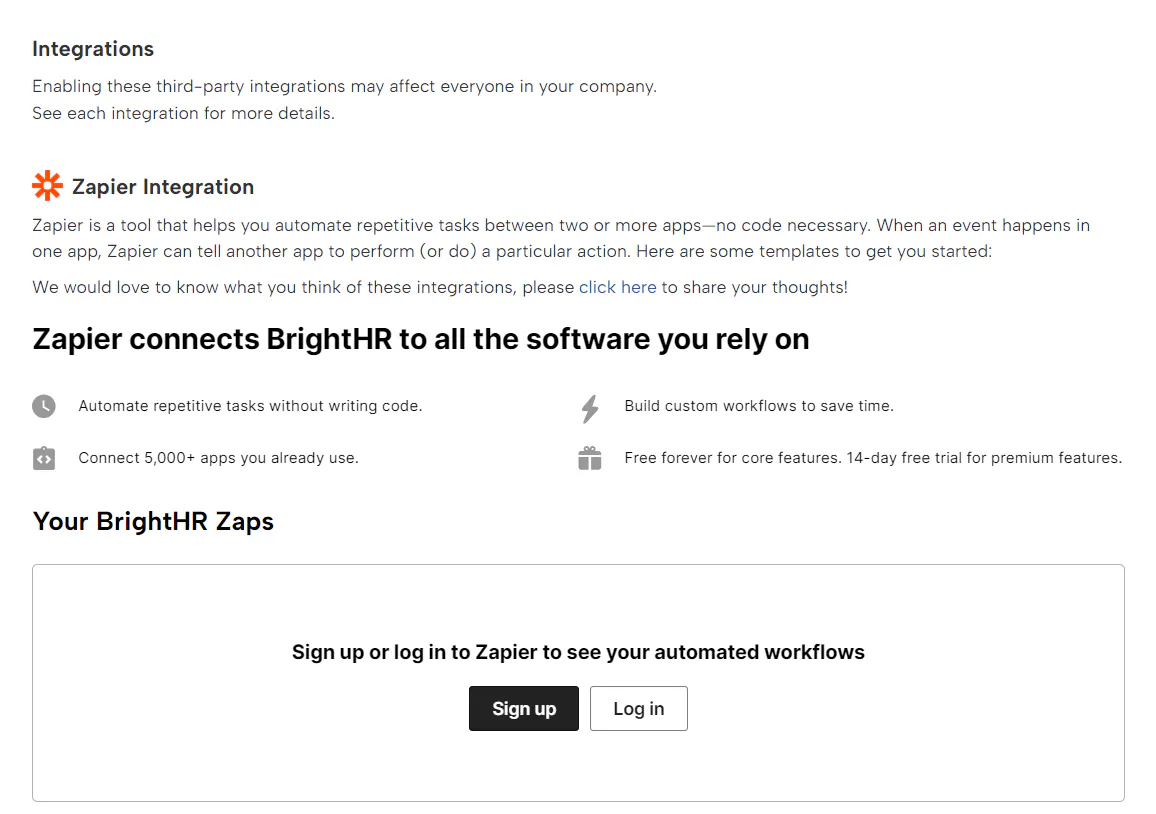
First you will need to sign up and create an account with Zapier to access their services - the account is free for all core services but this may not be the case for premium features, please discuss with Zapier directly if you wish to upgrade to premium integrations.
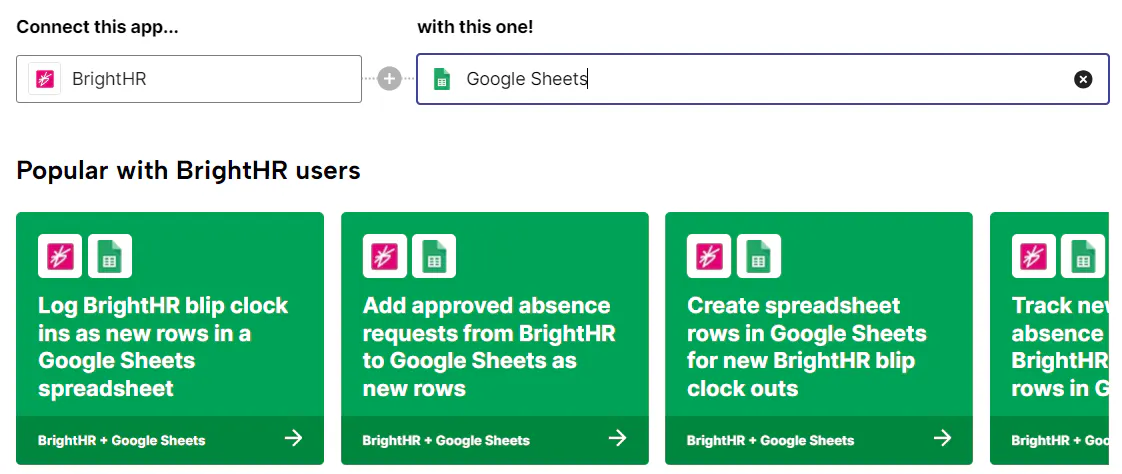
Watch our how to video to see how to start your integration from BrightHR.