- Timesheets app
Generate timesheets from anywhere with Blip
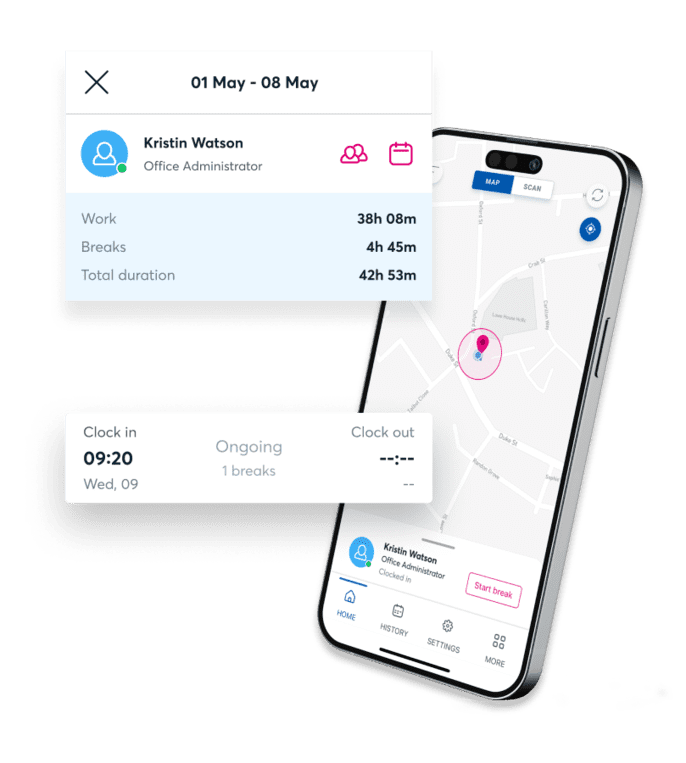
Track staff hours from your phone with real-time updates. With just a click, you can…
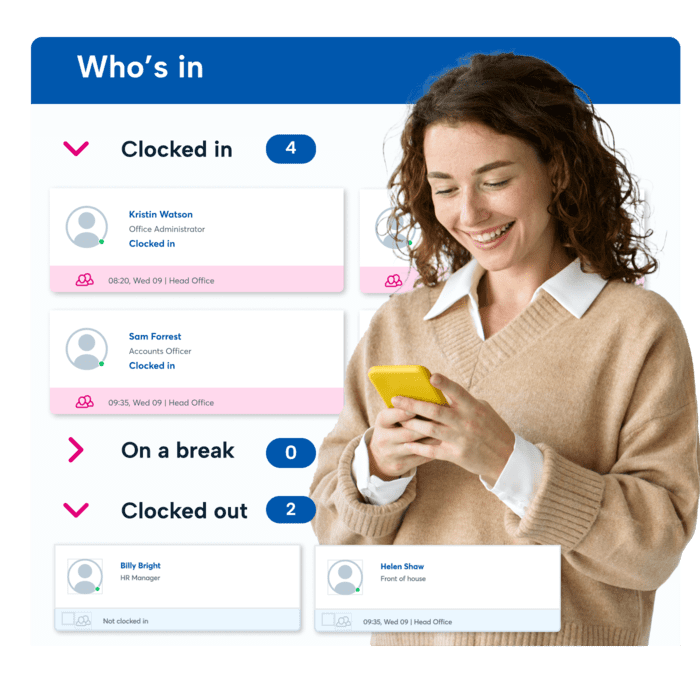
- Know who’s in, off, or on a break with real-time updates
- Remind forgetful staff to log their hours with auto-alerts
- Allow remote working with secure geolocation tracking
- Keep accurate payroll records with timesheet reporting

Join the businesses around the world that have reached 60 million+ clock-ins
Join the businesses around the world that have reached 60 million+ clock-ins





Three easy ways to make staff time-tracking a breeze
Virtual clock in and out boundaries
Blip's geofence feature helps you create a virtual boundary using GPS. Allowing employees to clock in or out when they enter or leave your set area.
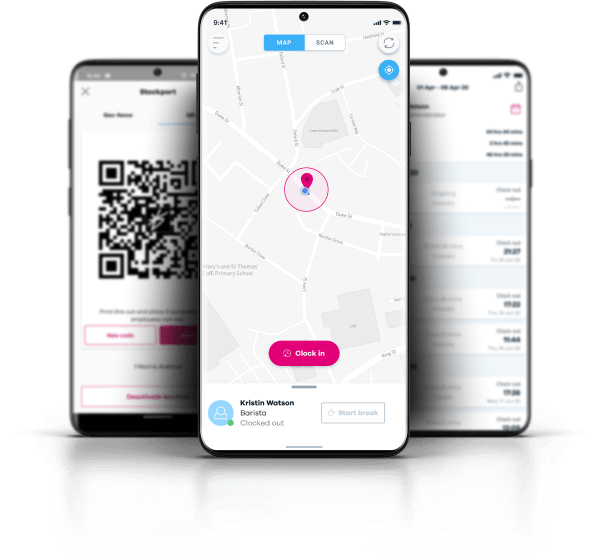
Take full control of your workforce with customisable geofence settings. Define precise boundaries for clocking in and out to ensure your employees are where they need to be.
Blip's GPS technology seamlessly detects these virtual boundaries, prompting your staff to clock in or out as they enter or leave the designated area. With geofencing, you can wave goodbye to the uncertainty of remote work hours and empower your team to thrive.
Seamless QR code clock in solution
Easily create a QR code, print it, and showcase it in your workspace. Motivate your team to clock in and out in seconds with a quick scan using the Blip app.
Convenient clock ins on ANY device
As well as being a clock in app, Blip is fully integrated into BrightHR, so staff who don't have smartphones or don't want to use their own devices can clock in and out from their work computers.
What our customers say about BrightHR
Using BrightHR makes us much more organised and centralises our processes, making it quicker for us to manage sickness and holidays.
Nottingham Credit Union

BrightHR is a user-friendly system and the team are on hand to answer any questions we ever have. I would highly recommend BrightHR.
Deborah Gillespie @ Change, Recruitment Group

Our staff absolutely love using the system and the ease of booking holidays and clocking in using Blip. Customer service is amazing...
Steven Greenall @ Cornerstone Children’s Home

Iron out the Blips in your timesheets
As a business owner, you’re already balancing so much. The last thing you need slowing you down is piles of paper and manual logs of your staff’s working hours.
With Blip, the only thing your staff need to clock in or out is their mobile phone. And with just a glance, you can make sure you’re meeting regulations and check who’s available to work.
It’s that simple.
How Blip keeps you in line with the law
You might trust your team—but you can’t just take their word when it comes to working hours…
Blip helps you keep official records of staff hours, breaks, and overtime. So, you’re meeting Working Time Regulations. That’s one app to help you:
- Log core working hours and locations
- Make sure staff are taking enough breaks
- Record staff overtime accurately
- Export and save work history for your employees
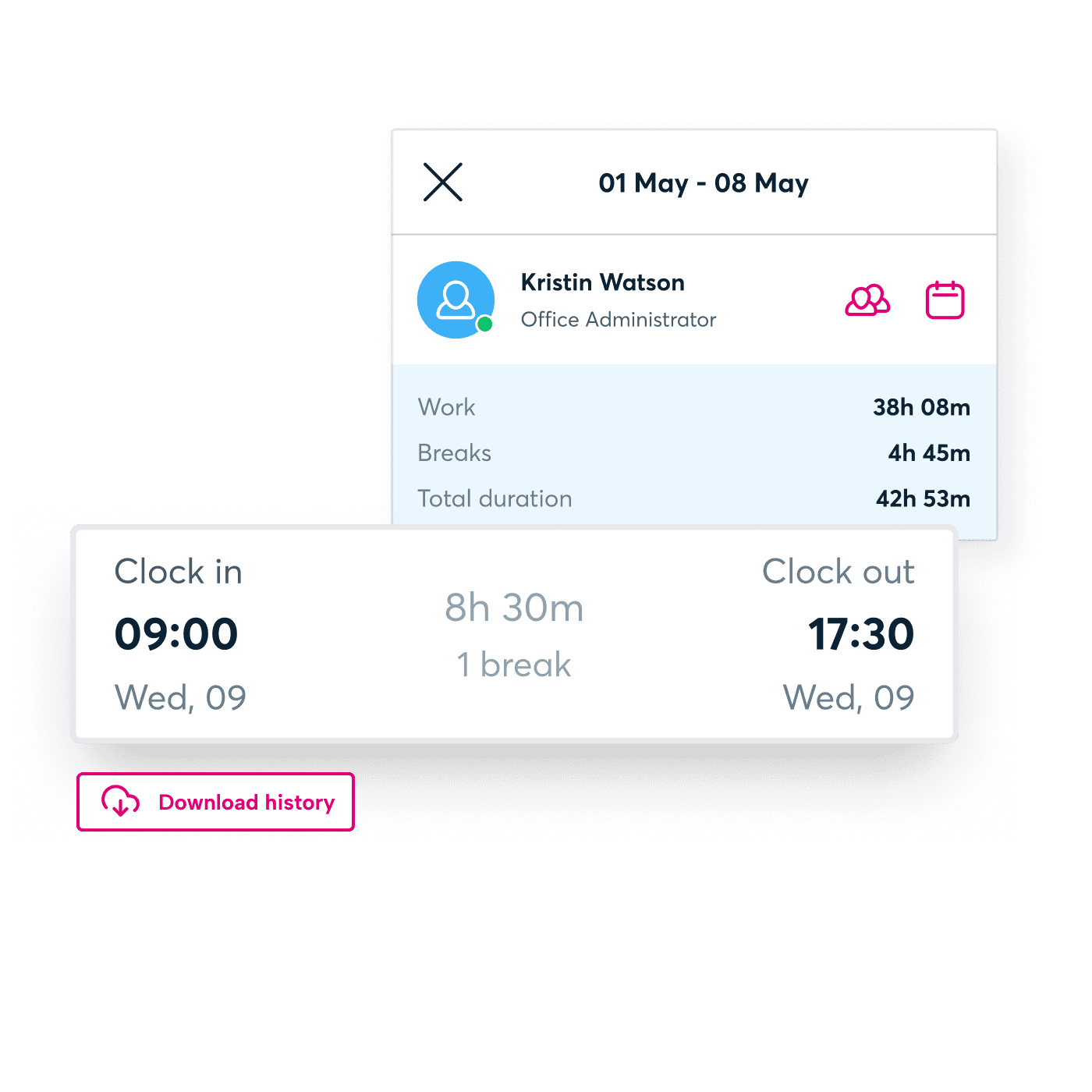
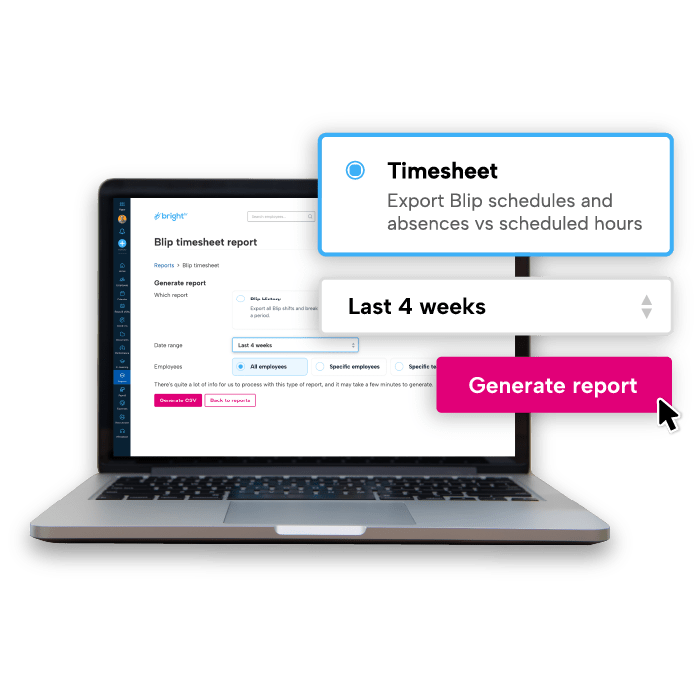
Timesheet reports that actually make sense
See who worked what, when, and spot the discrepancies.
- Compare planned vs actual hours in one simple view
- Spot overtime patterns before they become expensive
- Keep accurate payroll records with all the context you need
- Export audit-ready reports for compliance checks
FAQs
Yes, your employees can edit their shifts as well as add / edit breaks, but this will go through an approval process in the form of an adjustment request.
This request will be like an absence request in hierarchy which means it will go to any assigned managers and all admins.
Yes, you can!
Simply head to the clock ins section and in to the history tab.
Here you will be able to view your employees clock ins and breaks including details of the location they clocked in from, any notes included and any adjustment requests.
You can also make use of our handy filters which allow you to filter by specific employees / teams, clock in locations as well as completed clock ins and/or including notes.
You can if your admin has enabled the setting.
If they have, you will find an 'Add shift' button that will allow you to add a historical shift including your break.
If you do not see the option, please discuss with your admin.
Yes you can enable the setting in the Blip settings section on the clock-ins section.
Once enabled, the employee can clock in from 3 locations on the website, from their dashboard, the quick actions list on the nav bar and in the clock-ins section itself.
You can delete a clock in location by heading in to the locations tab in the clock-ins section, clicking the 3 dots next to the location and then select deactivate location.
You can also do the above on the Blip app as well.
Please note, once deleted, this cannot be reversed but will not affect any historic clock in history for the location.
Interested in BrightHR? See it in action
Explore our award-winning software and see our range of end-to-end people management tools for yourself.