- ...>Welcome to BrightSafe on the go - Admin & User
Welcome to BrightSafe on the go - Admin & User
Welcome to BrightSafe on the go
We've put together this handy step-by-step course to help you make the most of BrightSafe on the go - our time-saving health and safety app. Just follow each of the interactive steps to get the most out of your app and find out some of our top tips along the way!
Getting Started
What is BrightSafe on the go?
BrightSafe on the go is our pocket-sized version of our easy to use Health & Safety management software that helps you keep on top of all your H&S tasks, so you can protect your people and your business.
Key Features of BrightSafe on the go
With BrightSafe on the go, you'll get access to a whole host of features allowing you to; * Review and complete your current task list including action tasks and responsibilities you have been assigned to. * View and update risk assessments as well as add new action tasks to hazards. * View and accept any method statements you have been invited to review. * Report hazards as soon as you see them and upload photos from your phone. * Report accidents or near misses on the go. * Complete your assigned health and safety E-Learning courses as well as upload your certificate of completion for your records. * Access Bright Exchange - your marketplace with exclusive offers for Bright users. * Access and download your health and safety documents.
Now that you know a little more about BrightSafe on the go, let's get started!
Your BrightSafe on the go Home Screen
When you log in to BrightSafe on the go, the first thing you'll see is your homescreen. This gives you a handy breakdown of any key H&S tasks that are upcoming or overdue and more.
Let's take a tour of your homescreen...
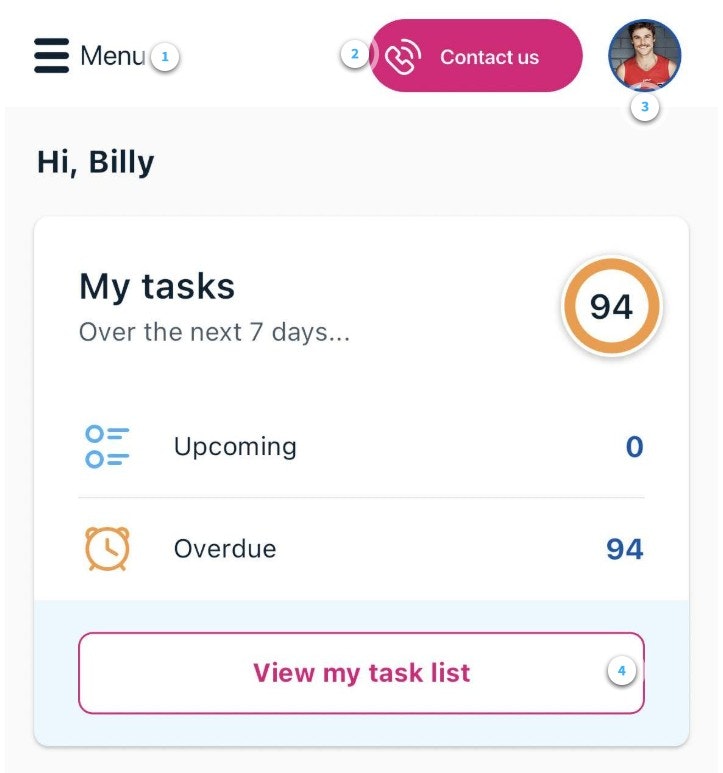
- Menu - This is where you will be able to report hazards and accidents as well as use our app switcher.
- Contact us - Find the details to contact our Health and safety advisors or request an appointment for us to get in touch.
- Profile photo - Here you will see your profile photo or your initials if you have not set one in BrightHR. Click here to log out of the BrightSafe on the go app.
- Tasks - See whether any tasks are upcoming or overdue, at a glance, in the handy tasks section.
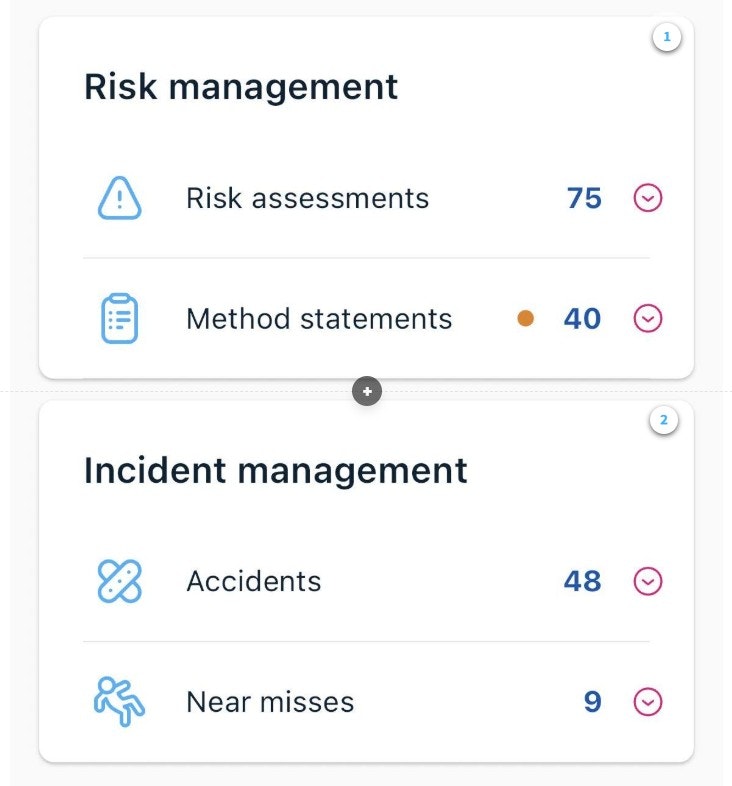
- Risk Management - Here you will be able to view and review risk assessments you or others have created on BrightSafe as well as add new actions to users. You can also view any method statements you have been invited to review and accept.
- Incident management - Here you can see a breakdown of any incidents that have been reported (accidents or near misses) as well as report a new one.
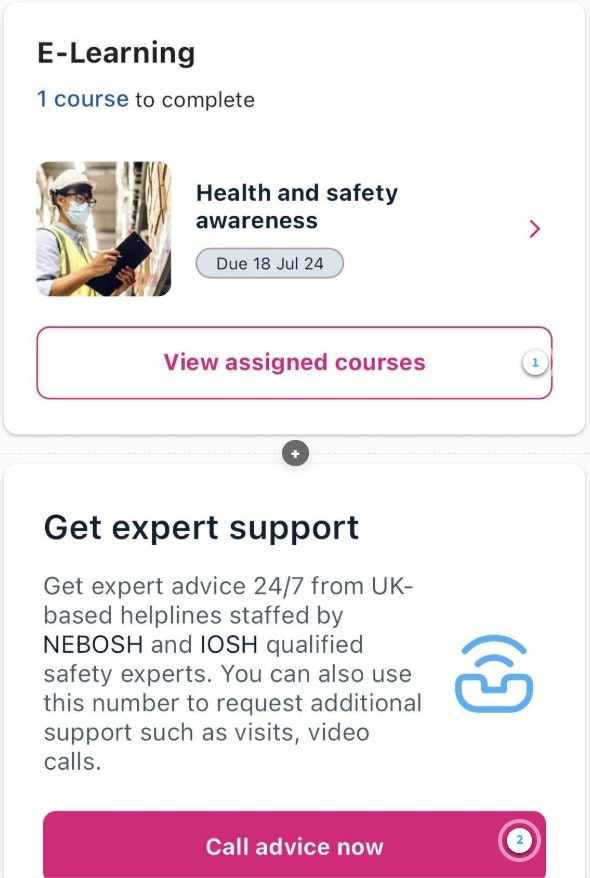
- Assigned courses - View and complete any health and safety E-Learning courses you have been assigned on BrightSafe.
- Get expert support - Call our health and safety experts with the tap of a button.
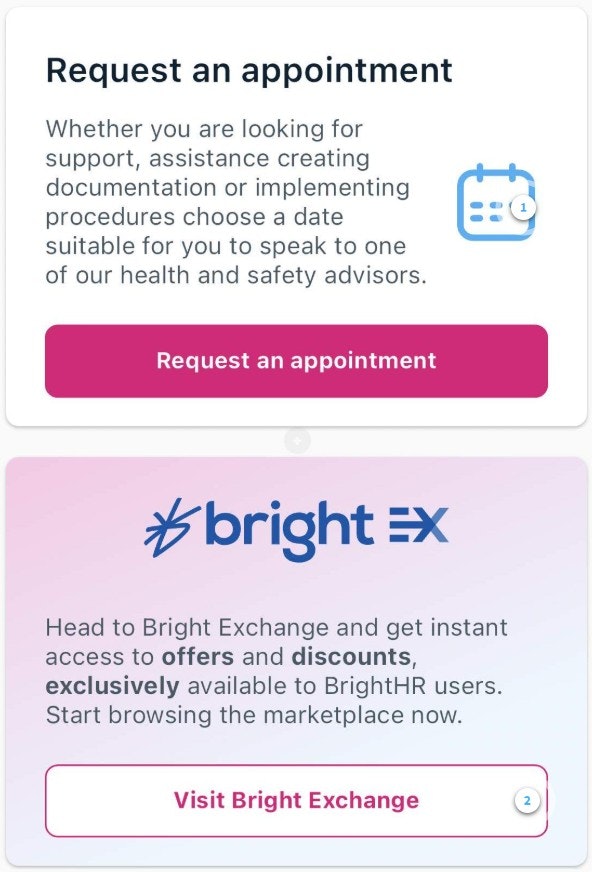
- Request an appointment - Request for one of our health and safety experts to get in touch.
- Bright Exchange - Visit our free marketplace to advertise your business/services or even keep a keen eye out for a bargain! Exclusive offers for Bright customers.
Here you can access the functions to report a hazard, report an accident or near miss.
You can also use the app switcher to access one of our other apps such as Blip or the BrightHR app.

Summary
You're off to a fantastic start! You've now learnt all about the home screen and how to navigate your way around.
Viewing & Completing Tasks
Once you've logged in and navigated your way around the home screen, you may have tasks waiting to be completed so let's take a look at how you can manage and complete tasks on BrightSafe on the go.
Types of Tasks
There are three types of task that you can be assigned, let's go through each of them...
When a risk assessment is created, details of any hazards will have been added. When a follow-up action has been added that needs to be completed to that hazard BrightSafe will automatically create an action task for the person that action has been assigned to.
Completing Action Tasks


First review what the action requires you to do.

You can change the status of the action task either when you have started, completed or if this is no longer required.

Finally, add any comments to confirm the actions you have taken, upload any images if necessary and tap the tick icon.
Completing Responsibility Tasks
Completing a responsibility task is similar to an action task. You can upload any images if needed, enter a comment and tap the tick icon. Once you have clicked the tick icon, the status of the task will change if this is a one of task. If this is a recurring task, you will see that it will remain the same until the responsibility is changed.

Summary
Now you know all about tasks and are on your way to becoming an expert!
Next Step
Next let's look at the risk management section starting with risk assessments.
Risk Management
Viewing and reviewing your risk assessments anywhere, anytime with BrightSafe on the go couldn't be easier! Let's have a look at how...
Viewing your Risk Assessment
You can find any risk assessments & hazardous substance risk assessments you have on BrightSafe under the 'Risk management' section on your home screen. This will allow you to view the risk assessment as well as review the assessment allowing you to make changes and add new action tasks to hazards on risk assessments.
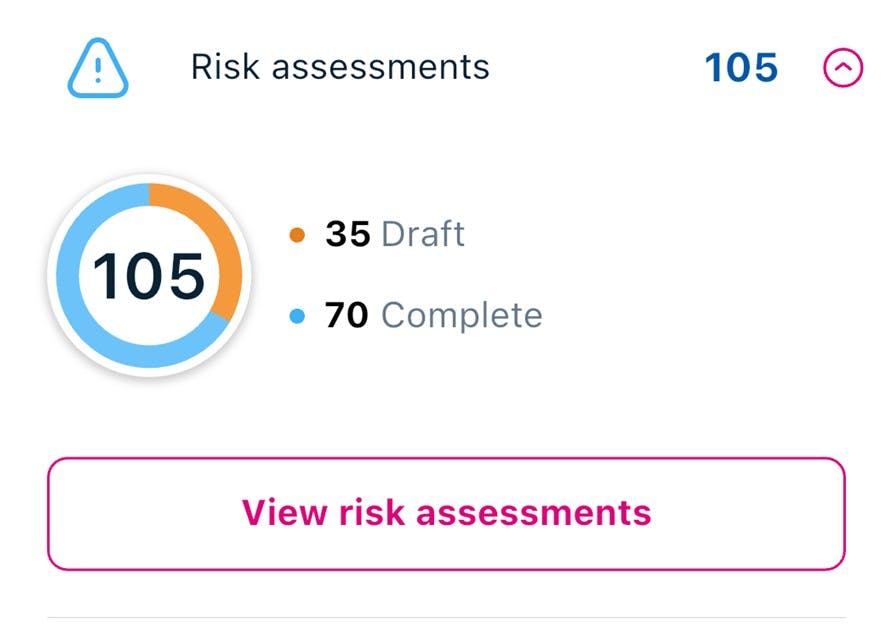
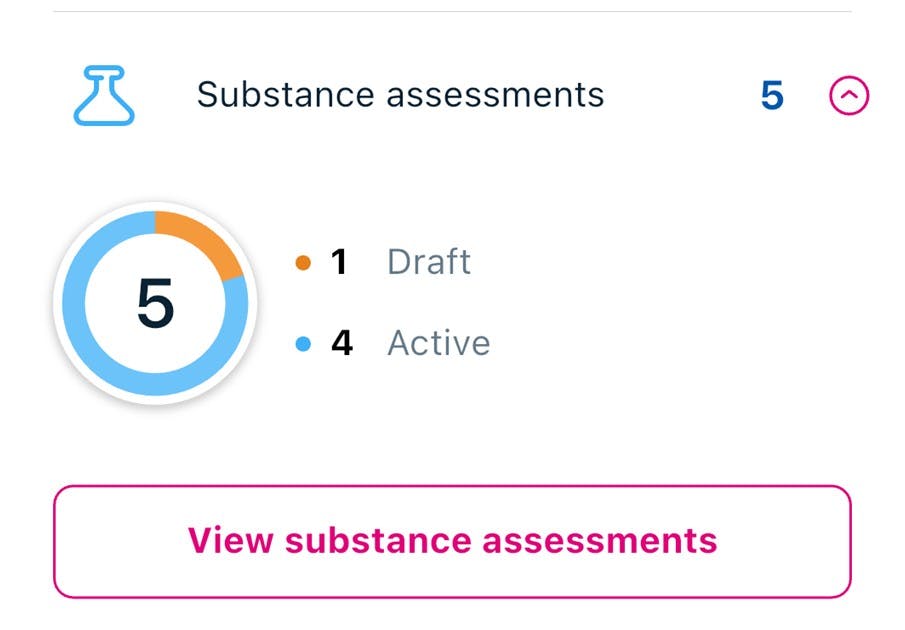
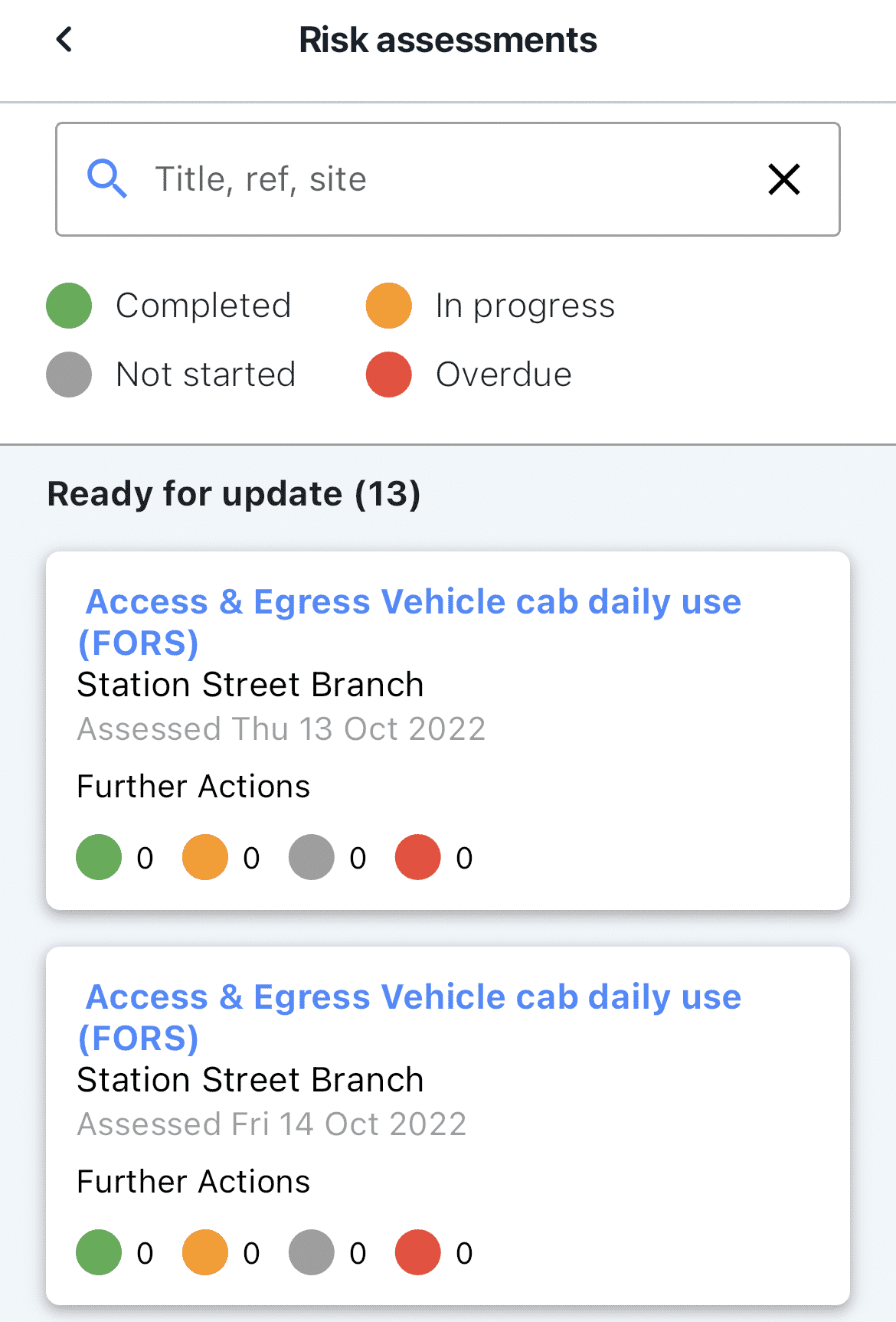
You will then see a list of active risk assessments that have been added to BrightSafe. Simply tap a risk assessment to view or update the risk assessment.
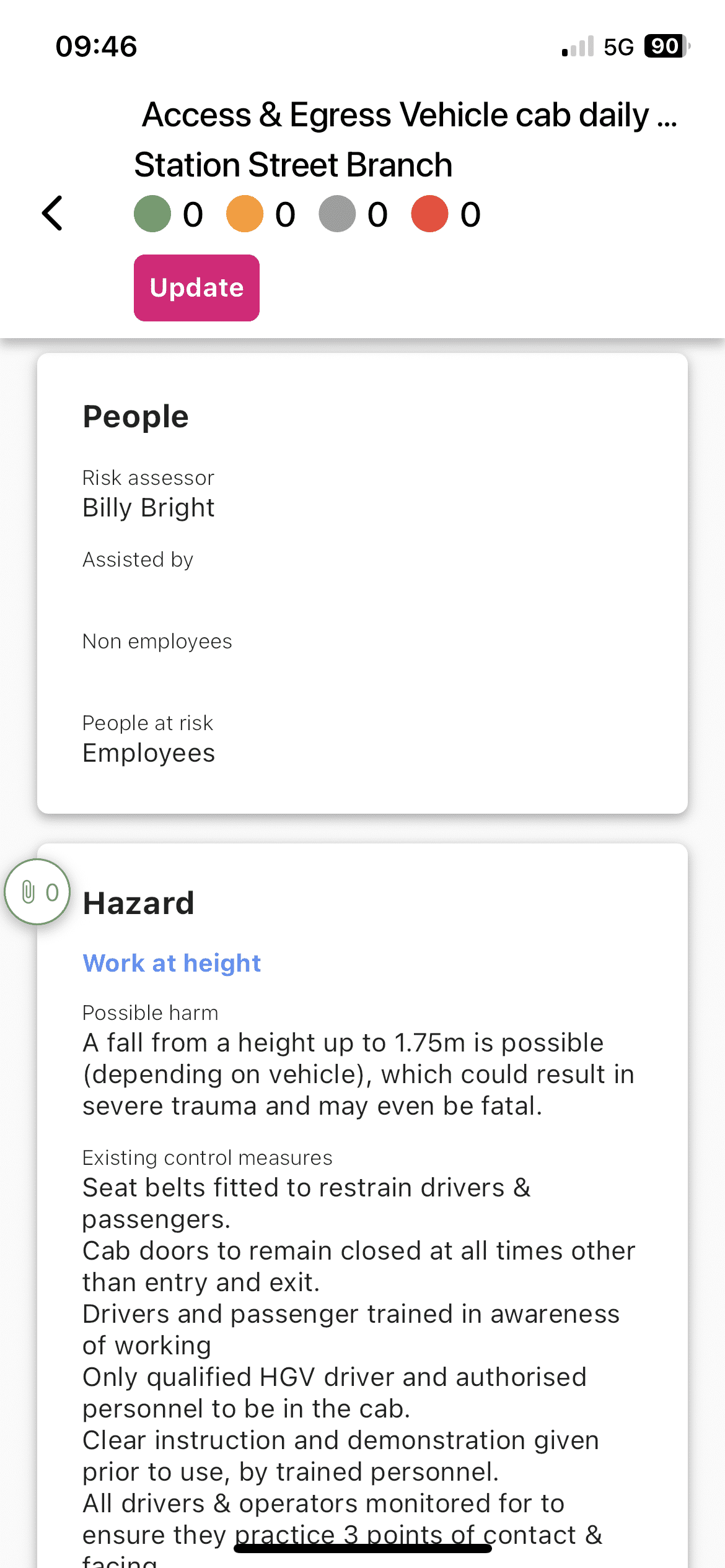
Once you have selected the risk assessment, tap the 'Update button' to make any changes in the form of a new review.
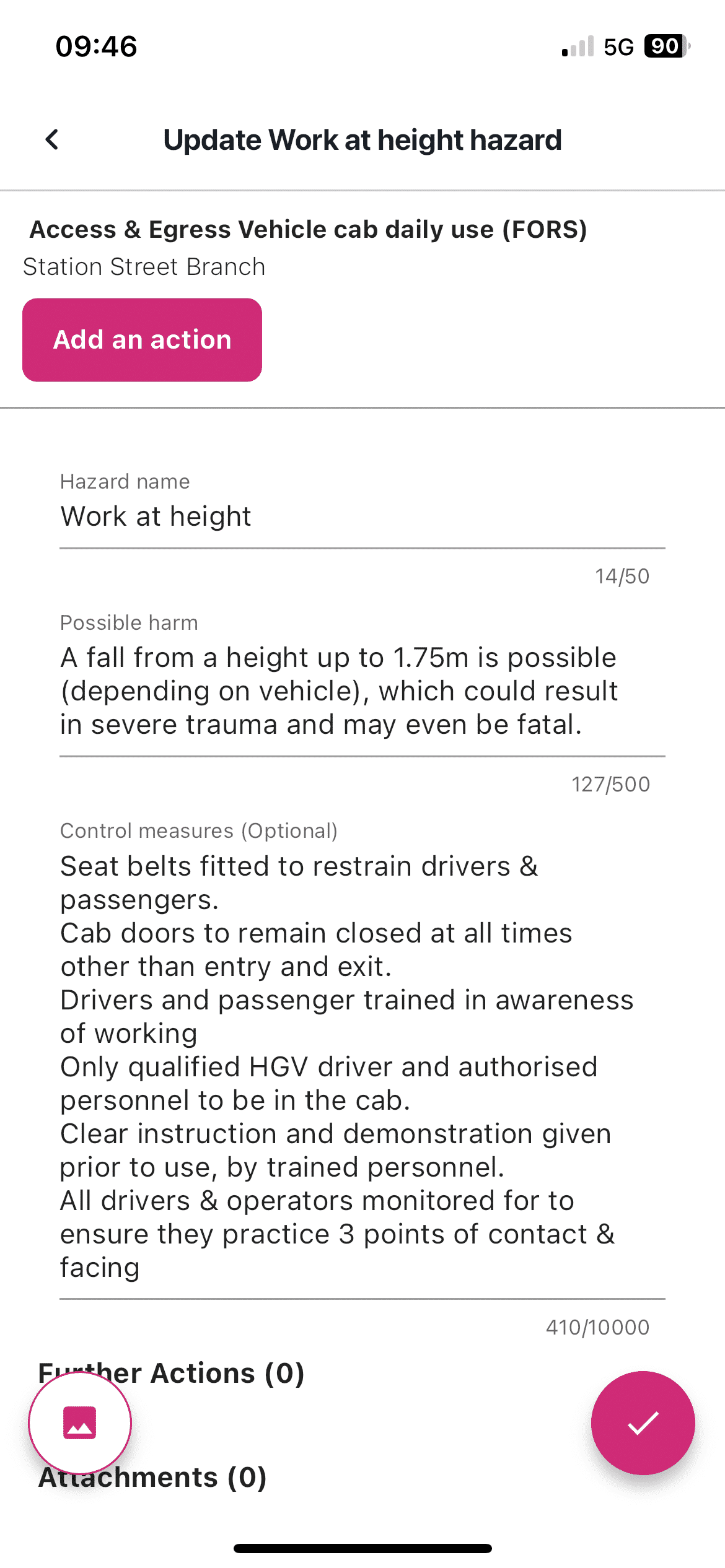
Make any changes you need to the hazards and even add a new action task to assign to someone.
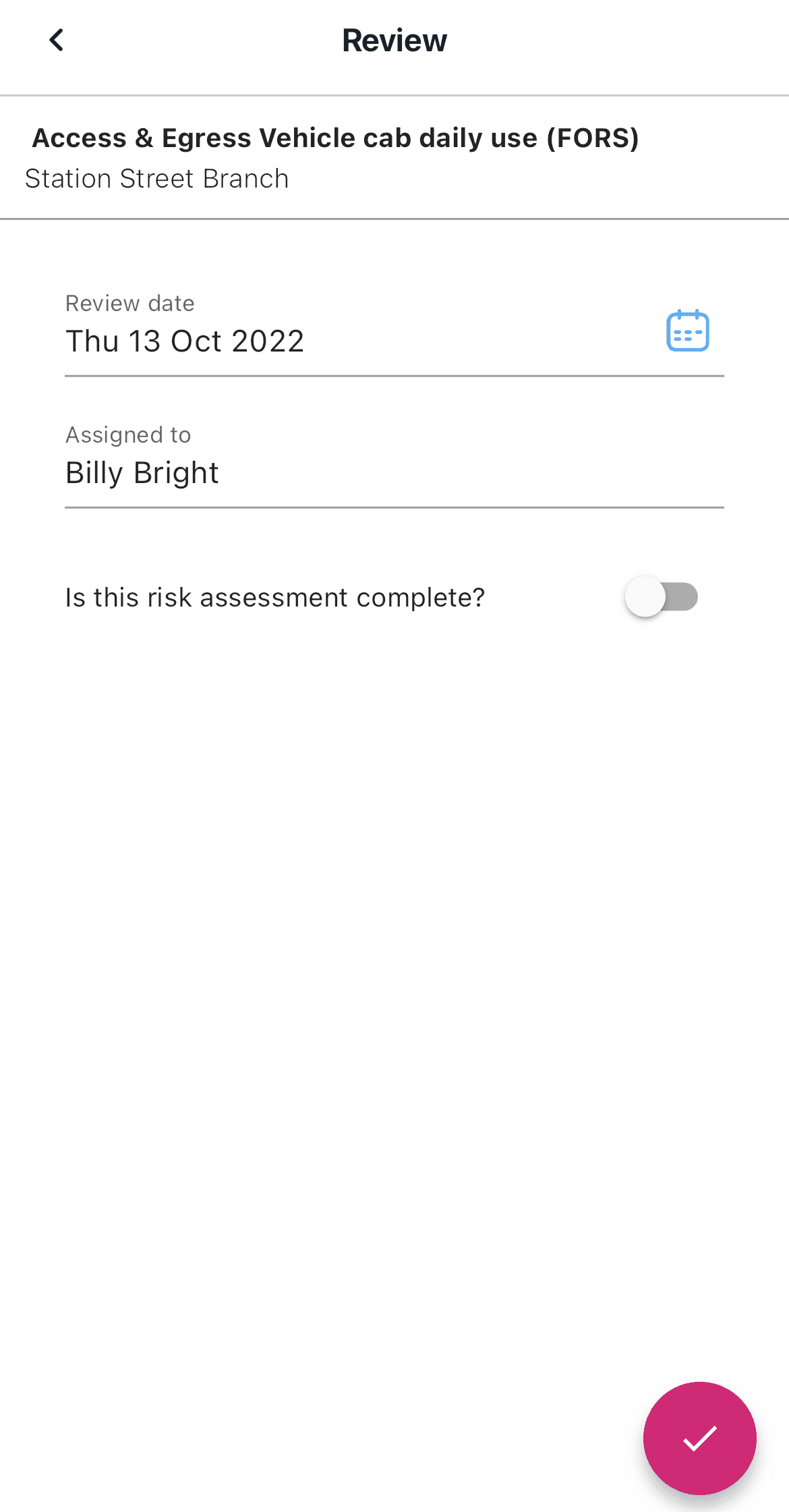
You can now see the review date and the assignee as well as mark your risk assessment as completed if needed!
Summary
You can now view and review risk assessments on the go, anywhere, at any time.
Next Step
The next section will take us through method statements and what you can do.
How to Review & Accept a Method Statement
Accessing method statements assigned to you and accepting after you have read through them couldn't be easier!
Viewing your Method Statement
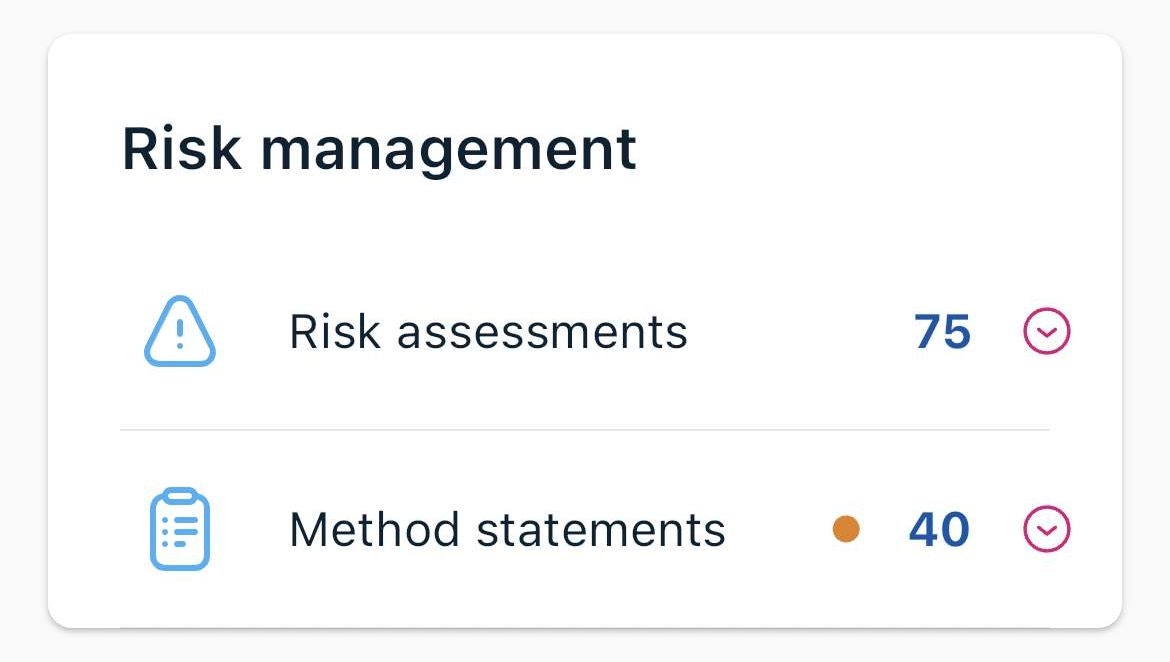
You can find any method statements you are assigned to via the risk management section on your home screen.
You will then see a pending section and an accepted section. The pending section will be where you can find any method statements awaiting your acceptance. Accepted are past method statements you have already accepted.
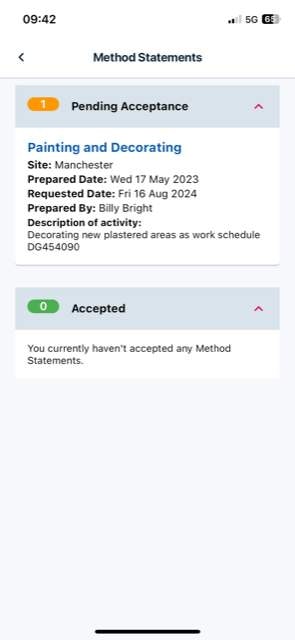
Once you have selected the pending method statement, have a read through the information and activities before you accept it to make sure you agree with the steps you will need to follow when completing the work.
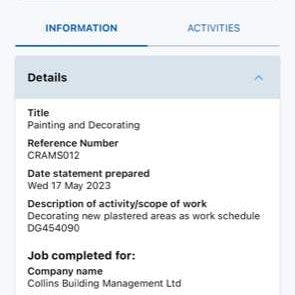
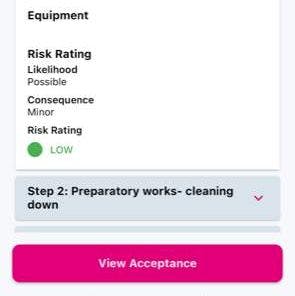
Finally, tap 'View acceptance' and you will now see the option to accept.
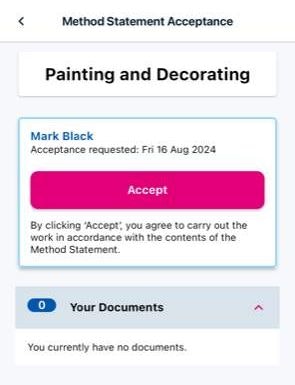
Once accepted, you can still access the method statement to review any details before the work is carried out via the accepted section.
Summary
You can now view and accept method statements all from the palm of your hand!
Next Step
Now we have covered risk management, let's take a look at how you can report hazards, accidents and near misses from our app.
Reporting Hazards & Incidents
With BrightSafe you can securely store details of any accidents reported within your business in just a few steps.
Reporting an Accident
To get started tap menu and then 'Report an accident' button.


First, select if this was an accident (harm or injury caused) or a near miss (Harm nearly caused or damage caused).

You'll need to enter some details about the accident you're reporting including;
- A reference for this accident.
- The jurisdiction in which the accident occurred.
- Details about the injured person.
- The reporter details (if it was you or someone else).
- When the accident happened.
- Details of the accident.
- If first aid was given.
- Upload any attachments (Pictures).

Once you have completed your report, a notification will be sent to the responsible person who can then complete their investigation and close the report.
You cannot view any accident reports or near misses after reporting them. Be sure to review the report before submitting.
Summary
We've now learnt all about accident reports and the follow-up investigation that a responsible person will need to complete.
Next Step
Now you know all about how to report accidents, let's take a look at hazards and how they can be reported via the app.
Getting Started with Hazards Reporting
Managing H&S hazards is vital within every business, that's why we've introduced our handy Hazard reporting tool to BrightSafe on the go. With this, you can record any potential hazards right there and then. Let's get started!
Reporting a Hazard
- Tap 'Menu' and then 'Report a hazard' to start adding your hazard.
- Add a name for your hazard.
- Select the site of the hazard.
- Enter the location of the hazard.
- Choose a hazard reporter - this could be yourself or if you're adding the hazard on behalf of someone else just select their name.
- Add your hazard details including as much information as you need. You can also upload images too.
- Tap 'Report this hazard' to save and report your hazard.
See how it looks below...

Fill in the hazard details.

Choose an image from your device.

Take a photo directly through the app when reporting a hazard.
Next Step
Now we have looked at the health and safety actions, this brings us to E-Learning. Let's see how you can manage your learning on the go.
Making the most of E-learning
E-learning allows you to digitally learn new skills and standard practices that either your employer has directly assigned to you, or you can even take it upon yourself to complete some extra E-Learning complete with a CPD certified completion certificate!
E-learning Courses
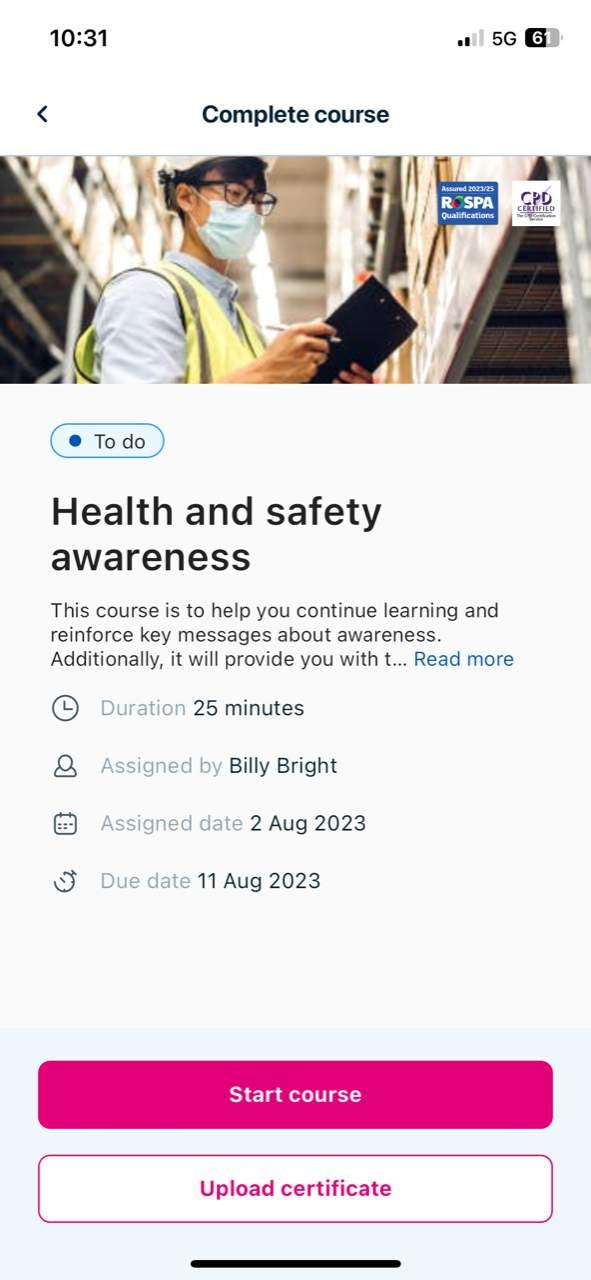
Within the E-learning section of your BrightSafe on the go app, you'll find first your assigned courses if you have any outstanding.
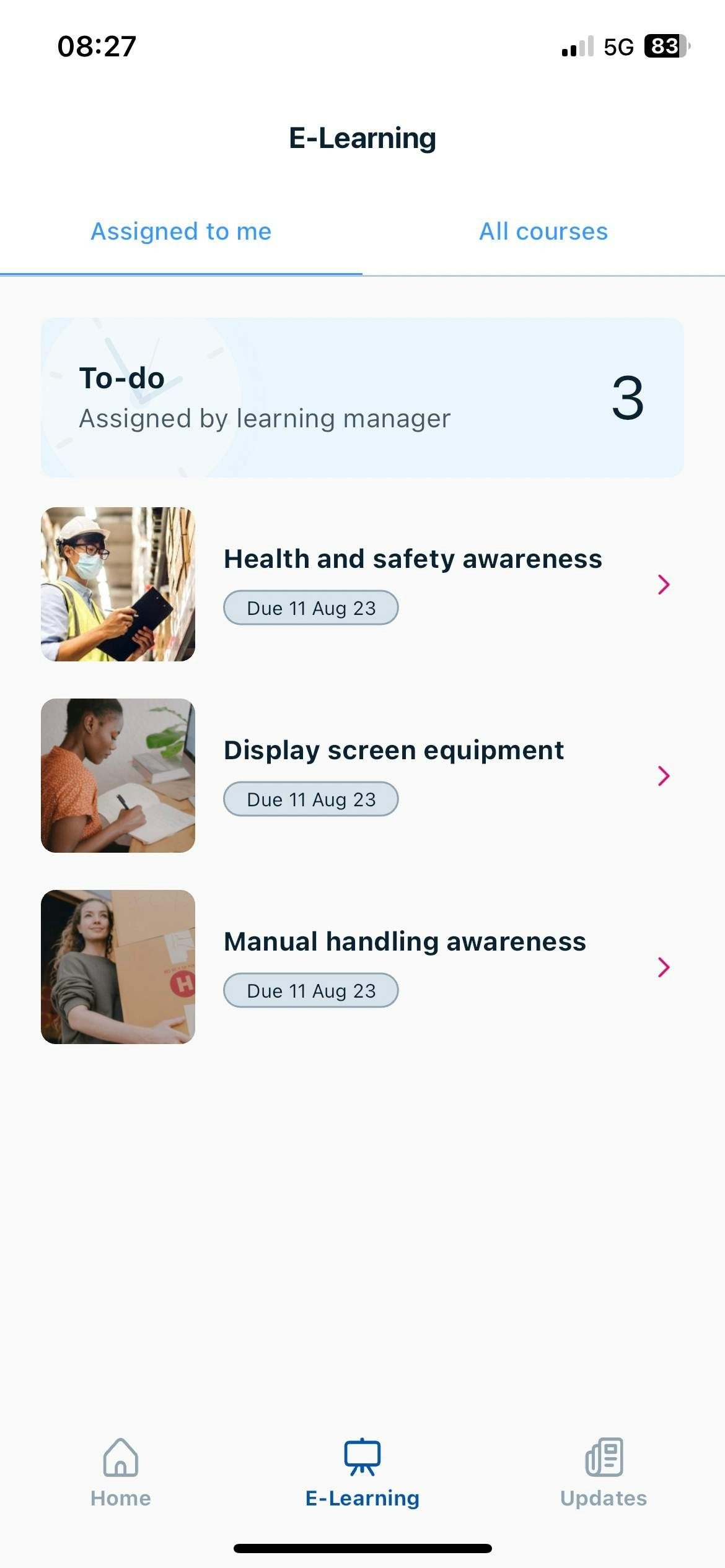
You will also have access to a whole host of E-Learning content available for you to complete to broaden your skills and knowledge.
Once you select a course, you can complete the course on your phone and then download a certificate of completion like the one below...
After a quick assessment of the topic you've just covered, you can download a dated certificate of attendance at the end of the course to keep on record.
TOP TIP: Make sure you keep your certificate for when you mark this as completed as you will need to upload it to do this!

Uploading your Certificate
Once you have completed your course, tap 'Upload certificate' to mark this as complete, select the document and upload.
Next Step
Now you know all about E-learning, for our last lesson let's take a look at what documents you have available and how to access them on the app.
Accessing your H&S Documents
Your H&S documents securely stored on BrightSafe are available too at the tip of your finger tips!
Accessing your Document Folders
First, head to the documents tab on the bottom of the app to access your folders.
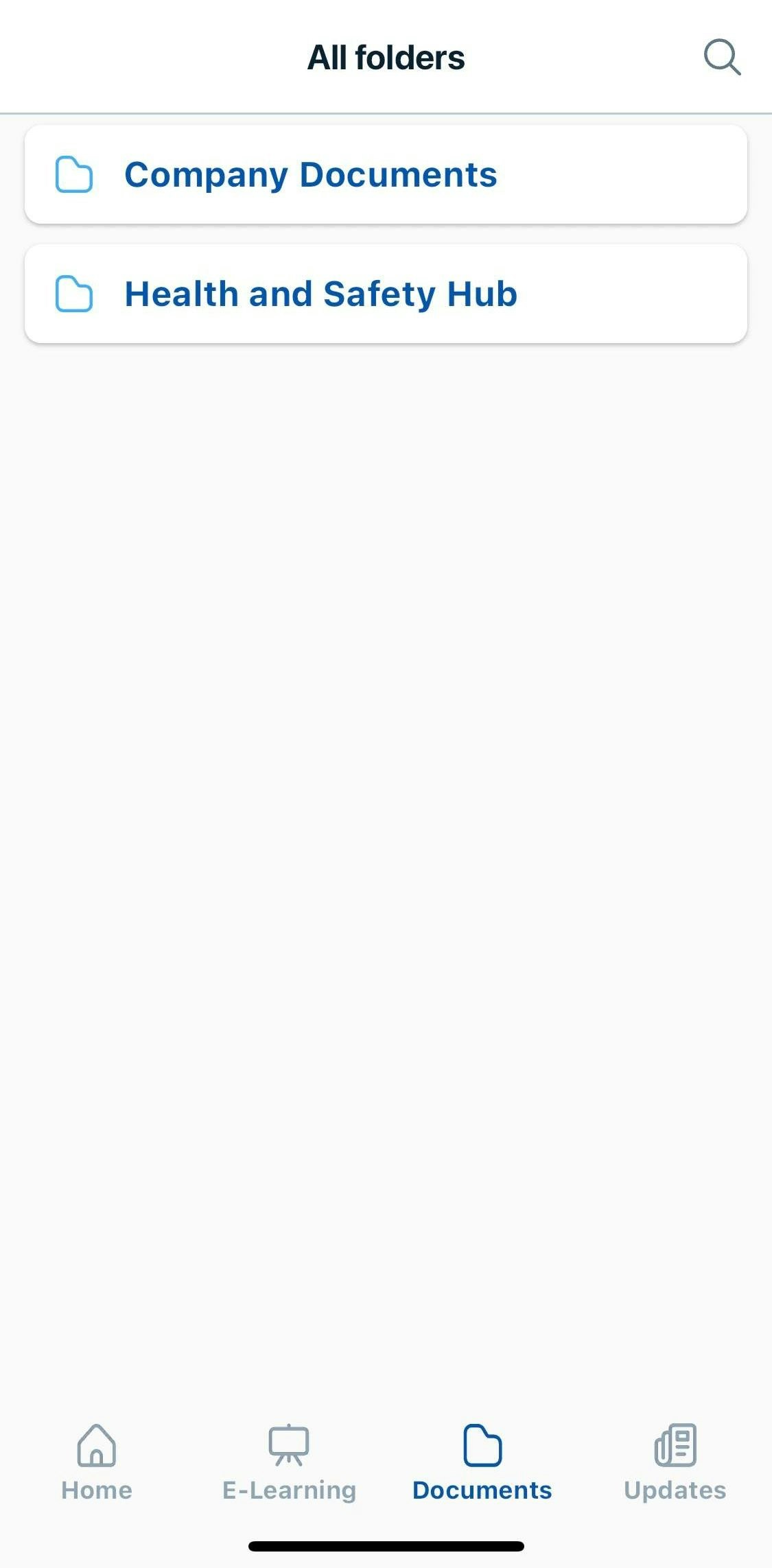
Here, you can find 2 folders or 3 if you have bespoke documents as a part of your package. The folders available will be the 'Company folder' and the 'Health and safety hub'
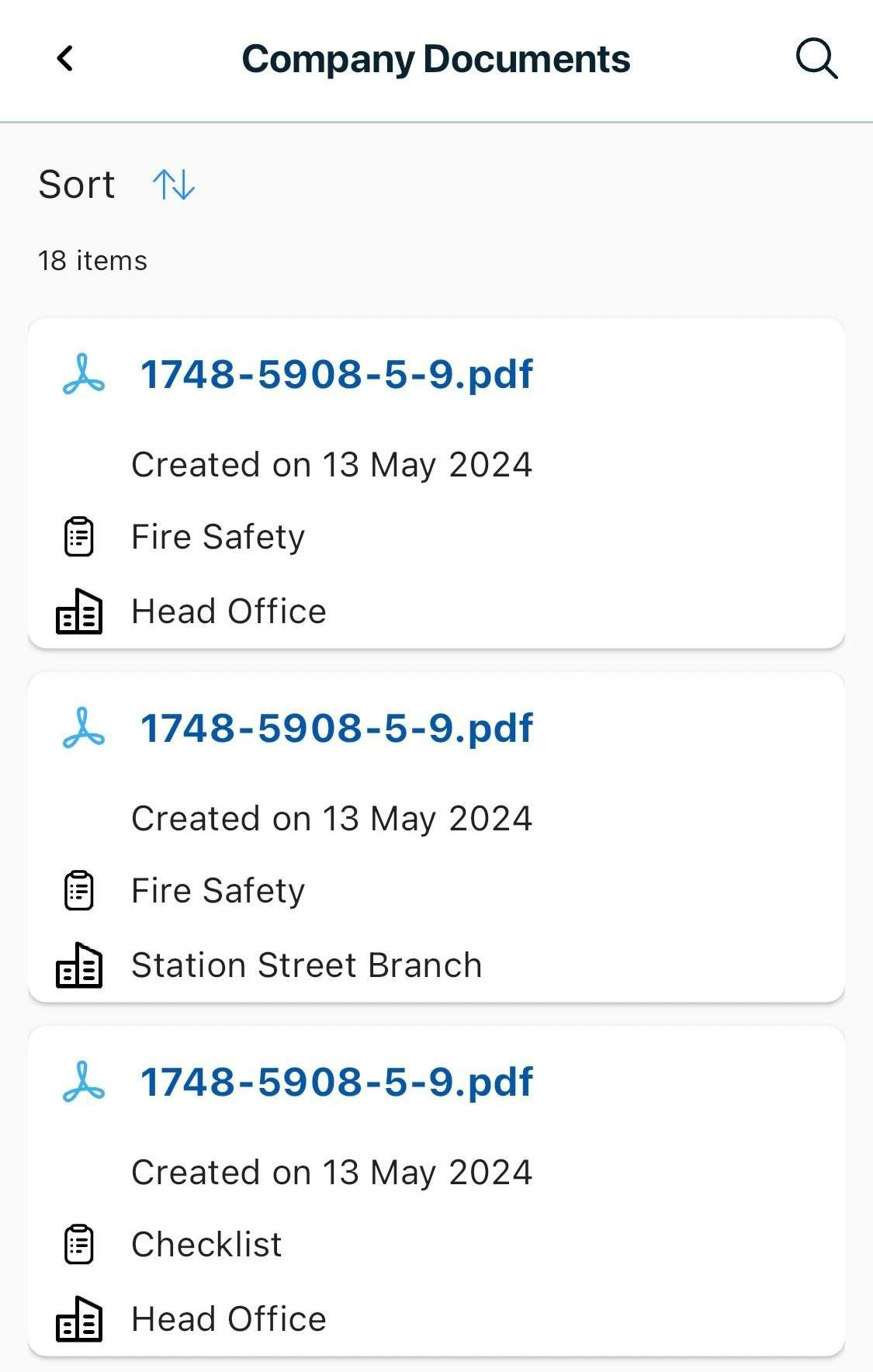
The company folder allows you to upload and share documents with other users and admins on the app or the BrightSafe website.
The health and safety hub will be full with a whole host of health and safety templates included in your BrightSafe package! This ranges from templates, checklists, tool boxes and more!
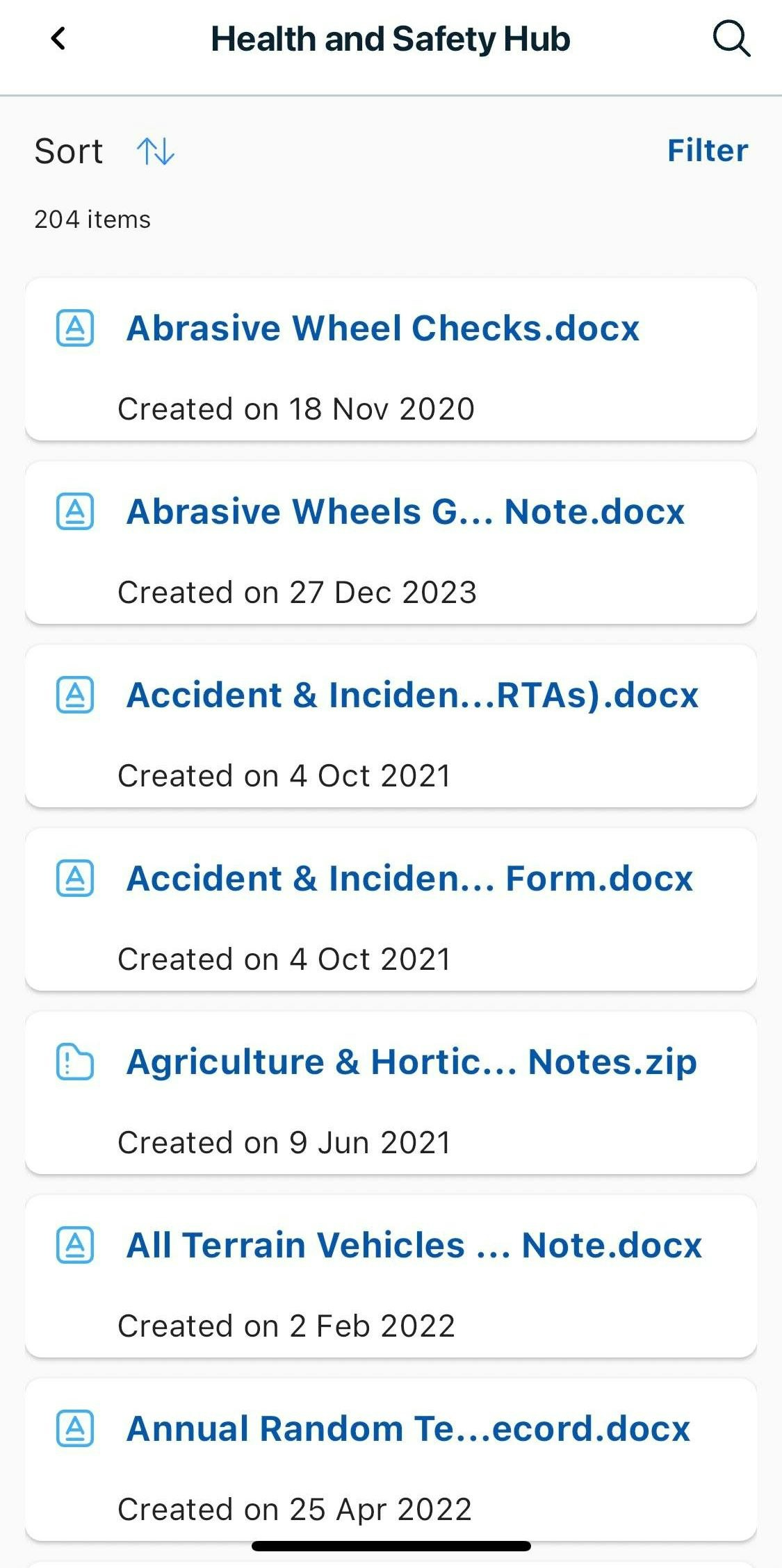
Documents are updated and uploaded here regularly to keep on top of new rules or laws.
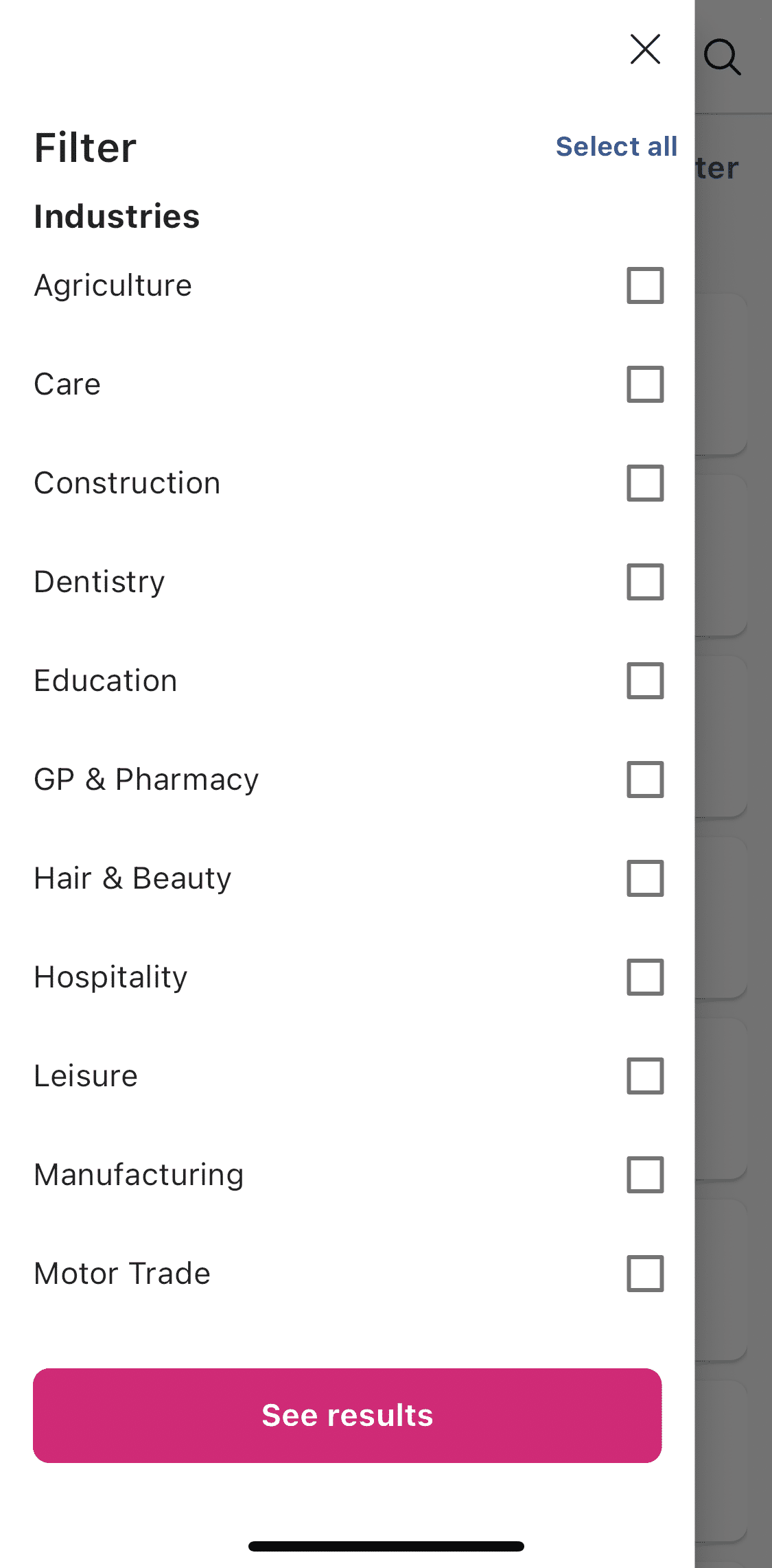
The list is very extensive and does attempt to cover every area of business - you can use the filter function to try and narrow down your search.
Downloading a Document
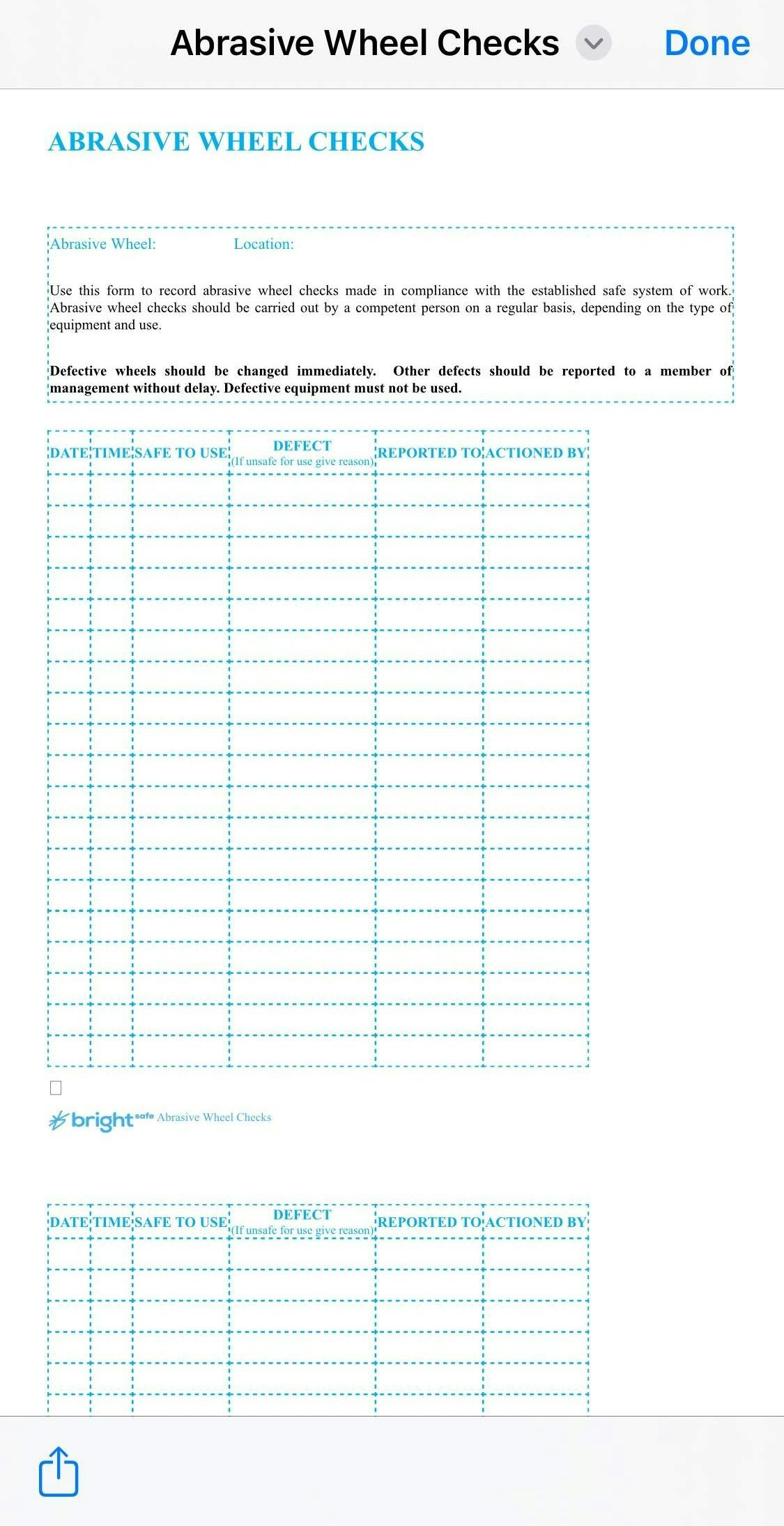
When you find a document you want, simply tap the document to download it! It is that simple.
Additional Resources
Health & Safety Updates
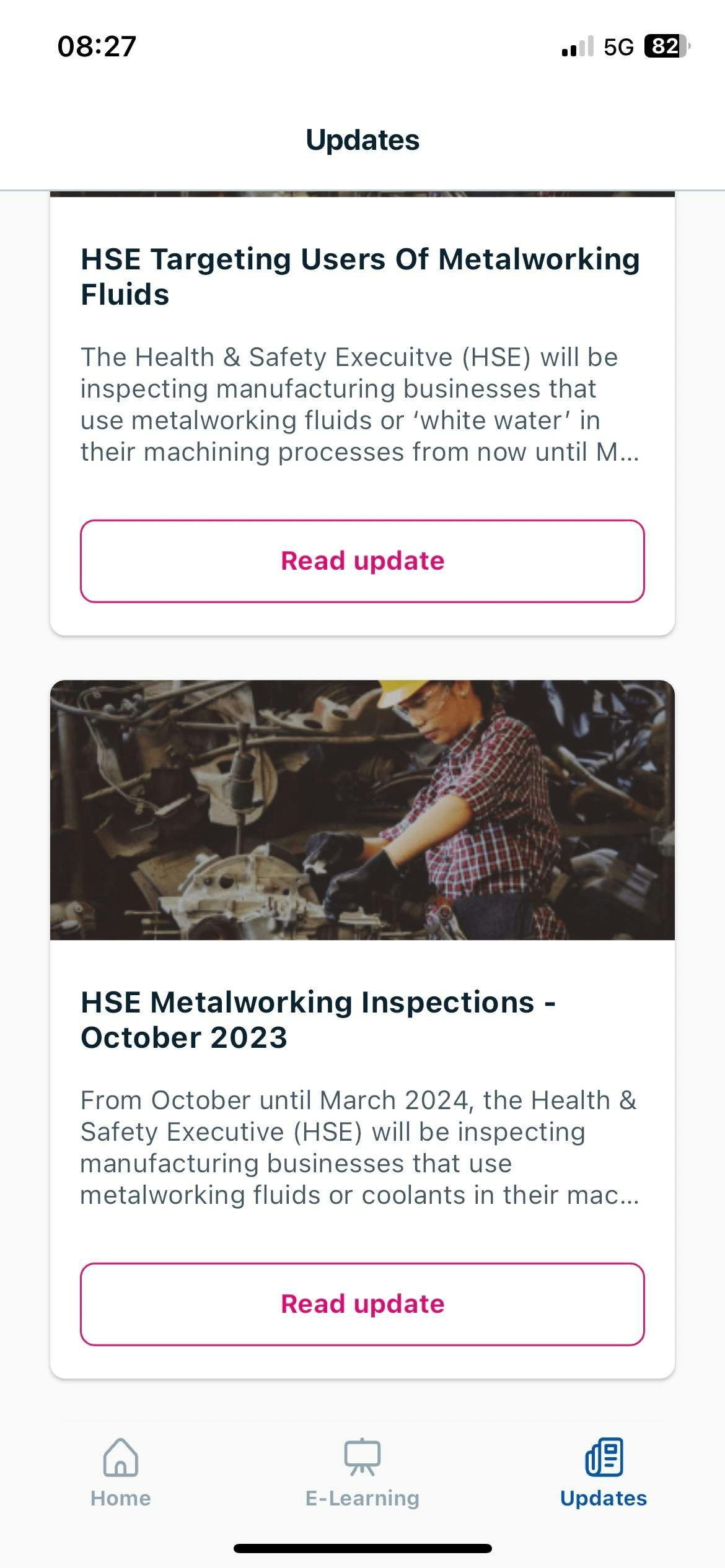
To keep our users in the loop with the latest health and safety news and updates, you can access and read articles which are updated regularly.
Congratulations! You're now a BrightSafe expert, we've gone through every area of your new BrightSafe account. Now you know how to get the most out of BrightSafe!
We're here to guide you every step of the way, not just during your account setup, so here's all the ways you can get a little extra help whenever you need it: