- Home
- Support centre
- >
- ...
- >
- Understanding Performance Management
Understanding Performance Management
In this course you will learn all about how to utilise the performance section of BrightHR in order to add and track goals for your employees performance as well as create, monitor and complete performance reviews.
Performance Management
Performance is what keeps your company ticking so why not keep track of this and push your employees to thrive in their roles. Track and monitor this with BrightHR Performance Management!
Goals & Objectives
Performance management allows you to add goals, objectives for your employees to track and monitor progress to a specific objective in a specified value such as a monetary value.
Creating A New Goal
Creating a new goal for an employee couldn't be easier!
To start with, head over to the 'Performance' section on the navigation bar.

Next, simply click the 'Create goal' button!
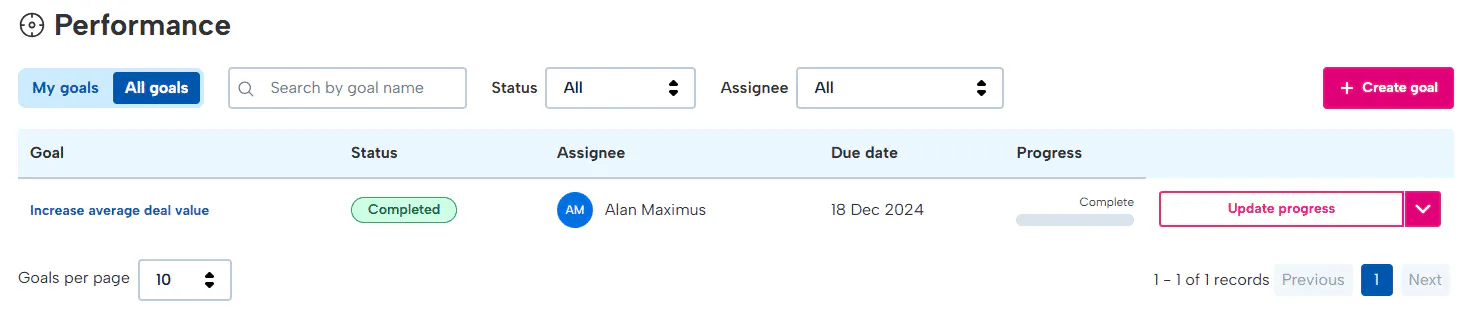
What you will need to add for your goal will include:
- A goal name.
- A description of the objective.
- A start date and the end date you wish for it to be completed by.
- How you're going to measure the goal - Yes / no, Numerical value or Monetary value.
- Set the current goal and the target value.
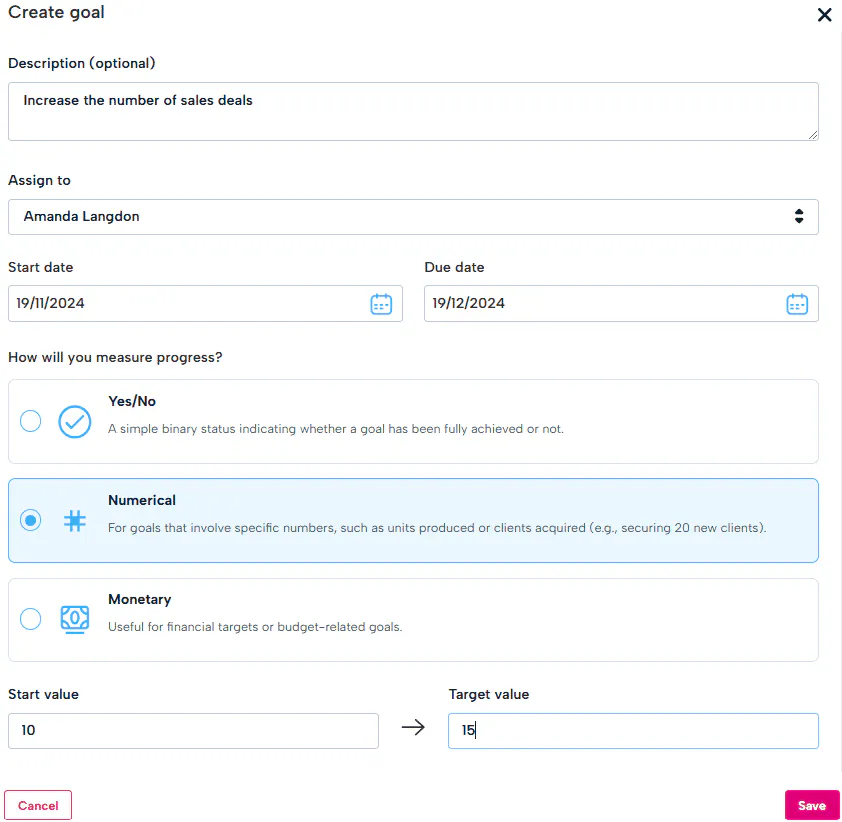
Once you have created some goals for your employees, you will be able to see an overview of their status and progress to the target value.
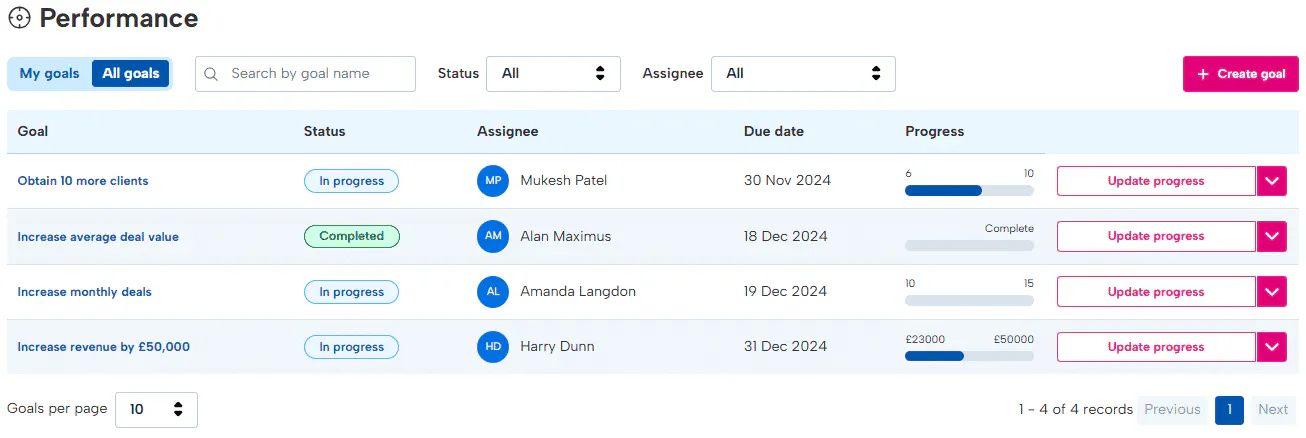
To update the progress of the goal, click the update progress button.
**Goals can also be updated and completed via the mobile app for BrightHR.
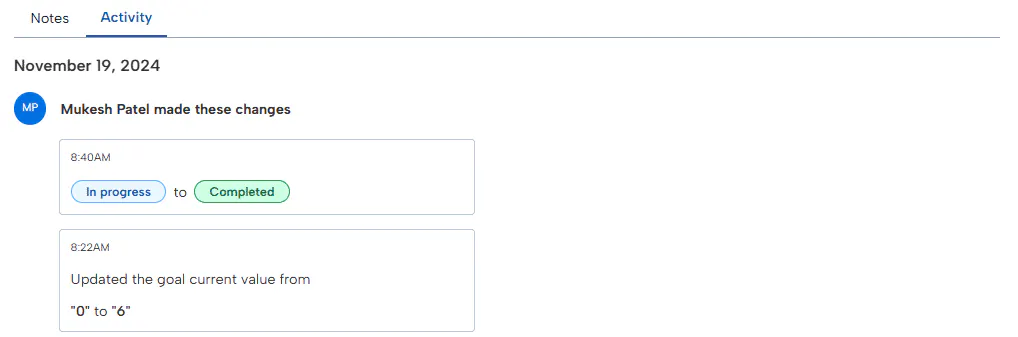
Once you have completed the goal, you can see an activity summary if you click on the specified goal as well as any notes.
How To Delete Or Edit A Goal
If you need to amend the original goal such as the name or description, click the drop down arrow to the right and select the appropriate option.
You can edit any field from the original goal from the name to the values, however, you cannot change who the goal was originally assigned to.
Please note, once deleted, this cannot be reversed and you will loose any data of the goal.
Performance Reviews & Appraisals
Performance reviews are vital to employee productivity and job satisfaction, so it is important you record the details accurately.
BrightHR has you covered with our performance review feature.
Record annual reviews, appraisals, monthly one to ones, anything you need to keep on track of meetings in relation to performance all in one handy place.
Review Templates
To help you with your appraisal forms etc. We have created several templates to help you get your review cycles started with a generic form including questions which would be expected to be asked during performance reviews.
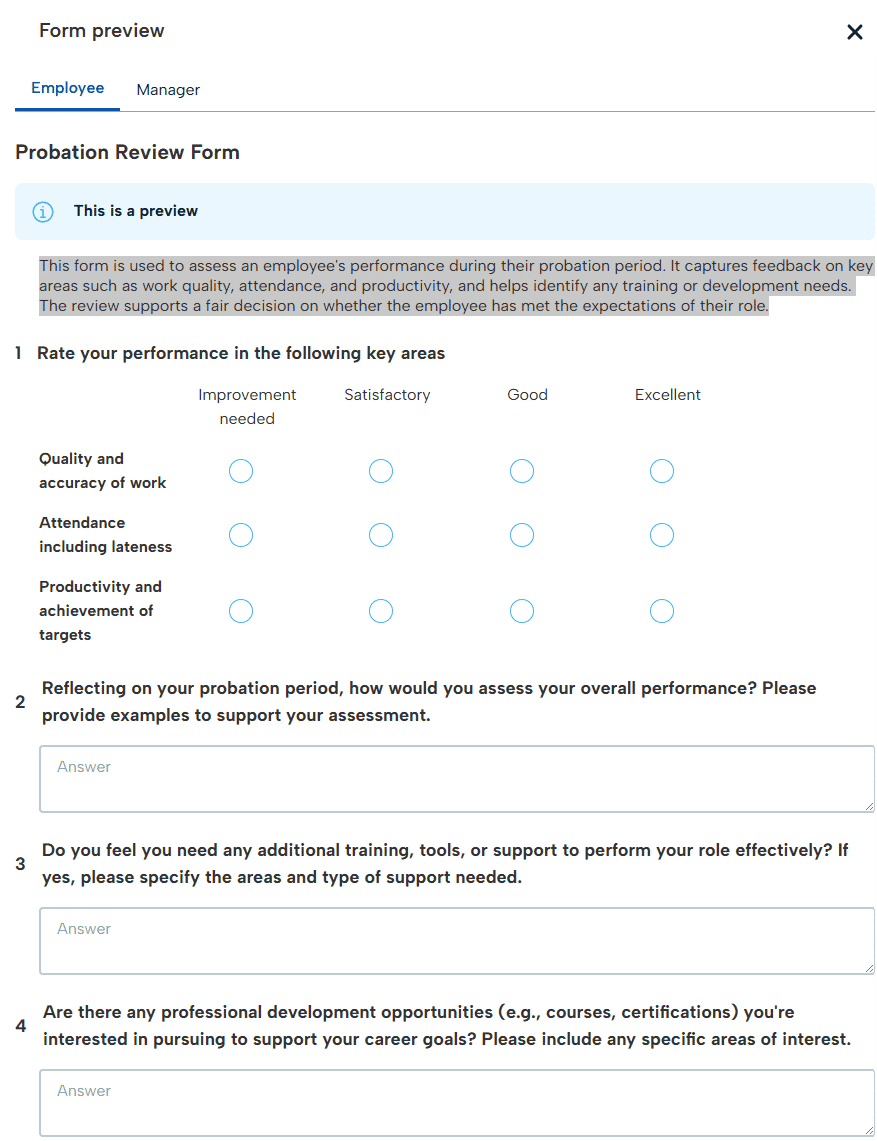
Take a look below at the templates you have available:
This form is used to assess an employee's performance during their probation period. It captures feedback on key areas such as work quality, attendance, and productivity, and helps identify any training or development needs. The review supports a fair decision on whether the employee has met the expectations of their role.
Creating A Custom Template
We know that a template isn't one-size fits all, so we have given you the ability to create and craft your own perfect performance review form.
With our easy-to-use builder, you can tailor your performance review to exactly what you need.
Take a look below at how the process works:
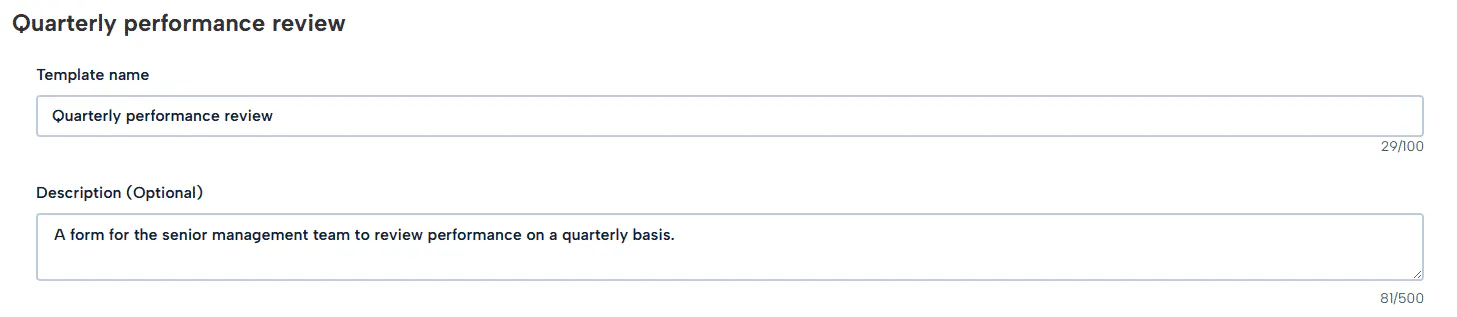
Template Name & Description
The name and description is completely up to you and lets you specify some details about your template.
The name could be for a specific team, a specific type of review etc.
Creating A Review Cycle
The first step to getting on your way with performance reviews on BrightHR is to set up a review cycle.
This allows you to create an appraisal cycle or any other type of performance review and assign your employees as well as managers to complete them.
Start by heading to the 'Manage cycles' tab in the reviews section of Performance.
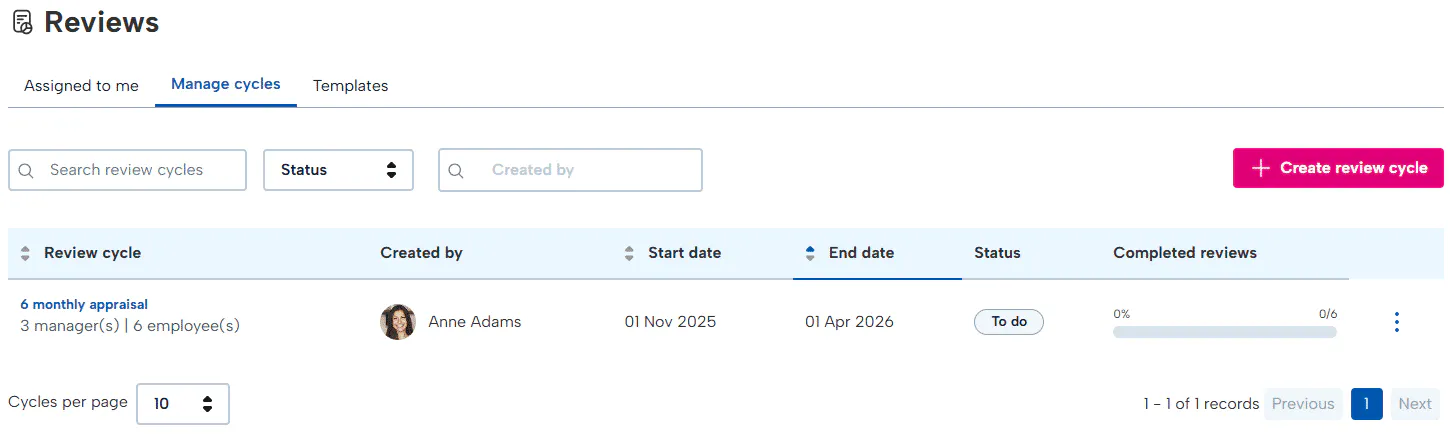
Next, simply click the 'Create review cycle' button!
Let's take a look at the steps to get this set up:
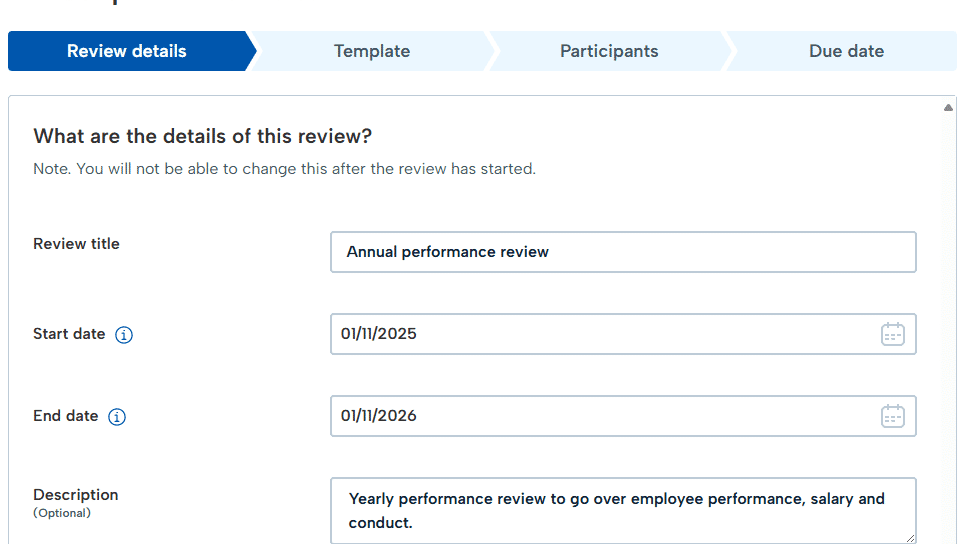
Firstly, give your review a title such as 'Performance review', 'Appraisal' etc.
Select the start date and end date of your cycle - this will be the period of which you can create new reviews after one is completed.
Lastly, you can add optional details if you wish to provide more information.
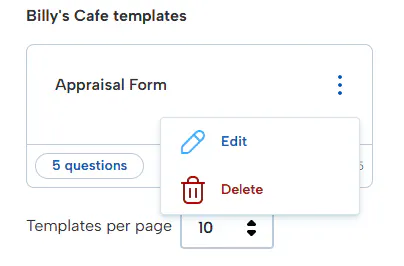
You can also edit or delete a template you have created from the templates tab.
Completing A Review
Once you're ready to complete a review, you can go in to the assigned to me tab to see which reviews are due.
Simply click 'Start review' in the box to load up the form.
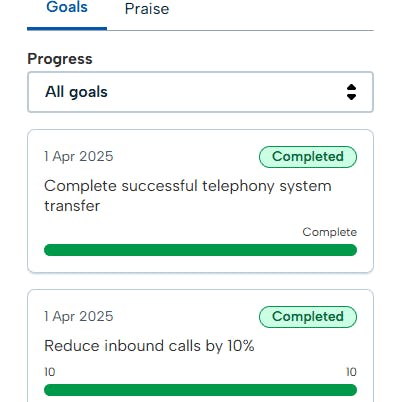
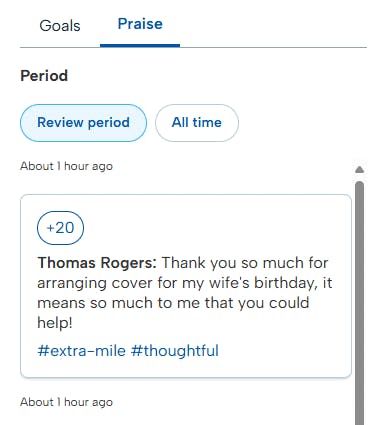
You can also review any goals and their status as well as praise given during the review period to help with the performance review.
Once you're done, you can click the 'Submit review' button below to submit your part of the review.
Then you will be able to continue your review and click 'Mark as complete'.
Now you can create review cycles, forms and more using the reviews feature. Performance management will be a breeze with BrightHR.
FAQs
Q. QuestionCan I add performance goals on BrightHR?
You can add performance goals via the performance section on the navigation bar on the left.
From here, click 'Create goal'
Now give the goal a name for example, increase revenue or deal numbers and give it a description.
Top tip: use our AI tool to generate a description for your goal. Our AI will generate the description based on the title you give the goal.
Next, select the employee you want to assign this to, the start date and the due date it should be completed for.
Finally, select how you will meassure the success of the goal, either a simple Yes/no, a numerical value or monetary value (Select from a list of currencies)
Once you have entered the goal details simply enter the values they're currently targeted on and the goal you want to set and click save.
The employee will receive an email and notification to let them know a new goal has been added so they can update their progress.
Q. QuestionHow do I update/complete the progress of a performance goal?
Simple! Head to the performance section and click the 'Update prgress' button.
You can now update the current value either to the goal value or the current value.
Once the goal has been completed, select the status as completed.
Q. QuestionCan I conduct appraisals / performance reviews / 1 to 1's on BrightHR?
Yes, you can!
With our performance reviews feature you can create, monitor, and complete any kind of performance review using any of our templates. whether this be an annual performance review, a quarterly appraisal, monthly one to one you can create your own custom template with multiple question types.
To get started, head to performance on the nav bar and then reviews. To set up your new review cycle, simply click create review cycle in the manage cycles tab.
Enter the details of what the review is and the start & end dates.
Next you will need to select one of our available templates or any custom templates you have added.
The participants step will allow you to assign a manager and any users you want that manager to complete a review for. If you want to apply different templates to employees, you will need to create separate review cycles.
Finally set your end date and save your new cycle.
Q. QuestionHow do I complete a performance review?
To complete your performance review, head in to the manage cycles tab and click in to the cycle with the review.
Next to the employee you want to complete the review for, you will see the start review option.
You will now be able to fill out the questions and submit the review.
If the employee has questions to answer, you will need to wait for them to complete this before you can complete the review.
Once you and the employee have completed this, you will see the option to continue the review next to the employee on the cycle.
You will then be able to review yours and the employee’s answers and click mark as complete.
At the end of the process, you can also download a PDF version for your records.
Q. QuestionWhat is a review cycle?
A review cycle on BrightHR is a period you can create where your performance reviews will take place.
For example, you can create a review cycle over a year or 6 months and add all of your staff's reviews for this cycle.
The due date will apply to the actual review and when it will take place.
Q. QuestionCan I edit a review cycle once I have created it?
Yes you can edit a review cycle but not everything.
First of all, you cannot change the title, start date or description but you can change the end date.
The template you applied to the review cannot be changed.
You can add and unassign participants to change who the review cycle includes and finally the due date of the actual performance review.
Q. QuestionWhat is a performance review?
An employee performance review is a periodic review of your employees’ performance progress towards goals and objectives you’ve set them earlier in the year. Similarly to an appraisal but less formal, a review acts as more of a check-in with employees on their progress and offers them the chance to raise if they’re having any challenges reaching their goals.
Q. QuestionCan I create a custom template for reviews on BrightHR?
Yes, you can!
In the templates tab in reviews, you will see the current default templates as well as any others that have been added.
Click the create new template to get started with a new one.
First, give it a title and description.
You will now be able to build your form by adding an array of questions in relation to the employee’s performance.
Choose from numerous answer types such as a binary answer type (yes or no etc.), a multiple-choice option or even a red, amber and green traffic light answer as well as other options.
Each question will also need to confirm if it is required to be answered by the manager, employee, or both of them as well as a required option to state if the question can be skipped or not.
Q. QuestionDo I have to answer every question on a performance review?
No but this depends on how you created your template.
When you add a question to a template, there will be an option to specify if the question is required.
If selecting a default template, select preview to see which questions are optional.
Q. QuestionCan I adjust a standard template when creating a new review cycle?
No, the standard templates available cannot be edited.
You would need to create your own template prior to creating a review cycle in order to tailor the questions needed for your review.
Once a template has been created, you can add it to any future review cycles.
Q. QuestionWhy can't my employee see the answers I have submitted on a performance review?
Your employee will only be able to see the answers from the manager after the review has been completed.
Once completed, the employee will be able to review this under completed in the assigned to me section.
Popular topics
Your top software queries answered in popular topics.
Register for our product tour webinars
Find out how BrightHR can help your business save time, save money and take the hassle out of HR.
Not sure what you are looking for?
Choose the topic that best describes the type of your enquiry and get in touch.