- Home
- Help centre
- >
- ...
- >
- Using Upsheets with BrightHR
Using Upsheets with BrightHR
Using UpSheets with BrightHR
UpSheets provides the ability to import your data from BrightHR and then upload it to Xero. Depending on your process, there may be a small amount of setup required, but for many users everything is ready to go.
The Process
In this lesson we will learn all about how to make the most of UpSheets by importing select reports from BrightHR and using this to upload to Xero.
- Run a report in BrightHR to export a CSV file with your data.
- Import the file into UpSheets.
- Validate the file to check everything is correct.
- Upload the data to Xero.
- Optionally approve timesheets and create pay runs from UpSheets.
See this in action below in our handy how-to-video...
Register for UpSheets
What can I upload
The following BrightHR reports can used to upload data:
Blip Timesheet - Can be integrated in to Xero timesheets. Absence Report - Can be integrated in to Xero leave requests.
Earnings Rates
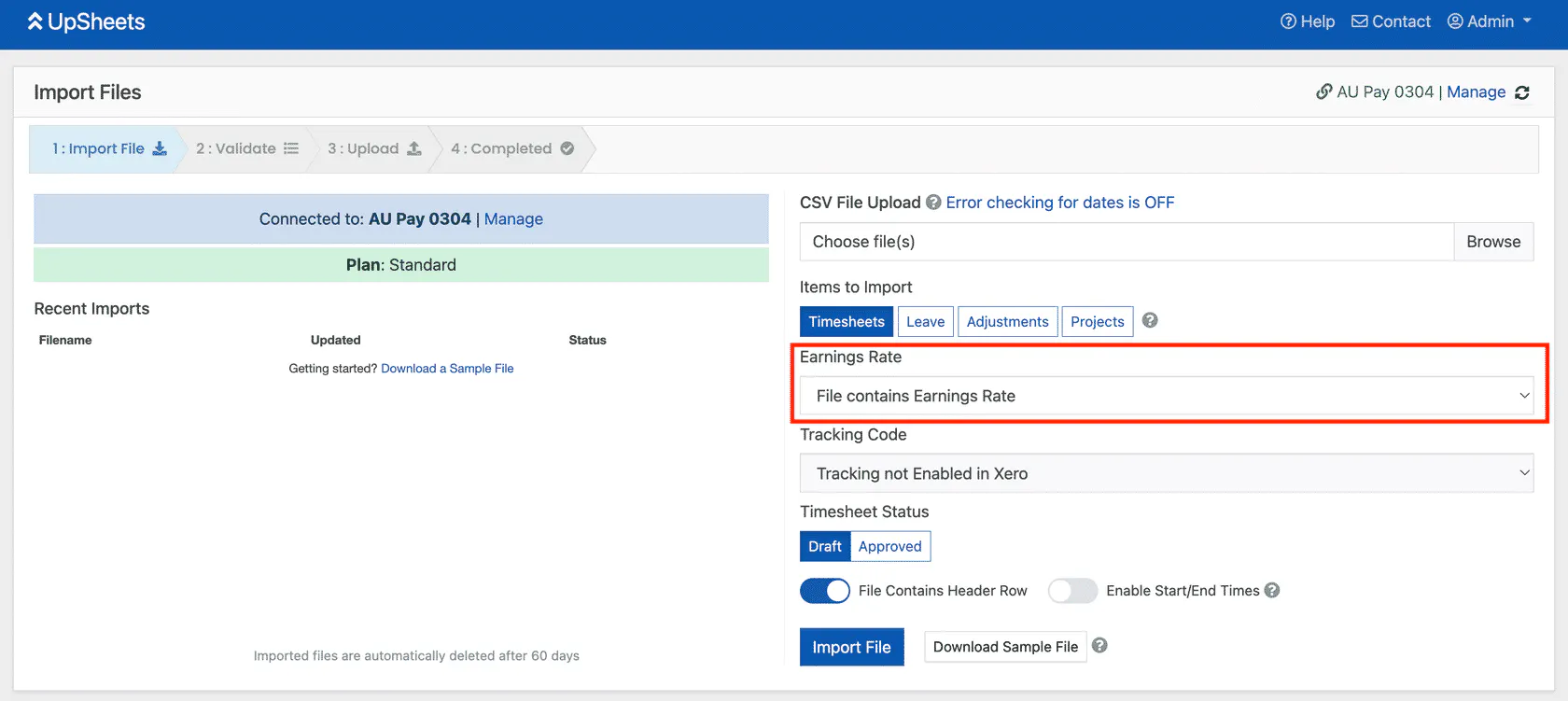
The options available for determining the earnings rate are selected when importing a file by selecting the Earnings Rate field:
Default Value
This setting will apply the selected value to the entire file.
To enable it, set the Earnings Rate field to the value you wish to default, such as Ordinary Hours. No earnings rate needs to be provided in the file and this value will be used for every line.

Employee Ordinary Earnings Rate
This setting will apply the Ordinary Earnings Rate set on the Employment tab for each employee. To enable it, set the 'Earnings rate' field to 'Use default Earnings Rate for each employee'.

Provided in the File
This setting indicates that a column in the file will be used to determine the earnings rate.
Typically the value would contain a value that matches an Earnings Rate in Xero. However, UpSheets also allows you to map any value in your file to an Earnings rate in Xero. Once created, this mapping will be automatically applied. For example, the value Shift could be mapped to Ordinary Hours. Whenever the file has a type of Shift, Ordinary Hours would automatically be used instead.
To enable it, set the 'Earnings Rate field' to 'File contains Earnings Rate'.

Smart Formulas
If you have a more complicated scenario or award that cannot be satisfied by the previous options - Smart Formulas can be used to determine the Earnings Rate based on the date, time of day. They also include in depth functionality to include allowances, minimum engagement, broken shifts and many other scenarios.
Read more information about Smart formulas here
Summary
Now you know all about how you can use BrightHR reports to import your data to UpSheets to upload to Xero!