- ...>Integrating BrightHR Employee Data To Xero
Integrating BrightHR Employee Data To Xero
Integrating BrightHR Employee Data To Xero
In this handy guide, you’ll be taken step‑by‑step through the process of integrating your employee data from BrightHR directly into Xero Payroll. We’ve kept everything simple, clear, and easy to follow, so you can confidently set up your integration in no time.
You’ll also discover how to make the most of this seamless connection—saving time, reducing manual admin, and ensuring your payroll data stays accurate and up to date.
Introduction & Setup
Transferring data from one system to another can not only be a time consuming, resource draining but also daunting in some cases.
That's why we've partnered up with Xero to make this process not only quick and easy, but extremely useful in the long term - keeping your HR & payroll platforms, hand-in-hand.
Xero Integration
The idea is to make this process easy, so the integration process is super simple and can be done in a few simple steps!
It all starts with the click of a button...
Watch the process below in our handy how-to-video.
Once this process is complete we will have tied the strings between BrightHR and Xero to start passing data from point A to point B to streamline your payroll data transfer.
What Data is Transferred?
A number of different pieces of information vital to payroll will be passed through once synchronised.
Let's group this together for a simple outlook on what is passed over:
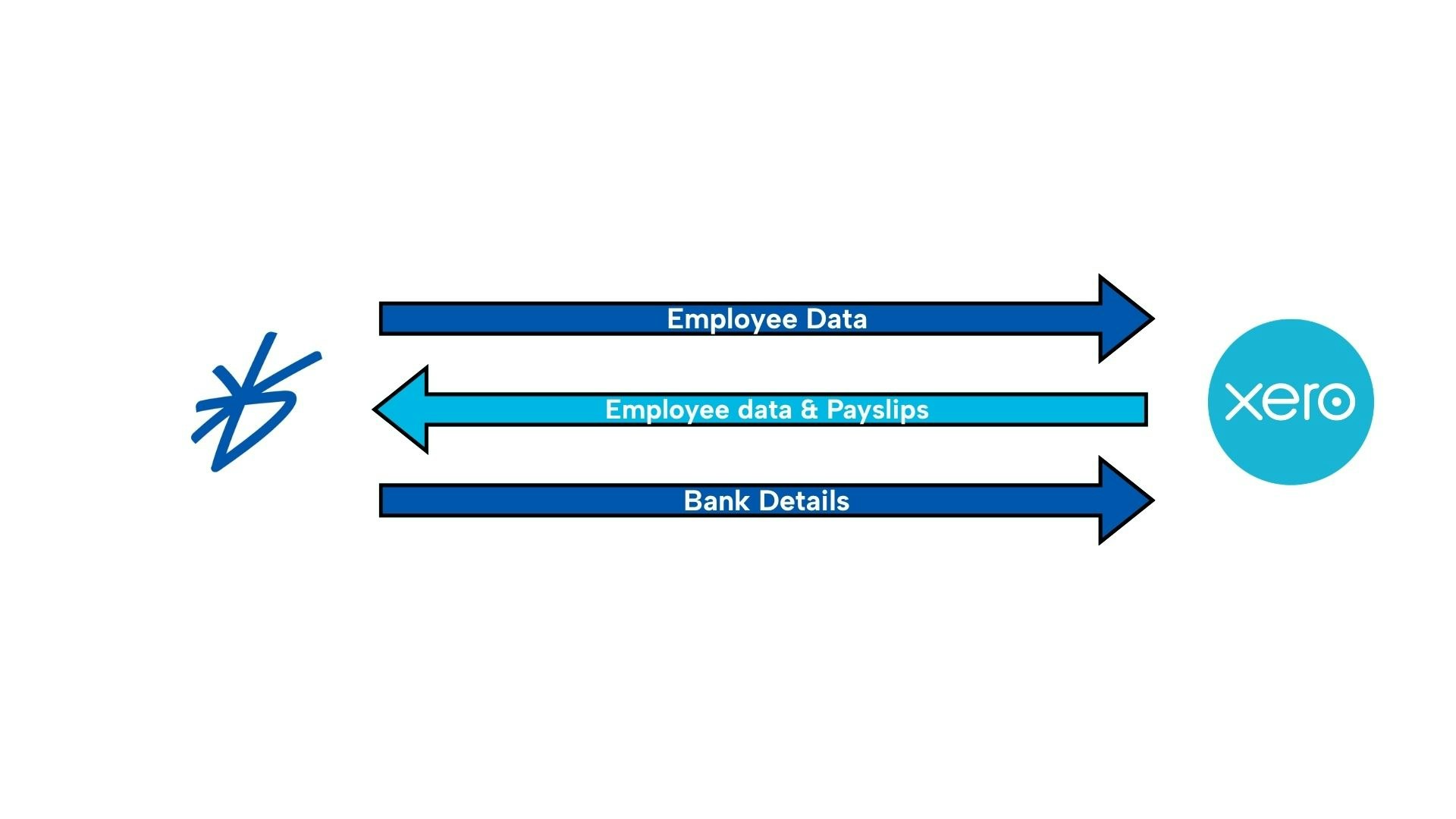
- Employee details - Personal information such as names, date of birth, address details, contact information etc.
- Bank details - Bank details including account number and BSB number.
- Payslips - From the Xero end, payslips are transferred and accessible through BrightHR in the pay documents folder.
- Employee data can be transferred from Xero to avoid duplicate accounts.
Xero One Time Import
Not only are you able to integrate employee details to Xero, but you can do it vice versa.
With the one time import feature, if you're just starting out with BrightHR you can use this to get a head start and bring your employees personal information, bank details and pay to BrightHR all with a few clicks.
The process is simple, head in to the Integration settings tab in your payroll console and look for the one time Xero import.
This will then take you through to a list of new employees that you have on Xero that can be imported.
All you have to do now, is select who you want to import and assign them working patterns to get their BrightHR profiles set up.
Watch the process below in our how-to-video.
Please note: as per the name of the feature this is only available to do once and needs to be done before you integrate any employee information over to Xero from BrightHR. If you want to revert back to scratch, you can disconnect and reconnect the integration to import from Xero but anything you have already integrated will be lost.
Why can the Import only be done once?
Our objective is to position BrightHR as the single source of truth for employee data management. Therefore, we recommend to perform a one-time import during initial setup to bring all relevant data from Xero into BrightHR—particularly if Xero was previously used as the source of truth.
Allowing ongoing one-time imports after sync would introduce a risk of data conflicts between systems, as it becomes unclear which platform should take precedence. This would ultimately undermine the goal of establishing BrightHR as the primary and authoritative source of employee data.
Next Step
Synchronising Employee Data to Xero & Payslips
Now its time to push the all-important-data from BrightHR to Xero, but how do we do this? In this lesson we look at the process.
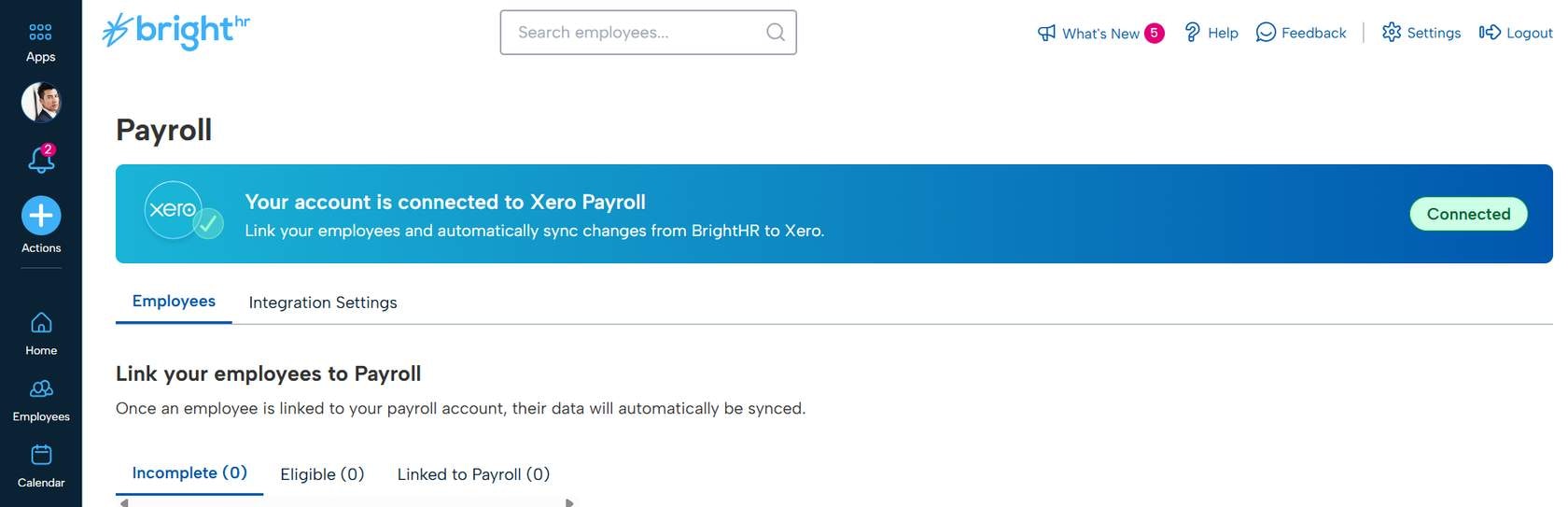
Keeping with the theme of making this all simple, we simply require you to make sure the correct information is available to be integrated, and to help with that, you have our 'Link your employees to payroll' process.
Incomplete Employees
First of all, we will need to make sure our employees have all of the relevant data to complete the integration.
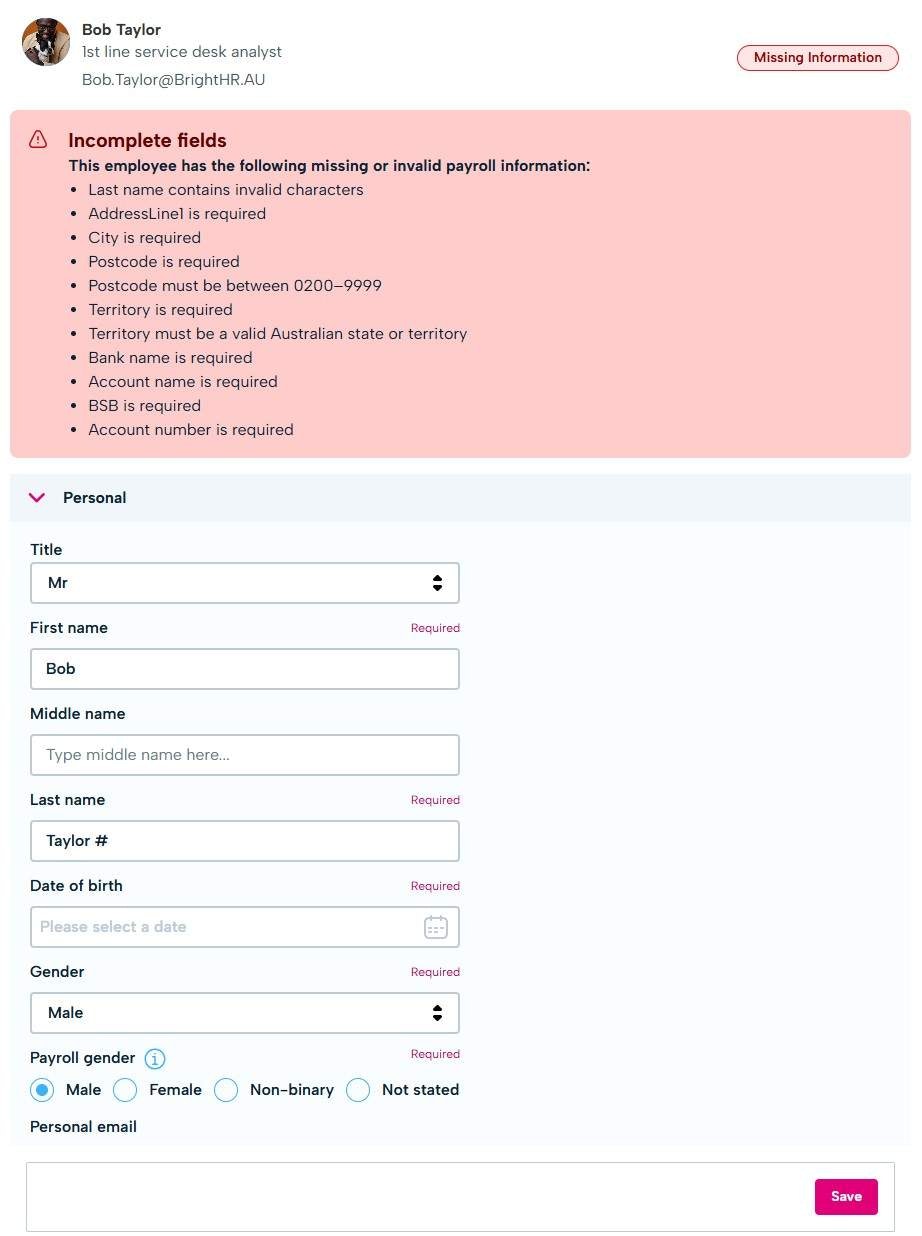
To help with this, your employees will be categorised in to 3 groups, the first being 'Incomplete' employees.
This holds all of your BrightHR staff members and the data that is transferred to Xero. You will find that employees in this section have data missing that you need to input before being eligible.
Employees with incomplete information are not eligible to be linked to Xero. You will need to complete all sections to ensure you have accurate payroll details.
We will clearly outline what is required as well as any inaccuracies and allow you to even fill the missing data for all staff in the same place take a look at this below:
Eligible Employees
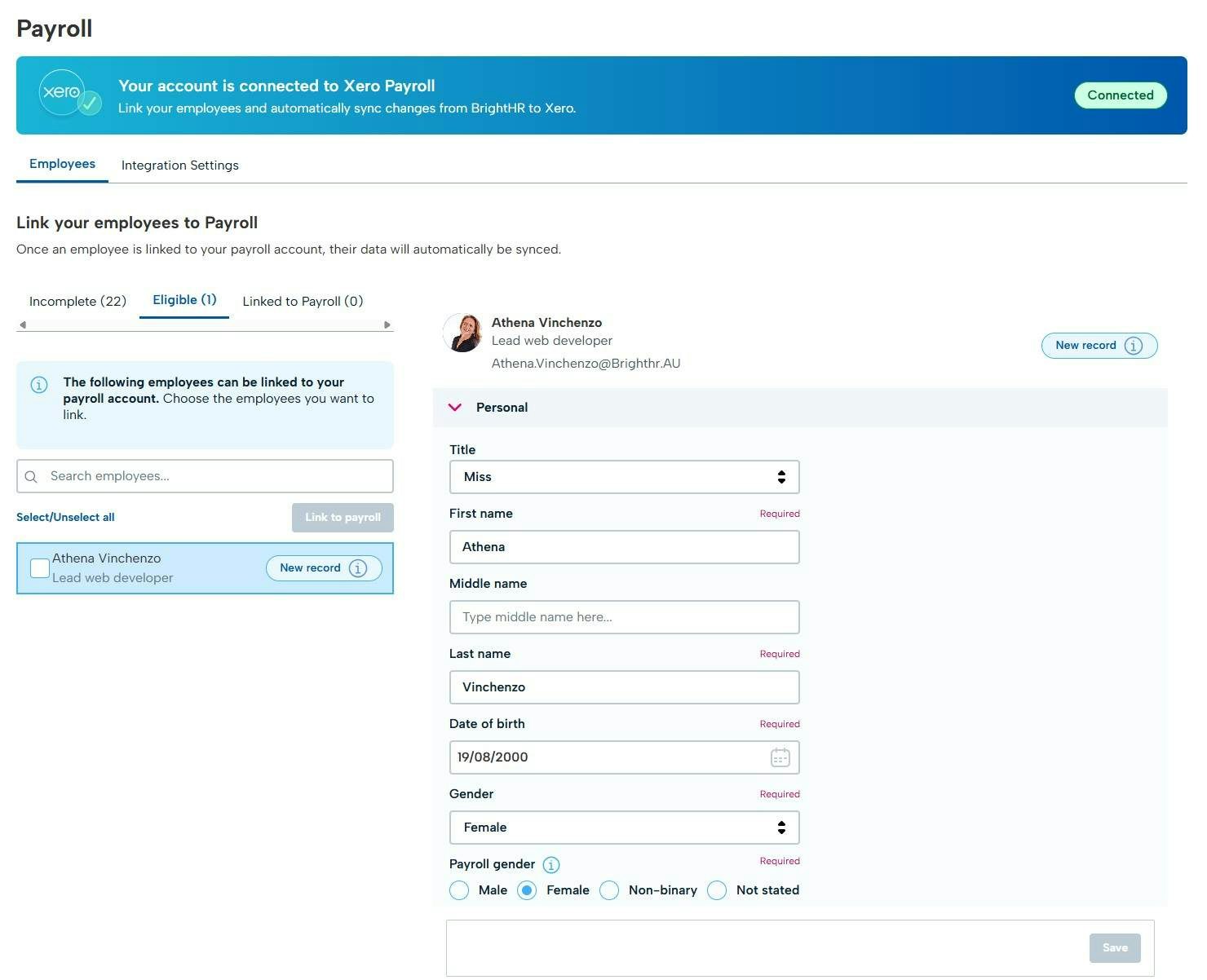
Once you have validated any missing data, your employees will appear in the 'Eligible' employees tab.
Now it is just as simple as clicking 'Link to payroll' to begin the process.
Linked to Profile
Once complete the employees will appear under the 'Linked to Payroll' and will then appear in your Xero Payroll section!
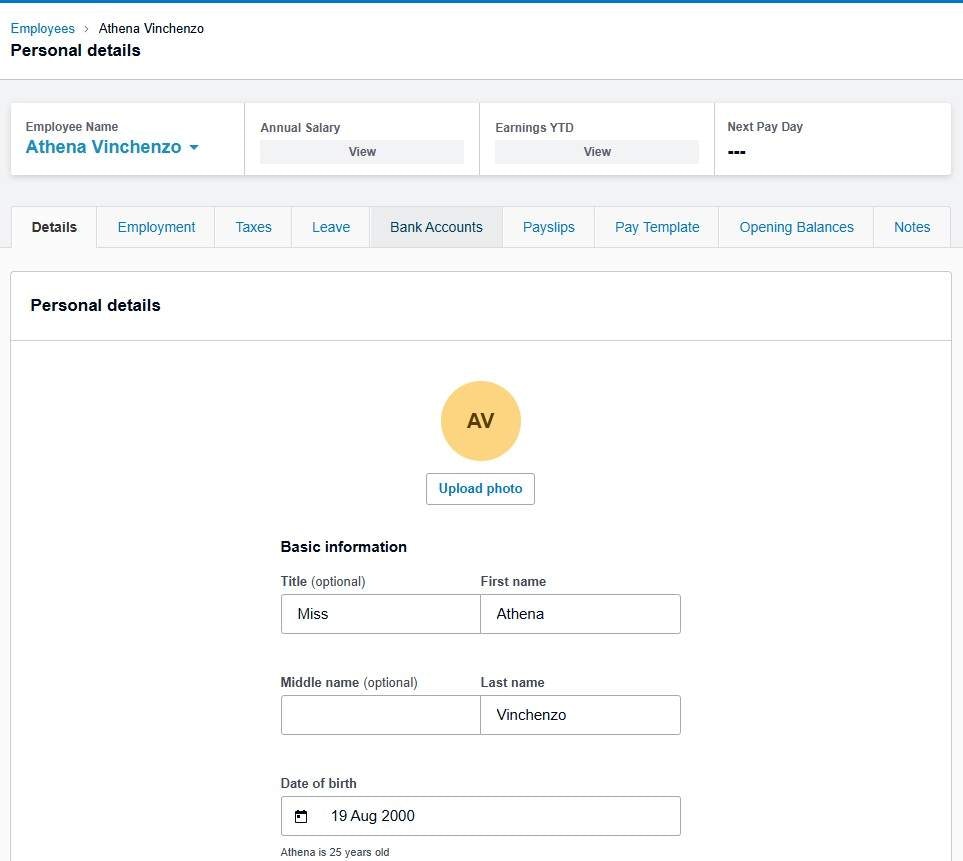
Now you can run your payroll from Xero with your staff details added from BrightHR making the difficult task of Payroll, that much easier.
If you're syncing payroll data to existing profiles you have already set up on Xero, please ensure that the full name and date of birth match exactly as if they do not, a second record will be added duplicating the profile on Xero.
Absences
Once you have completed the sync of your employees to Xero, you will begin to also receive absence data to Xero from BrightHR.
This includes all leave types available such as payable entitlements like annual leave and personal / carers leave.
Once an employee has been synced from BrightHR to Xero, annual leave and personal / carers leave added to BrightHR will automatically pull through to Xero meaning you do not need to add the absences across 2 platforms.
The below list shows which absences from BrightHR transfer in to Xero and any differences in the title of the absence:
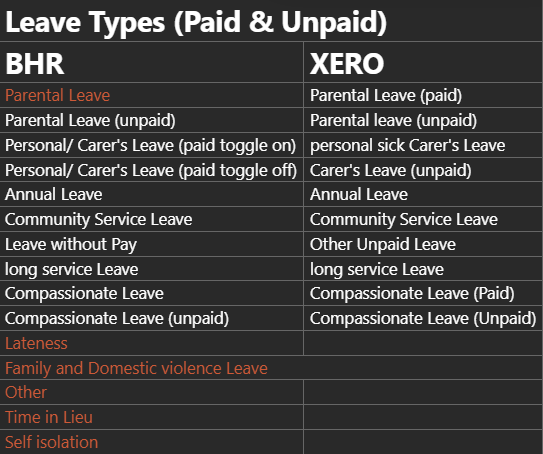
Please note: absences added in Xero will not be automatically added to BrightHR.
Payslips
Once you have completed a pay run and have issue payslips, these will be available to access via BrightHR.
This is where the integration works from Xero in to BrightHR.
Simply head in to the folder in the documents section labelled 'Pay documents' to download any available payslips.
Please note, if you need to disconnect the integration, simply head in to the 'Integration Settings' tab in BrightHR's payroll section and click disconnect.
An absence added to BrightHR.

The absence added above on BrightHR has synced over to Xero for processing.

Payslips
Once you have completed a pay run and have issue payslips, these will be available to access via BrightHR.
This is where the integration works from Xero in to BrightHR.
Simply head in to the folder in the documents section labelled 'Pay documents' to download any available payslips.
Please note, if you need to disconnect the integration, simply head in to the 'Integration Settings' tab in BrightHR's payroll section and click disconnect.