- ...>Managing Risk Assessments with Ease
Managing Risk Assessments with Ease
Managing Risk Assessments with Ease
We've put togethor this handy guide to walk you through the steps of creating and managing risk assessments, including Hazardous chemical health assessments.
Creating Risk Assessments with Ease
Creating Risk Assessments on BrightSafe is super simple and can be done in just a few easy to follow steps.
Creating a new Risk Assessment
All you need to do is click the 'Create risk assessment' button to get started and follow each of the interactive steps to add details of each hazard within your workplace.
Let's go into each section of creating your risk assessment in more detail.
Step 1
Details
In this first section, you'll need to enter some basic details for the risk assessment you're creating including:
- A name for your risk assessment.
- The date you conducted the risk assessment.
- Which site the risk assessment was conducted at.
- The exact room, area or workspace for the risk assessment.
You can also choose to add in a reference for the risk assessment and a task description if needed.
Once filled in just click 'Save and Continue' to move on to the next step.
Step 2
People
In the next section, you'll need to enter some details of the people involved in the risk assessment including:
- Who the risk assessor was.
- Who assisted the risk assessor (if needed.)
- Details of any non-employees.
- Who the people at risk are.
Once filled in just click 'Save and Continue' to move on to the next step.
Step 3
Hazards
In this step, you'll need to enter some details on any hazards. Just click 'Add a new hazard' to get started.
You'll then need to add:
- A name for your hazard, you can either select one from our handy list or type something new.
- Details of the possible harm.
- Any control measures you have in place to prevent, eliminate or reduce the occurrence of the hazard.
Once filled in click 'Add Hazard' to save and add your hazard.
Step 4
Actions
Now that you've added a hazard you add details for any follow-up actions you may need to take.
To add an action just hit the 'Add your first action' button then fill in:
- Your action title.
- Details of the required action.
- Who you'd like to assign this action to.
- The date this action is due to be completed.
Once filled in click 'Add action' to save and add your action, this will also automatically create a task for the assigned person.
Once all your hazards and actions are added click 'Save and continue' to move onto the next step.
Step 5
Review
In this last step, you'll need to fill in some details on when this risk assessment is due to be reviewed including:
- The date of the review.
- Who will be assigned to conduct the review.
We'll automatically create a task for the reviewer so that they know when this is due.
Once completed just click 'Save and complete' to complete and save your risk assessment. A copy of this will also be securely stored in the risk assessments section of BrightSafe so you can always refer back to it.
The Risk Assessment Library
If you don't want to create your risk assessment from scratch or just want to get an idea of what you need to include in your risk assessment we have hundreds of template risk assessments available in your library.
Just head to the 'Library' section at the top, search for a template you want to view and click on the name to open it up. Use the handy 'Copy' button to copy over all the details in the template to a new draft risk assessment on your account.
Changing views & using Filters
To help find what you're looking for easier, we have several filters and two different views of how to find and navigate your risk assessments.

We have also provided you with two views so you can choose your preference. Simply use the enable table view button to toggle between them.


Copying, Deleting & Archiving Risk Assessments
To copy a risk assessment you've already started just click on the three dots in the top right corner of the risk assessment and select 'Copy' to duplicate it.
If you no longer need a risk assessment and it's still in the draft stage just click on the three dots in the top right corner of the risk assessment and select 'Delete' to permanently remove this from your account.
If you no longer need a risk assessment and it's been completed click on the three dots in the top right corner of the risk assessment and select 'Archive', this will move the risk assessment into an archive, so that it's no longer active on your account but you'll still have a record of this should you need it.
And don't worry you can always move risk assessments from the archive back into the active section if you need them again in the future.


Hazardous Chemicals Health Assessments
A Hazardous chemicals health assessments is an assessment that purely concentrates on the risks and hazards from any hazardous chemicals you have in your workplace.
To create a Hazardous chemicals health assessment, head in to the Hazardous Chemicals Health Assessments under the risk management menu and click 'Create assessment'.
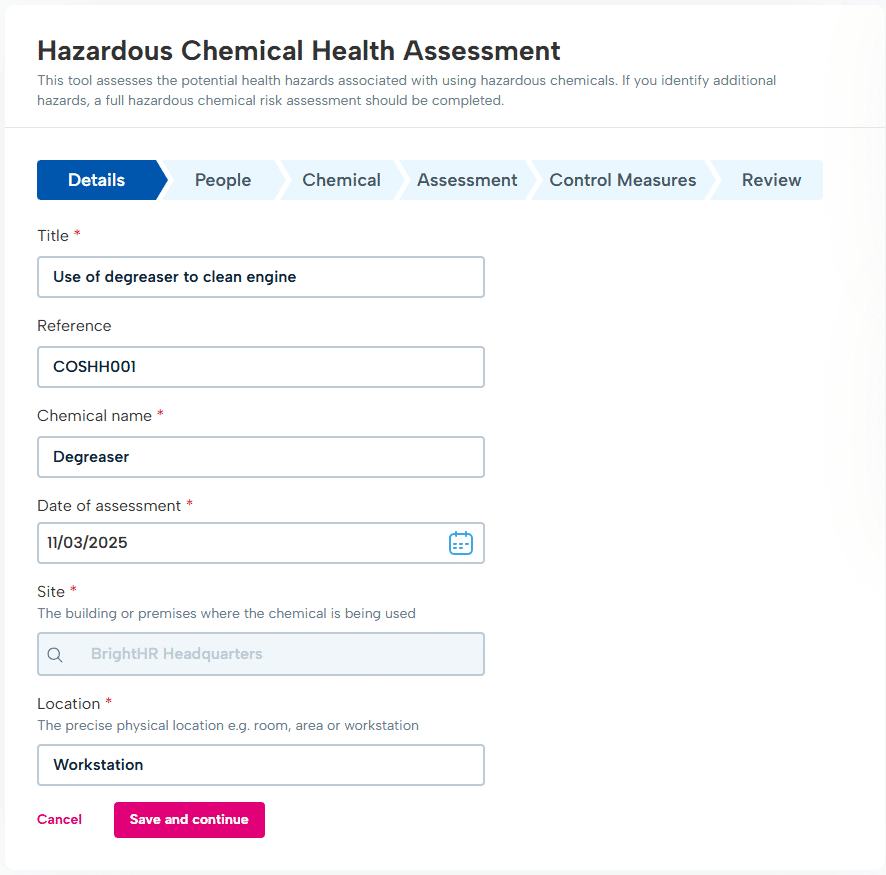
Step 1
Details
In this first section, you'll need to enter some basic details for the hazardous chemicals health assessment you're creating including:
- A name for your assessment.
- A reference if needed.
- The name of the chemical.
- The date of the assessment.
- The site the assessment is conducted for.
- The exact room, area or workspace for the assessment.
You can also choose to add in a reference for the assessment if needed.
Once filled in just click 'Save and Continue' to move on to the next step.
Step 2
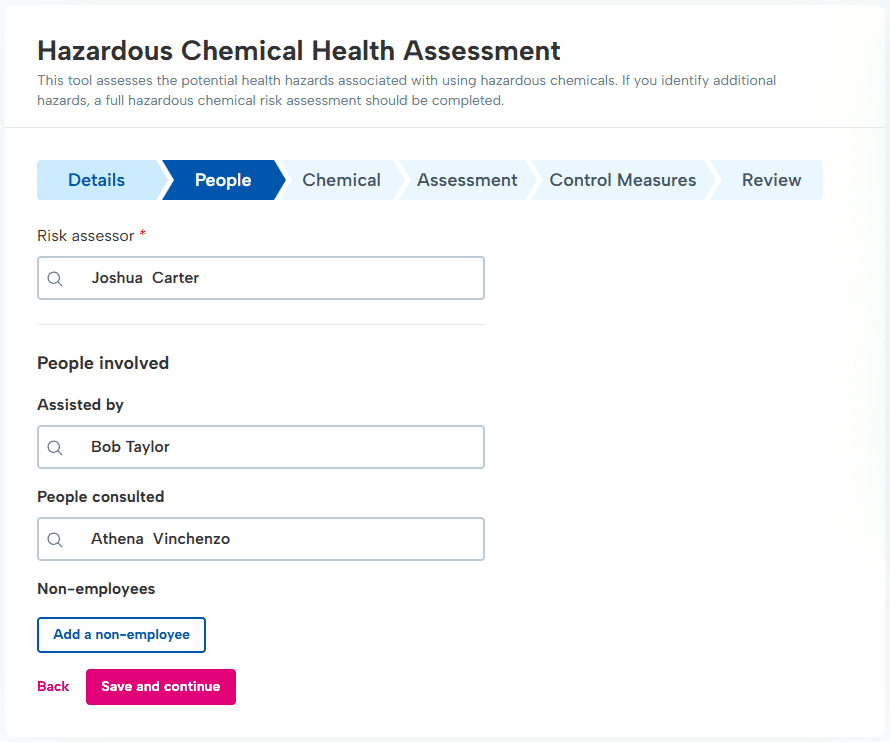
People
In the next section, you'll need to enter some details of the people involved in the risk assessment including:
- Who the risk assessor was.
- Who assisted the risk assessor (if needed.)
- Details of any non-employees.
- And who the people at risk are.
Once filled in just click 'Save and Continue' to move on to the next step.
Step 3
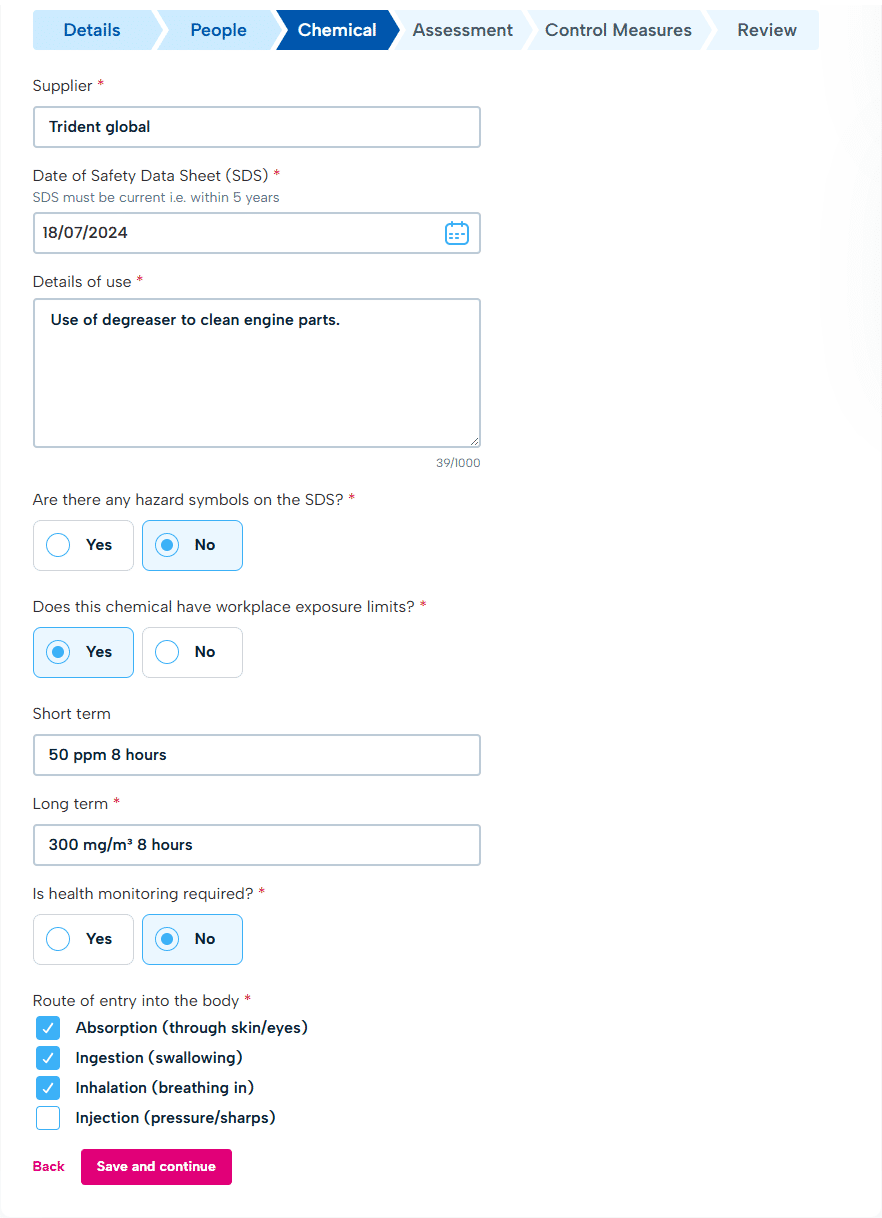
Chemical details
In this step, you'll need to enter some details about the chemical:
- First, the name of the supplier it was provided from.
- The date the Safety data sheet (SDS) was created.
- The details of how the chemical is used in the workplace.
- Enter any hazard symbols included on the SDS.
- Include details of any exposure limits if there are any.
- Select if health surveillance is required.
- Finally, select what the route of entry into the body would be for the chemical.
Once filled in click 'Save and Continue' to proceed with the assessment.
Step 4
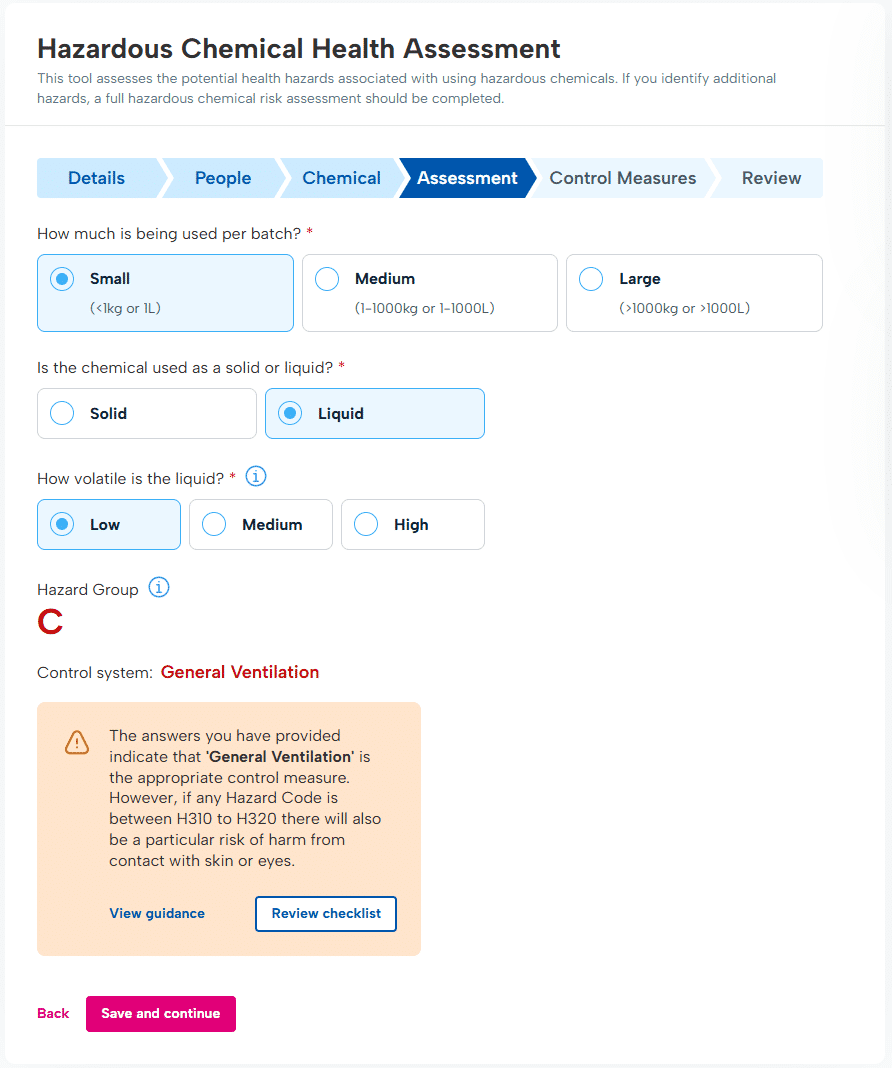
Assessment
Now that you've added details about the basics, the people involved and some details about the chemical, it is time to further complete the assessment with additional details such as:
- How much of the chemical is used per batch
- If the chemical is used as a solid or liquid
- Providing on whether it is a liquid or a solid, you will need to select low, medium and high for either how dusty a solid is, or how volatile a liquid is.
Once you have entered these details, the chemical will be given a 'Hazard group' and 'Control system'.
Once you have entered these details click 'Save and continue' to move onto the next step.
Step 5
Control measures
Next, you will provide details of the control measures in place when the substance is in use to avoid any incidents.
There are two types of control measures you will need to add:
- The control measures that are already in place.
- Any further control measures that need to be put in place.
Simply add the details in the description section.
Once completed just click 'Save and complete' to move on to the final step of your hazardous chemical health assessment.
Step 6
Review
In this last step, you'll need to fill in some details on when this risk assessment is due to be reviewed including:
The date of the review. Who will be assigned to conduct the review.
We'll automatically create a task for the reviewer so that they know when this is due.
Once completed just click 'Save and complete' to complete and save your risk assessment.
A copy of this will also be securely stored in the hazardous chemical health assessment section of BrightSafe so you can always refer back to it.
You can also copy and archive hazardous chemical health assessment. just like a normal risk assessment.