- Home
- Help centre
- >
- ...
- >
- Everything you need to know about schedules
Everything you need to know about schedules
Learn how:
Schedules
Learn all about our schedule and shift planner to get ahead on scheduling in your business.
Creating & Sharing Schedules
Schedules help you plan staff shifts, ensuring you have enough staff working every day.
The Schedule planning feature on BrightHR also has some handy tricks, automatically flagging when an employee on vacation, just to name one. So say goodbye to paper Schedules and make use of this handy feature!
Company Schedule Settings
Enable or disable schedule settings to suit your business. Just head to the 'Schedule settings' section of the Schedules tab to get started.
Restricted Schedule Permissions
Before we go through how to add your schedule, let's look at who can do this. Admins, managers and employees will all have access to the schedule planning section on their BrightHR account but only Managers and Admins can create a schedule here.
If schedule permissions are enabled in settings, as an admin you will also have control over which managers can edit or delete a particular schedule.
Hide Shift Labels From Employees
Need to label shifts but don't want your employees to see? You can use this setting to hide any colour coding you've added to your schedule so that only your admins and managers can see colour coding and labels that have been added.
To enable or disable this setting, click 'Enable' next to 'Hide shift labels from employees'.
Ability To Accept & Decline Shifts
Want your employees to be able to approve or decline shifts assigned to them? Simply select who you need to have the ability to accept or decline shifts which will create them as pending before the employee accepts it.
To enable or disable this setting, you will need to assign this permission to specific or all employees using the 'Select eligible employees' option.
Activate Open Shifts
Do you need to show your employees when shifts are available for things like overtime? enabling this setting will allow employees to assign themselves to available open shifts on BrightHR or even our handy app. Only admins and managers can create open shifts.
To enable or disable this setting, click 'Enable' next to 'Activate open shifts'.
Creating A New Schedule
Head to the 'Schedules' section of your account and click 'Create a new schedule' to get started.
There are two ways to create a schedule, you can either create a new schedule from scratch or copy an existing schedule you've already set up.
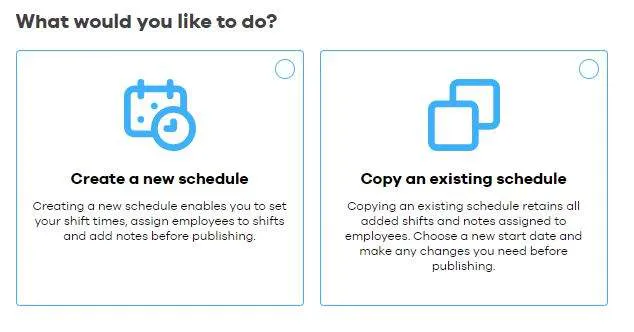
Let's go into each of these in a little more detail...
- First, select the 'Create a new schedule' option.
- Enter your schedule name. You could name your schedule after a team, site or the date range that the schedule is for. Whatever works best for you!
- Next, select the date that your schedule will start from.
- Select how many days you'd like to include in your schedule. You can select anywhere from 4 to 14 days. Also! Using the Table view, you can create a schedule for an entire month.
- Now, we need to select whether the schedule will include all employees or just specific teams. When you're assigning shifts on your schedule this determines whether all employees are available for you to assign to a shift to or just specific employees from your chosen teams.
There are three ways to build your schedule...
Table View
Our nifty table view allows you to set your shift time and assign this across multiple days, or employees, with just a click!


Create Shifts
Click the 'Add / Manage shifts' button to start creating your shift.


Add Details
Enter the start and end times of the shift.
Add a break if needed and any notes.
Select a colour and add a label to your shift if you need to.
Then click 'Add shift' to confirm and add this shift
Top tip: don't forget to click 'Apply' when selecting new shift times or adding breaks.


Assign Employees
Now it's time to start assigning shifts!
Just click on the table to assign this shift across as many days and employees as needed.
Repeat these steps to create all of the shift times you need.


Copy Shifts
Want to copy some shifts you've already added? No problem!
Just copy shifts you've already set up from one day to another, one employee to another or even across all weekdays or weekends in your schedule - all from the 'Shifts' menu at the top.

Your Shift Library
Once you've added a shift we'll keep this in your library, so that you can easily switch between different shifts you're adding.
To do this just head to the 'Add / Manage shifts' section, click on the 'Choose an existing shift' box and choose which shift you'd like to add next.


Expand Your Schedule
Add additional weeks to your schedule using the 'Duration' button.
Add, remove or copy weeks you've already set up in your schedule and have this span as many weeks as you need.


Share With Staff
Once you're happy with your rota just click the 'Publish' button then select 'Publish schedule' to share the schedule with your staff.
They'll even receive a handy push notification to their BrightHR app to let them know their schedule is now available to view.
Timeline View
Our handy timeline view allows you to assign users to shifts individually or a team at a time, making shift planning within your business a breeze!


Create Shifts
Click the 'Add shift' button to start creating your shift.


Add Details
Click on the start or end time of the shift to set the shift time.
Add a break if needed and any notes.
Then click 'Continue' to move onto the next step.
Top tip: don't forget to click 'Apply' when selecting new shift times or adding breaks.


Assign Employees
Next, select the names of any employees that will be working this shift.
BrightHR will show you if an employee is absent so you don't need to worry about assigning them to a shift they're unable to work.
Then click 'Continue'.
Top tip: Click 'Select group' to assign full teams to a shift - with a click!


Confirm Your Shifts
Check the details shown and ensure that your shift is correct then click the 'Add shift' button to create your shift.


Repeat
You'll see the new shift you've added on your schedule. Just repeat these steps to create all the shifts you need in your schedule.


Expand Your Schedule
Add additional weeks to your schedule using the 'Add week' button. Or click 'Add week & copy shifts' to duplicate the shifts you've already created on this new week.
Choose whether you'd like to include notes when creating your new week and click 'Copy week'.


Share With Staff
Once you're happy with your rota just click the 'Publish' button then select 'Publish schedule' to share the schedule with your staff.
They'll even receive a handy push notification to their BrightHR app to let them know their schedule is now available to view.
Drag & Drop View
Our quick and easy Drag and Drop view allows you to find the employee you wish to assign to a shift and drag and drop their name to assign them with a click.


Create Shifts
Click the 'Add shift' button to start creating your shift.


Add Details
Click on the pencil to edit the shift details.
Then click on the start or end time of the shift to amend the shift time.
Add a break if needed and any notes.
Then click 'Update' to save your changes.
Top tip: don't forget to click 'Apply' when selecting new shift times or adding breaks.


Repeat
You'll see the new shift you've added to your schedule. Just repeat these steps to create all the shifts you need in your schedule.


Assign Employees
Now just drag and drop the name of the employee from the employee list onto the shift you'd like to assign them to. Simple!
Top tip: Use the search bar to search for employees by name, job title or team.


Expand Your Schedule
Add additional weeks to your schedule using the 'Add week' button. Or click 'Add week & copy shifts' to duplicate the shifts you've already created on this new week.
Choose whether you'd like to include notes when creating your new week and click 'Copy week'.


Share With Staff
Once you're happy with your schedule just click the 'Publish' button then select 'Publish schedule' to share the schedule with your staff.
They'll even receive a handy push notification to their BrightHR app to let them know their schedule is now available to view.
Still want a paper copy of your schedule? Just press print at the top of the screen to print a copy of this!
Adding An Open Shift
Create an open shift to give your employees the flexibility of being able to claim a shift if they're available. Check out how to do this in our handy how to video...
Cost Of Shifts
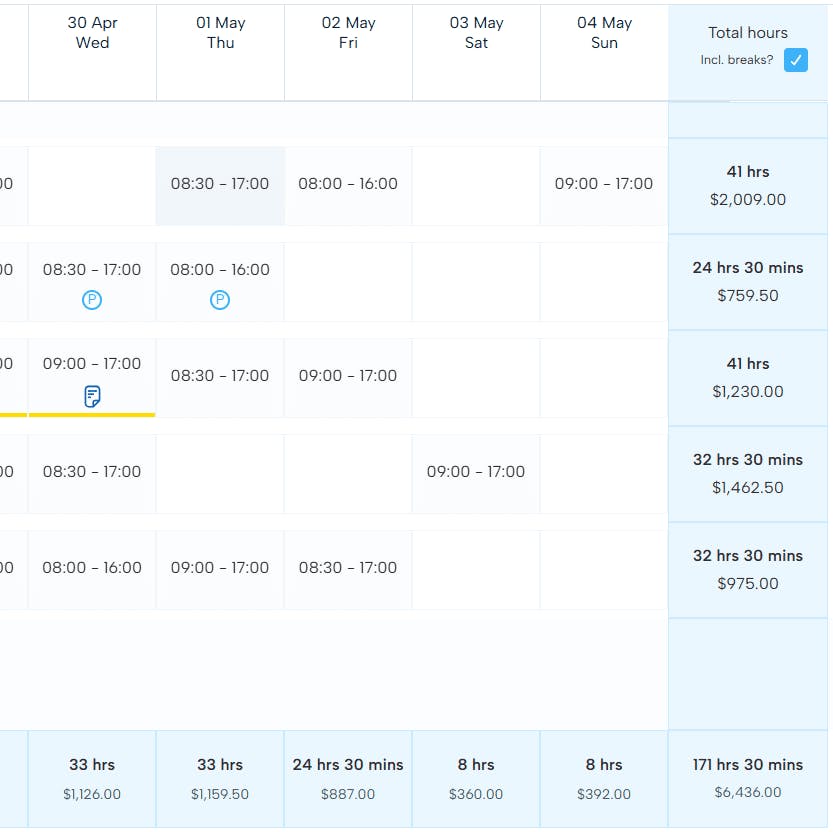
With cost of shifts, you can see a summary of how much a specific rota is going to cost the business.
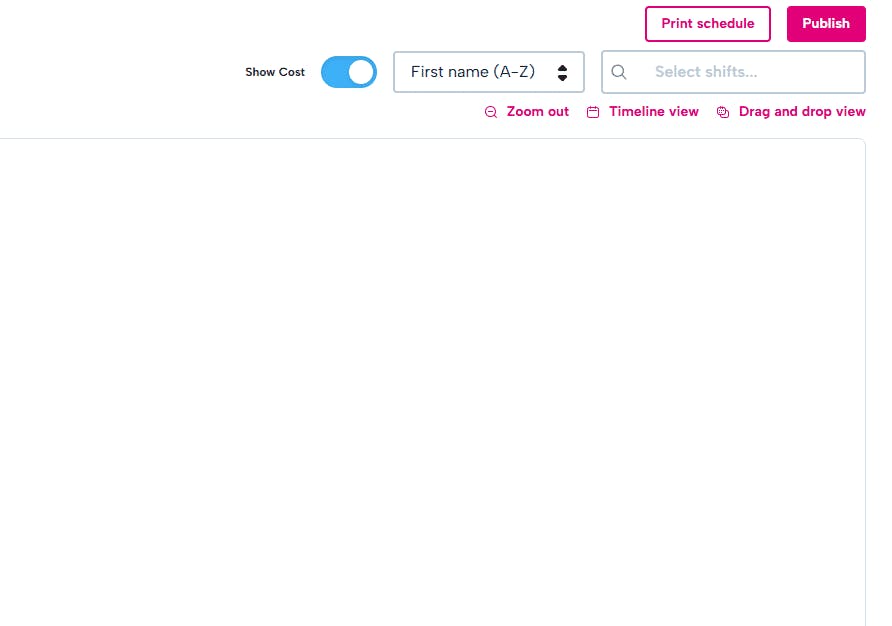
Activating cost of shifts is simple, just click the button on a table rota. The important part to ensure the cost is accurate is ensuring your employee profiles have their salary information completed - this is what feeds the cost of shifts feature.
Editing A Schedule
In the Active schedules section of your account, you'll see details of any unpublished, upcoming or in progress schedules.
To start editing a schedule click on the pencil to the right of it. You can then click on any of the shifts to edit the assigned employee, day of the shift, shift and break times.
Top tip: click on 'Timeline view' or 'Table view' or 'Drag and drop' to change the schedule view you're currently using.