- ...>Get started with Blip - Employee
Get started with Blip - Employee
Getting Started with Blip - Employee
In this handy course you'll be guided through the process of setting up your Blip account and how to make the most of our handy app. All with our easy to follow step-by-step guide.
What is Blip?
Blip is our easy to use app for clocking in and out of work. All you need to do is download the app via one of the links below for your device.
Clocking in / out
Clocking in
There are three ways to clock in and out with Blip. You can either use your location, a QR code or a flexible clock in. But don’t worry, your manager will tell you which one they’d like you to use.
With geolocations, your manager sets up a virtual boundary around your workplace (known as a geofence) and Blip picks up your location and sends you a prompt to ‘Clock in’.
Just tap this to log your start time and enter any notes you need your manager to see in the handy notes box.
And at the end of your shift, tap the ‘Clock out’ button while you’re still in the geofence.
Top Tip: Don’t worry if you forget to clock out and leave the geolocation, as Blip will send you an automatic reminder.

Alternatively, your manager might ask you to use a QR code—a type of barcode—to clock in and out of your workplace.
To clock in, tap the ‘Scan’ tab at the top of your screen.
Then point your phone’s camera at the QR code. Once the app scans the code, Blip registers you as clocked in and you can add any notes needed to your shift.
To clock out, repeat these steps.

Lastly is our flexible clock in feature, if your manager has enabled flexible clocking for you then you can clock in from anywhere.
All you need to do is tap the Flexible Clock in button, enter a name for your location and hit the clock in button. You can then add in any notes you need your manager to see about the shift.
To clock out, just repeat these steps.

Clocking in on the Website
If your employer has set up BrightHR so you can clock in on the website, this will give you the ability to use a desktop computer or laptop to clock in instead of a mobile device.
In the clock-ins section, if enabled you will see the clock in button in the top right of the page. This will also allow you to start and end your break and then clock out for the end of your shift.

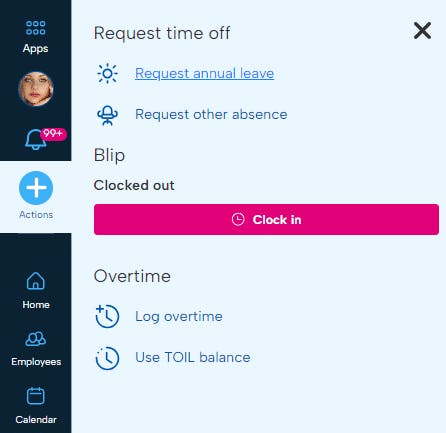
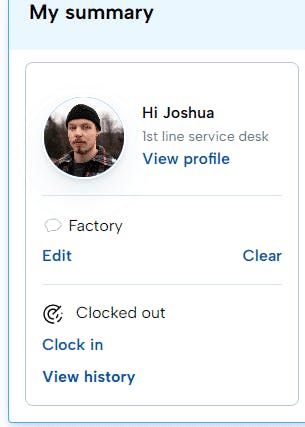
You can also clock in from the dashboard or use the actions menu on the nav bar to clock in and out too.
Logging your Breaks
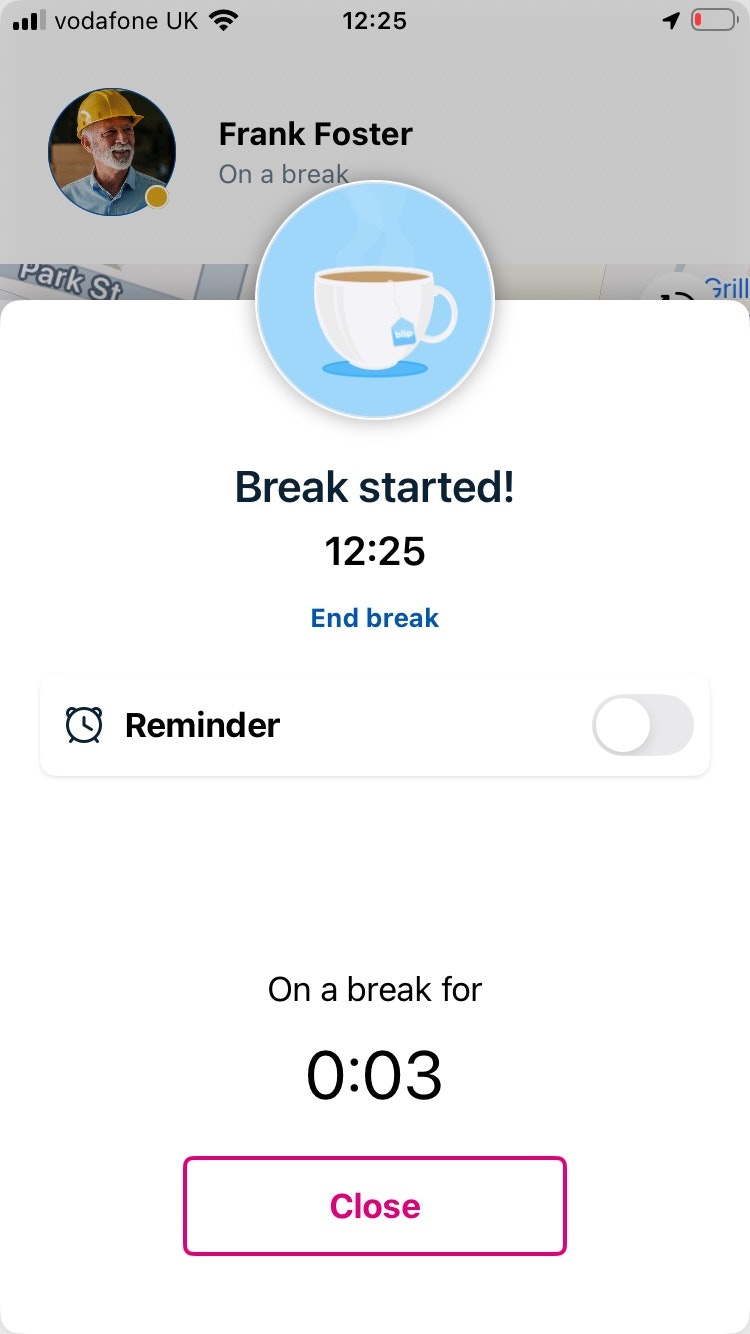
Now that you know how to clock in and out let's go through breaks. Blip allows you to record your break in a tap.
To start your break, tap the ‘Start break’ button at the bottom of your screen and select ‘End break’ once your downtime is over. It’s that easy!
Reminders
We're all a bit forgetful sometimes, that's why we've introduced our handy reminders feature.
You can set a reminder to clock in and clock out using Blip. Just head to ‘Settings’.
From here, you can set a manual reminder to clock out at a specific time or allow smart reminders. Smart reminders will look at your working pattern or schedule on BrightHR and automatically send you a clock in and clock out reminder when your shift is due to start and finish.
View & Adjust your Shifts
Viewing your History
To keep up with your clock in history, head in to the history tab.
Here you can view your clock in and out times, breaks as well as the locations you have clocked in to.

Exporting your History
- To export the work history for an individual or team and save it as a spreadsheet, head to the ‘History’ tab.
- Scroll down to find records of each shift or use the calendar icon in the top right-hand corner to filter by a date range.
- Tap the export button in the top right-hand corner.
- You’ll then get a selection of apps to pick from. Depending on the apps on your mobile, you can email the spreadsheet to yourself, send it via instant messenger platforms like WhatsApp, or save it to an online drive. The choice is yours!

Requesting Shift Adjustments
Didn’t clock out on time? No problem! You can easily request an adjustment to your shift times with your manager.
To do this head to the History tab.
Then just select the shift you want to adjust and tap on the pencil icon next to the shift time you’d like to edit and select your new clock in and out times. Add any notes you want your manager to see and hit the tick in the top right corner. Simple!
You’ll see that your adjustment is now awaiting approval, once it’s been approved, you’ll receive a handy notification on your app to let you know.
Manual time entries
If your employer has enabled this feature, you will have the ability to add your shifts and create your clock in history.
If enabled, you will see a + icon on your history screen which will allow you to manually select a clock in and clock out time & date to add to your history.
This does not require acceptance and will automatically update your clock in history.