- ...>All you need to know about Pay Runs
All you need to know about Pay Runs
This guide explains how pay runs work in BrightHR Payroll, including deadlines, approvals, calculations, reporting, and how to ensure accurate and compliant payroll processing.
All you need to know about Pay Runs
In this lesson, you'll be guided through the process of configuring pay runs, locking pay runs and completing your pay run.
Configuring your Pay Runs
In this lesson, we'll learn how to configure your pay-runs in order to begin your payroll process.
Adding a new Pay Run
Within Company Setup, navigate to Pay Run Settings. It is here that you'll be able to add a new pay frequency.
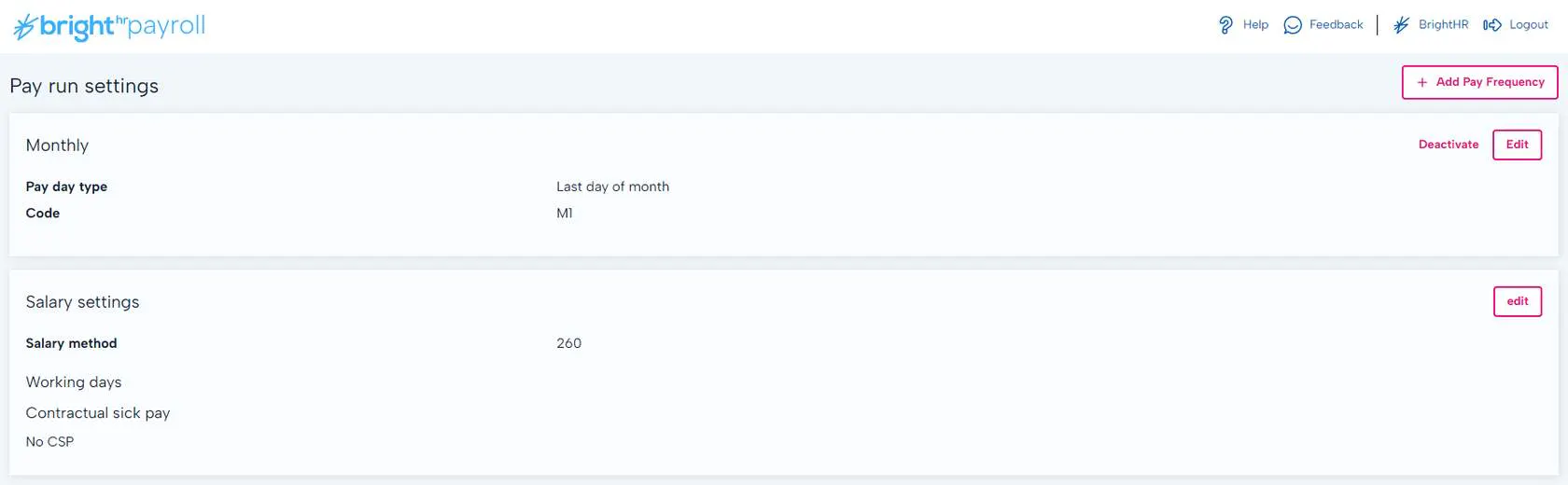
Pay run Frequency Configuration
The first thing to do here is to set the pay-run frequency. Once selected, you'll be asked to provide some more information, including a name and pay-date.
A cut off date can be set which will determine anything up to and including that date for processing within the current pay-run. Anything dated after this point, will fall in to the following pay-run.
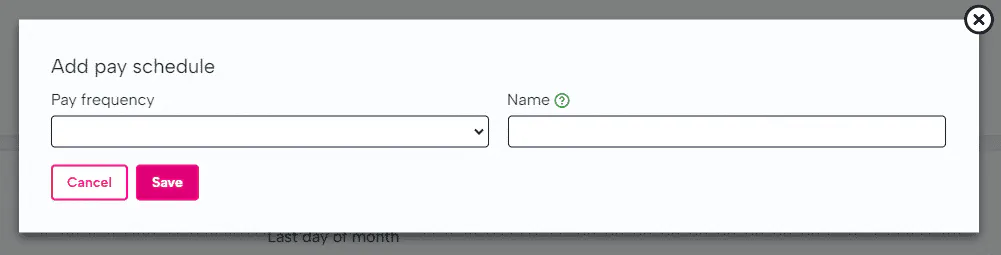
Adding your Pay Schedule
Next, you will need to enter details of the day you would normally pay your employees which can be on the last working day, a set date, the last weekday etc.
The cut off date would be the amount of days before the pay date that you would calculate towards the pay and anything worked after this point, would fall in to the following pay run.
Finally enter the reference period which controls the date range used for pro-rata salary calculations.
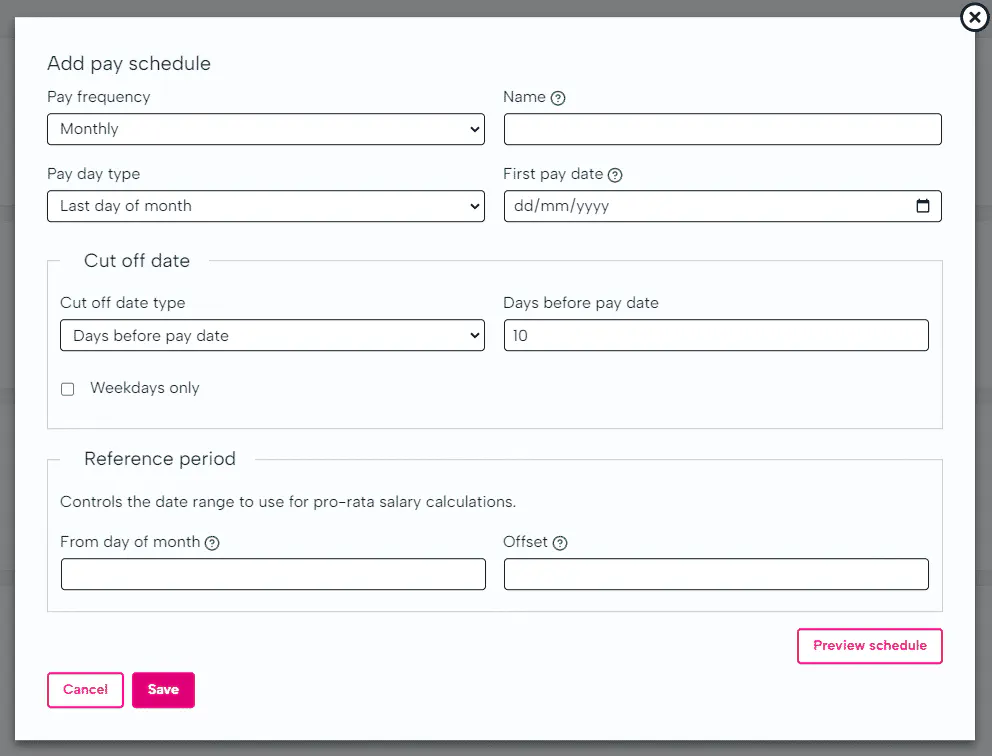
Salary Settings
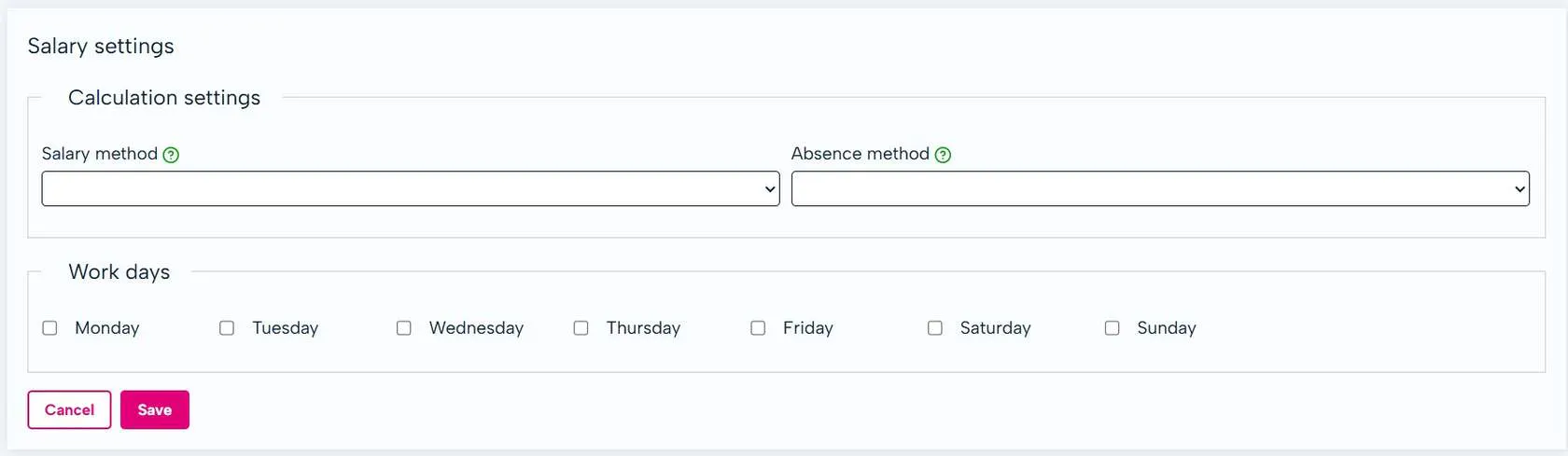
After the pay-run configuration has been completed, the next step will be to ensure your salary settings are in place. This determines how pro-rata salaries will be calculated.
Salary Settings
260 -This option would calculate the salary based on working days (Monday - Friday).
365 - This option would calculate the salary based on calendar days (Monday - Sunday).
Contractual Sick Pay
Type of contractual sick pay to award to employees.
None - No CSP will be paid.
Unlimited - CSP will always be paid.
Rolling window - CSP will be awarded based on the number of Period of Incapacity for Work ( PIW ) days in the preceding X months.
Fixed window - CSP will be awarded based on the number of PIW days in a fixed calendar year.
What Settings can I Edit for my Pay Run?
Pay frequency - the pay frequency that an employee is on can be amended through BrightHR as part of updating an employee, however this won't take affect until the next tax period due to PAYE, NI and Pension calculation requirements.
The name of pay runs - if you do change any other settings, you can adjust the name to reflect this helping you to identify the correct pay run.
Pay day type - this allows you to change the day or date of the pay run you pay your employees. For example, you may want to change from the last working day to the last Friday of the month.
First pay date - you can change the first pay date if set incorrectly in the pay run settings in the company settings tab. You need to ensure the new pay date is in line with the pay frequency you have set.
Cut off date - adjust the date payroll is cut off for the current pay run. As this is based on a number of days, you may not need to change this if you change your pay day type.
Reference period - alter the reference period used for pro-rata salary calculations.
Running Multiple Pay Runs
If you need to setup more than one pay run whether that be a different pay frequency or the same, BrightHR payroll has got you covered.
To keep this simple, all you would need to do is add another pay frequency though the 'Company Setup' tab.
Add your new pay run details and you will then see this running concurrently with your other pay runs in the 'Pay' tab.
What is a 53 Week Pay Run?
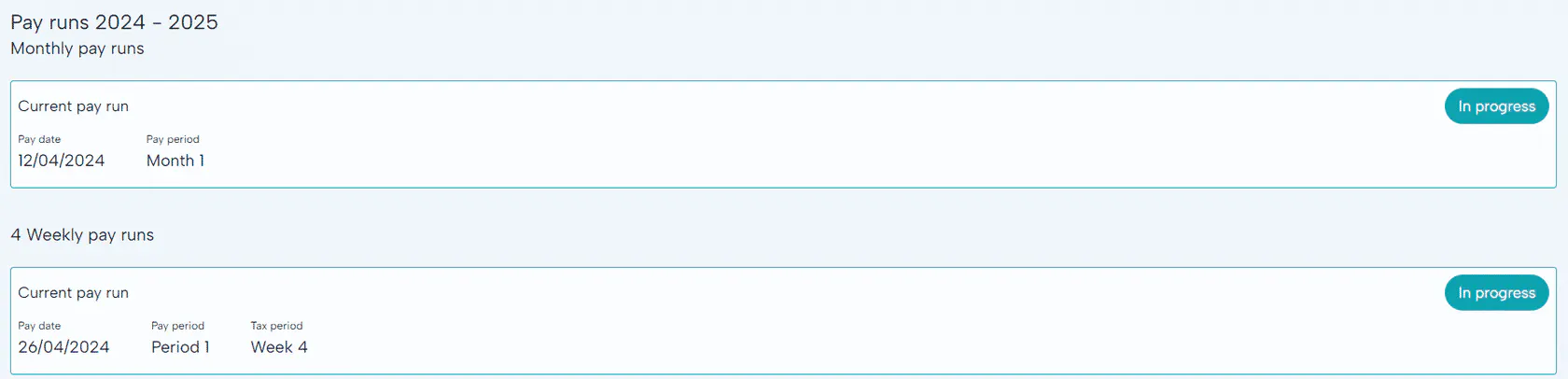
Some years you may need to do an extra pay run. Normally there are 52 weeks in the tax year for a weekly pay frequency, 26 for fortnightly and 13 for 4-weekly but some years you may get 53, 27 or 14.
If your payroll falls into this category, BrightHR Payroll will create this extra pay run and do the correct calculations for you.
Monthly pay runs will not have this issue as there will always be 12 monthly periods.
Deactivating Pay Runs
Deactivating a pay run will allow you to delete a pay run from BrightHR payroll. Please note, if this is not your sole pay run, this will fully remove the pay run and will not retain any of the information.
Locked Pay Runs & Payroll Exceptions
Next we will take a look at locked pay-runs and payroll exceptions. You'll find out what this means and how you can include it within your payroll process.
What is a Payroll Lock?
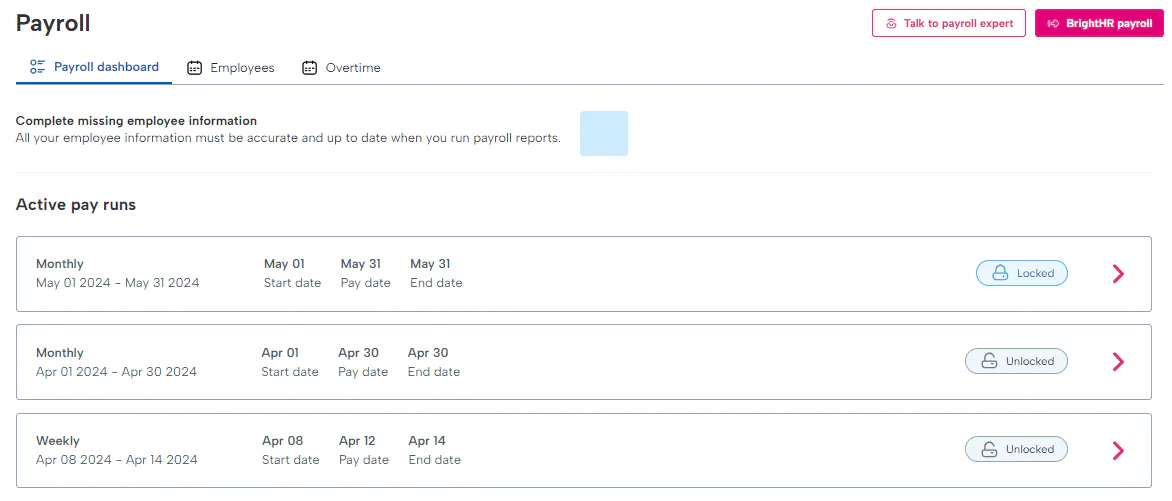
As part of our integrated HR and Payroll experience, there is functionality that'll allow you to put a temporary hold on HR data in order to run and reconcile your payroll. This is what we call the "payroll lock".
Why Would I use the Payroll Lock?
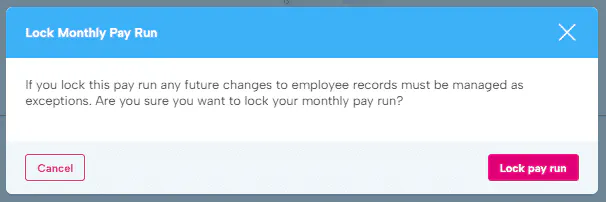
If and when payroll is locked and an urgent update needs to be processed (such as bank detail amendments), you'll be able to facilitate this via managing exceptions - more on this below.
How do I use the Payroll Lock?
Within each pay run, you'll see a toggle button on the top right hand-side of the screen. When this is locked, your HR data will not feed through automatically. This can only be unlocked again when there are not any payroll exceptions to process.
When would I Lock my Payroll?
It is entirely up to you when you deem it fit for your payroll to be locked for further HR updates. Every organisation and payroll is different, so this would depend entirely on your existing payroll schedule.
Payroll Exceptions
Payroll exceptions allow you to keep track of any amendments made to BrightHR whilst payroll is locked. The aim of this is avoid data continually flowing through and changing the payroll process.
Processing Exceptions
In order to process an exception, please use the 'Allow' button which will be shown against each exception. If you do not wish to process something listed, please do not press allow.
When the new pay-run is open, all remaining entries will flow through to payroll as per the normal process and be removed automatically from the exception area in the dashboard.
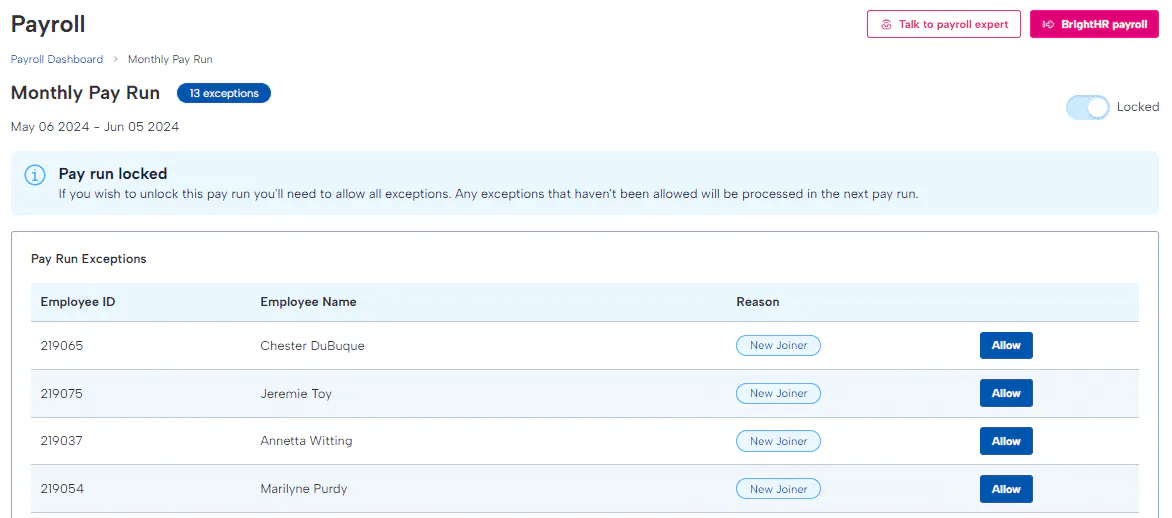
A pay run cannot be unlocked whilst there are outstanding exceptions.
Finalising your Pay Run
Once both your HR and Payroll input is complete, you will be ready to finalise your pay run. Please see the steps below to facilitate this.
Steps to Complete your Pay run
The following steps will be required before you can move on to generating your payment file and processing RTI submissions. Please see below: * Review alerts. * Review payslips and reports. * Review pension and auto-enrolment. * Complete pay run. * Employee payslips. * Opening a new pay run.
Review your Alerts
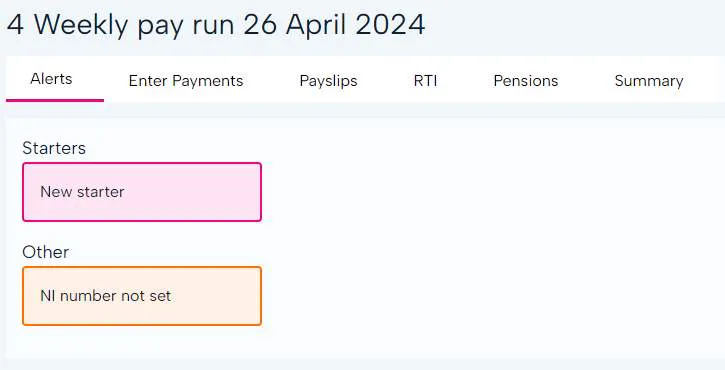
The 'Alerts' tab within BrightHR Payroll will give you an insight in to the status of an employee, and whether or not any actions need to be taken. This could include; new starter, final payments, missing NI numbers etc.
Review Pension & Auto-enrolment
As part of the payslip and reporting checking, it's important that a check over pension scheme additions and auto-enrolment behaviour is completed.
You can also add pay slip notes in the payment tab at the bottom of the payment information screen of each specific employee to appear on their payslip (this could accompany a one off deduction).
Complete Pay run
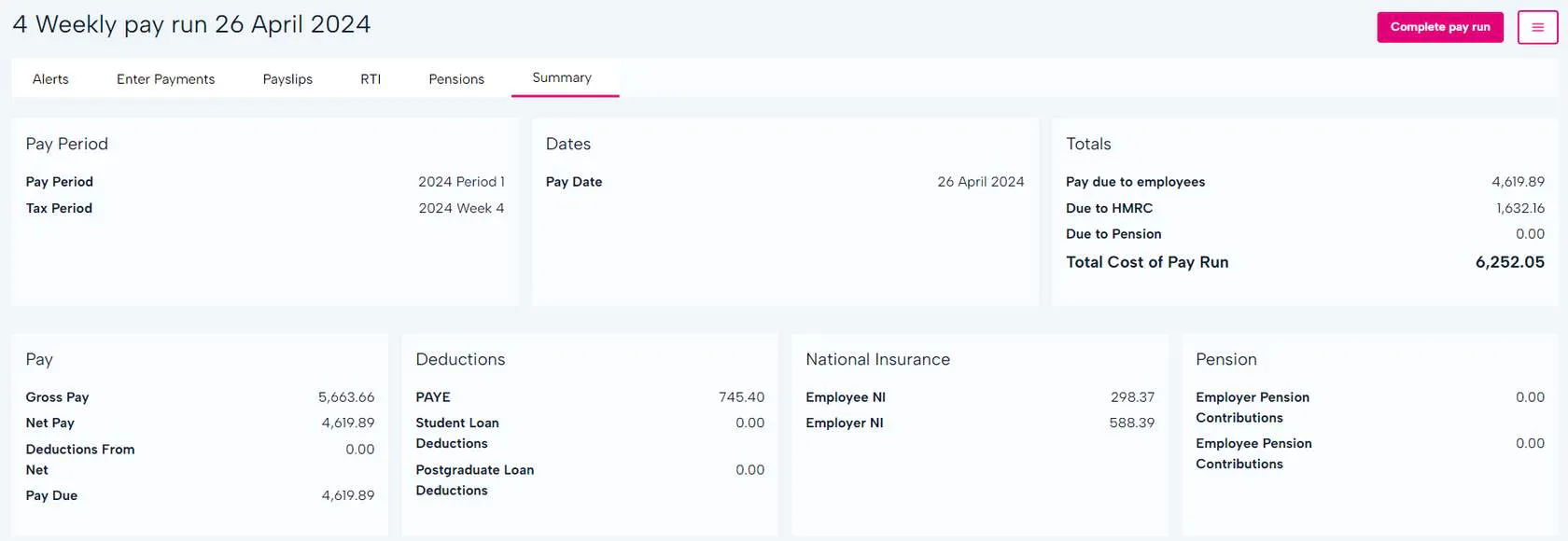
Utilise the button shown here to finalise your pay run and process your payslips (as listed above!)
This will also enable you to send the RTI submissions to HMRC and run any further reports needed.
Employee Payslips
Payslips will be issued and visible to the employees in their BrightHR profile when the 'Complete pay run' button is pressed.
You also have the option of emailing payslips too, if this is required.
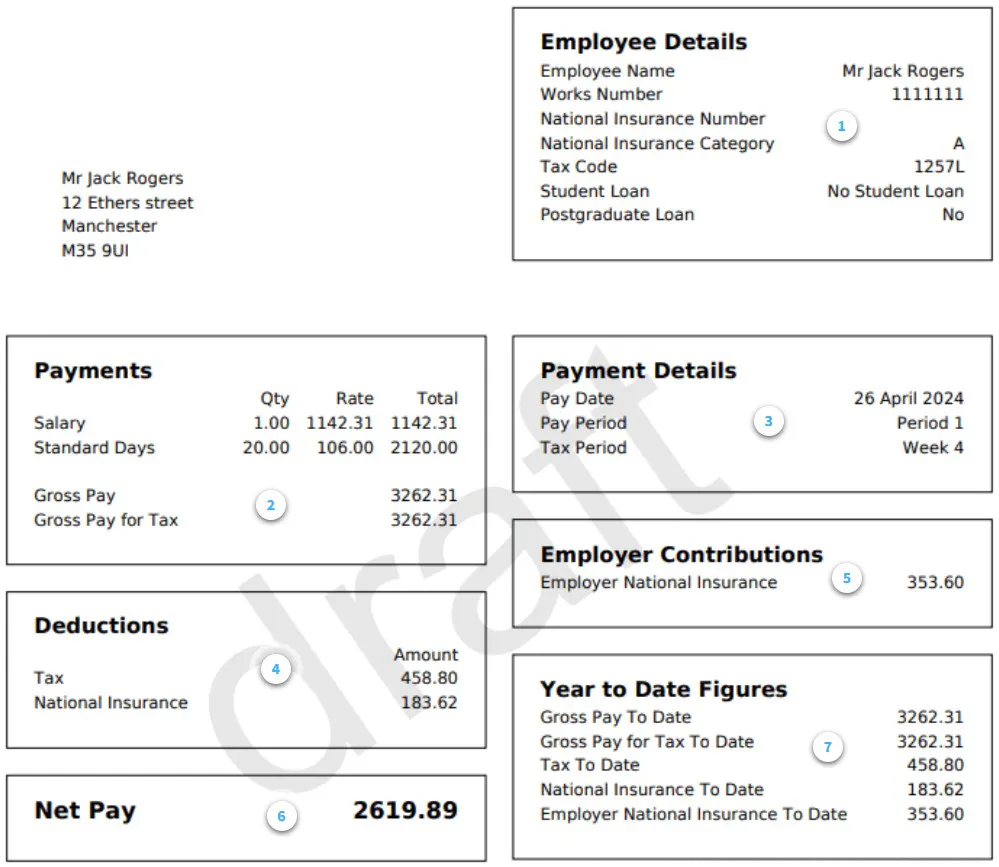
- Employee Details
This will include your employee's details specific related to their pay and employment.
- Payments
Included will be payments made to the employee which is not limited to just salary - this may be overtime pay, salary expenses etc.
- Payment Details
Info on the pay date and period.
- Deductions
Here you can see any deductions that have been taken from the employees pay such as student loans, tax and NI.
- Employer Contributions
This will show the contributions made towards national insurance or any employer pension contributions from the company.
- Net Pay
This will be the employees take home pay after all deductions have been taken from their gross pay.
- Year to Date Figures
This will provide a breakdown of the total pay, total tax and total national insurance that has been paid in this financial year. The employer national insurance contributions are displayed here too.
Accessing Payslips on BrightHR
Once issued, payslips can be easily accessed by your employees via their BrightHR login.
Employees can access their payslips in the 'Pay documents' folder located in their documents either via the documents tab on the nav bar, or directly through the documents section of their profile - the payslip will be available as soon as you complete the pay run.
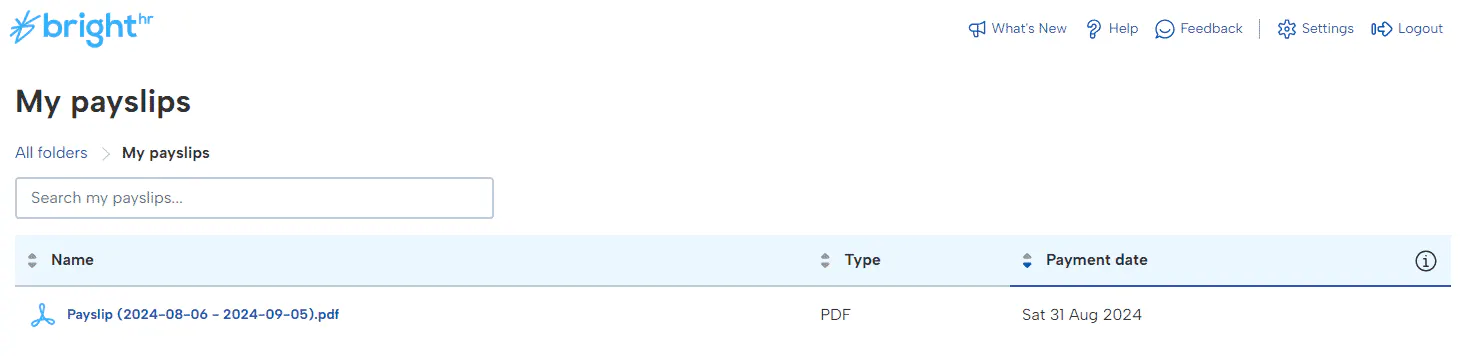
Employees can also access their payslips and other pay documents via the app.
Opening a new Pay Run
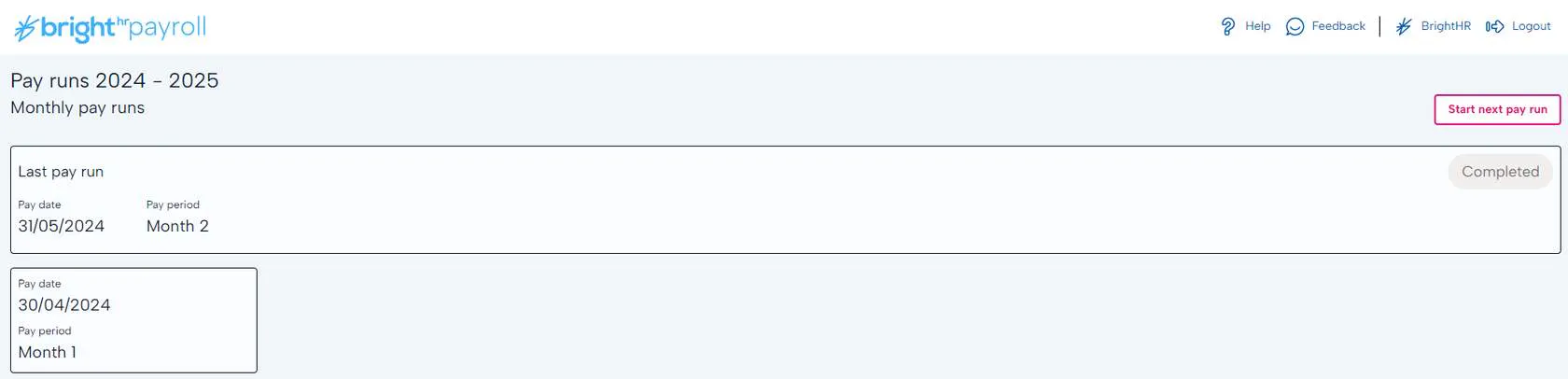
Once you have completed your pay run, issued your payslips and sent all payment submissions to HMRC, you will then want to start the next pay run. As long as there are no outstanding tasks on your previous pay run, you should see the 'Start next pay run' button in the top right.