- ...>Entering ad-hoc Employee Payroll Data
Entering ad-hoc Employee Payroll Data
Employee Payroll Data & Occupational Schemes
In this lesson, we will go through all ad-hoc employee details and payroll data you may need to update throughout your pay runs such as payments and deductions.
In this lesson, we will go through all ad-hoc employee details and payroll data you may need to update throughout your pay runs such as payments and deductions.
We will now take a look at how you can enter ad-hoc employee payroll data including payment & deduction details to ensure employee payments are correct and are accurately recorded.
Adding new Employee Information
If you need to add or amend employee information, such as bank or address details, this can be initiated through BrightHR. This will then automatically update payroll, providing the payroll is unlocked.
Recording Absences in BrightHR
In order for absences to integrate in to payroll, you must first add and manage them via BrightHR.
You will be able to add absences which will then integrate through to the payroll engine and apply payments to your employees scheduled pay.
This can either be added by the employee and go through an approval process, or you can add these on behalf of your staff.
Watch our how to video below to see how you can add absences on BrightHR.
Average Weekly Earnings (AWE)
Average weekly earnings allows BrightHR Payroll to apply an average pay when it comes to statutory absences such as SSP.
The AWE will be applied to any absences that're eligible and payments will be processed to the employees pay.
If the absence does not show up, then this is because the Average Weekly Earnings (AWE) need confirming in the payroll engine first to confirm eligibility for pay.
To do this, visit the employee profile in the payroll engine, select the absence tab and then select the absence in question and click the pencil icon to edit.


If the average weekly earnings is empty, click the refresh icon to generate the figure.
Average weekly earnings is an average of the last 52 weeks of pay or less if 52 weeks pay is not available.
Recording Payments
The majority of payments required will originate from the data held in BrightHR, salary and overtime as an example. There may be a requirement to add further payments to an employee record.
In order to do this, select 'Pay' and select the current pay-run. When here, select 'Enter Payments' and locate the relevant employee.
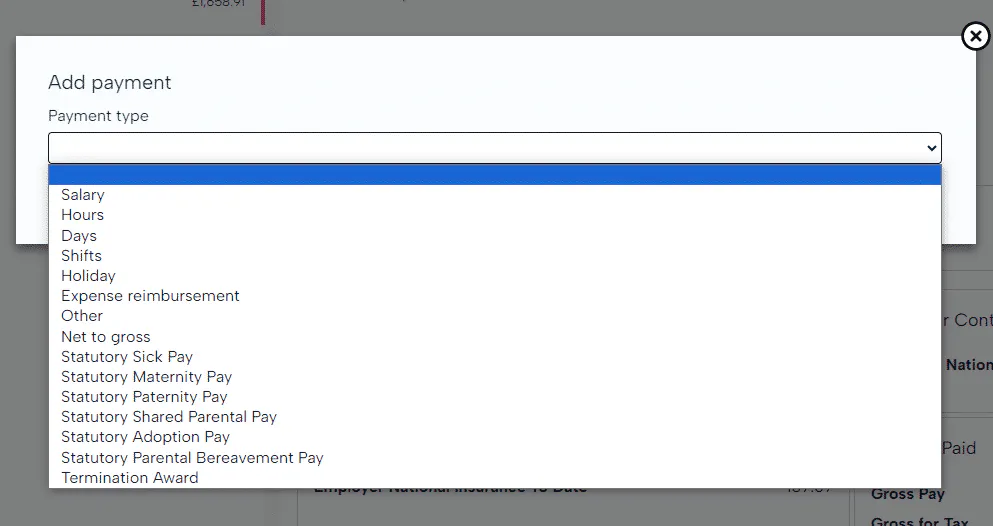
The salary element, whilst it appears as an option in the drop-down, is driven by BrightHR data to alleviate the need for double entry. The salary history will feed directly in to payroll and pro-rata any salary payments based on the effective dates.
Statutory Payments
Statutory payments are pre-defined minimum payments to be provided for a range if different absence types. These payments are usually a legal requirement set out by the government.
Your employees may be eligible for Statutory Sick Pay (SSP), which is £118.75 a week for up to 28 weeks.
You can offer more if you have a company sick pay scheme but you cannot offer less. Company schemes are also called "contractual" or "occupational" sick pay and must be included in an employment contract.
To qualify for Statutory Sick Pay (SSP) employees must: * Have an employment contract. * Have done some work under their contract. * Have been sick for more than 3 days in a row (including non-working days) Known as a "period of incapacity for work". * Earn an average of at least £125 per week. * Give you notice and proof of illness when needed.
Employees do not qualify for SSP if they: * Have received the maximum amount of SSP (28 weeks). * Are getting Statutory Maternity Pay or Maternity Allowance - there are special rules for pregnant women and new mothers who do not get these payments. * Are off work for a pregnancy-related illness in the 4 weeks before the week (Sunday to Saturday) that their baby is due. * Were in custody or on strike on the first day of sickness (including any linked periods). * Are working outside the EU and you’re not liable for their National Insurance contributions. * Received Employment and Support Allowance within 12 weeks of starting or returning to work for you.
For more information, please click here.
How would I add a Payment Above Statutory?
If you are company offers more than the statutory minimum amount to employees, this can be topped up on an employee payslip utilising the 'Salary' or 'Other' options.
What can I Reclaim back on the Statutory Payments made to Employees?
Employers can normally reclaim 92% of statutory payments made to an employee, however small businesses may be eligible to reclaim 103% if certain criteria is met. Please ensure HMRC guidance is consulted before amending your tax settings in BrightHR Payroll.
Recording Deductions
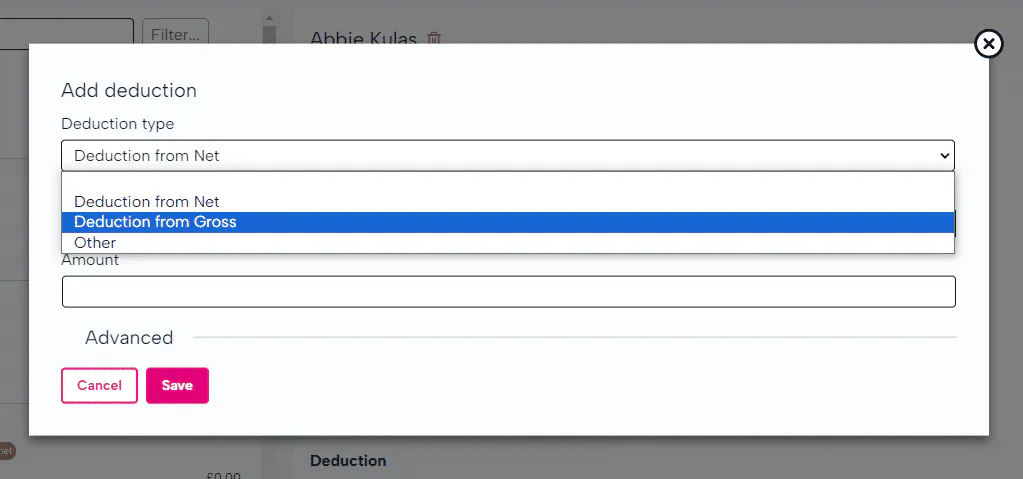
The ability to record deductions is extremely easy, and mirrors a similar to process to payments. Let's find out more about the options below.
Deduction from Net
This option allows you to add a deduction that is taken from their "take home pay" - this is calculated and processed after tax and NI has already been deducted.
Deduction from Gross
This option deducts an amount before tax and NI has been taken in to account - it comes from the gross amount of pay generated.
Other
Examples of Types of Deductions
You will find some example deductions that may be deducted from an employee payslip. Please note that this is not an exhaustive list and some may depend on your company policies.
- Union Membership Fees - trade union membership fees can be deducted directly from a members salary.
- Voluntary Deductions - deductions for charitable organisations or gift programs for other employees.
- Deductions for employee benefits - deductions for benefits for example health insurance.
- Deductions for absences - unpaid absences may be deducted from salary.
- Court-Ordered Deductions - deductions from court orders for legal obligations.
- Deductions to correct overpaid wages - if an employee is overpaid, this may be deducted from future payments.
- Company loans - if an employee has had any loans from their employer, repayments can be deducted directly from their salary.
BrightHR Audit Logs
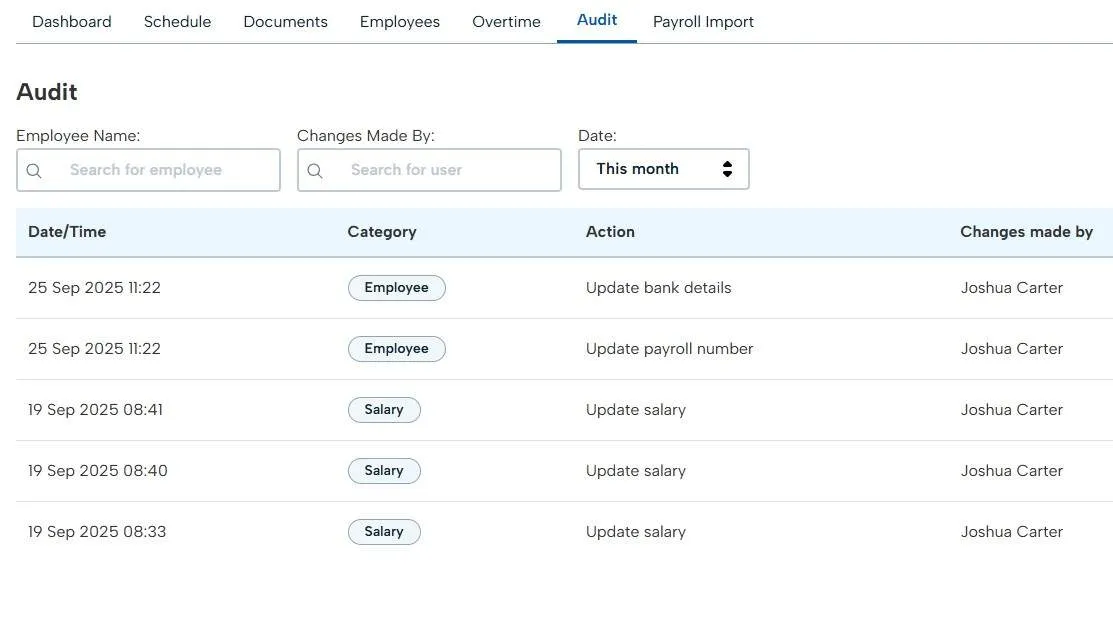
When any details in BrightHR are corrected or updated, you can utilise the audit log to view specific information about the changes — such as the previous and updated values, who made the change, and more.
Simply navigate to the Payroll section in BrightHR and open the Audit Log.
You will then be able to see any changes to items such as salaries, bank details, payroll numbers, etc., over your selected date range.