- ...>Everything you need to know about BrightHR Payroll
Everything you need to know about BrightHR Payroll
A full overview of BrightHR Payroll, covering setup, employee syncing, pay runs, deductions, RTI submissions, pensions, reporting, and how payroll integrates with your HR tools.
Everything you need to know about BrightHR Payroll
In this handy course you'll be guided through the process of setting up your BrightHR Payroll account, all with our easy to follow, step-by-step instructions.
The following sections will take you from configuring your employees ready for payroll to ensuring they are paid - and everything in between.
Introducing Payroll
Introduction
About BrightHR Payroll
BrightHR is a one stop shop for employers to manage their HR needs, health and safety, time keeping, expense tracking and our latest addition - payroll.
With our newest feature you can rely on Bright to help your business with its needs in any area and what's better, keeping all of that recorded in the same place!
Over 1,000,000 people trust BrightHR for their HR management, so why not payroll?
Key Features of BrightHR Payroll
- Reduce administration time by having an integrated HR and Payroll process and system.
- Real time updates from the HR feed in to payroll to keep payments correct and up to date.
- Make managing your pay-runs a breeze with a new and exciting Payroll Dashboard.
- Seamlessly present employee pay slips visible within the BrightHR profile after pay-run completion.
- Fully RTI compliant, with integrations to pension and accounting providers.
- Synchronise key employee information in real time during your pay-run.
What to do First?
Follow our simple steps below, getting you from setup to go-live, allowing you to enjoy the benefits of your new painless payroll!
Step 1
Access your payroll software
First things first. From within your BrightHR account, head over to the payroll section and click 'BrightHR Payroll' to get started.
Step 2
Company payroll setup
Ensure your company payroll settings, pay-runs and pension setup are configured.
Step 3
BrightHR data cleanse
Cleansing your HR data is extremely important, especially if you have missing information that's required for payroll reporting.
Step 4
Add your employees to BrightHR Payroll
Using the new payroll dashboard functions, seamlessly add your employees in to BrightHR Payroll.
Step 5
Check your tax notices
Check for any HMRC notifications and apply them to your employees in a few simple steps.
Step 6
Payments and deductions
Enter employee payment & deduction details to ensure employee paylips are correct.
Step 7
Complete pay runs and issue payslips
Once payment and deductions are added, you're ready to complete the pay run and issue payslips to your employees!
Step 8
Submit your RTI submissions to HMRC
Using our RTI compliant and integrated solution, send your FPS and EPS to HMRC - all at the click of a button!
Logging in to BrightHR Payroll
Getting in to your Payroll account is simple yet secure! we ensure you have a two factor authentication enabled to add an extra layer of security for your sensitive payroll information.
You can access BrightHR Payroll via the Payroll section of your BrightHR account meaning you don't have to remember multiple passwords but first you will need to enable two factor authentication.
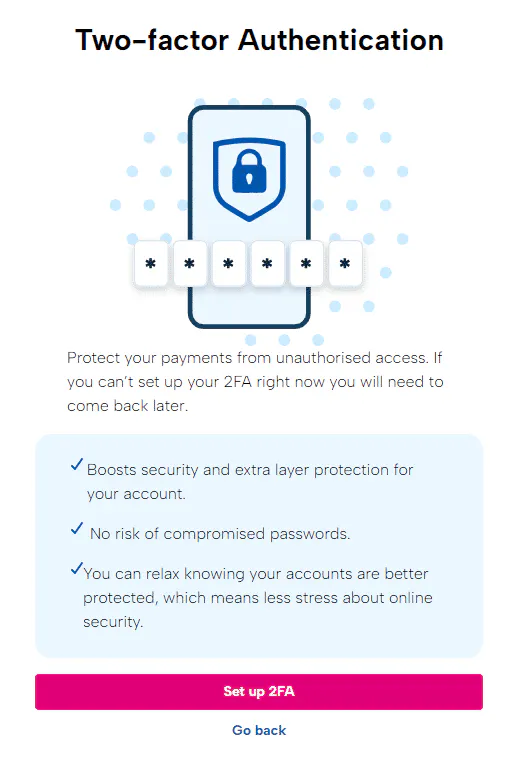
When you attempt to access Payroll for the first time, you will be presented with the screen above. Follow the process to set up your Two-factor authentication (2FA) and you will then be able to access your Payroll information safely, and securely.
Watch our handy how-to-video below to see how easy it is to set up 2FA with BrightHR.
First Step
The most important part of using your Payroll platform, getting your setup right!
Getting Started
Company Setup
Let's get up and running with Payroll. In this first lesson, we'll cover the basic payroll setup for your company so you are one step closer to a fully integrated HR and Payroll solution.
BrightHR Integration
As you'll already be working with our amazing HR platform, one of the best things about choosing to join us for payroll is the seamless integration that links them.
First Step
The first step of the process is to ensure your company is setup. This includes important information such as your PAYE Reference number, Accounts Office Reference (AOR) number and your HMRC gateway credentials - as well as your pay-run information!
This will ensure that BrightHR Payroll can send RTI filings and download important information such as P6s (tax codes), P9s (start of tax year tax code), Student Loan and Post Graduate Loan start and stop notices.
Tax References
You'll need to have these details for your tax references to hand:
This is a 13 character code that was issued to you when you registered as an employer.
The format should be similar to 123/PA12345678.
You can find this on correspondence from HMRC regarding your PAYE scheme and also by logging into your HMRC government gateway account.
If your company has multiple PAYE references, you will need to get these set up with our payroll team.
Government Gateway Credentials
In order for BrightHR Payroll to talk to the RTI system at HMRC, you will need to add your Government Gateway Credentials.
You will be able to find out more about what these are below:
This is the user ID your company uses to sign in to the Government Gateway. The software requires this in order for you to send your RTI submissions.
Tax Settings
Enter the details of the tax you pay - any reliefs that may apply to you, allowances, Levies etc.
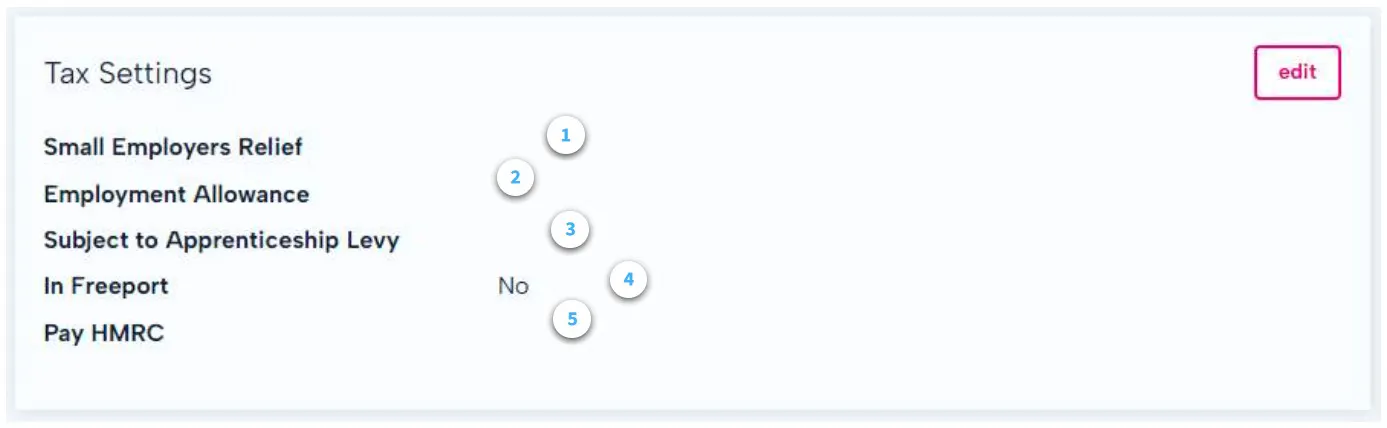
Small Employers Relief - Select this if you are eligible to claim the Small Employers' Relief. This allows qualifying businesses to claim 103% of their employees' statutory payments - including maternity, paternity, adoption, parental bereavement and shared parental pay. You are eligible for this relief if you paid less than £45000 Class 1 National Insurance in the last complete tax year.
Employment Allowance - Select this if you wish to claim Employment Allowance. This allows eligible employers to reduce their annual National Insurance liability by up to £5000.
The claim will be made by selecting this option and generating an Employer Payment Summary (EPS).
You will be eligible as long as the Employers' Class 1 National Insurance liabilities were less than £100,000 in the previous tax year.
- Apprenticeship Levy - Select this if you are required to pay the Apprenticeship Levy.
Employers that are required to pay the levy each month: * Have an annual pay bill of more than £3 million. * Are connected to any companies or charities for Employment Allowance purposes and have a combined annual pay bill of more than £3 million.
You will also be required to enter how much allowance you receive.
In Freeport - Select yes if the company is located in a freeport and is able to apply Freeport NIC relief to new employees.
Pay HMRC - If you usually pay HMRC less than £1,500 per month in PAYE, EEs and ERs National Insurance, you may be able to pay quarterly.
The helpline at HMRC will need to be used for more information.
Other details
Payment File Settings - select the payment file template you wish to use, followed by the payment reference that you wish to be visible to the employees on the transaction.
Email - if you are an existing BrightHR customer, payslips will be available for employees to view on their profile. If you wish to also send these via email, please set the address the email is to come from, accompanied by a display name. This is often set to the company name but it is entirely your choice.
Payslip Note - this enables you to add a piece of text to your employee payslips.
Payslip Settings
Heading over to the 'Company setup' section, you can set up your payslip settings.
Click 'Add Settings' to get started.
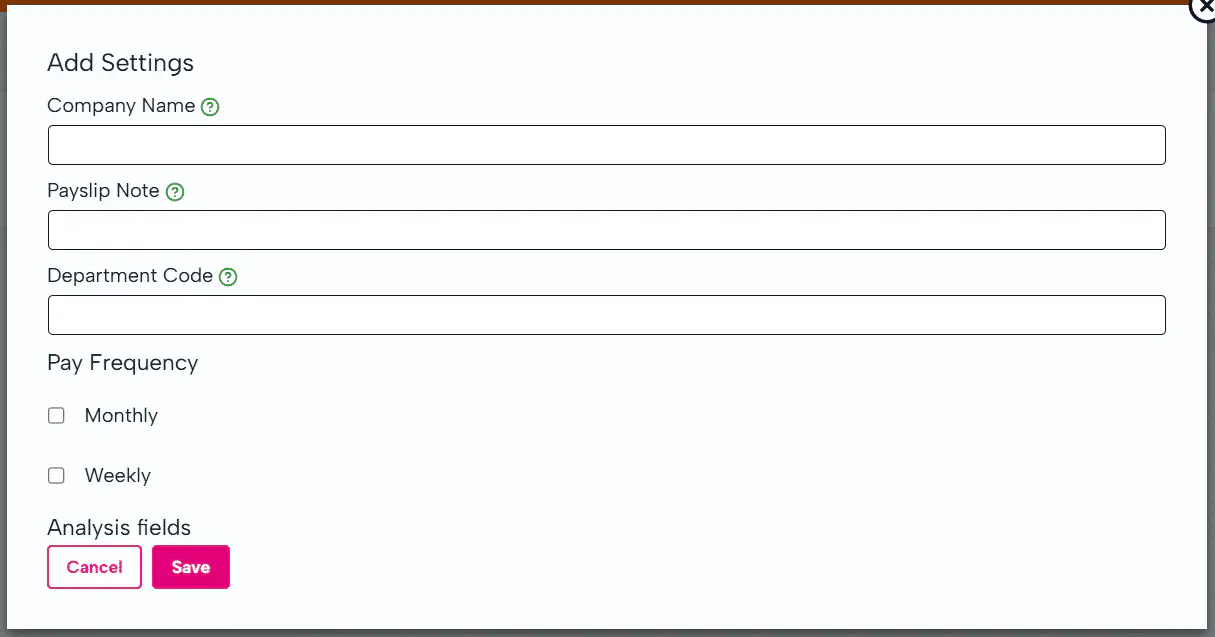
A note to display on all payslips for this company.
The note will included in every payslip, including historic payslips if they are downloaded or emailed again. Once the note is removed it will not be included on any payslips.
Once you have added your payslip settings, you can also add your company logo to your payslips.
Click the the upload icon next to department code to upload your image.

Occupational Pay Schemes
Occupational pay schemes (OPS) pay all or part of an employee’s salary during an absence such as sickness or maternity leave
You can configure multiple schemes on BrightHR Payroll to suit different employee contracts specific for your business.
An employee’s entitlement within a scheme depends on their length of service.
You can find the setup of occupational pay schemes in the company settings section. In here, you can add a new scheme.
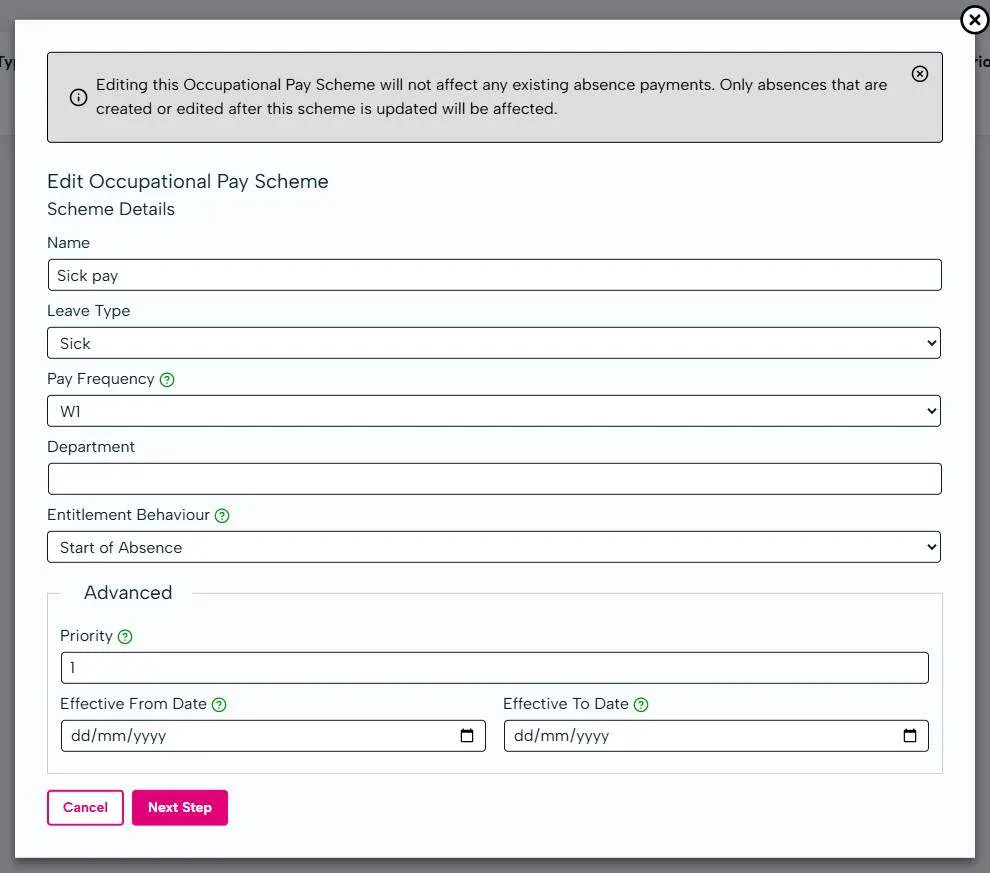
There are 2 steps to setting your scheme, the details and entitlements.
Let's take a look at how to do this:
To setup your scheme you will need to; * Give it a title. * Specify a leave type (i.e sickness). * Select the pay frequency it applies to. * Include the department (if needed). * The entitlement behaviour (either the start of absence or the day of absence).
Start of Absence - For each absence day in the absence period, the length of service is calculated as the number of days between the employee's start date and the first day of the absence period. This means that when an employee takes absence with this behaviour, the entitlement is fixed for the entire absence period.
Day of Absence - Length of service is calculated on each day of the absence period, meaning that the employee's entitlement bracket is evaluated on each absence day. This means that the employee's entitlement is not fixed for the period of the absence.
Advanced settings for scheme details will allow you to set the pay priority, as well as the effective from and to dates.
The above are what is required for the scheme details.
Configuring your Pay Runs
In this lesson, we'll learn how to configure your pay-runs in order to begin your payroll process.
Adding a new Pay Run
Within Company Setup, navigate to Pay Run Settings. It is here that you'll be able to add a new pay frequency.
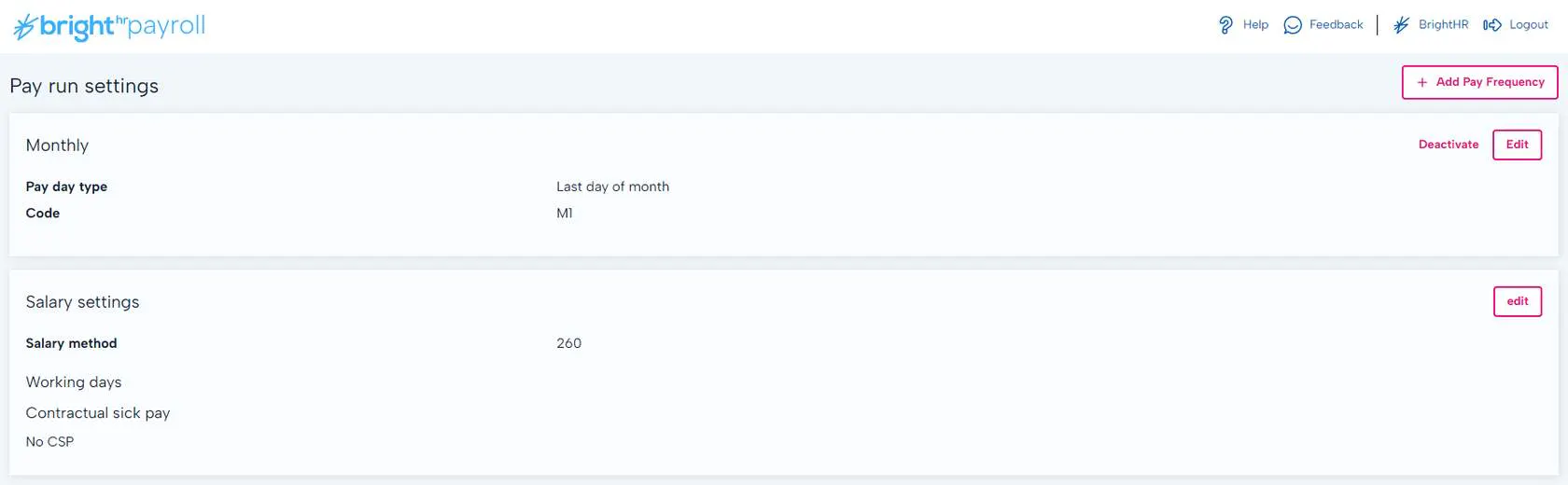
Pay run Frequency Configuration
The first thing to do here is to set the pay-run frequency. Once selected, you'll be asked to provide some more information, including a name and pay-date.
A cut off date can be set which will determine anything up to and including that date for processing within the current pay-run. Anything dated after this point, will fall in to the following pay-run.
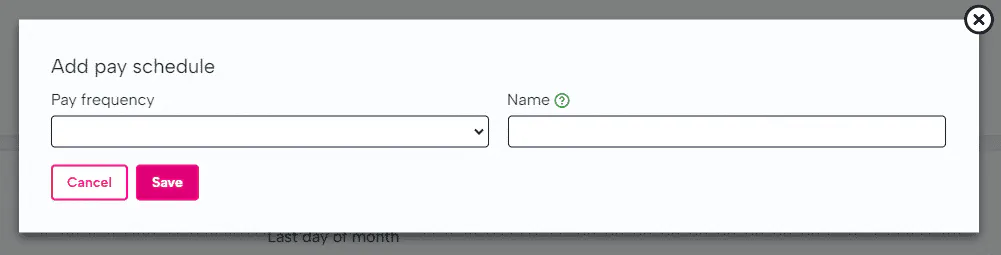
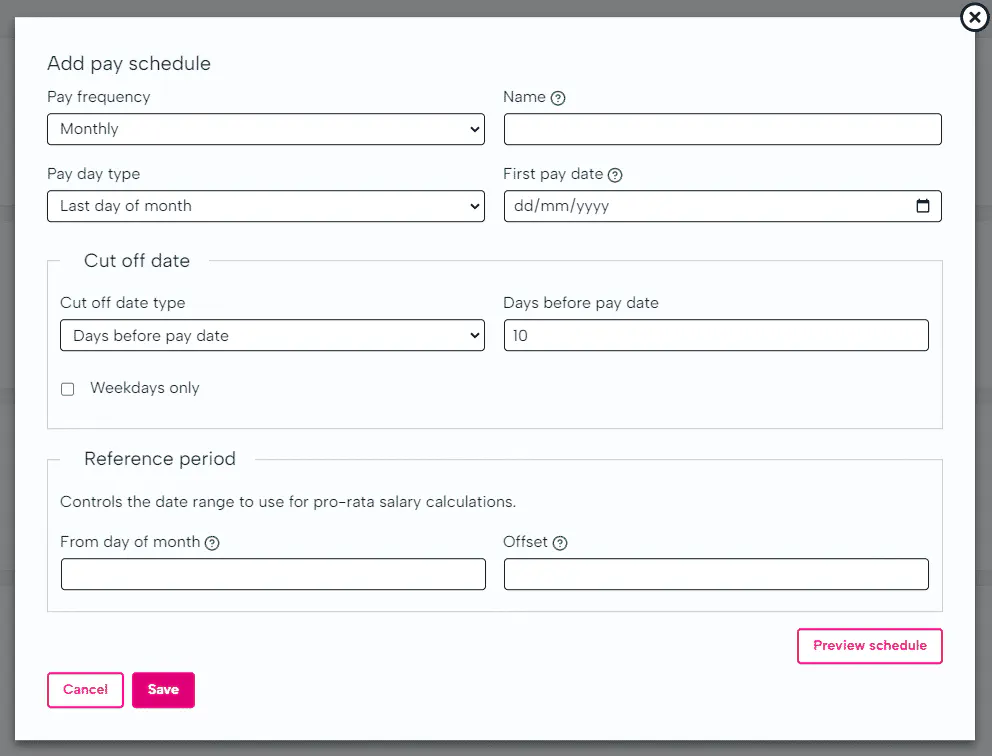
Adding your Pay Schedule
Next, you will need to enter details of the day you would normally pay your employees which can be on the last working day, a set date, the last weekday etc.
The cut off date would be the amount of days before the pay date that you would calculate towards the pay and anything worked after this point, would fall in to the following pay run.
Finally enter the reference period which controls the date range used for pro-rata salary calculations.
Salary Settings
After the pay-run configuration has been completed, the next step will be to ensure your salary settings are in place. This determines how pro-rata salaries will be calculated.
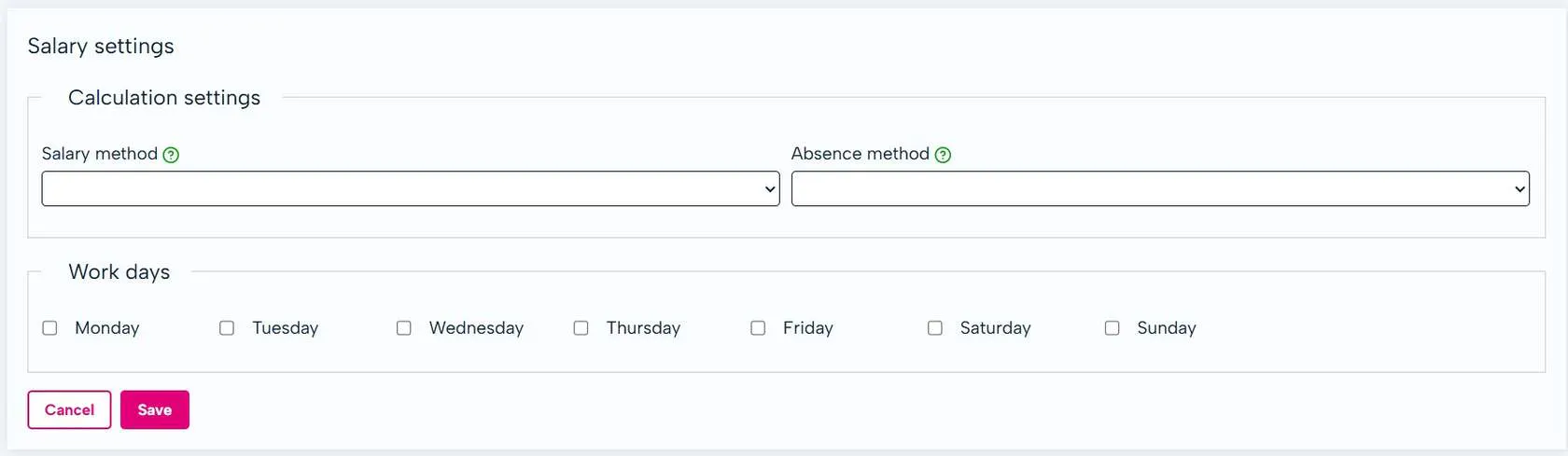
Salary Settings
260 -This option would calculate the salary based on working days (Monday - Friday).
365 - This option would calculate the salary based on calendar days (Monday - Sunday).
Contractual Sick Pay
Type of contractual sick pay to award to employees.
None - No CSP will be paid.
Unlimited - CSP will always be paid.
Rolling window - CSP will be awarded based on the number of Period of Incapacity for Work ( PIW ) days in the preceding X months.
Fixed window - CSP will be awarded based on the number of PIW days in a fixed calendar year.
What Settings can I Edit for my Pay Run?
Pay frequency - the pay frequency that an employee is on can be amended through BrightHR as part of updating an employee, however this won't take affect until the next tax period due to PAYE, NI and Pension calculation requirements.
The name of pay runs - if you do change any other settings, you can adjust the name to reflect this helping you to identify the correct pay run.
Pay day type - this allows you to change the day or date of the pay run you pay your employees. For example, you may want to change from the last working day to the last Friday of the month.
First pay date - you can change the first pay date if set incorrectly in the pay run settings in the company settings tab. You need to ensure the new pay date is in line with the pay frequency you have set.
Cut off date - adjust the date payroll is cut off for the current pay run. As this is based on a number of days, you may not need to change this if you change your pay day type.
Reference period - alter the reference period used for pro-rata salary calculations.
Running Multiple Pay Runs
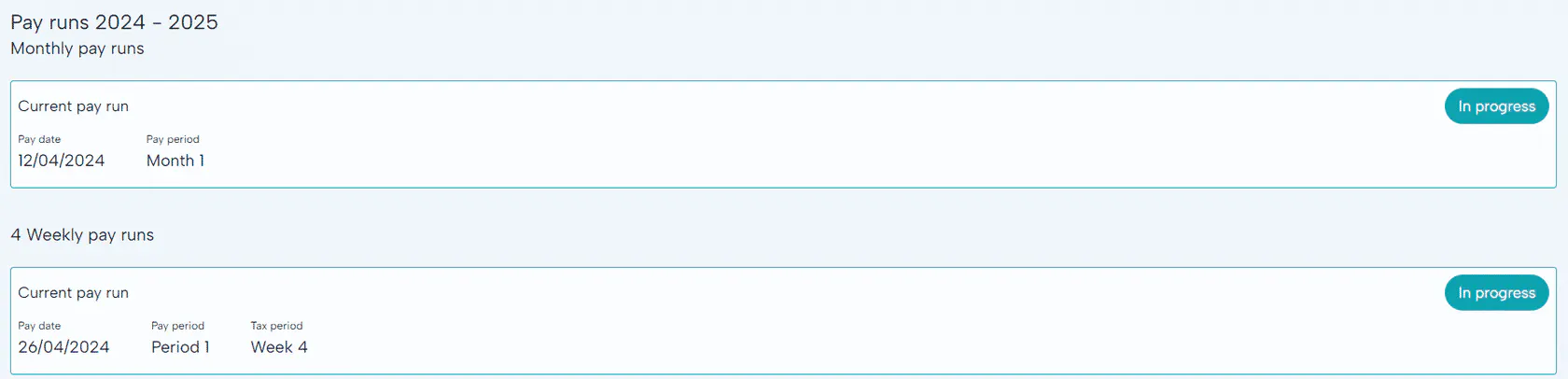
If you need to setup more than one pay run whether that be a different pay frequency or the same, BrightHR payroll has got you covered.
To keep this simple, all you would need to do is add another pay frequency though the 'Company Setup' tab.
Add your new pay run details and you will then see this running concurrently with your other pay runs in the 'Pay' tab.
What is a 53 Week Pay Run?
Some years you may need to do an extra pay run. Normally there are 52 weeks in the tax year for a weekly pay frequency, 26 for fortnightly and 13 for 4-weekly but some years you may get 53, 27 or 14.
If your payroll falls into this category, BrightHR Payroll will create this extra pay run and do the correct calculations for you.
Monthly pay runs will not have this issue as there will always be 12 monthly periods.
Deactivating Pay Runs
Deactivating a pay run will allow you to delete a pay run from BrightHR payroll. Please note, if this is not your sole pay run, this will fully remove the pay run and will not retain any of the information.
Setting up your Pension Schemes
In this section, you will learn how to setup your pension schemes, including reference numbers, auto-enrolment behavior and relevant EE and ERs contribution percentages and rates.
Setting up a new Pension Scheme
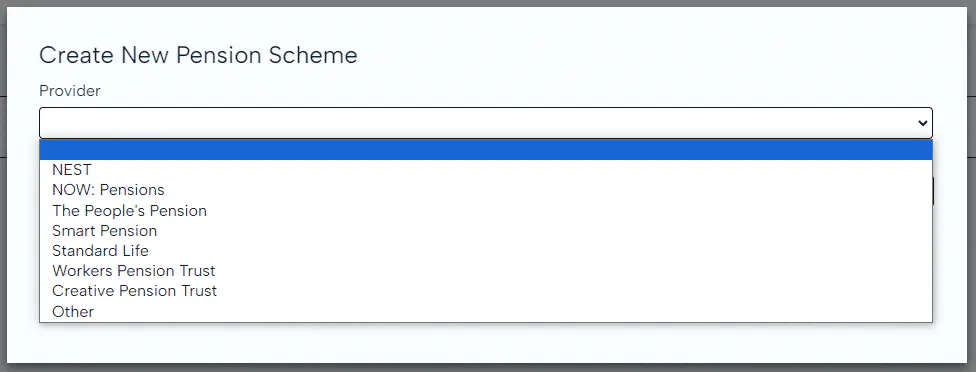
Before you can enrol your employee's on a pension scheme, you will need to add details for your provider. BrightHR Payroll covers the most common providers, but you also have the option of adding your own that isn't already recorded.
Setting up your Pension Scheme Provider Details
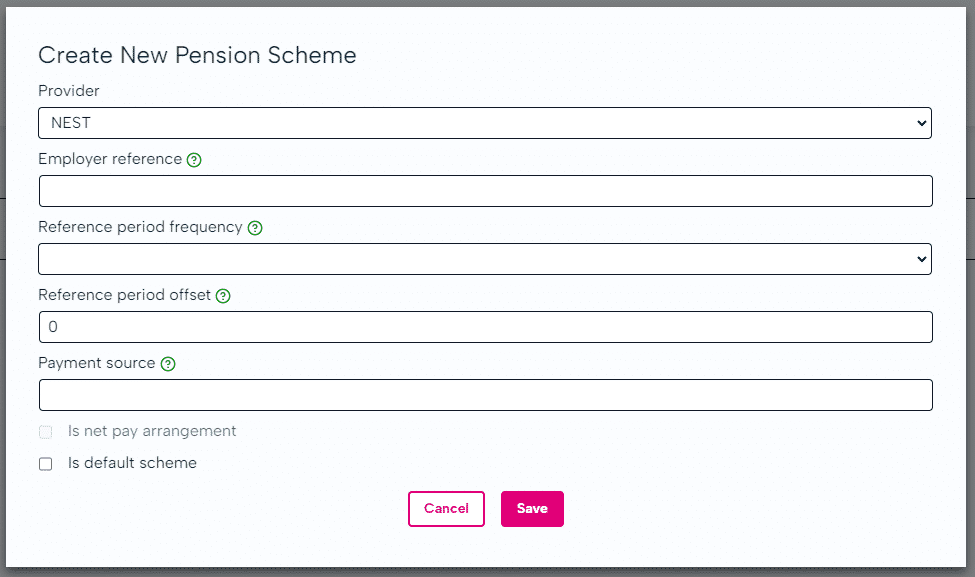
Some providers may require more information and have different criteria than others. Have a look below to see what you will need to set up your scheme...
Employer reference - The unique employer reference issued by the pension provider.
Reference period frequency - The NEST Reference Period.
Reference period offset - You should probably leave this as 0.
If your NEST references dates do not match those generated, use this to offset the reference period in days/months/tax periods in the past.
Payment source - The NEST Payment Source. This must exactly match your Payment Source in NEST.
Adding Contribution Groups to your Scheme
Once you have input your pension scheme details, one or more contribution groups can be added. This is especially useful if you have different schemes running.
To set up a contribution group, head to 'Pension setup' which is held in the 'Company Setup' section.
- Earnings basis - 'Qualifying' or 'Pensionable'.
- Contribution type - 'Fixed' or 'Percent'
- The relevant rate or percentage for the EE and ER.
- Is it a net pay arrangement?
- Is it a salary sacrifice scheme?
Not all the above information is required for every pension scheme.
Nest Integration
Now available for BrightHR Payroll, the NEST API Integration reduces the need to login to the NEST website by allowing you to enrol workers, upload contribution records and approve payments within the pay run screen.
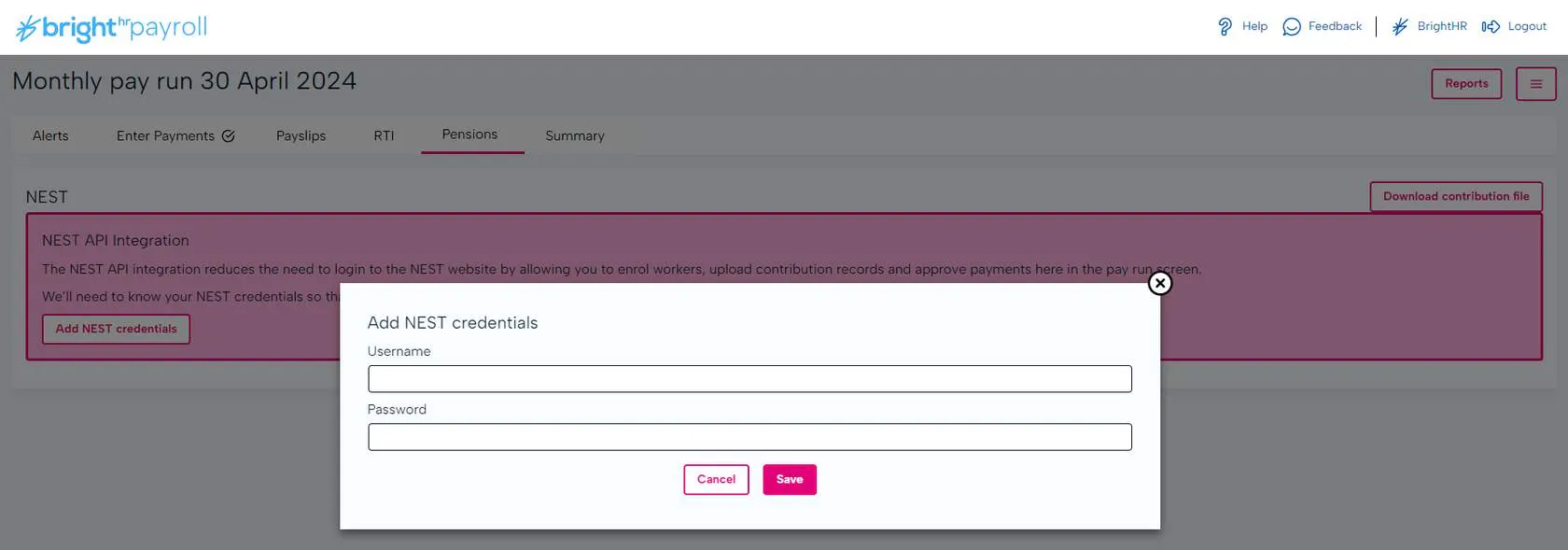
Enter your pay run and then click in the 'Pensions' tab. From here, you will be prompted to add your NEST credentials to complete the integration.
Automatic Enrolment
All employers are legally required to assess their employees to see if they qualify to be enrolled in to a pension scheme. If they do, contributions for both EEs and ERs must commence - this is called 'Automatic Enrolment'.
How do I Know if I Need to Auto-enrol my Employees?
- Eligible jobholders (automatically enrolled) have to be enrolled into a pension scheme that is used for automatic enrolment where contributions are made.
- Non-eligible jobholders (opt-in) have the right to opt-in to a scheme. The employer must then put them into a pension scheme that is used for automatic enrolment and make regular contributions.
- Entitled workers can ask to join a pension scheme and the employer has to provide a pension scheme for them but the employer does not have to pay contribution.
When do I Enrol Employees?
Employers must begin their Auto-Enrolment duties as soon as the employee starts employment.
The assessment and enrolment can be deferred for up to 3 months, however is it best to consult The Pension's Regulator and other official advisory services with regard to this.
Setting up BrightHR Payroll to Manage Auto-enrolment
When beginning the pension setup process you will be asked about how you want to manage auto-enrolment. Take a look below and read carefully to make sure you select the correct option.
Select this option if you require the software to assess your employees for you.
Setting up Auto-enrolment in BrightHR Payroll


Setting up auto enrolment couldn't be easier with BrightHR Payroll. Just follow these simple steps to get this up and running!


You would first need to select a 'Postponement period' if you have one - this would be any delay from the time of initial assessment until you enroll them in to a scheme.


Next, you will need to enter your staging date of when your auto-enrolment scheme was put in place.


Include the details of your Pension provider. We have included popular pension schemes such as NEST and The people's pension however if your provider is not on the list, select the other option and enter this manually.


Here, you can enter the details of how the pension contributions are managed from your perspective, and how this will be deducted from your employee's pay.


Once you have completed setup, BrightHR Payroll will automatically calculate contributions for both you and your employee's. This will even be included on the pay slips generated and sent from the system!
Managing your Auto-enrolment Manually Outside of BrightHR Payroll


If you wish to manage this separately outside of BrightHR Payroll, you can still add your pension details for record keeping.
Include the details of your Pension provider. We have included popular pension schemes such as NEST and The people's pension however if your provider is not on the list, select the other option and enter this manually.
Here, you can enter the details of how the pension contributions are managed from your perspective, and how they're deducted from your employee's pay.


Here, you can enter the details of how the pension contributions are managed from your perspective, and how they're deducted from your employee's pay.
Exempt from Auto-enrolment
Summary
You're off to a fantastic start. Now the basics have been setup, you'll be able to run your payroll in no time.
All About Pay Elements
In this section, learn about pay elements and how they all contribute towards average holiday pay awards.
Getting this right is crucial when recording holiday payments once your pay runs are up and running.
What are Pay Elements?
Pay elements are categories of different pay that can be added to an employees pay slip for example expenses, bonuses, statutory payments etc.
Think of them as ad-hoc payments that are not scheduled every month and can essentially occur at random - pay elements makes sure you can add these correctly when they do occur.
Where do I add Pay Elements?
Pay elements can be added via the company settings section where you will find pay elements.
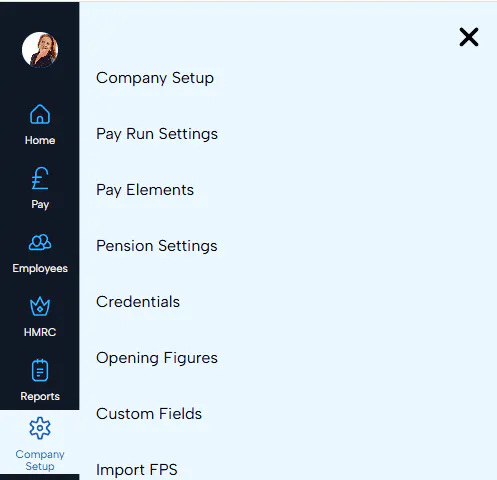
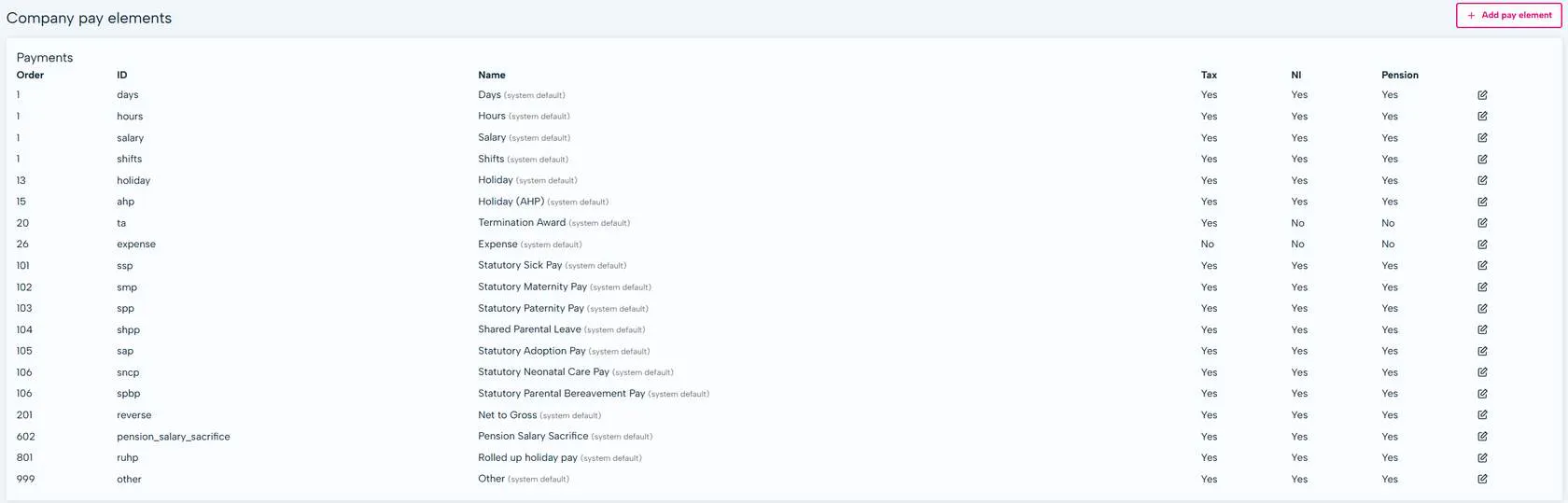
System Default Pay Elements
System default pay elements are general pay elements you would come across often such as statutory payments, overtime payments (in days / hours), pension salary sacrifice etc.
See the full list of defaults below.
There are specific settings you can adjust or view for each pay element take a look at these below.
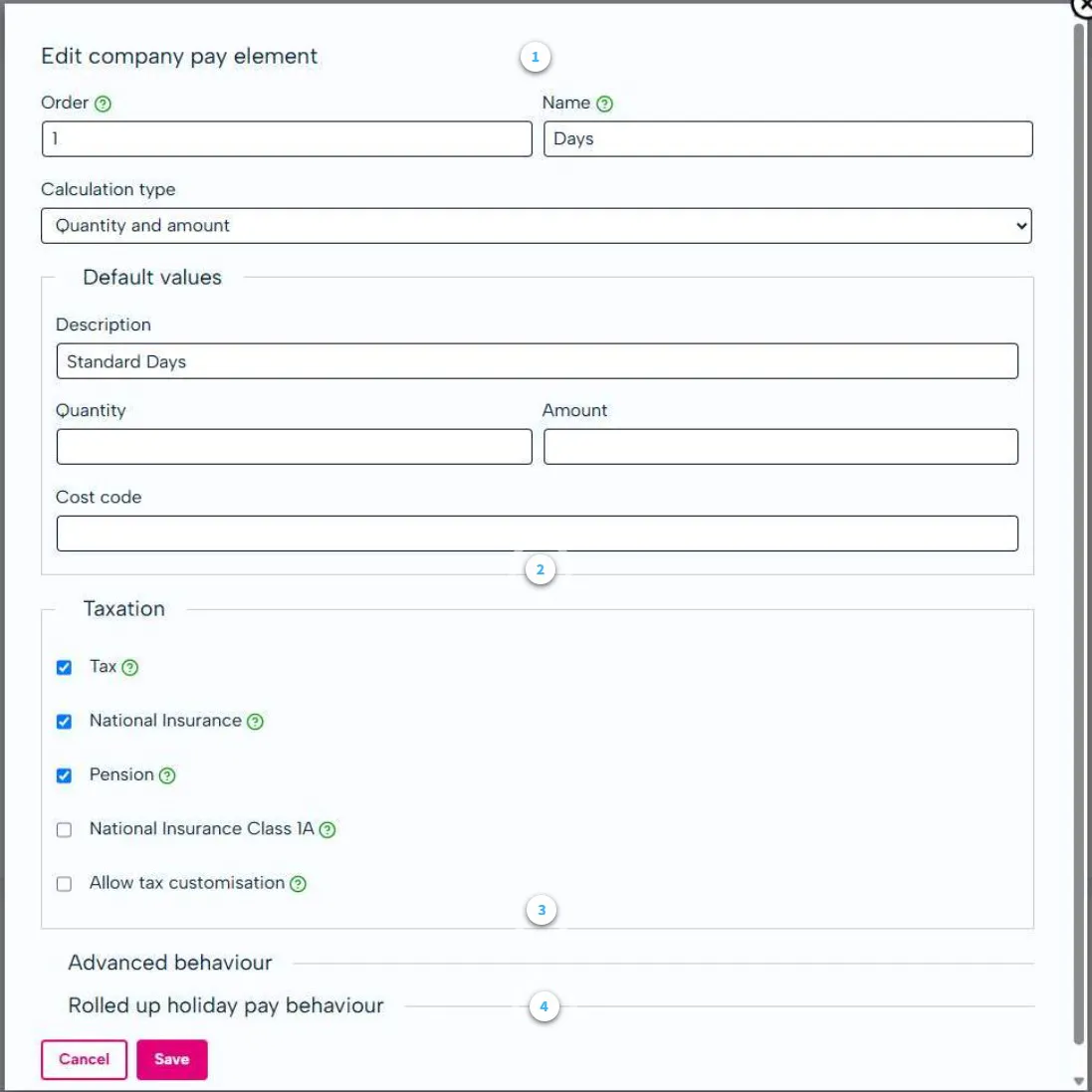
- Edit Pay Element Details
This allows you to edit:
The order to render the pay element in relation to other pay elements.
Display name for the element for use by payroll administrators.
Calculation type which refers to if the calculation should be an amount, an amount and quantity.
Default values - this is dependant on what you selected for the calculation type but will contribute to the pay amount.
- Taxation
This allows you to specify what type of tax will be applied to this payment.
- Advanced Behaviour
- User editable - If unchecked, this element cannot be edited directly by the user. It can only be imported via CSV or an API integration.
- If dates can be recorded against this this element.
- Include this element in NMW checks. The quantity must be in hours.
- The element can be set as repeating when it is added to a payslip.
- Rolled up Holiday Pay Behaviour
This section allows you to set the amount and rate of rolled up holiday pay.
Employers can use rolled-up holiday pay for irregular-hours and part-year workers.
For regular-hours workers (full- or part- time), an employer cannot include an amount for holiday pay in the hourly rate (known as ‘Rolled-up holiday pay’).
Rolled up Holiday Pay
As well as default pay elements, you can add and set up another pay element, rolled up holiday pay.
In the pay elements section, simply select 'Add pay element' to get started.
Similar to other pay elements, add the details including the ID, Name, Calculation type etc. (Please see labelled image above).
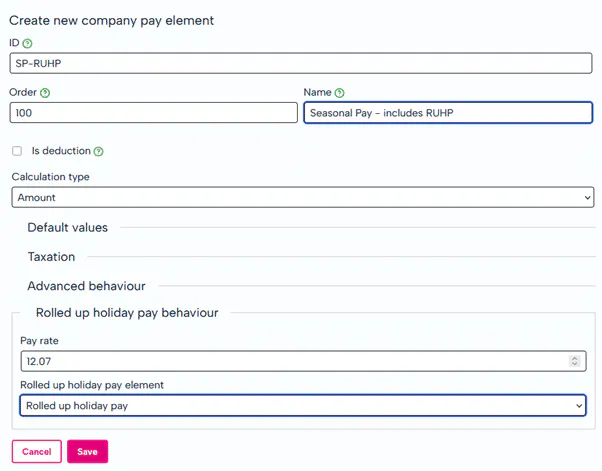
When adding your pay rate, this is typically 12.07% however, specific circumstances may mean this is different. Click here for more details on how to calculate pay rate.
Once you use the newly created payment type, the Rolled Up Holiday Pay is automatically added as a new line entry on the payslip in line with HMRC guidance.
Summary
You're off to a fantastic start. Now the basics have been setup, you'll be able to run your payroll in no time.
Setting up your Payroll Journal
Payroll journals are generally used within a business to account for employee salary and oncosts (NI and pension).
Configuring your Payroll Journal
After configuring your journal for the first time, the software will hold the requirement to alleviate you from having to allocate nominal codes etc for each pay period.
To get started, select 'Journal export' within the pay-run.
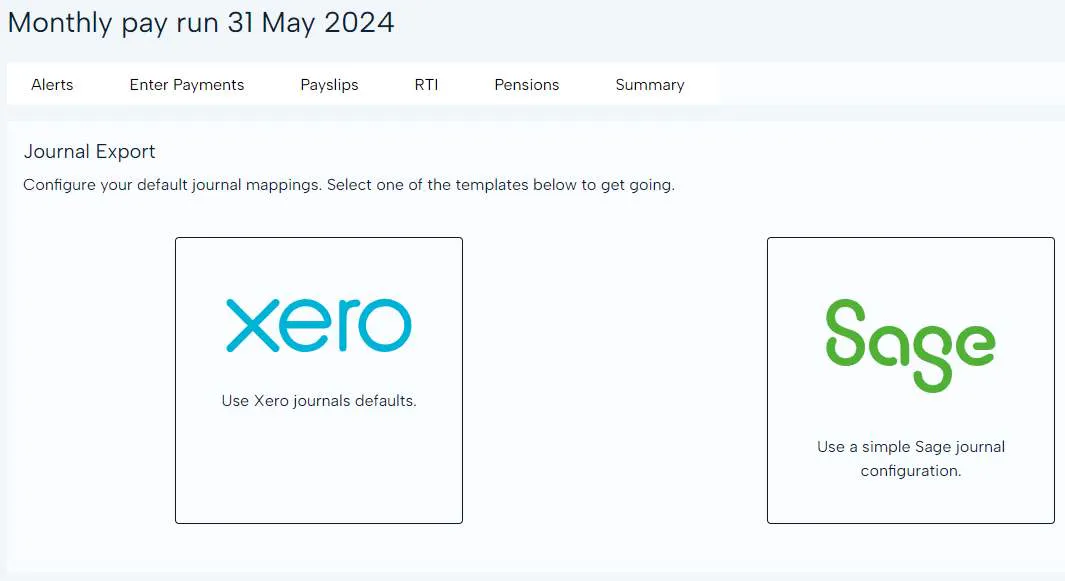
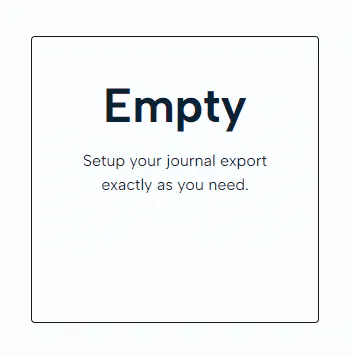
Next, you will need to select the format you wish to export your in. There are 3 format options to choose from: * Xero. * Sage. * Empty (this enables you to create your journal based on your existing accounting software and chart of accounts).
Next, you will need to select the format you wish to export your in. There are 3 options, a format friendly with the Xero software, Sage software and an 'Empty' option to allow you to manage your own format of the journal.
Dependent on the option you select, there will be a number of fields to complete. Please note, they will be pre-populated for Xero and Sage.
You can add rules in to create variations in nominal codes, employee department codes and cost codes for each credit and debit type.
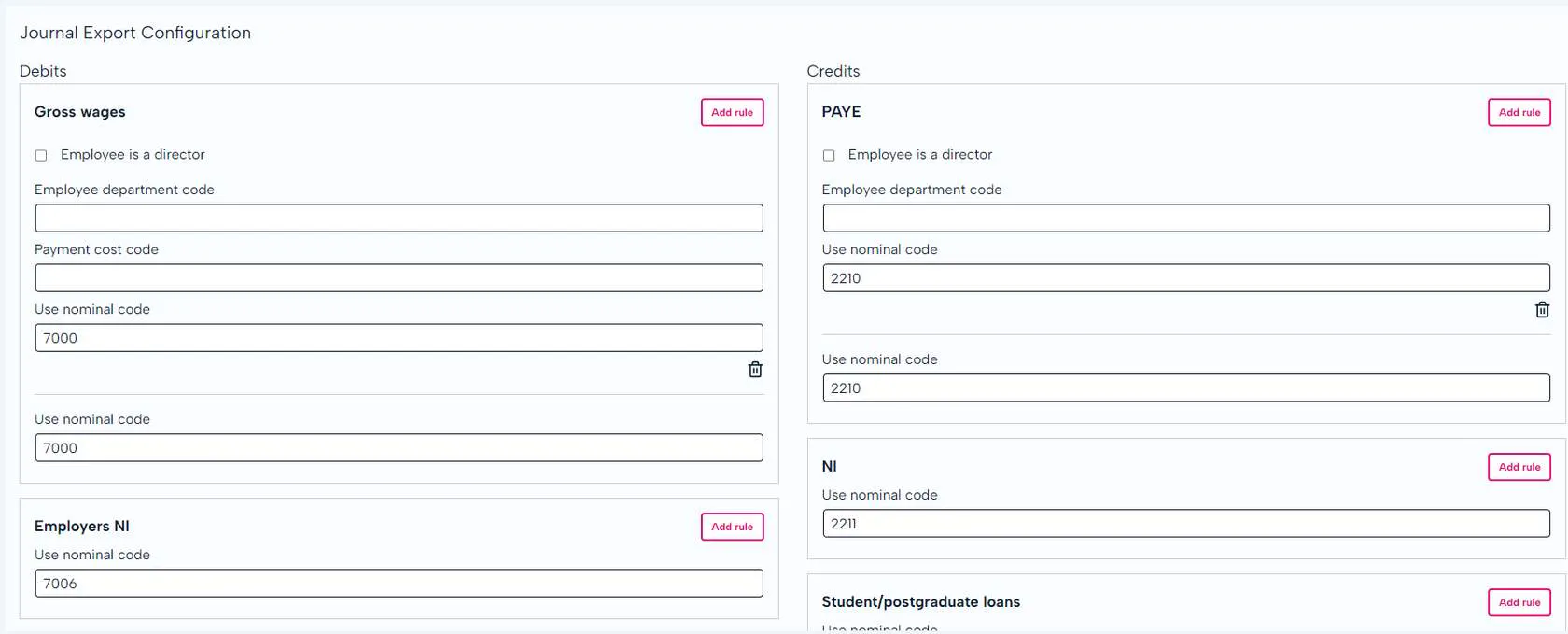
Once set up, this will be used for all journals but can be configured again in the next pay run.
Sync your new & Existing Employees from BrightHR
In this section, we will learn all about how easy BrightHR makes synchronising your employee information from one platform to the other in a few simple steps, taking all the admin work out of your hands!
Setting up your Employees on BrightHR
The first step for not only your Payroll solution, but your HR platform too is to create your employee profiles on BrightHR. This will allow them to use the HR system and once set up correctly, be eligible to synchronise over to BrightHR Payroll.
You'll need to have these details for your employees to hand: * Start date. * Email address. * Working hours.
Watch the how to video below to see how to set up your staff on BrightHR...
Synchronising Employees to Payroll
Whether you are an existing BrightHR customer and are new to payroll, or joining BrightHR for the first time for both of our services, you'll need to sync your employees across to payroll.
There is, however, a minimum amount of information required before this can happen, which we will look at in more depth below.
Missing Information
Personal information are the basic details needed to populate their profiles. The personal email is needed if you decide to send their payslips via email - you will be able to upload this directly in to their BrightHR profiles.
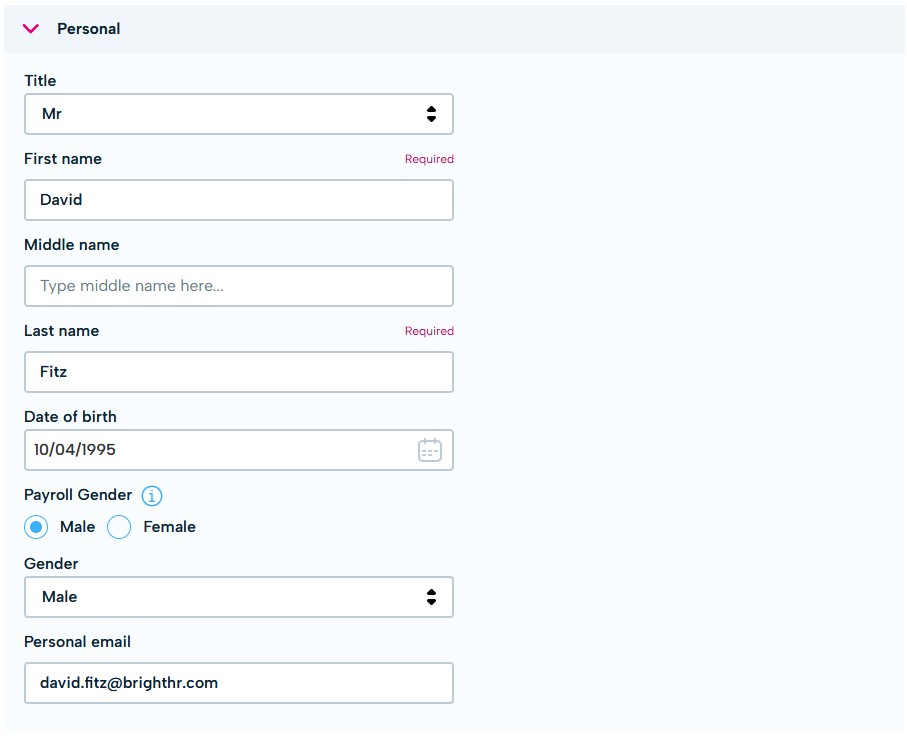
Eligible Employee Synchronisation
With the missing information now complete for employees that may have appeared, you'll notice their records automatically move to the 'Eligible' status.
It is here that your employees can finally be added to payroll. This section is multi-select (ie can select more than one record), or, alternatively, employees can be added one by one - entirely your choice.
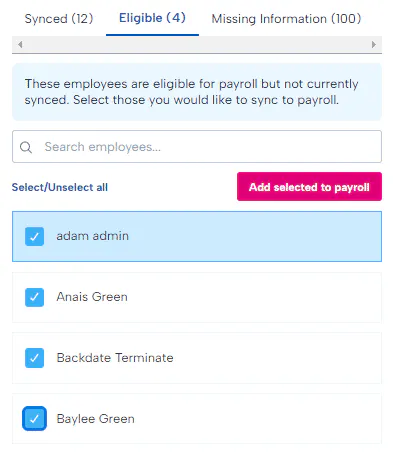
Click 'Add selected to payroll' to complete the process.
The employees will now appear in the 'Synced' tab. This confirms that the integration was successful and they've been added to payroll.
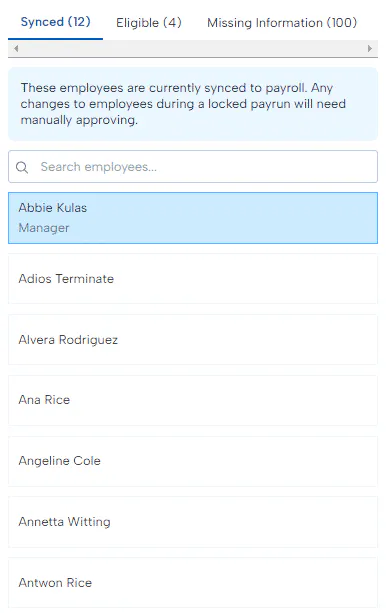
The employees will now be added to the BrightHR Payroll list of employees, and if applicable, be present in the active pay-run.
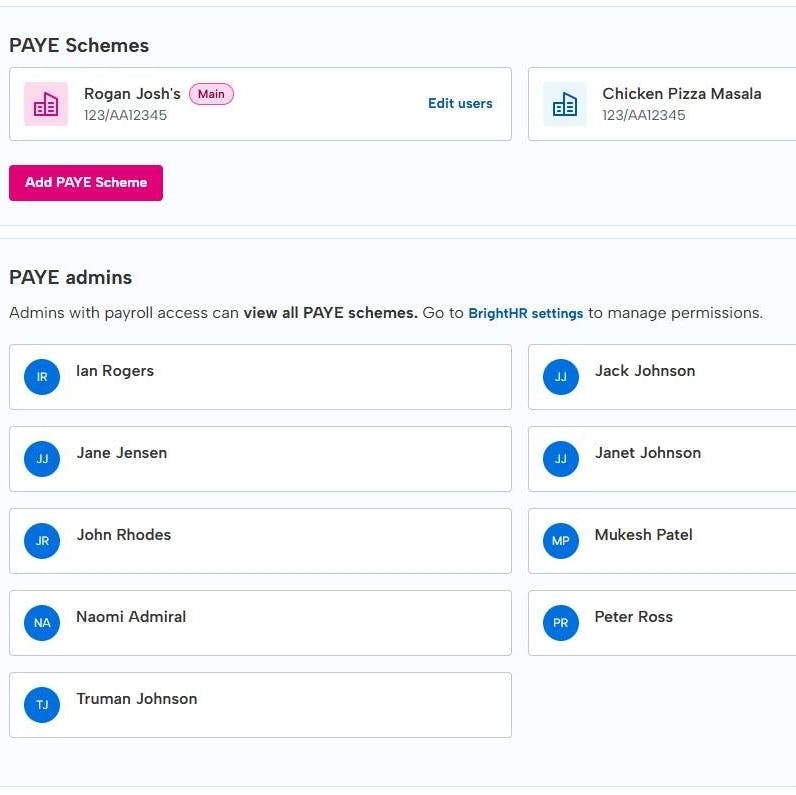
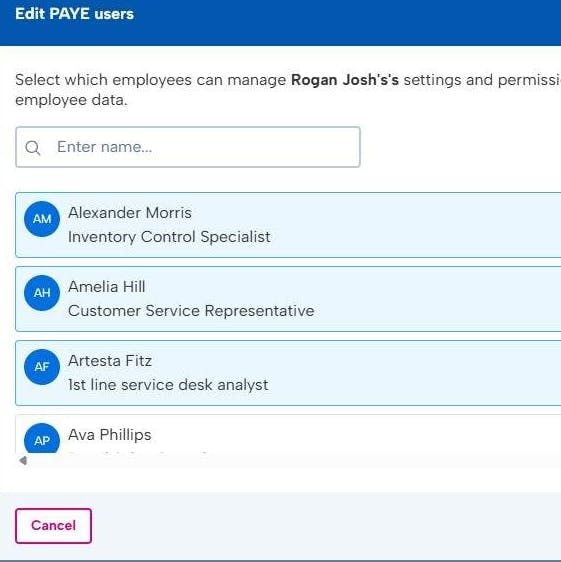
Multiple PAYE References
If your company has multiple PAYE references and these have been added by your payroll administrator, you will need to first assign the employees to the correct reference before synchronisation in order for the employees to appear in your eligible employees list.
New Starters
Adding new Starters with a P45
The employee synchronisation process is the same whether you have existing employees or new starters - however there are additional payroll details that need to be completed when they are added to payroll.
If a P45 is provided as part of the onboarding of the new employee, then the relevant figures will be needed: * Date employee left their previous employment * Tax code in previous employment * Week 1 / Month 1 - Tick this if there is an X in the box next to the Week 1 / Month 1 * Previous Employment Taxable Gross * Previous Employment Tax
If they give you a P45 where their employment ended in the previous tax year you will only be asked to add: * Date employee left their previous employment. * Tax code in previous employment. * Week 1 / Month 1 - Tick this if there is an X in the box next to the Week 1 / Month 1.
Using a new Starter Checklist - no P45
HMRC provide a starter checklist which gathers all the required information from an employee so that their details can be entered into a payroll software.
There are a few reasons why the HMRC Starter Checklist should be used: * A new starter does not have a P45. * A new starter has a P45 but it was from a previous tax year. * The new starter has a P45 but information has changed such as an address. * A new starter has a student or postgraduate loan. The P45 does not show which type of student loan it is.
The form can be completed online or a printed copy can be given to the employee.
How to Add Information from a P45 or a Starter Checklist
Once you have these to hand, you can update the information via the employee profile on BrightHR Payroll. Head to employees and then select the employee you want to update this for.
You will then see several sections you can edit using the edit button to the right of each section.
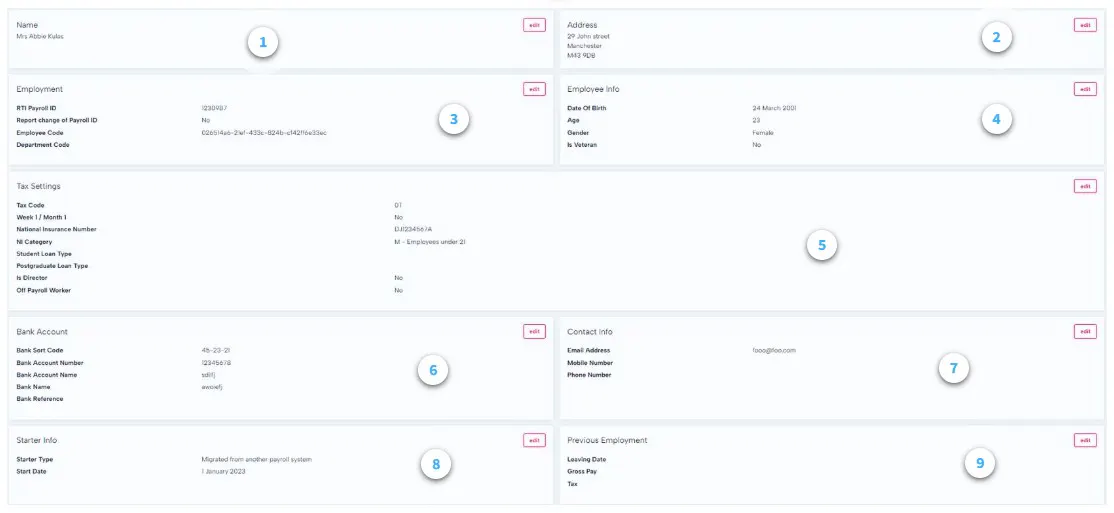
Name - This can be changed here but will be pulled from BrightHR.
Address details - Address details can be edited here but are pulled directly from BrightHR.
Employment
RTI payroll ID - this would be your Payroll number integrated from BrightHR
Employee code - An internal reference you can use to identify an employee group.
Department code - An internal reference that can be used to identify departments (This is used in your payroll journal)
Employee info - Date of birth, age and gender will be pulled from BrightHR.
Tax code - Click here for help finding this.
Week 1/Month 1 - select this if there is an X in the box next to the Week 1 / Month 1 on the P45 or new starter checklist
National insurance number - this is integrated from BrightHR.
NI category - Find this on the P45 or new starter checklist.
Student/post graduate loan type - Find this on the P45 or new starter checklist.
Off Payroll Worker - Off-payroll working essentially refers to any relationship between a worker and a client other than employment. Most often, this involves an intermediary between the worker and the client/end user. Click here for more details.
Bank account - Bank details will be integrated from BrightHR but can be edited here.
Contact details - Contact details will be integrated from BrightHR but can be edited here.
Starter info - Details about whether the employee was migrated and their start date.
Previous employment
Leaving date -the date they left their previous employment.
Gross pay - the gross pay from their previous employment.
Tax - found on their P45.
Pay Run Management & Processing
Download & Update HMRC Notifications
Ensuring HMRC notifications are not only an important part of ensuring compliance for payroll processing, but also ensures your employees are in receipt of the correct allowances and deductions.
BrightHR Payroll allows you to download tax codes, student and post-graduate loans and NI number changes from HMRC, and apply them to your employee profiles.
The first step to this process would be selecting HMRC, which can be found on the main-menu on the left hand side of the page. Within this, a sub-menu will appear - please select PAYE Notices.
There are two options within this section: * Check for notices. * Apply all.
Checking for notices will connect to the HMRC and present updates that are available to be applied.
Checking for HMRC Notifications
BrightHR Payroll has the ability to automatically check and apply employee updates from HMRC.
Please note, you need to receive your notices electronically to check for notices on BrightHR payroll. If you receive them by post, you can update this on your HMRC business account.
Applying HMRC Notifications
Once notifications have been checked, the next step is to apply them to the relevant employees. BrightHR Payroll allows you to do this in a few clicks.
Matching Employees to a Notice
When you pull through the updates from HMRC, it may be that the system has not been able to exactly match the details to the employee. In these cases, BrightHR Payroll will match details and suggest to match the notice to the employee on the system.

Applying the Notice to your Employee
After matching an employee to the notice, the following step is to apply it to the employee.
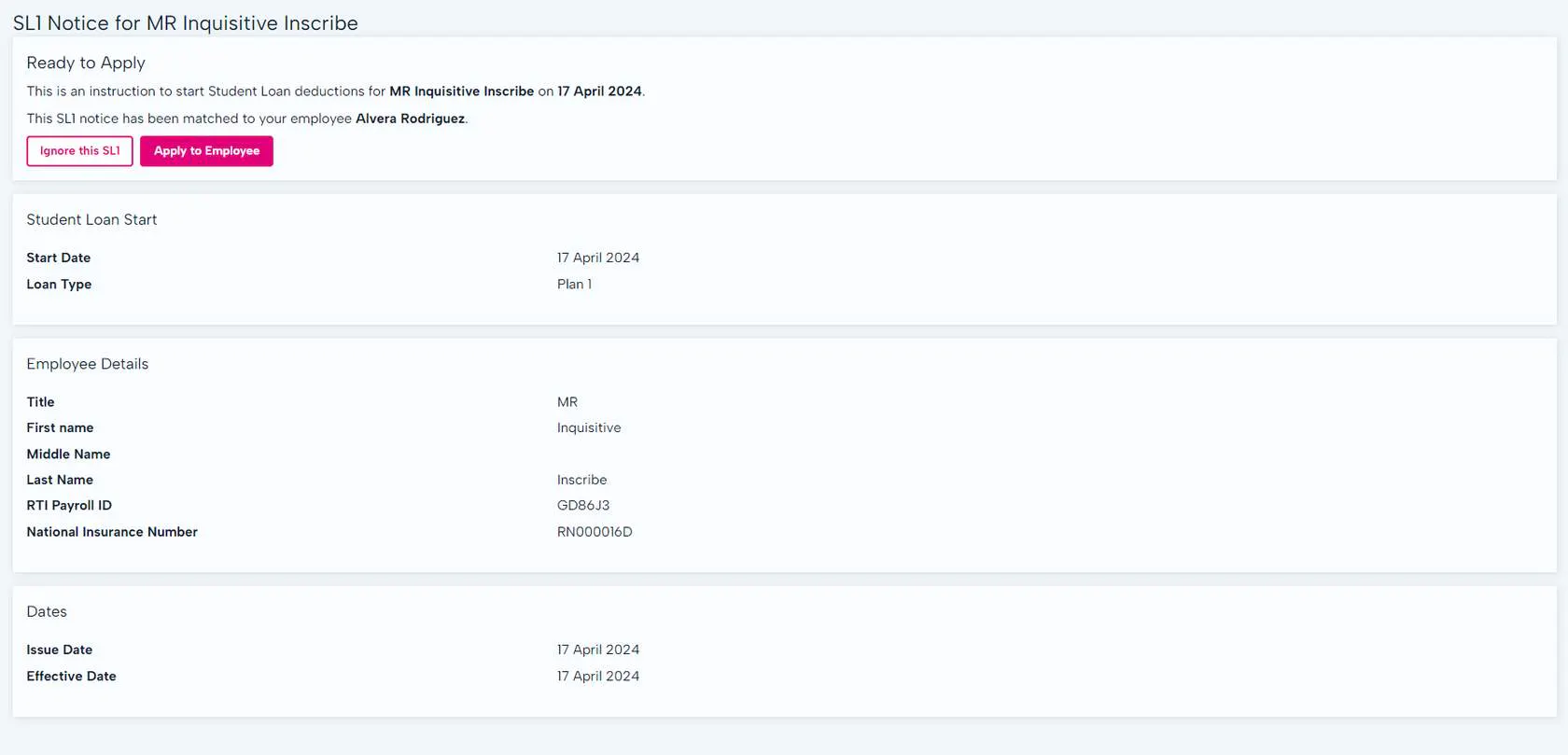

National insurance number changes will not apply any changes to the employee's profile and would need to be updated manually. This happens because the HMRC may have matched the wrong employee details. It must be checked first before you change the employee profile.
Ignoring a PAYE Notice
If this is the first time that PAYE notices are added to BrightHR Payroll, it is possible that you'll see see historical notices that are no longer valid. If they don't apply, you'll be able to ignore them.

What if I didn't mean to ignore a PAYE notice? not to worry! You can head in to the 'Ignored' filter and simply match the ignored notice to the employee and apply the notice like nothing ever happened - it's that easy.
HR & Payroll data transfer
Processing common HR and Payroll changes can be a daunting and challenging task. Let's see how BrightHR's HR and Payroll offering can simplify this process for you.
Personal Details Additions & Amendments
Employee personal details such as name, address, gender and bank details can be amended through the BrightHR employee profile and will appear automatically within payroll - be mindful these will be presented as payroll exceptions if you have a locked pay-run.
Employee Terminations
When an employee has a termination date entered in to BrightHR, this will transfer across to payroll. This will in turn be visible in the employee section in payroll, under 'Leaving Info'.
When an employee is terminated and has an annual leave balance that needs to be paid or deducted, this can be processed directly in to the employee payslip.
This can be done via the 'Add Payment' in the Pay section of payroll. The element type to use is 'Holiday', and this can be input as a positive or negative value in the rate.
Ad-hoc Payments & Deductions
Ad-hoc payments & deductions are different every month and you have little to no control over how this varies from pay run to pay run - so isn't it great you have a HR platform already recording these details.
Sickness Absence
Sickness absence processing stems from the data input within BrightHR. The configuration on the Contractual sick pay (CSP) settings will determine how the sick pay is calculated when an absence is entered.
If CSP is blank, Statutory Sick Pay (SSP) will be processed as standard, providing the employee and the absence qualify.
As per the normal BrightHR process, enter a start date as a minimum to generate the initial calculation in payroll for absence. If an end date isn't present, the system will calculate the absence up to the end of the end of the pay period as standard. Once an end date is added, this will revise the payments and deductions accordingly.
Unpaid Leave
Similarly to sickness absence processing, unpaid leave can be added within BrightHR. This will take the number of days (or half days), and calculate what is to be deducted as per the employee's hourly rate and standard working day.
If the period of absence is revised or removed, this will directly update the payslip.
Overtime
Overtime entries processed in BrightHR will calculate as per a number of factors that are held in BrightHR. These include: * Employee hourly rate - this is set within the Salary section of the employee profile. * Number of units (hours) - this is generated from the date and time period being added within the Overtime screen on BrightHR. * Pay rate (single, double, time and a third etc.) - this is set within the overtime entry itself.
It is critical that the entry is set to 'Payable' in order for this to go through to payroll. It is worth noting that multiple entries that fall within a pay-run can also be processed, and any amendments/extensions to these will automatically update within payroll.
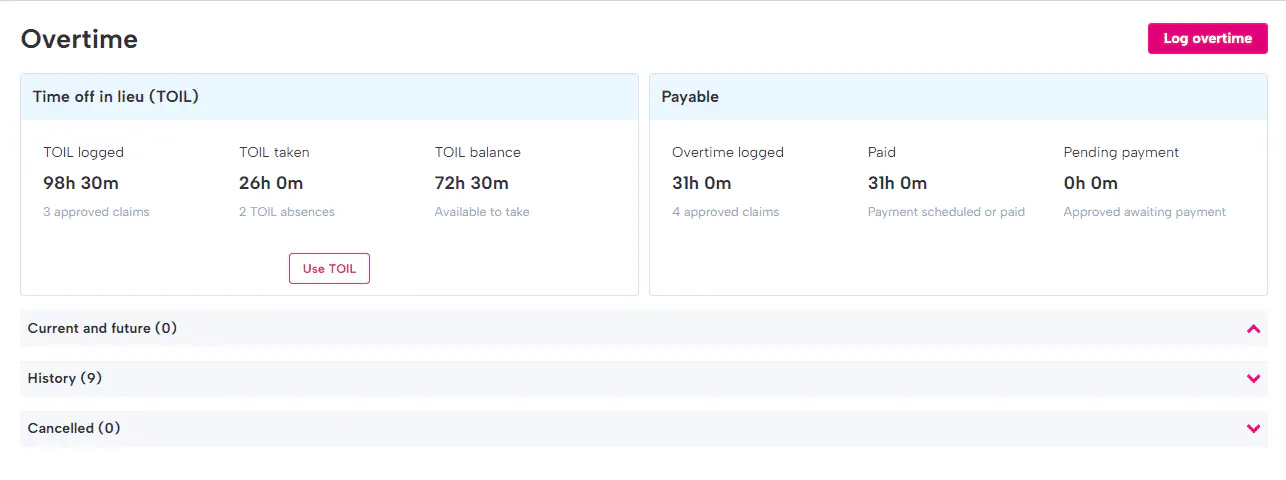
Overtime worked at higher rates (Such as time and a half) can also be recorded and converted to payments.
Variable Hours
For employees paid hourly, the number of hours or pay rate can vary meaning you need to add this information manually so this information is added to the pay run.
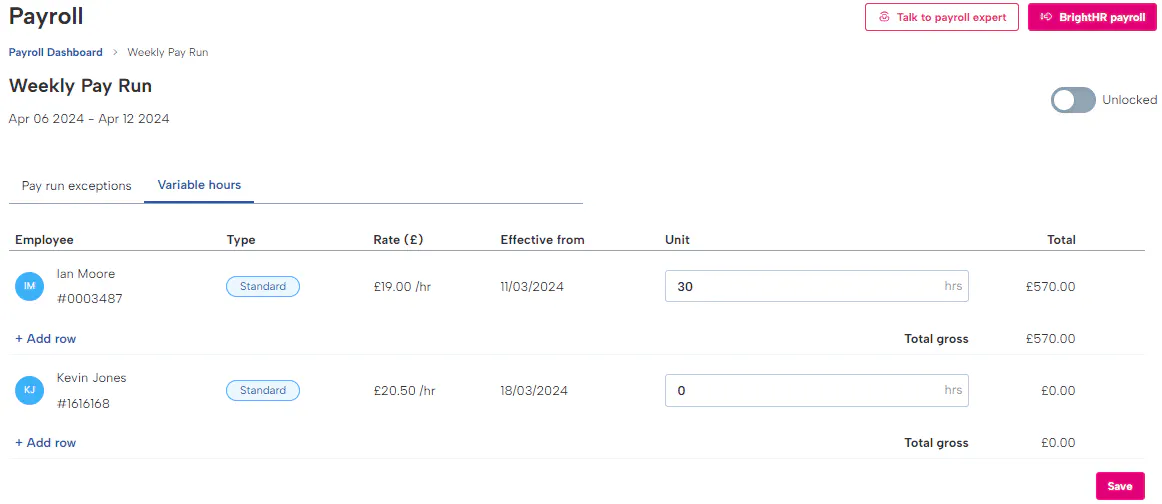
Enter the number of hours the variable employee has worked during this pay run and click 'Save'. This will then pull the payment through to BrightHR Payroll including this in the pay run.
If you need to add any additional rates perhaps for holiday, click the add row option below the employees name.
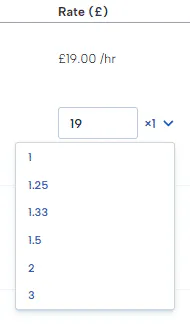
You can either manually enter the rate or select a pay rate multiplier from the list.
Adding Holiday Pay
Adding holiday pay for an employee can be done with a few clicks.
In the payments section of the pay run, select the employee you want to add the holiday pay for and click the add payment button.
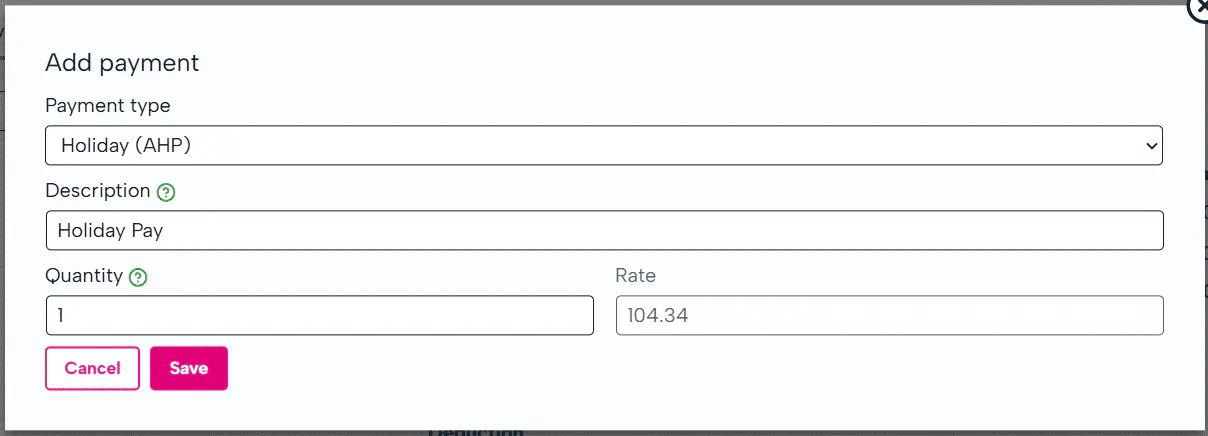
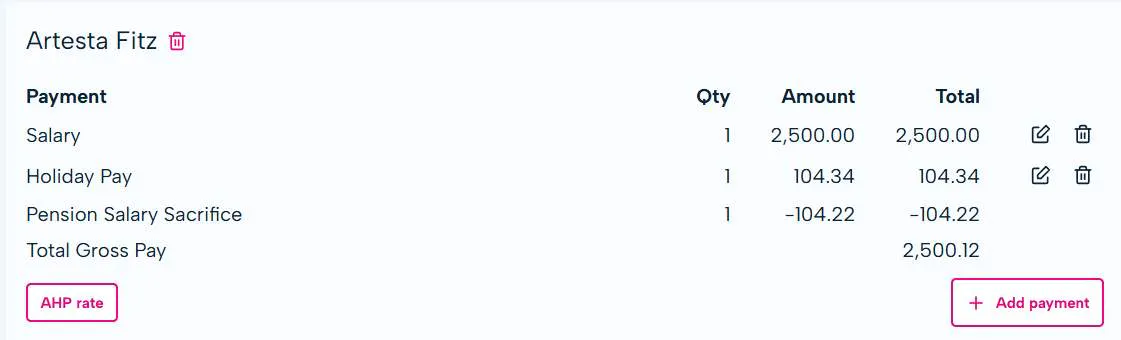
Once you have clicked add payment, you can simply add the quantity which will apply the average holiday pay rate to each unit and include the payment in the pay run which will then appear on the employee's payslip.
Clock in Data / rota Data Import
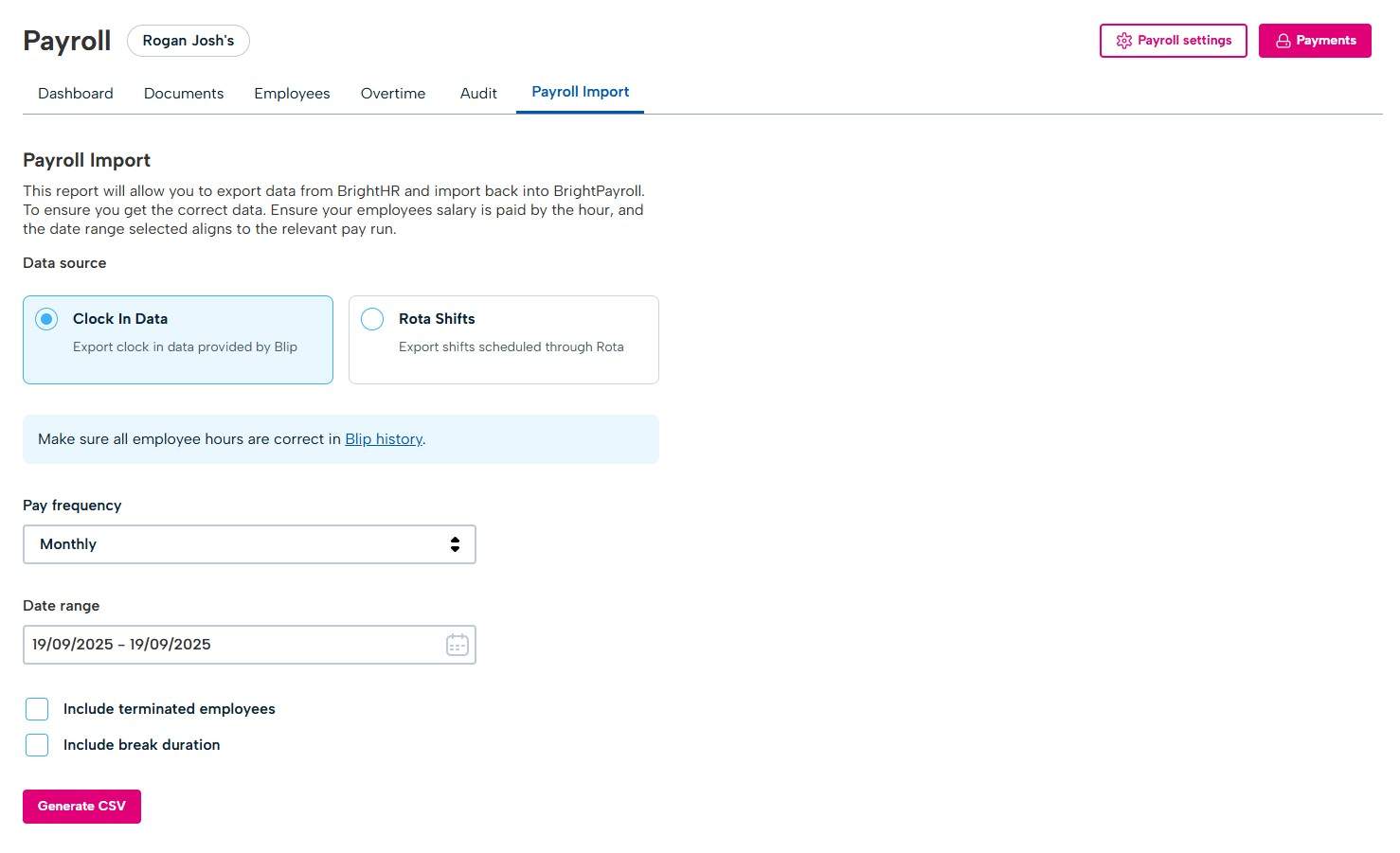
Through BrightHR, if you use a rota to schedule shifts or Blip to record clock in data, BrightHR payroll will allow you to export the data to be imported in to payroll which will automatically add the payments to the appropriate staff members.
You can select if you want clock in or rota data, apply a date range and download the report.
The report can then be taken to BrightHR payroll to import.
Employee payroll Data & Occupational Schemes
We will now take a look at how you can enter ad-hoc employee payroll data including payment & deduction details to ensure employee payments are correct and are accurately recorded.
Adding new Employee Information
If you need to add or amend employee information, such as bank or address details, this can be initiated through BrightHR. This will then automatically update payroll, providing the payroll is unlocked.
Recording Absences in BrightHR
In order for absences to integrate in to payroll, you must first add and manage them via BrightHR.
You will be able to add absences which will then integrate through to the payroll engine and apply payments to your employees scheduled pay.
This can either be added by the employee and go through an approval process, or you can add these on behalf of your staff.
Watch our how to video below to see how you can add absences on BrightHR.
Average Weekly Earnings (AWE)
Average weekly earnings allows BrightHR Payroll to apply an average pay when it comes to statutory absences such as SSP.
The AWE will be applied to any absences that're eligible and payments will be processed to the employees pay.
If the absence does not show up, then this is because the Average Weekly Earnings (AWE) need confirming in the payroll engine first to confirm eligibility for pay.
To do this, visit the employee profile in the payroll engine, select the absence tab and then select the absence in question and click the pencil icon to edit.


If the average weekly earnings is empty, click the refresh icon to generate the figure.
Average weekly earnings is an average of the last 52 weeks of pay or less if 52 weeks pay is not available.
Recording Payments
The majority of payments required will originate from the data held in BrightHR, salary and overtime as an example. There may be a requirement to add further payments to an employee record.
In order to do this, select 'Pay' and select the current pay-run. When here, select 'Enter Payments' and locate the relevant employee.
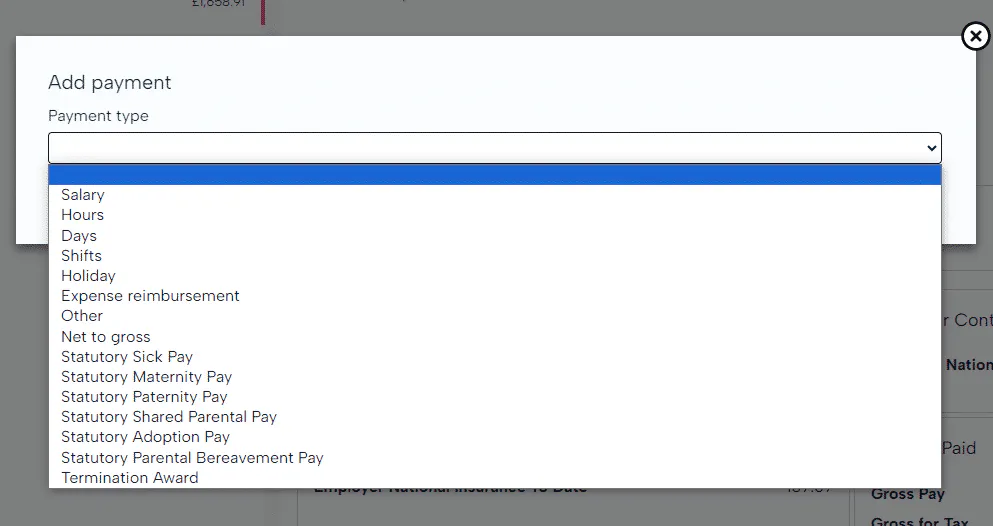
The salary element, whilst it appears as an option in the drop-down, is driven by BrightHR data to alleviate the need for double entry. The salary history will feed directly in to payroll and pro-rata any salary payments based on the effective dates.
Statutory Payments
Statutory payments are pre-defined minimum payments to be provided for a range if different absence types. These payments are usually a legal requirement set out by the government.
Your employees may be eligible for Statutory Sick Pay (SSP), which is £118.75 a week for up to 28 weeks.
You can offer more if you have a company sick pay scheme but you cannot offer less. Company schemes are also called "contractual" or "occupational" sick pay and must be included in an employment contract.
To qualify for Statutory Sick Pay (SSP) employees must: * Have an employment contract. * Have done some work under their contract. * Have been sick for more than 3 days in a row (including non-working days) Known as a "period of incapacity for work". * Earn an average of at least £125 per week. * Give you notice and proof of illness when needed.
Employees do not qualify for SSP if they: * Have received the maximum amount of SSP (28 weeks). * Are getting Statutory Maternity Pay or Maternity Allowance - there are special rules for pregnant women and new mothers who do not get these payments. * Are off work for a pregnancy-related illness in the 4 weeks before the week (Sunday to Saturday) that their baby is due. * Were in custody or on strike on the first day of sickness (including any linked periods). * Are working outside the EU and you’re not liable for their National Insurance contributions. * Received Employment and Support Allowance within 12 weeks of starting or returning to work for you.
For more information, please click here.
How would I add a Payment Above Statutory?
If you are company offers more than the statutory minimum amount to employees, this can be topped up on an employee payslip utilising the 'Salary' or 'Other' options.
What can I Reclaim back on the Statutory Payments made to Employees?
Employers can normally reclaim 92% of statutory payments made to an employee, however small businesses may be eligible to reclaim 103% if certain criteria is met. Please ensure HMRC guidance is consulted before amending your tax settings in BrightHR Payroll.
Recording Deductions
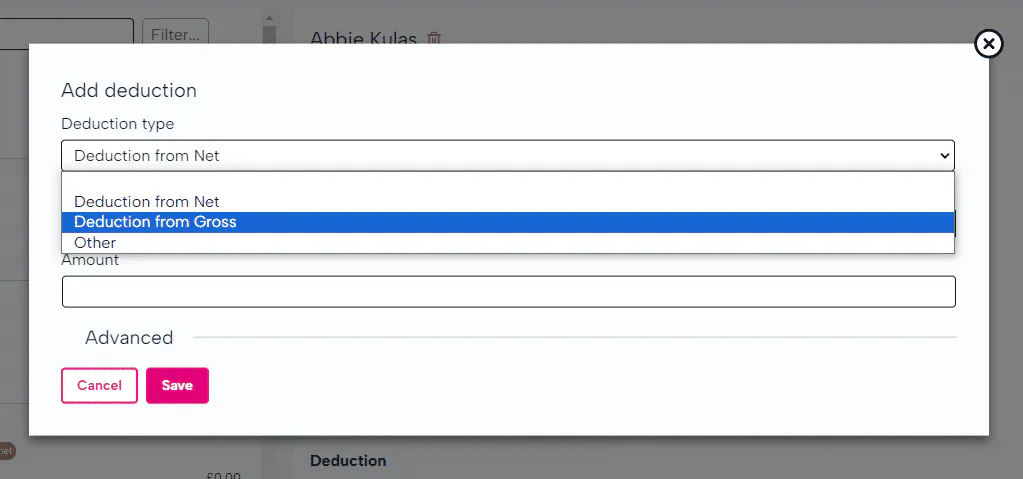
The ability to record deductions is extremely easy, and mirrors a similar to process to payments. Let's find out more about the options below.
Deduction from Net
This option allows you to add a deduction that is taken from their "take home pay" - this is calculated and processed after tax and NI has already been deducted.
Deduction from Gross
This option deducts an amount before tax and NI has been taken in to account - it comes from the gross amount of pay generated.
Other
Examples of Types of Deductions
You will find some example deductions that may be deducted from an employee payslip. Please note that this is not an exhaustive list and some may depend on your company policies.
- Union Membership Fees - trade union membership fees can be deducted directly from a members salary.
- Voluntary Deductions - deductions for charitable organisations or gift programs for other employees.
- Deductions for employee benefits - deductions for benefits for example health insurance.
- Deductions for absences - unpaid absences may be deducted from salary.
- Court-Ordered Deductions - deductions from court orders for legal obligations.
- Deductions to correct overpaid wages - if an employee is overpaid, this may be deducted from future payments.
- Company loans - if an employee has had any loans from their employer, repayments can be deducted directly from their salary.
BrightHR Audit Logs
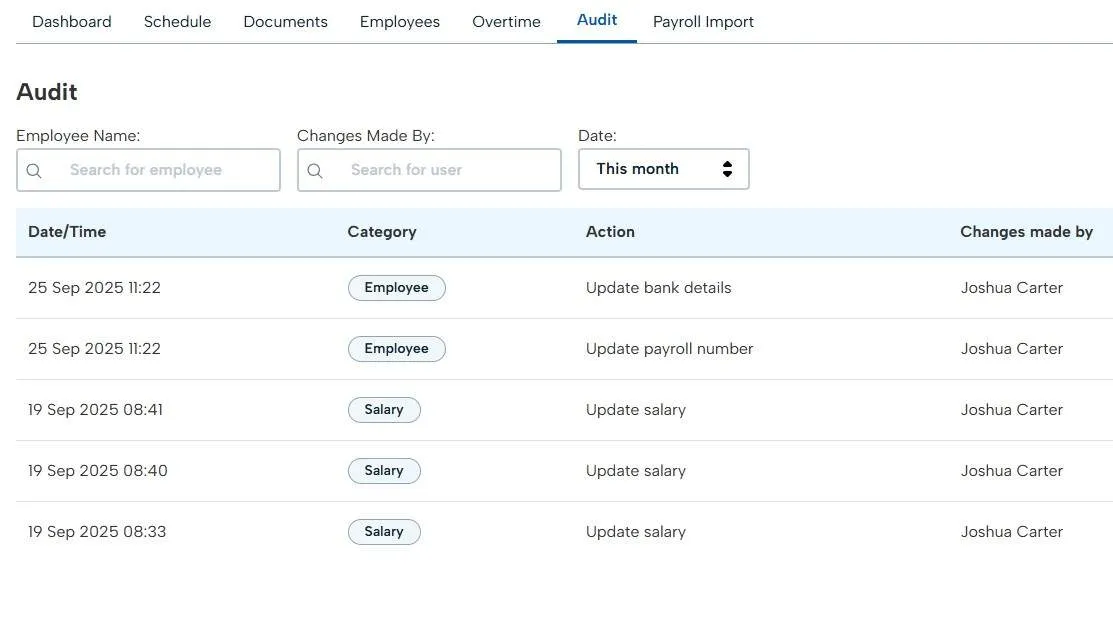
When any details in BrightHR are corrected or updated, you can utilise the audit log to view specific information about the changes — such as the previous and updated values, who made the change, and more.
Simply navigate to the Payroll section in BrightHR and open the Audit Log.
You will then be able to see any changes to items such as salaries, bank details, payroll numbers, etc., over your selected date range.
Locked Pay Runs & Payroll Exceptions
Next we will take a look at locked pay-runs and payroll exceptions. You'll find out what this means and how you can include it within your payroll process.
What is a Payroll Lock?
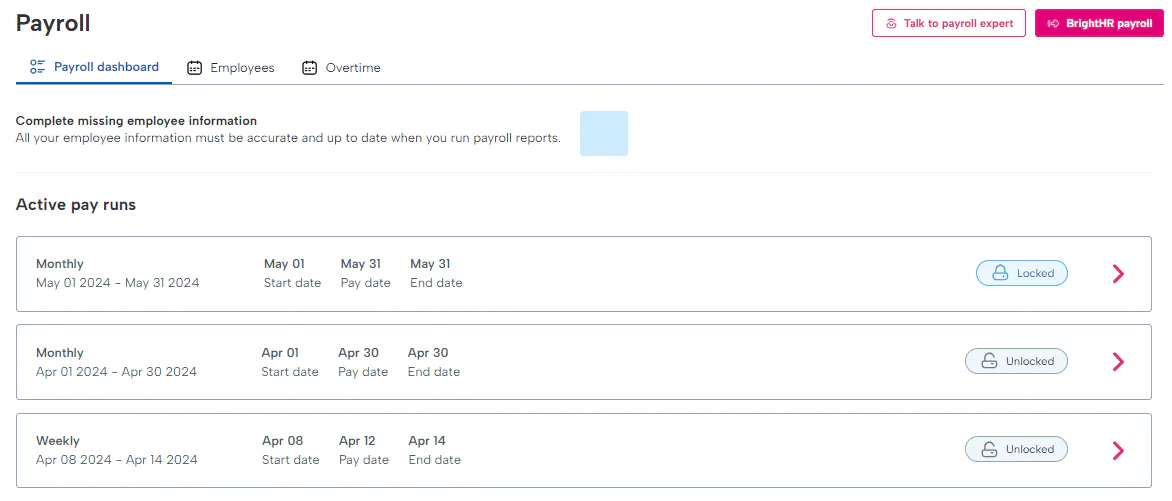
As part of our integrated HR and Payroll experience, there is functionality that'll allow you to put a temporary hold on HR data in order to run and reconcile your payroll. This is what we call the "payroll lock".
Why Would I use the Payroll Lock?
If and when payroll is locked and an urgent update needs to be processed (such as bank detail amendments), you'll be able to facilitate this via managing exceptions - more on this below.
How do I use the Payroll Lock?
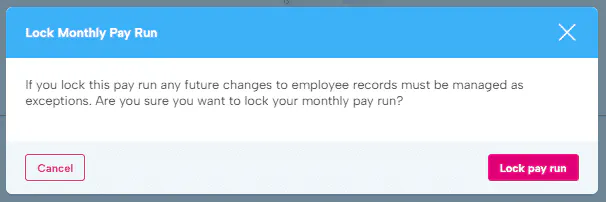
Within each pay run, you'll see a toggle button on the top right hand-side of the screen. When this is locked, your HR data will not feed through automatically. This can only be unlocked again when there are not any payroll exceptions to process.
When would I Lock my Payroll?
It is entirely up to you when you deem it fit for your payroll to be locked for further HR updates. Every organisation and payroll is different, so this would depend entirely on your existing payroll schedule.
Payroll Exceptions
Payroll exceptions allow you to keep track of any amendments made to BrightHR whilst payroll is locked. The aim of this is avoid data continually flowing through and changing the payroll process.
Processing Exceptions
In order to process an exception, please use the 'Allow' button which will be shown against each exception. If you do not wish to process something listed, please do not press allow.
When the new pay-run is open, all remaining entries will flow through to payroll as per the normal process and be removed automatically from the exception area in the dashboard.
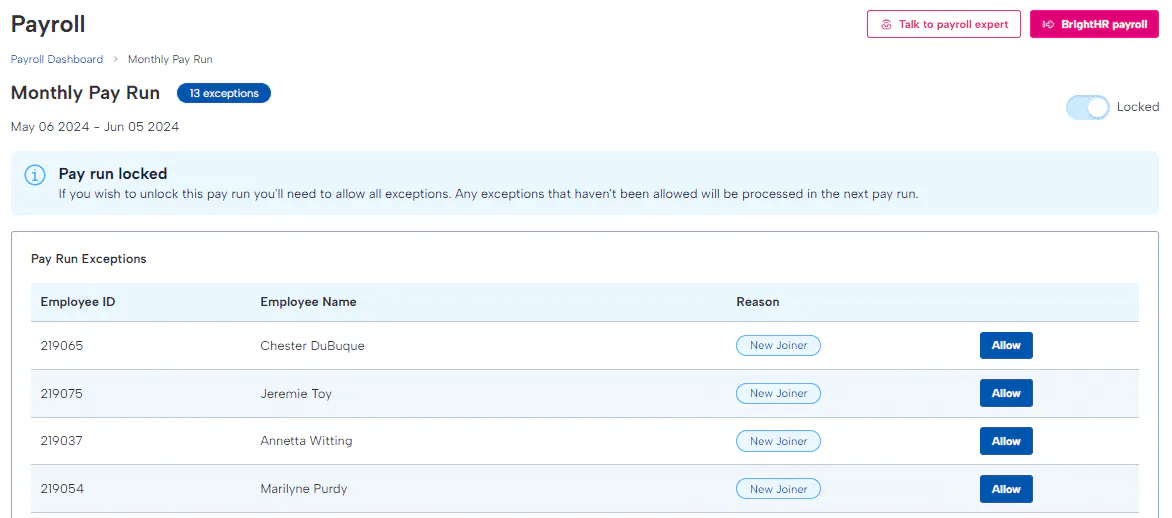
A pay run cannot be unlocked whilst there are outstanding exceptions.
Finalising your Pay Run
Once both your HR and Payroll input is complete, you will be ready to finalise your pay run. Please see the steps below to facilitate this.
Steps to Complete your Pay run
The following steps will be required before you can move on to generating your payment file and processing RTI submissions. Please see below: * Review alerts. * Review payslips and reports. * Review pension and auto-enrolment. * Complete pay run. * Employee payslips. * Opening a new pay run.
Review your Alerts
The 'Alerts' tab within BrightHR Payroll will give you an insight in to the status of an employee, and whether or not any actions need to be taken. This could include; new starter, final payments, missing NI numbers etc.
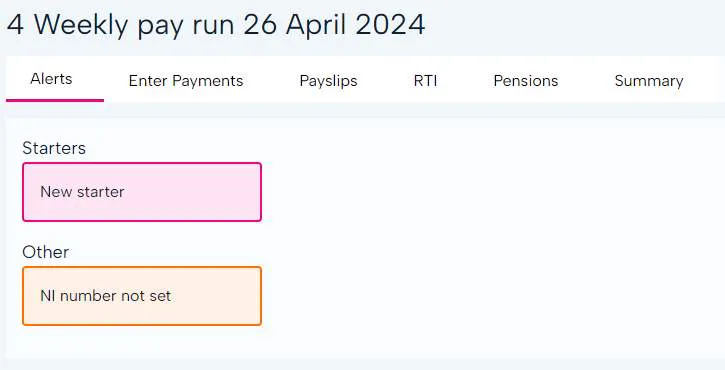
Review Pension & Auto-enrolment
As part of the payslip and reporting checking, it's important that a check over pension scheme additions and auto-enrolment behaviour is completed.
You can also add pay slip notes in the payment tab at the bottom of the payment information screen of each specific employee to appear on their payslip (this could accompany a one off deduction).
Complete Pay run
Utilise the button shown here to finalise your pay run and process your payslips (as listed above!)
This will also enable you to send the RTI submissions to HMRC and run any further reports needed.
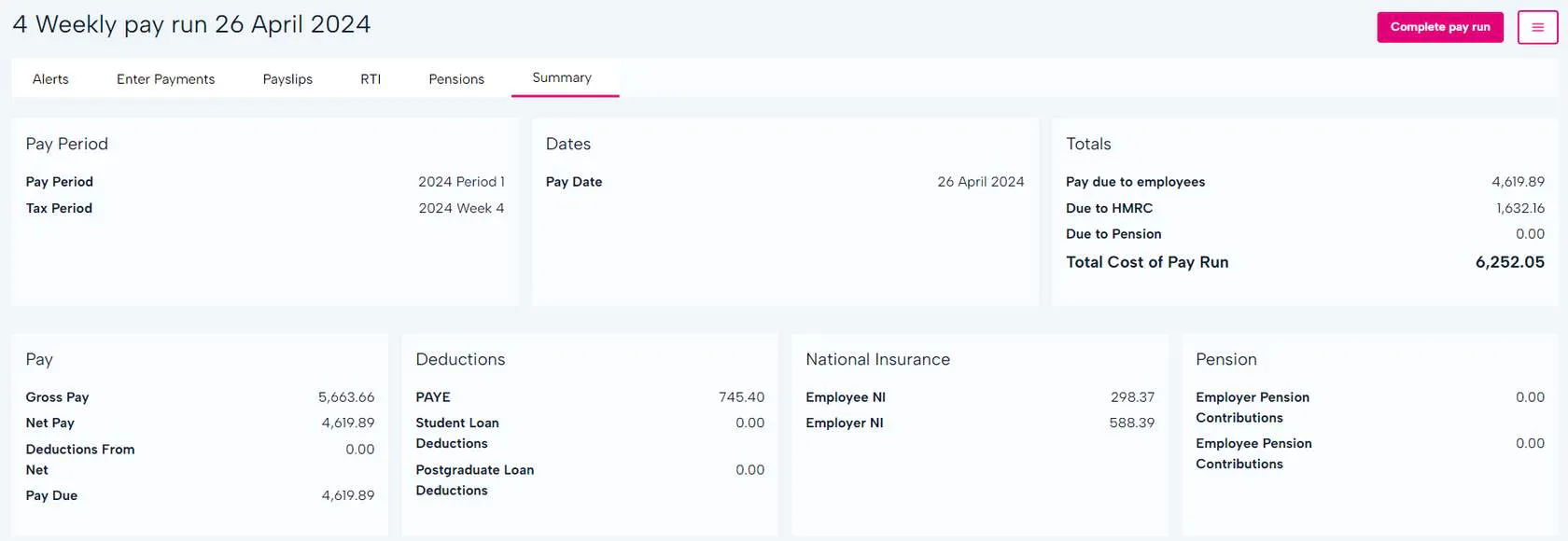
Employee Payslips
Payslips will be issued and visible to the employees in their BrightHR profile when the 'Complete pay run' button is pressed.
You also have the option of emailing payslips too, if this is required.
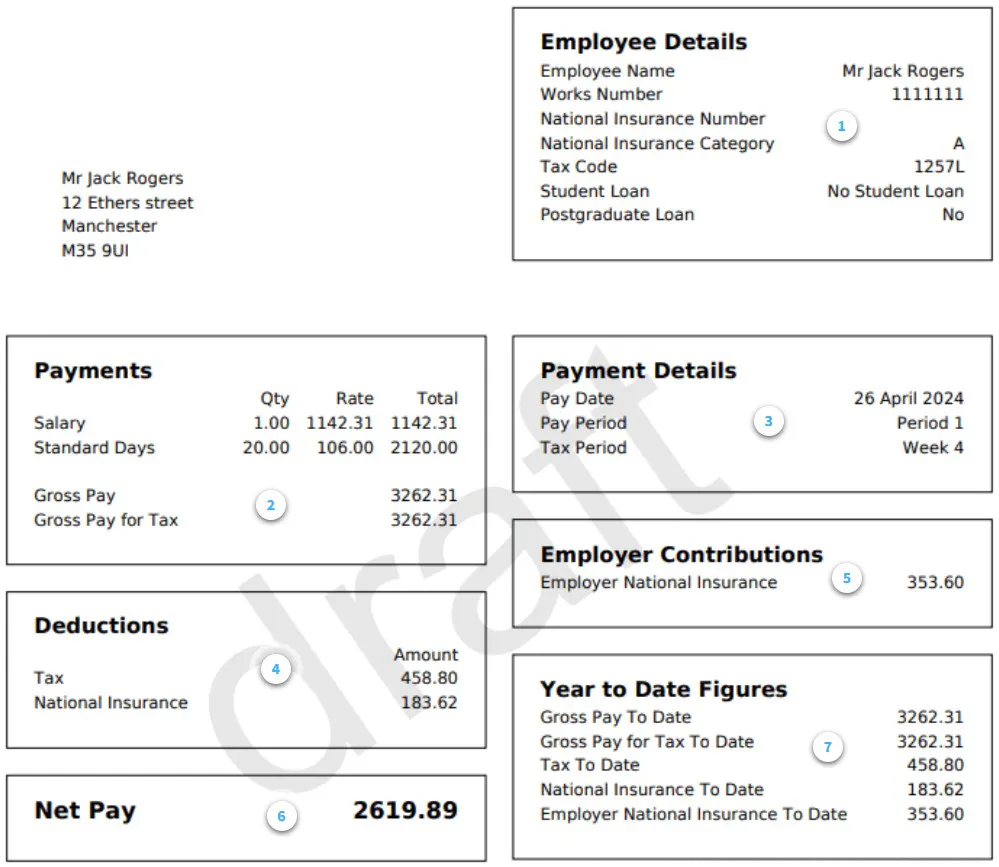
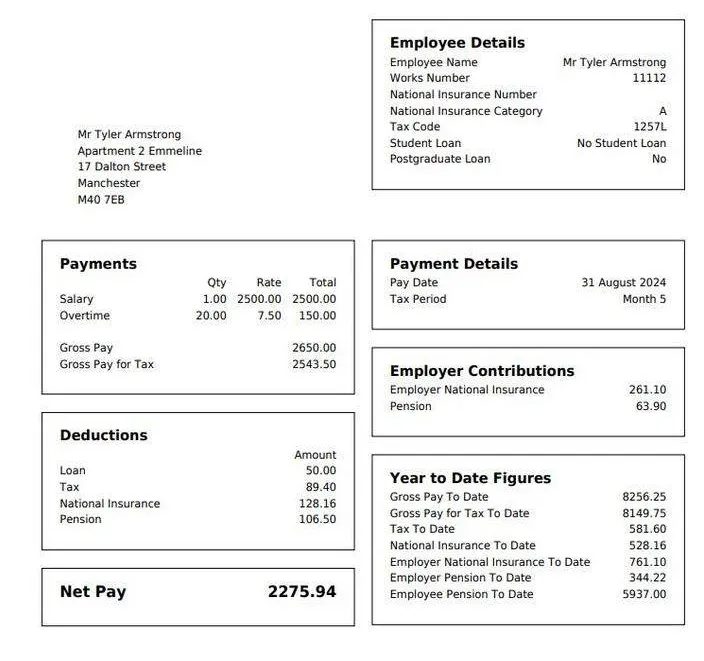
- Employee Details
This will include your employee's details specific related to their pay and employment.
- Payments
Included will be payments made to the employee which is not limited to just salary - this may be overtime pay, salary expenses etc.
- Payment Details
Info on the pay date and period.
- Deductions
Here you can see any deductions that have been taken from the employees pay such as student loans, tax and NI.
- Employer Contributions
This will show the contributions made towards national insurance or any employer pension contributions from the company.
- Net Pay
This will be the employees take home pay after all deductions have been taken from their gross pay.
- Year to Date Figures
This will provide a breakdown of the total pay, total tax and total national insurance that has been paid in this financial year. The employer national insurance contributions are displayed here too.
Accessing Payslips on BrightHR
Once issued, payslips can be easily accessed by your employees via their BrightHR login.
Employees can access their payslips in the 'Pay documents' folder located in their documents either via the documents tab on the nav bar, or directly through the documents section of their profile - the payslip will be available as soon as you complete the pay run.
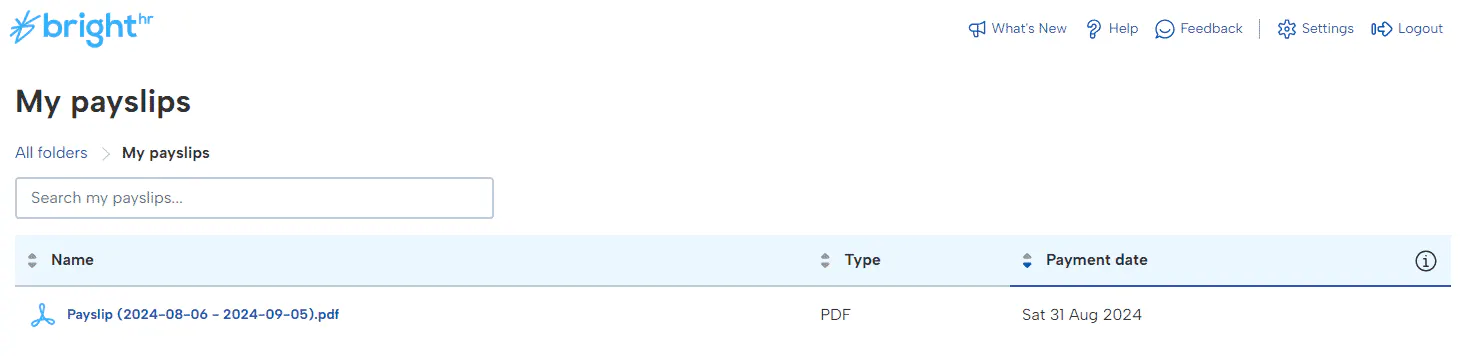
Employees can also access their payslips and other pay documents via the app.
Opening a new Pay Run
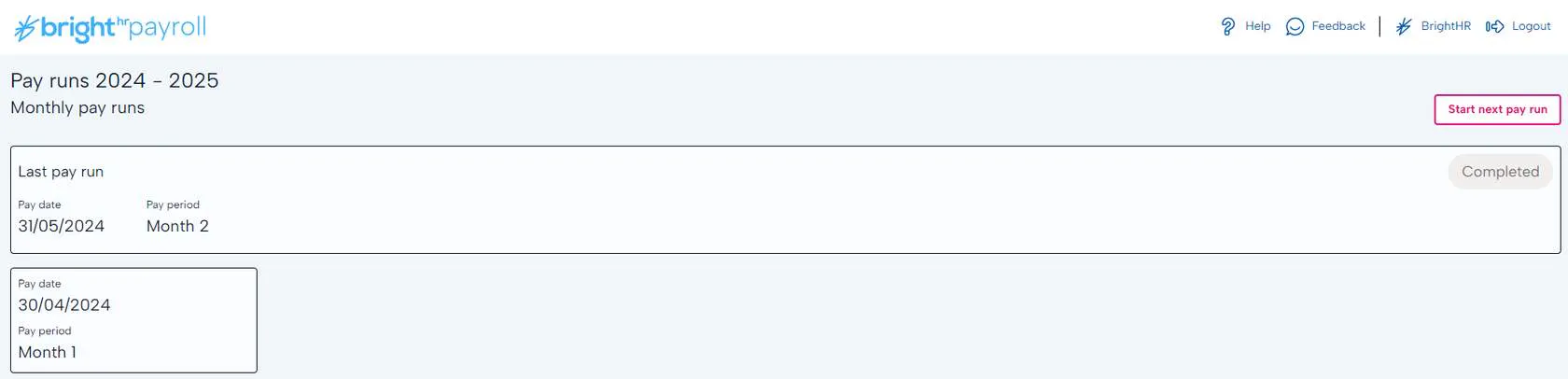
Once you have completed your pay run, issued your payslips and sent all payment submissions to HMRC, you will then want to start the next pay run. As long as there are no outstanding tasks on your previous pay run, you should see the 'Start next pay run' button in the top right.
Payment Processing, RTI & Pensions
Paying your Employees
One of the most important parts of not only payroll, but running your business - paying your employees! Let's take a look at how BrightHR Payroll can make this process a little easier for you.
Payment File
In order to process a payment file for the employee net pay, you'll need to have ensured that the section within 'Company setup' has been completed first.
Check your Payment File Type
It's worth checking with your bank to ensure that you are able to provide it with a CSV format for your employee net pay. You'll be able to check the templates we have available within the 'Payment file setup', held in 'Company setup'.
You can also enter a payment reference to appear when the payment is made to your employees bank account.
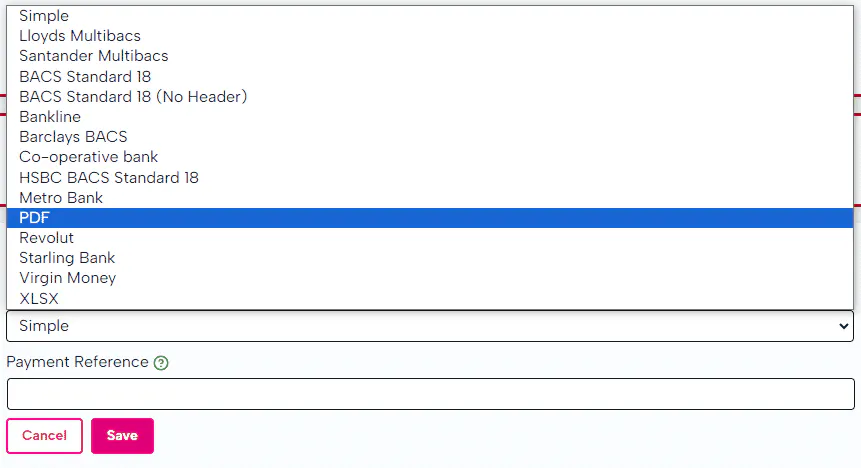
You can also enter a payment reference to appear when the payment is made to your employees bank account.
Different options may require different details for example, some payment files may require your account details to match the payment file when uploaded.
Download your Payment File
The next step to this process is exporting and downloading the file for payment.
When in the pay-run itself, click 'Reports' then 'Bank payment file'. This will produce a compatible CSV (or similar file-type) to be able to upload to your banking system.
As mentioned before, please ensure your file isn't reopened if it's in a CSV. This can disrupt the formatting and lose leading 0's within sort codes and account numbers.

Processing your RTI Submissions
It is absolutely essential to ensure that your RTI submissions are made on time and free of errors. You can find out how BrightHR Payroll makes this process extremely seamless below.
RTI Submissions
RTI submissions comprise of two key returns to HMRC - the Full Payment Submission (FPS) and Employer Payment Summary (EPS).
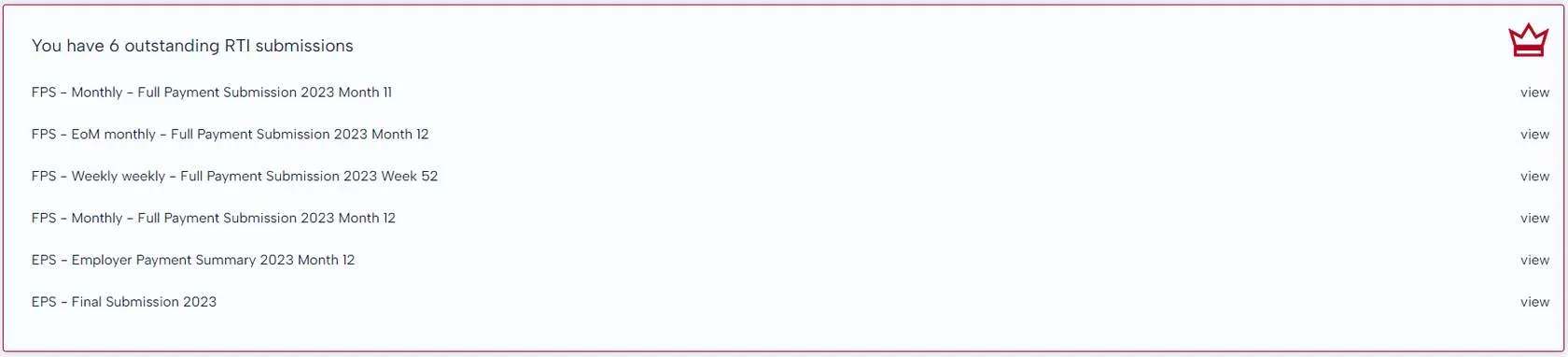
Full Payment Submissions (FPS)
This return is processed and sent to HMRC every time you pay your employees. This needs to be completed on or before payday and will list all of the earnings within the particular pay period, for each employee.

Employer Payment Summary (EPS)
The EPS is sent to HMRC to notify them of any statutory reclaims you may have for SMP, SPP etc. It will also notify them of your Apprenticeship Levy and Employment Allowance requirements (if applicable). This needs to be sent to the HMRC by the 19th of the month following your payroll.

Why has my Payment Submission Failed?
If your RTI submissions to HMRC fail, it could mean a few things aren't setup properly or there is an error on the employee detail. This could be an issue with: 1. Your Government Gateway login details are incorrect. 2. Your PAYE and/or Accounts Office Reference number is incorrect. 3. Employee information missing or incorrect (i.e. date of birth, address etc).
BrightHR Payroll will provide you with the relevant error. Once received, re-populate the details and resubmit.
Late Payment Submissions
A late FPS could potentially lead to a financial penalty, so it's imperative that this is processed on time and as per HMRC guidance.
If a submission is being sent late, BrightHR Payroll will prompt you to enter a late reason from one of the options below: 1. (E) Micro Employer using temporary 'on or before' relaxation. 2. (F) No requirement to maintain a Deductions Working Sheet or Impractical to report work done on the day. 3. (G) Reasonable excuse. 4. (H) Correction to earlier submission - applied automatically if an additional (correction) FPS has been created.
Failure to select one of the above reasons could lead to a late penalty fine. Please note, choosing a reason, especially if you are regularly submitting late reports, does not mean a late penalty notice will not be issued.
Additional / correctional FPS
If you need to send another report to HMRC to correct the original, BrightHR Payroll will let you do this in a few simple steps. First, you will need to reopen your pay run. To do this, head to the pay run you need to re-submit and select the 'Reopen' option from the menu in the top right.

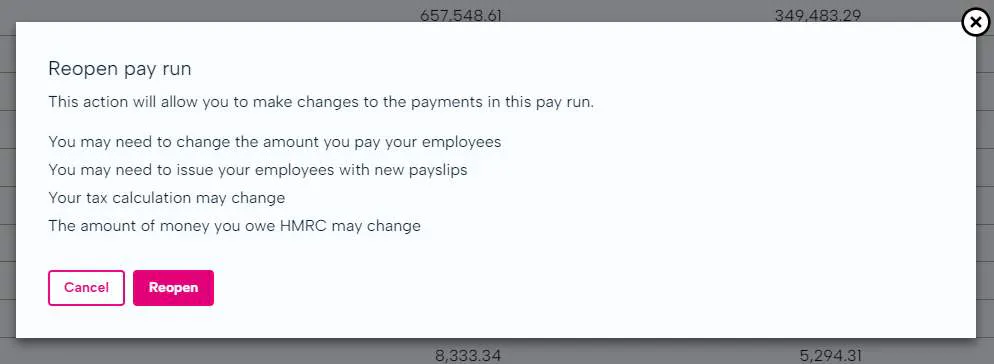
Make your Corrections to your Pay Run
Now you have reopened your pay run, you can adjust payments where needed including; adding new payments, adding new deductions, editing current pay or deductions and enrolling to pension scheme. Now click 'Complete Pay Run' once you have made your corrections.
Now you are ready to add your additional payment submission. Click the menu again in the top right and select 'Add additional FPS'.

You can now select which of your employees you have made the adjustment for which will highlight on the additional FPS to HMRC which employees have been updated.
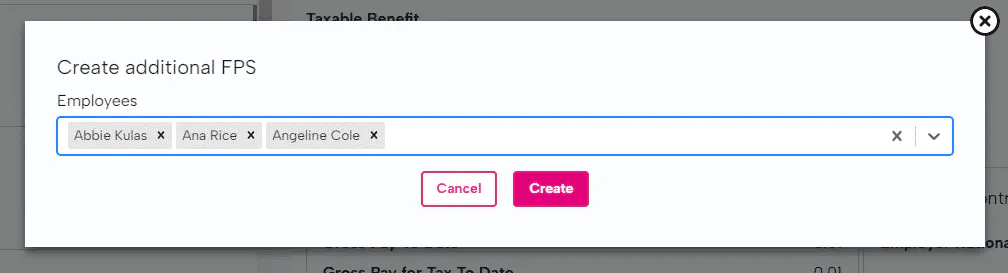
Once you have created the new FPS, this will be waiting for you to submit in the 'RTI' tab for you to submit to send the additional FPS to HMRC.
Only submit an additional FPS if you are sure that the correction is needed. Sending multiple corrections to HMRC can cause errors within their system and could not always be accepted.
Accessing your Payroll Audit Logs
When you need to drill down the details of your payroll activity, look no further than BrightHR's Payroll audit logs.
Where do I find my Audit Logs?
You can find your audit logs on BrightHR in your Payroll console, just head in here and access the 'Audit' tab which will display your Payroll activity over a desired time period.

Head over to BrightHR, go in to the payroll section on the navigation bar and click on the audit tab - you're good to go!
Using Audit Filters to find what you need
To help you find what you need from this sea of data, we have added handy filters which will help you find what you need from your audit logs.

- Filter by employee - Easily filter information added to your pay runs for specific employees with this function so you can access data for specific queries.
- Filter by who made the changes - You may need details for a specific member of staff that you know manages payroll tasks and want to see the specific changes made by that person, simply select their name and view the changes made by them, simple!
- Filter by date - Break your payroll audit down in to monthly periods or choose a custom time filter such as a quarter or a year.
What can I find here?
Now you know how to find the information, let's take a look at what you expect to find here.
New Employees Added / synchronised to Payroll
When you add an employee or "Sync" them to Payroll, this information is logged in your audit which will include the details of when it happened, who made the change, what the change was (i.e salary details, name change etc.), any absence details such as sickness and even any overtime recorded for payment.

Important Pay Run Changes
If a pay run is locked, unlocked or closed you can find a log of this on your audit. This will tell you the date this occurred and who made the change.

Employee Detail Updates
Any change made to an employees sensitive details such as salary, address, name etc will have an entry in the log marking again the date it was changed, who made the changed, what the change was and what it has changed to.

Employee Absence / overtime
Employee absences and overtime payments that're added to payroll will also appear in your audit log, again giving you the dates it was processed, who added it and who it is for.

Pension Outputs, Payroll Journals & General Reporting
Reporting is an important part of payroll. This not only helps ensuring the process is as accurate as possible, but also ensures efficiencies within employee data. and finance related data for payroll journals.
Pension Outputs
Now your pay-run has been completed, your pension return will follow.
You will be able to export a report from within the pay run itself, under the "Pensions" tab.
First of all, click the 'Download contribution file' button and this will generate the file and save in your downloads.
Do not open the CSV. This will change formatting of the file and cause it to be rejected when you upload it to your pension provider.
If you do open the file accidentally, do not save over it.
Pension Enrolment Draft Letters
BrightHR payroll give you the ability to send enrolment related emails all from within the system, a similar process to how payslips are sent.


In company settings, you will find communication templates.


You can access 3 types of draft templates, Pension enrolled, Pension not enrolled and Pension postponed.


You can adjust the templates wording that is sent to employees.
Payroll Journals
Once you have completed your pay run, BrightHR will allow you to create a payroll journal and export this.
If you have already completed your configuration, you can then download the export or if it's not quite right, you can configure it again.
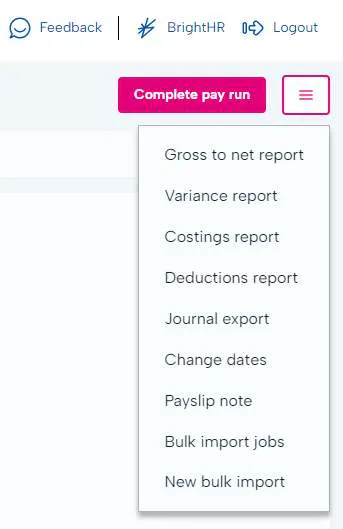
You can access and export your journal via the pay run by selecting the button with the 3 lines and selecting 'Export journal' from the list. Click 'Download' to save a copy of your journal or if you need to change the configuration, click 'Configure'.
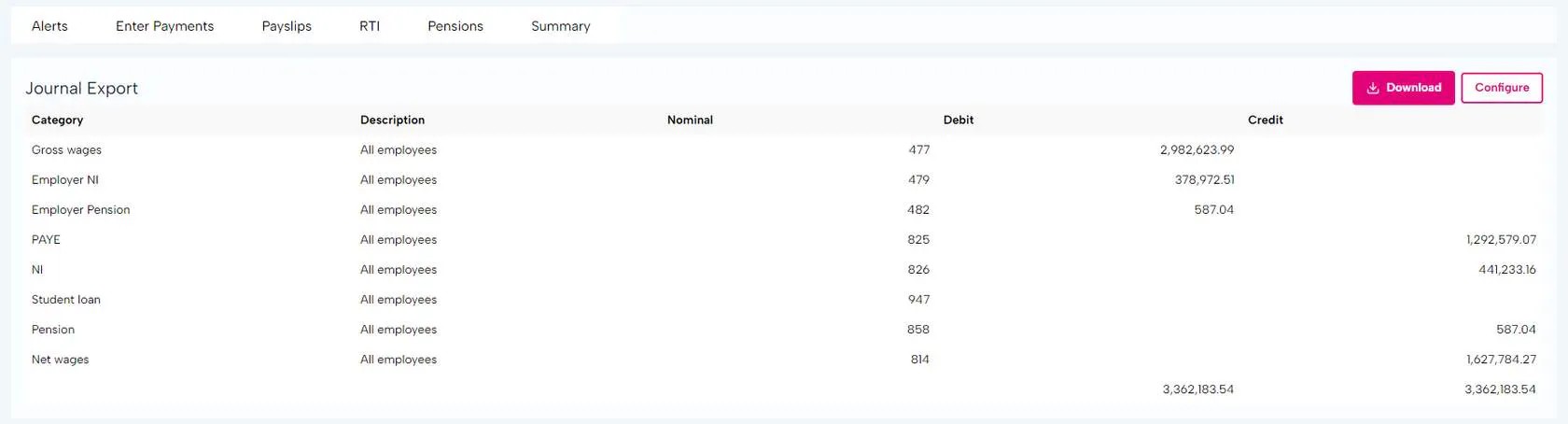
Payroll Reporting
There are various reports that can be run for each of your pay-runs. These can be found by selecting the 'Reports' button on the top right of the window.
It is advised that you use these reports as part of your payroll processes to ensure everything is compliant and accurate.
Shows all employees pay details for the current pay run.
Employee Reporting
Each employee has their own individual profile and as such will require individual reporting. Head to an employees profile where you can find their specific details as well as their reporting options.
For each employee, you can download a P11 report that shows their gross pay, tax and NI paid with a breakdown for each week or month in one file.
Company Reports
The company reports are located in the 'Reports' section and will allow you to run all of the reports available through pay runs and other reports such as employee reports and deduction orders.
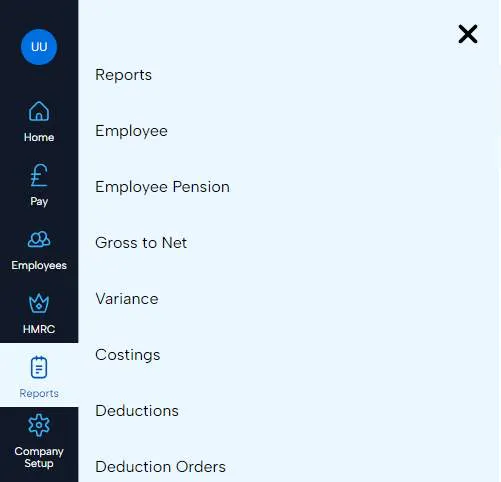
Year to Date Reports
Year to date reports allow you to view and pull reports for specific pieces of information for the current tax year.
- Tax year to date tax details.
- Tax year to date National insurance (NI) both EE and ER contribution details.
- Tax year to date Statutory payments claimed by employees.
- Tax year to date pensions both EE and ER contribution details.
- Tax year to date pay rolled benefits report.
Employee Reports
- Employee report - this will allow you to run a basic report to include the employee details such as their personal details, tax details such as tax code and more.
- Employee pension report - this report will give you a summary of each employees pension details for example, if they're enrolled in to a pension, the contribution amount, opt in date etc.
Deduction Orders Report
A deduction order report will pull the details of any deduction orders applied to an employee such as an attachment of earnings. This includes things like; the type of deduction order, the amount, the account details the deduction is to be paid to etc.
P32 Employer Payment Report
A P32 is the Employer Payment Report and is a summary of the payments you need to make to HMRC. This can include tax and national insurance deducted from employees, employer's national insurance, apprenticeship levy, any CIS suffered (if applicable) and any credits applied if you are eligible for the employment allowance.

What are the Steps to Complete Year End?
Year end becomes available once you have completed all pay runs for the year and is available towards the end of March to enable you to get ready for the new tax year on the 6th of April.
When you're ready to complete the year end, you will see a box on your home screen or you can simply access the 'Year end' section via the 'Company setup' option.
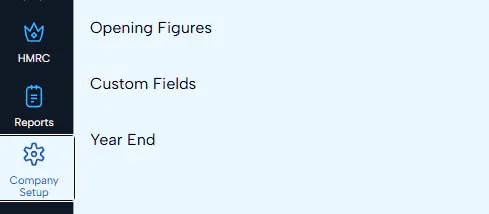
Make sure you have submitted all your FPS and EPS for the year as once you run year end, you will be sending an EPS to HMRC to indicate you are finished for the current tax year.
If you later need to correct errors in your payroll after your final EPS submission, you can send an Additional Full Payment Submission.
Processing Year End
Migrate Tax Codes
For the start of a new tax year, tax codes are changed and the W1/M1 flag needs to be removed. Here is where you will make the changes and apply them to your employees in one go.

Sometimes HMRC issues a P9 tax code notice for an employee where there is a difference from the current year. For example, an employee may have been on a lower tax code but for the new year will be on the standard tax code.
If you have set up your HMRC account to receive tax code notices online, the year end process will check for any P9 notices and apply them.
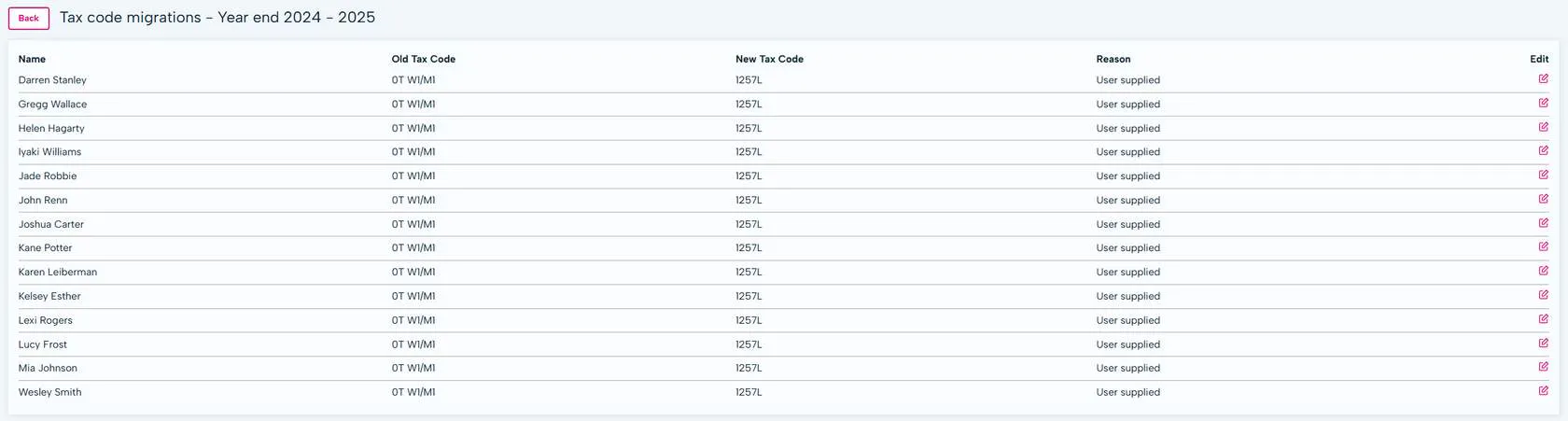
Once applied you can review all the tax code changes and edit if necessary.
Issue P60s to your Employees
This is for all employees who are working for you on the last day of the tax year (5 April).
The P60 summarises an employee's total pay and deductions for the year.

A P60 needs to be issued to your employees by 31st May.
Head in to the 'Issue P60s' section first of all where you see the options to:
We use a HMRC approved "substitute" P60. This can be printed on a blank sheet of paper.
P60's can be accessed in the pay document folders on their BrightHR account.
Create an EPS Final Submission
This submission will tell HMRC that you are finished with this tax year and not to expect any more submissions. Needs to be submitted to HMRC by 19th April.
You can submit this after you have applied any tax code changes.

EPS Employment Allowance Claim for the new Tax Year
If you claimed the employment allowance in the previous tax year, a new EPS claim will be generated for you at year end.
You need to apply to HMRC every year to indicate you are eligible for the employment allowance. To read further about eligibility and how to claim please see tax settings.
You can start the new tax year once you have completed the tax code changes. You can come back at a later date to issue the P60s and make your submissions to HMRC.
Once all these actions are completed, your year end will be marked as completed.
