- ...>Get started with Blip - Employee
Get started with Blip - Employee
A quick-start guide for employees using Blip, showing how to clock in/out, use geofencing, scan QR codes, view hours worked, and resolve common app issues.
Getting Started with Blip - Employee
In this handy course you'll be guided through the process of setting up your Blip account and how to make the most of our handy app. All with our easy to follow step-by-step guide.
What is Blip?
Blip is our easy to use app for clocking in and out of work. All you need to do is download the app via one of the links below for your device.
Clocking in / out
Clocking in
There are three ways to clock in and out with Blip. You can either use your location, a QR code or a flexible clock in. But don’t worry, your manager will tell you which one they’d like you to use.
Clocking in on the Website
If your employer has set up BrightHR so you can clock in on the website, this will give you the ability to use a desktop computer or laptop to clock in instead of a mobile device.
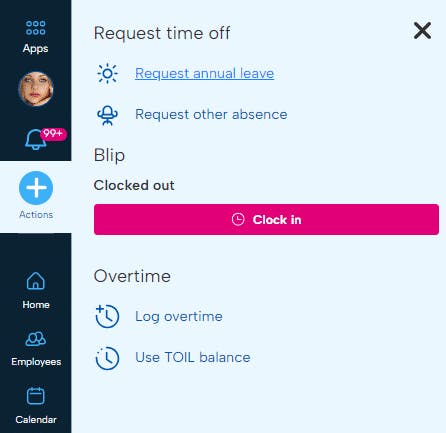
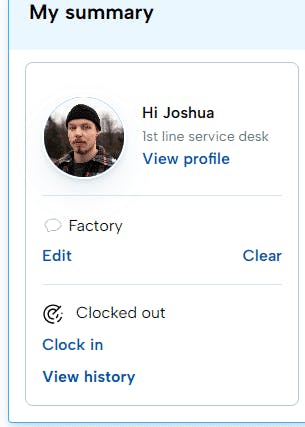
You can also clock in from the dashboard or use the actions menu on the nav bar to clock in and out too.
Logging your Breaks
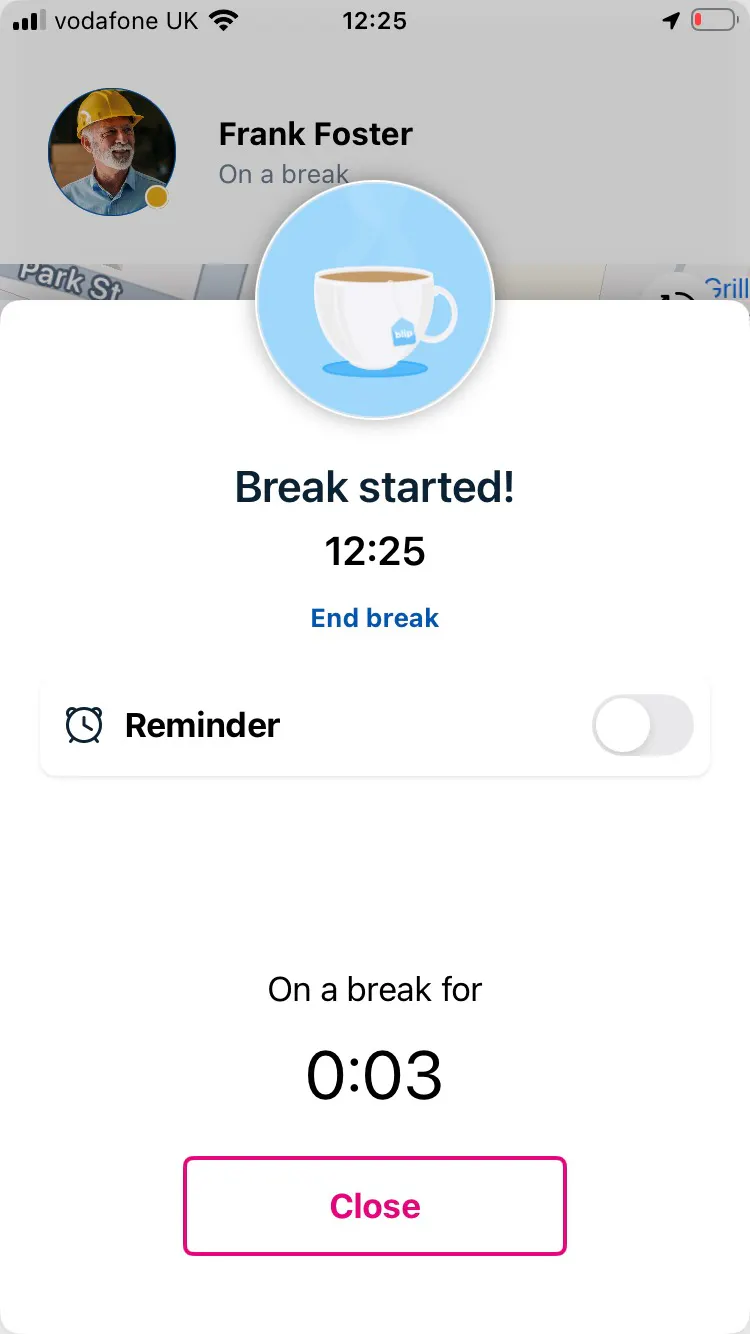
Now that you know how to clock in and out let's go through breaks. Blip allows you to record your break in a tap.
To start your break, tap the ‘Start break’ button at the bottom of your screen and select ‘End break’ once your downtime is over. It’s that easy!
Reminders
We're all a bit forgetful sometimes, that's why we've introduced our handy reminders feature.
You can set a reminder to clock in and clock out using Blip. Just head to ‘Settings’.
From here, you can set a manual reminder to clock out at a specific time or allow smart reminders. Smart reminders will look at your working pattern or rota on BrightHR and automatically send you a clock in and clock out reminder when your shift is due to start and finish.
View & Adjust your Shifts
Viewing your History
To keep up with your clock in history, head in to the history tab.
Exporting your History
Requesting Shift Adjustments
Didn’t clock out on time? No problem! You can easily request an adjustment to your shift times with your manager.
To do this head to the History tab.
Then just select the shift you want to adjust and tap on the pencil icon next to the shift time you’d like to edit and select your new clock in and out times. Add any notes you want your manager to see and hit the tick in the top right corner. Simple!
You’ll see that your adjustment is now awaiting approval, once it’s been approved, you’ll receive a handy notification on your app to let you know.