- ...>Getting started with setting up your pension schemes
Getting started with setting up your pension schemes
This guide explains how to set up pension schemes in BrightHR, including adding providers, configuring contributions, enrolling employees, and ensuring compliance with auto‑enrolment requirements.
Getting Started with Setting up your Pension Schemes
In this lesson, you'll be going through how to set up your pension schemes to run seamlessly with your payroll software.
Setting up your Pension Schemes
In this section, you will learn how to setup your pension schemes, including reference numbers, auto-enrolment behavior and relevant EE and ERs contribution percentages and rates.
Setting up a new Pension Scheme
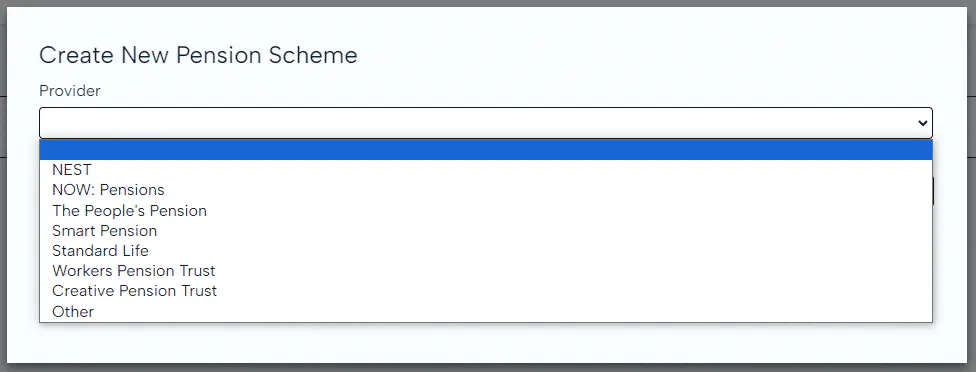
Before you can enrol your employee's on a pension scheme, you will need to add details for your provider. BrightHR Payroll covers the most common providers, but you also have the option of adding your own that isn't already recorded.
Setting up your Pension Scheme Provider Details
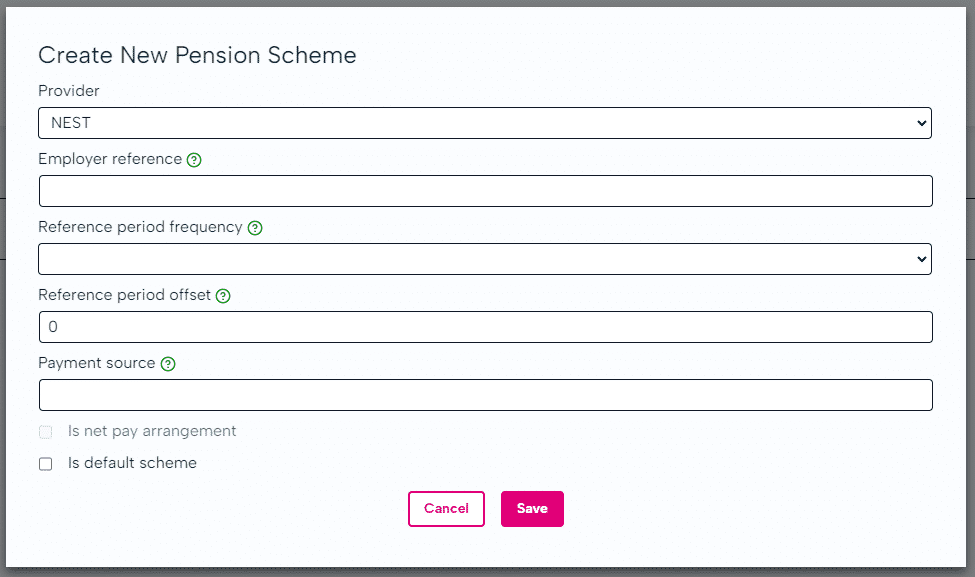
Some providers may require more information and have different criteria than others. Have a look below to see what you will need to set up your scheme...
Employer reference - The unique employer reference issued by the pension provider.
Reference period frequency - The NEST Reference Period.
Reference period offset - You should probably leave this as 0.
If your NEST references dates do not match those generated, use this to offset the reference period in days/months/tax periods in the past.
Payment source - The NEST Payment Source. This must exactly match your Payment Source in NEST.
Adding Contribution Groups to your Scheme
Once you have input your pension scheme details, one or more contribution groups can be added. This is especially useful if you have different schemes running.
To set up a contribution group, head to 'Pension setup' which is held in the 'Company Setup' section.
- Earnings basis - 'Qualifying' or 'Pensionable'.
- Contribution type - 'Fixed' or 'Percent'
- The relevant rate or percentage for the EE and ER.
- Is it a net pay arrangement?
- Is it a salary sacrifice scheme?
Not all the above information is required for every pension scheme.
Nest Integration
Now available for BrightHR Payroll, the NEST API Integration reduces the need to login to the NEST website by allowing you to enrol workers, upload contribution records and approve payments within the pay run screen.
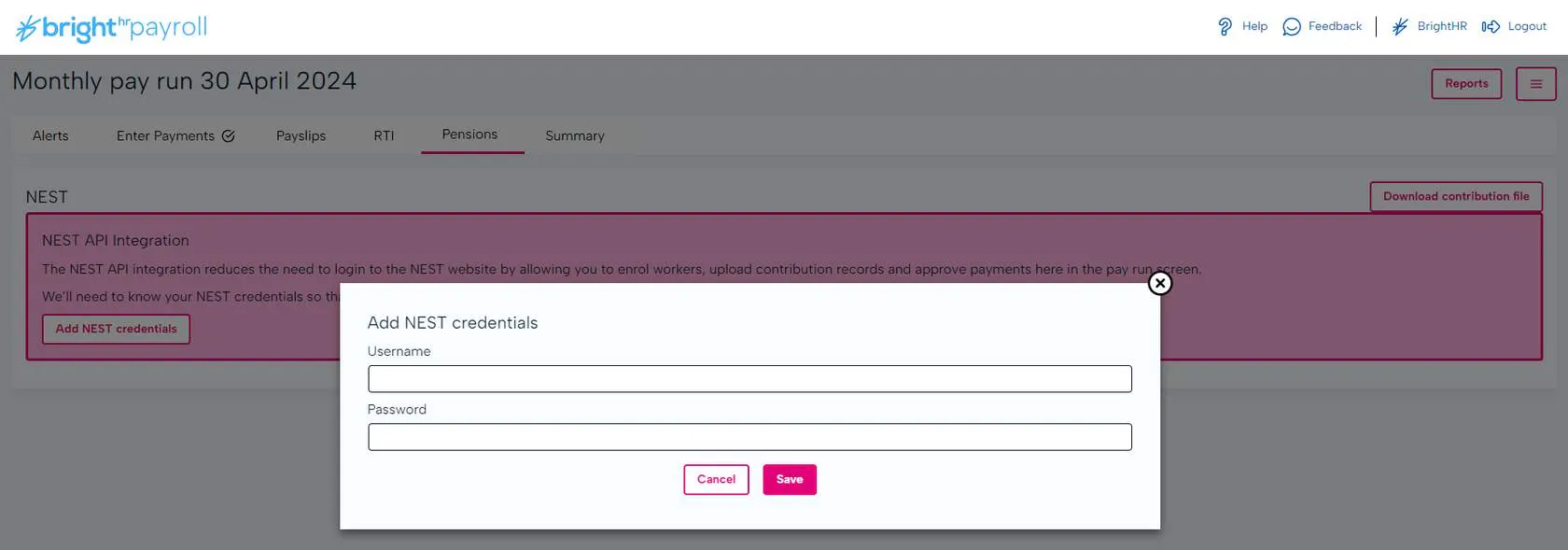
Enter your pay run and then click in the 'Pensions' tab. From here, you will be prompted to add your NEST credentials to complete the integration.
Automatic Enrolment
All employers are legally required to assess their employees to see if they qualify to be enrolled in to a pension scheme. If they do, contributions for both EEs and ERs must commence - this is called 'Automatic Enrolment'.
How do I Know if I Need to Auto-enrol my Employees?
- Eligible jobholders (automatically enrolled) have to be enrolled into a pension scheme that is used for automatic enrolment where contributions are made.
- Non-eligible jobholders (opt-in) have the right to opt-in to a scheme. The employer must then put them into a pension scheme that is used for automatic enrolment and make regular contributions.
- Entitled workers can ask to join a pension scheme and the employer has to provide a pension scheme for them but the employer does not have to pay contribution.
When do I Enrol Employees?
Employers must begin their Auto-Enrolment duties as soon as the employee starts employment.
The assessment and enrolment can be deferred for up to 3 months, however is it best to consult The Pension's Regulator and other official advisory services with regard to this.
Setting up BrightHR Payroll to Manage Auto-enrolment
When beginning the pension setup process you will be asked about how you want to manage auto-enrolment. Take a look below and read carefully to make sure you select the correct option.
Select this option if you require the software to assess your employees for you.
Setting up Auto-enrolment in BrightHR Payroll


Setting up auto enrolment couldn't be easier with BrightHR Payroll. Just follow these simple steps to get this up and running!


You would first need to select a 'Postponement period' if you have one - this would be any delay from the time of initial assessment until you enroll them in to a scheme.


Next, you will need to enter your staging date of when your auto-enrolment scheme was put in place.


Include the details of your Pension provider. We have included popular pension schemes such as NEST and The people's pension however if your provider is not on the list, select the other option and enter this manually.


Here, you can enter the details of how the pension contributions are managed from your perspective, and how this will be deducted from your employee's pay.


Once you have completed setup, BrightHR Payroll will automatically calculate contributions for both you and your employee's. This will even be included on the pay slips generated and sent from the system!
Managing your Auto-enrolment Manually Outside of BrightHR Payroll


If you wish to manage this separately outside of BrightHR Payroll, you can still add your pension details for record keeping.
Include the details of your Pension provider. We have included popular pension schemes such as NEST and The people's pension however if your provider is not on the list, select the other option and enter this manually.
Here, you can enter the details of how the pension contributions are managed from your perspective, and how they're deducted from your employee's pay.


Here, you can enter the details of how the pension contributions are managed from your perspective, and how they're deducted from your employee's pay.
Exempt from Auto-enrolment