- ...>Managing your HR and payroll data transfer
Managing your HR and payroll data transfer
Managing your HR and Payroll Data Transfer
In this lesson, we will go through all the information that is important when processing your pay runs and employees for Payroll.
HR & Payroll Data transfer
HR & Payroll data transfer
Processing common HR and Payroll changes can be a daunting and challenging task. Let's see how BrightHR's HR and Payroll offering can simplify this process for you.
Personal Details Additions & Amendments
Employee personal details such as name, address, gender and bank details can be amended through the BrightHR employee profile and will appear automatically within payroll - be mindful these will be presented as payroll exceptions if you have a locked pay-run.
Employee Terminations
When an employee has a termination date entered in to BrightHR, this will transfer across to payroll. This will in turn be visible in the employee section in payroll, under 'Leaving Info'.
When an employee is terminated and has an annual leave balance that needs to be paid or deducted, this can be processed directly in to the employee payslip.
This can be done via the 'Add Payment' in the Pay section of payroll. The element type to use is 'Holiday', and this can be input as a positive or negative value in the rate.
Ad-hoc Payments & Deductions
Ad-hoc payments & deductions are different every month and you have little to no control over how this varies from pay run to pay run - so isn't it great you have a HR platform already recording these details.
Sickness Absence
Sickness absence processing stems from the data input within BrightHR. The configuration on the Contractual sick pay (CSP) settings will determine how the sick pay is calculated when an absence is entered.
If CSP is blank, Statutory Sick Pay (SSP) will be processed as standard, providing the employee and the absence qualify.
As per the normal BrightHR process, enter a start date as a minimum to generate the initial calculation in payroll for absence. If an end date isn't present, the system will calculate the absence up to the end of the end of the pay period as standard. Once an end date is added, this will revise the payments and deductions accordingly.
Unpaid Leave
Similarly to sickness absence processing, unpaid leave can be added within BrightHR. This will take the number of days (or half days), and calculate what is to be deducted as per the employee's hourly rate and standard working day.
If the period of absence is revised or removed, this will directly update the payslip.
Overtime
Overtime entries processed in BrightHR will calculate as per a number of factors that are held in BrightHR. These include: * Employee hourly rate - this is set within the Salary section of the employee profile. * Number of units (hours) - this is generated from the date and time period being added within the Overtime screen on BrightHR. * Pay rate (single, double, time and a third etc.) - this is set within the overtime entry itself.
It is critical that the entry is set to 'Payable' in order for this to go through to payroll. It is worth noting that multiple entries that fall within a pay-run can also be processed, and any amendments/extensions to these will automatically update within payroll.
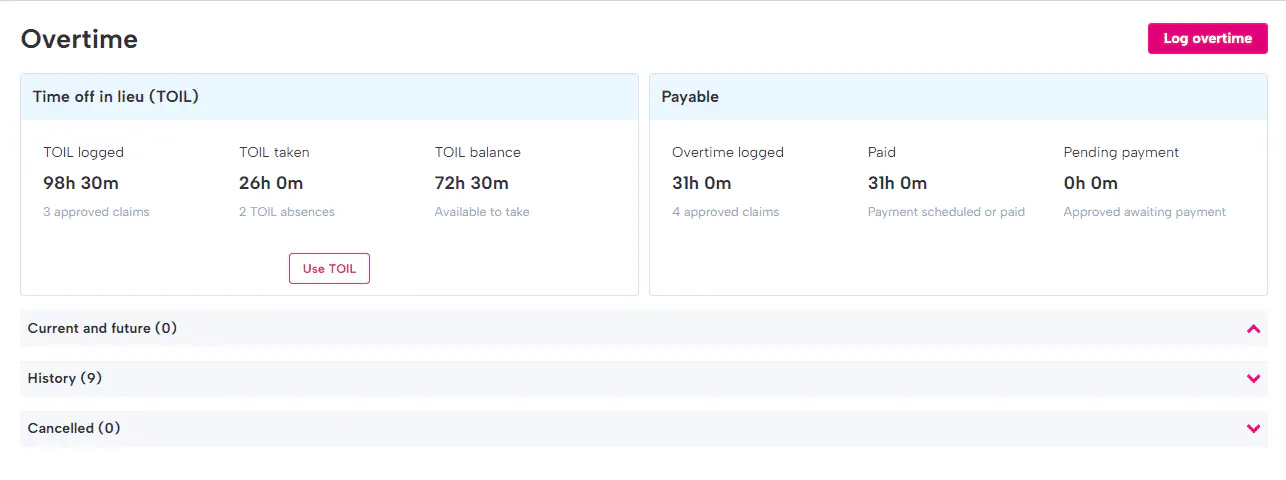
Overtime worked at higher rates (Such as time and a half) can also be recorded and converted to payments.
Variable Hours
For employees paid hourly, the number of hours or pay rate can vary meaning you need to add this information manually so this information is added to the pay run.
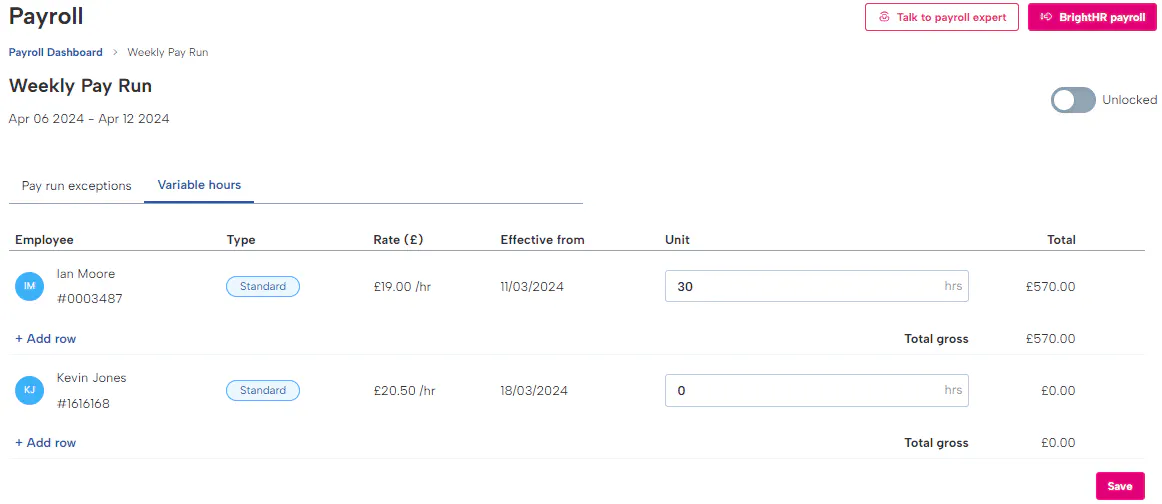
Enter the number of hours the variable employee has worked during this pay run and click 'Save'. This will then pull the payment through to BrightHR Payroll including this in the pay run.
If you need to add any additional rates perhaps for holiday, click the add row option below the employees name.
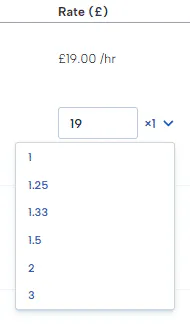
You can either manually enter the rate or select a pay rate multiplier from the list.
Adding Holiday Pay
Adding holiday pay for an employee can be done with a few clicks.
In the payments section of the pay run, select the employee you want to add the holiday pay for and click the add payment button.
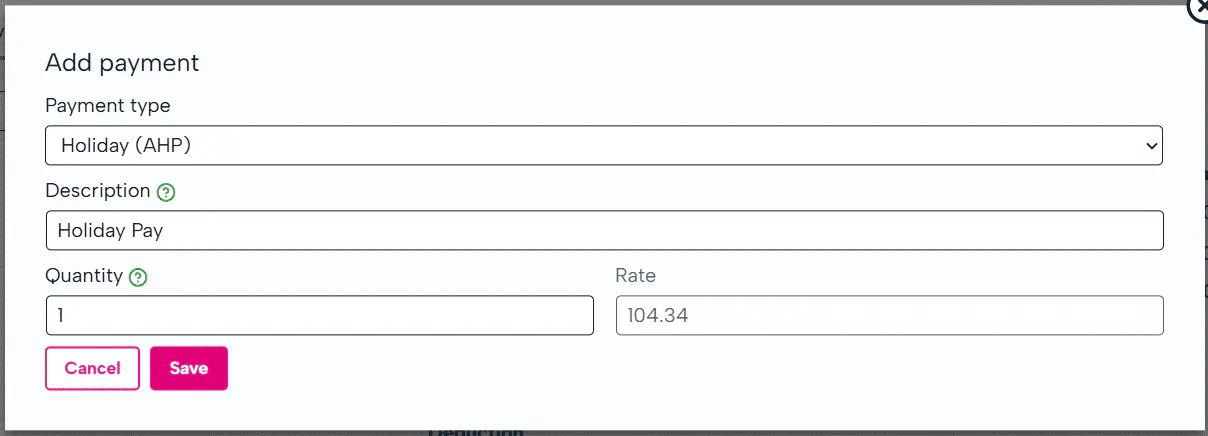
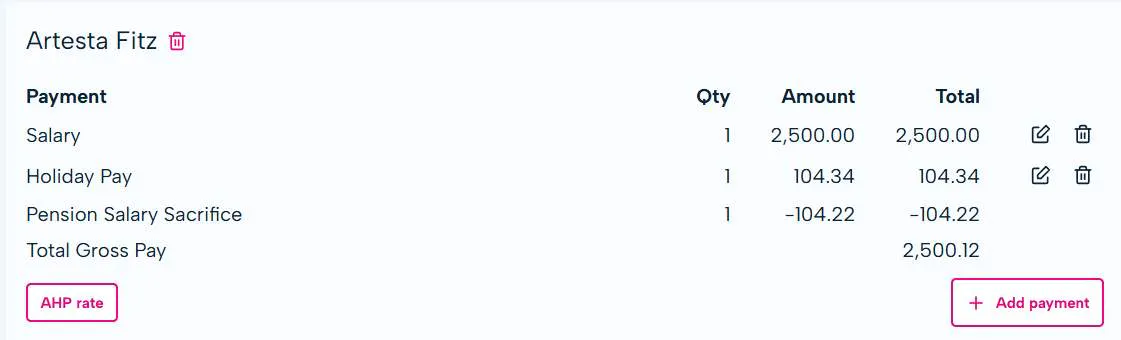
Once you have clicked add payment, you can simply add the quantity which will apply the average holiday pay rate to each unit and include the payment in the pay run which will then appear on the employee's payslip.
Clock in Data / rota Data Import
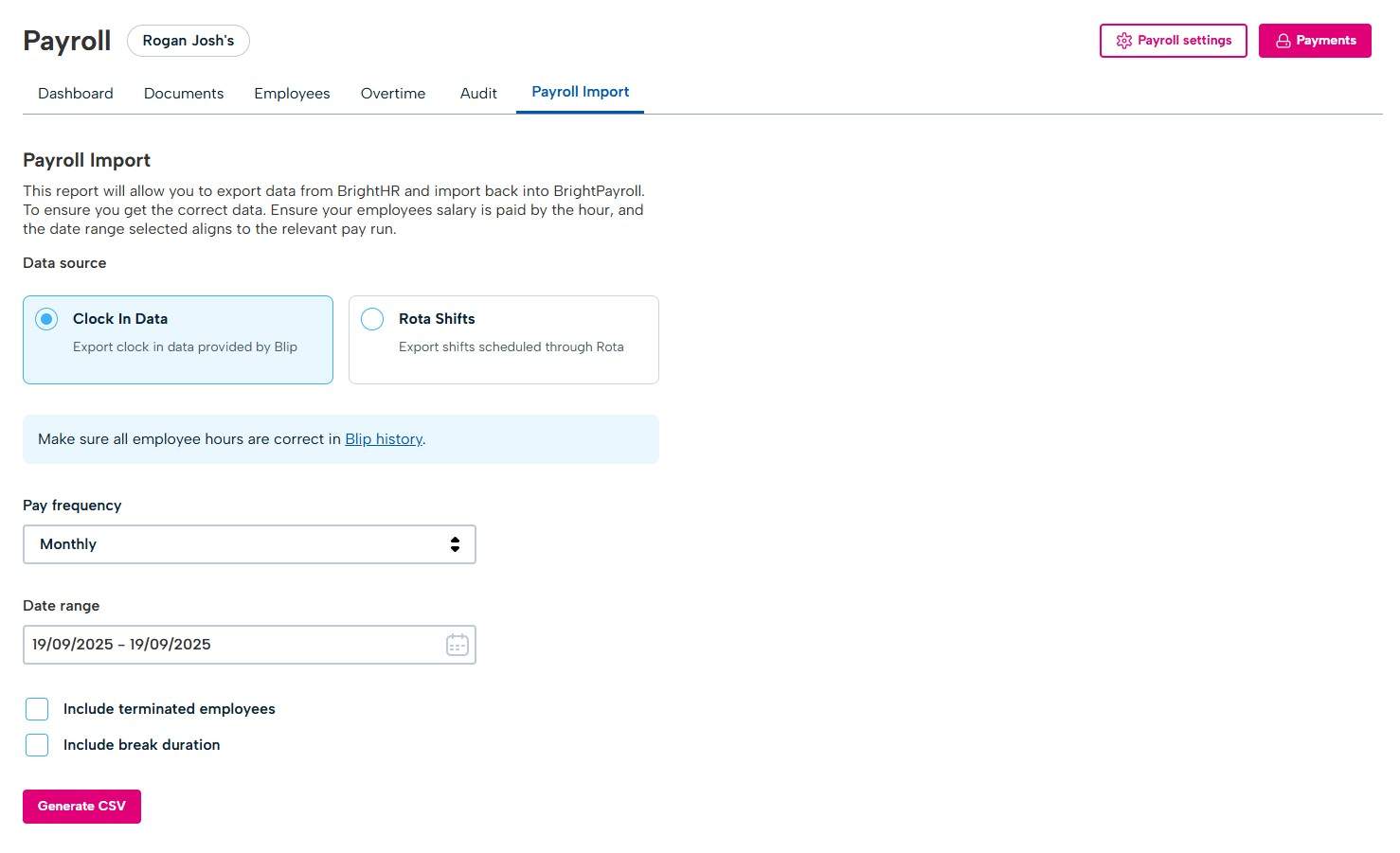
Through BrightHR, if you use a rota to schedule shifts or Blip to record clock in data, BrightHR payroll will allow you to export the data to be imported in to payroll which will automatically add the payments to the appropriate staff members.
You can select if you want clock in or rota data, apply a date range and download the report.
The report can then be taken to BrightHR payroll to import.