- ...>Paying your Employees & Processing RTI Submissions
Paying your Employees & Processing RTI Submissions
This guide explains how to pay employees and submit RTI filings, covering payroll calculations, payment methods, HMRC submissions, and compliance requirements.
Paying your Employees & Processing RTI Submissions
In this lesson, we will go through how to pay your employees and completing FPS submissions to HMRC using RTI.
Paying your Employees
One of the most important parts of not only payroll, but running your business - paying your employees! Let's take a look at how BrightHR Payroll can make this process a little easier for you.
Payment File
In order to process a payment file for the employee net pay, you'll need to have ensured that the section within 'Company setup' has been completed first.
Check your Payment File Type
It's worth checking with your bank to ensure that you are able to provide it with a CSV format for your employee net pay. You'll be able to check the templates we have available within the 'Payment file setup', held in 'Company setup'.
You can also enter a payment reference to appear when the payment is made to your employees bank account.
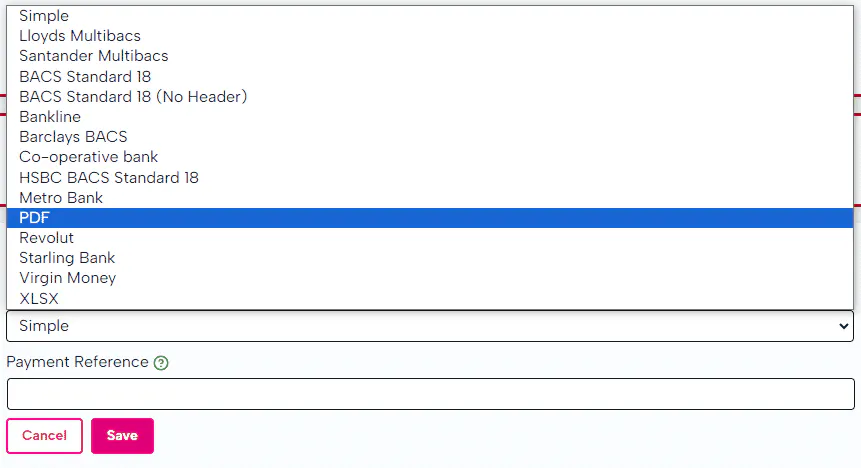
You can also enter a payment reference to appear when the payment is made to your employees bank account.
Different options may require different details for example, some payment files may require your account details to match the payment file when uploaded.
Download your Payment File
The next step to this process is exporting and downloading the file for payment.
When in the pay-run itself, click 'Reports' then 'Bank payment file'. This will produce a compatible CSV (or similar file-type) to be able to upload to your banking system.
As mentioned before, please ensure your file isn't reopened if it's in a CSV. This can disrupt the formatting and lose leading 0's within sort codes and account numbers.

Processing your RTI Submissions
It is absolutely essential to ensure that your RTI submissions are made on time and free of errors. You can find out how BrightHR Payroll makes this process extremely seamless below.
RTI Submissions
RTI submissions comprise of two key returns to HMRC - the Full Payment Submission (FPS) and Employer Payment Summary (EPS).
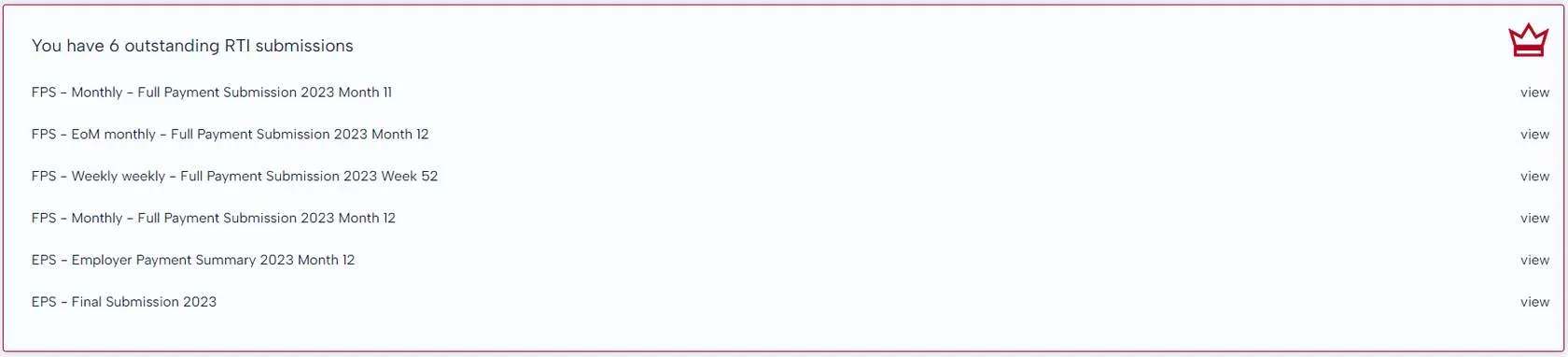
Full Payment Submissions (FPS)
This return is processed and sent to HMRC every time you pay your employees. This needs to be completed on or before payday and will list all of the earnings within the particular pay period, for each employee.

Employer Payment Summary (EPS)
The EPS is sent to HMRC to notify them of any statutory reclaims you may have for SMP, SPP etc. It will also notify them of your Apprenticeship Levy and Employment Allowance requirements (if applicable). This needs to be sent to the HMRC by the 19th of the month following your payroll.

Why has my Payment Submission Failed?
If your RTI submissions to HMRC fail, it could mean a few things aren't setup properly or there is an error on the employee detail. This could be an issue with: 1. Your Government Gateway login details are incorrect. 2. Your PAYE and/or Accounts Office Reference number is incorrect. 3. Employee information missing or incorrect (i.e. date of birth, address etc).
BrightHR Payroll will provide you with the relevant error. Once received, re-populate the details and resubmit.
Late Payment Submissions
A late FPS could potentially lead to a financial penalty, so it's imperative that this is processed on time and as per HMRC guidance.
If a submission is being sent late, BrightHR Payroll will prompt you to enter a late reason from one of the options below: 1. (E) Micro Employer using temporary 'on or before' relaxation. 2. (F) No requirement to maintain a Deductions Working Sheet or Impractical to report work done on the day. 3. (G) Reasonable excuse. 4. (H) Correction to earlier submission - applied automatically if an additional (correction) FPS has been created.
Failure to select one of the above reasons could lead to a late penalty fine. Please note, choosing a reason, especially if you are regularly submitting late reports, does not mean a late penalty notice will not be issued.
Additional / correctional FPS
If you need to send another report to HMRC to correct the original, BrightHR Payroll will let you do this in a few simple steps. First, you will need to reopen your pay run. To do this, head to the pay run you need to re-submit and select the 'Reopen' option from the menu in the top right.

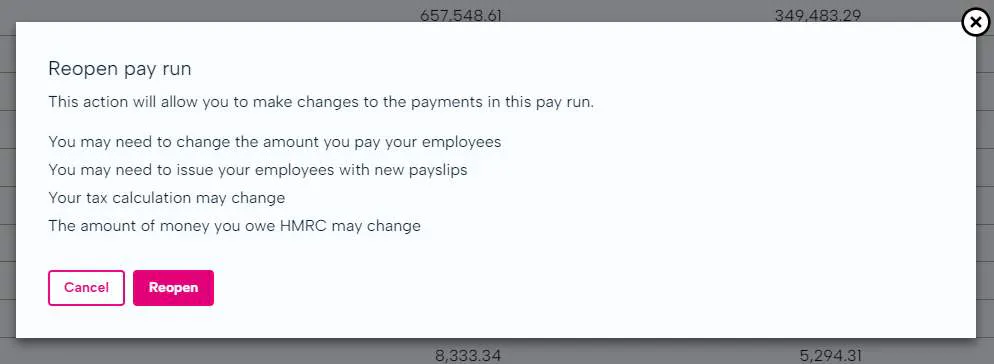
Make your Corrections to your Pay Run
Now you have reopened your pay run, you can adjust payments where needed including; adding new payments, adding new deductions, editing current pay or deductions and enrolling to pension scheme. Now click 'Complete Pay Run' once you have made your corrections.
Now you are ready to add your additional payment submission. Click the menu again in the top right and select 'Add additional FPS'.

You can now select which of your employees you have made the adjustment for which will highlight on the additional FPS to HMRC which employees have been updated.
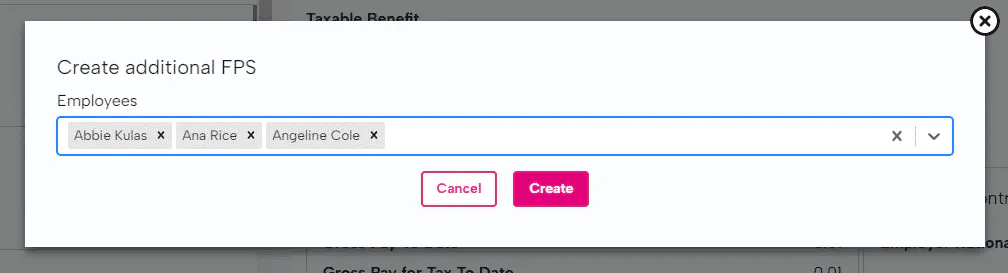
Once you have created the new FPS, this will be waiting for you to submit in the 'RTI' tab for you to submit to send the additional FPS to HMRC.
Only submit an additional FPS if you are sure that the correction is needed. Sending multiple corrections to HMRC can cause errors within their system and could not always be accepted.