- ...>Processing HMRC Notifications
Processing HMRC Notifications
Processing HMRC Notifications
In this lesson, we will go through where to find any HMRC updates and how to process them.
Download & Update HMRC Notifications
Ensuring HMRC notifications are not only an important part of ensuring compliance for payroll processing, but also ensures your employees are in receipt of the correct allowances and deductions.
BrightHR Payroll allows you to download tax codes, student and post-graduate loans and NI number changes from HMRC, and apply them to your employee profiles.
The first step to this process would be selecting HMRC, which can be found on the main-menu on the left hand side of the page. Within this, a sub-menu will appear - please select PAYE Notices.
There are two options within this section: * Check for notices. * Apply all.
Checking for notices will connect to the HMRC and present updates that are available to be applied.
Checking for HMRC Notifications
BrightHR Payroll has the ability to automatically check and apply employee updates from HMRC.
Please note, you need to receive your notices electronically to check for notices on BrightHR payroll. If you receive them by post, you can update this on your HMRC business account.
Applying HMRC Notifications
Once notifications have been checked, the next step is to apply them to the relevant employees. BrightHR Payroll allows you to do this in a few clicks.
Matching Employees to a Notice
When you pull through the updates from HMRC, it may be that the system has not been able to exactly match the details to the employee. In these cases, BrightHR Payroll will match details and suggest to match the notice to the employee on the system.

Applying the Notice to your Employee
After matching an employee to the notice, the following step is to apply it to the employee.
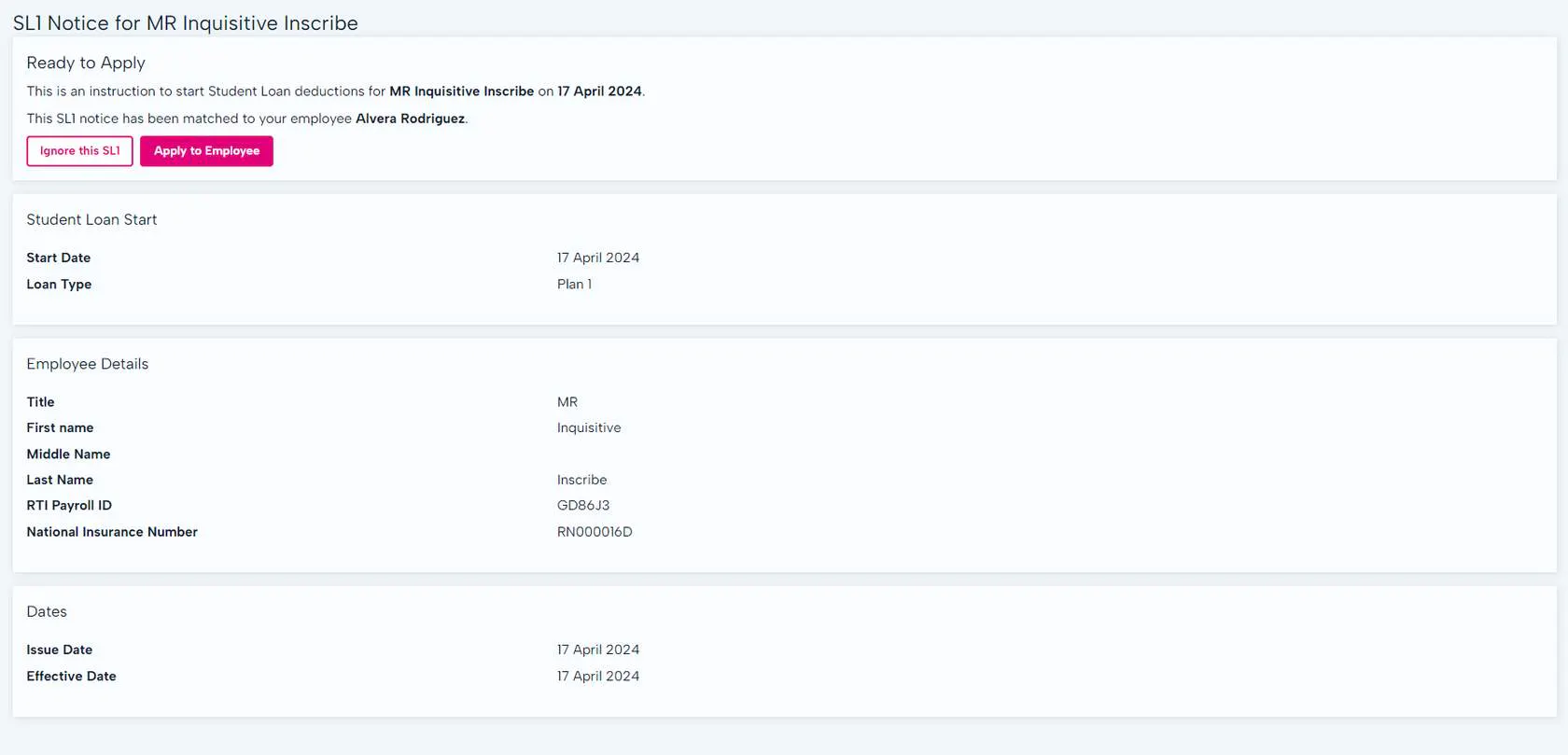

National insurance number changes will not apply any changes to the employee's profile and would need to be updated manually. This happens because the HMRC may have matched the wrong employee details. It must be checked first before you change the employee profile.
Ignoring a PAYE Notice
If this is the first time that PAYE notices are added to BrightHR Payroll, it is possible that you'll see see historical notices that are no longer valid. If they don't apply, you'll be able to ignore them.

What if I didn't mean to ignore a PAYE notice? not to worry! You can head in to the 'Ignored' filter and simply match the ignored notice to the employee and apply the notice like nothing ever happened - it's that easy.