- ...>Troubleshooting issues with the Blip app
Troubleshooting issues with the Blip app
A troubleshooting guide for the Blip clock‑in app, covering login problems, device settings, location permissions, QR code issues, and common fixes for attendance tracking.
Troubleshooting Issues with Blip
In this handy course you'll be guided through issues users encounter when using our app and how we have helped them resolve the problem in the hopes to save you some time!
Login Issues
From time to time you may experience issues trying to login to our apps - don't worry! we're always on hand to help.
Why can't I login?
There are a number of reasons you may not be able to login to the app ranging from connection issues and sometimes just the way your device is set up.
here are a few reasons you may be blocked from logging in:
- Cookies are not enabled for your browser - this can cause an error message when trying to login as the app uses your browser app on the login screen (cookies are needed to access the browser app to help login)
- Cache and cookies need clearing - sometimes after using our app for some time, your device will collect data in to your cookies and cache from every login and from time actually using the app. Sometimes you may be presented an error message along the lines of "Oops something went wrong". This is usually resolved by clearing the stored cache and cookies via the device settings.
- Your default browser - Since Blip uses your browser to login to the app, you may find certain browsers are not compatible which can causes error messages or problems getting past the login screen. This can usually be solved by changing your default web browser to a common browser such as Google chrome, Safari or the devices original default browser.
- Storage space - If your device does not have any storage space available, this can sometimes cause the app to crash or prevent it from opening as there is no where to store login data such as cache and cookies. The app does not need a lot of storage space, but some will be needed so if you do experience the app crashing when trying to login, try clearing some storage space via your settings.
- Device OS - The operating software installed on your device is used in running the app and installing updates therefore, ensuring your Android or IOS is up to date is important to stop any issues before logging in, or after. Always check if there is an update required in your settings if you experience any issues which ensures your device is compatible with our apps.
- Connection issues - Sometimes a problem with your wifi or data connection can stop you from logging in to our apps. A common issue, is when our domain has been blocked from a security system and an easy way to check is if you switch to a different connection such as your mobile data, if it works, this suggests an issue with the wifi which needs to be flagged to your IT team.
Incorrect email / password
Sometimes you may be presented with the below message when you attempt to login prompting that your login details are incorrect.
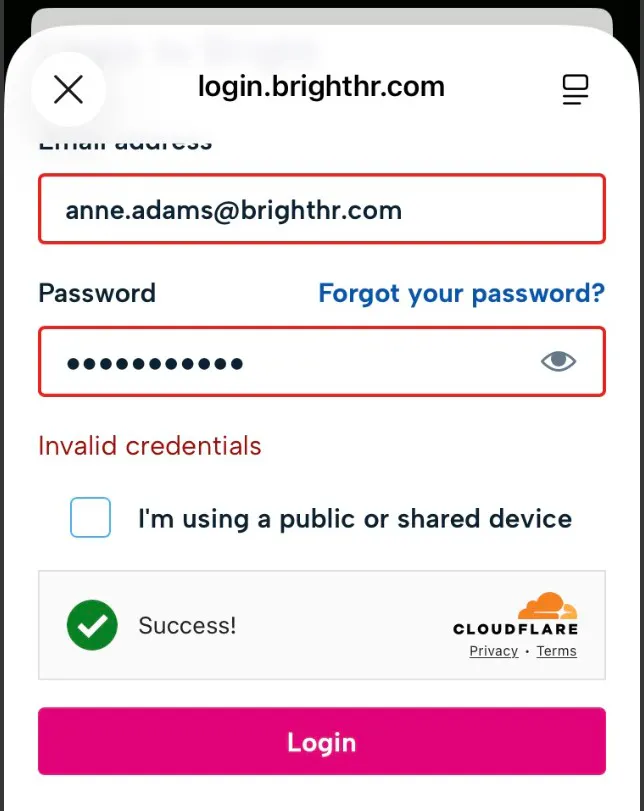
This could be down to a few issues and may not be that you're typing your email or password incorrectly.
- Spaces at the start or end of your email address - if maybe you are copying and pasting your email and additional space may have copied over which then makes the email unrecognisable. Always check the start or end of your email if presented thus message and delete any spaces if needed.
- Old login details stored on device - When you change your password for example, your device will always attempt to update or save the details. If you do update your password and do not update the saved details, this can tend to cause problems when logging in by over-writing your new password with the old save causing your credentials to be incorrect. Try deleting any saved passwords and login manually.
- An incorrect email - On BrightHR, you will store a potential of 2 different email addresses, a work/account email, and a personal email. It can be easy to get these mixed up so always try to use both and if you're really unsure, get your employer to check for you!
Try the above when experiencing issues with logging in to the Blip app. This could help you resolve the problems you're having so you can get on with what is important!
The above is not an exhaustive list and there may be other things that cause login issues.
Problems after Logging in
You've managed to get over the first hurdle and you're logged in to Blip - hooray! but oh no! "Oops there was a problem". Similarly to logging in, some settings and device preferences can cause problems loading the app or using it's features. Let's take a look at some of them...
- Map not loading when using Geo-fence - Using the Geo-fence feature requires the use of your devices location services. This also means that if the device is not sharing these settings, Blip cannot the map you will use to clock-in with. This will usually explain this and prompt you to enable this.
- Time-zone issues - Some problems can be caused as simple as the timezone on your device or the date and time set. Blip needs this to match the timezone your account has been set up in. So it may be that you have just returned from your holidays but forgot to update your timezone or maybe your time is set manually and is a few minutes off. Please always check your time, date and timezone in your device settings.
- Clear cache and cookies - Just like when logging in, a build-up of cache and cookies can cause issues when generally trying to use the app as well. Always try clearing your cache and cookies to resolve issues when using your app.
- Check the app version you have installed - We regularly update Blip whether that is to improve the performance, fix any bugs or release new features to make the app even greater, using an outdated version of the app can always cause problems as maybe a line of code has changed or a button removed/moved meaning problems can occur. Check your app store to look for the most up to date version.
- Blip advises you're not assigned to a location - This is just the case your employer needs to assign you to a location in order for you to clock-in and out. Discuss this with them directly to get past this issue.
QR code problems
Some employers may prefer a simpler way to clock-in not requiring the use of location, this would come in the form of a QR code! QR codes are a simple and easy to create piece of technology but this isn't to say there cannot be issues. Let's take a look at some common issues with QR codes below...
- Using your device camera - Blip's QR codes work a little different to the QR codes you may be used to which you can use your devices camera for. Blip requires you to use the scan option via the app instead of your standard device camera. If you are given the message such as invalid QR code, check you're using the app and not your camera.
- Camera permissions - As Blip uses the camera via the app to scan the QR code, this means that it needs permission to use your camera. This would generally prompt you to give the permissions but it is worth checking in your device settings if you experience issues scanning your QR code.
- Invalid QR code - When a QR code is generated, your employer will have the option to generate new codes which will generally expire any previous codes that may have been printed off for you to scan. This would usually display an invalid QR code message. This would be something your employer needs to replace with the new QR code.
- Printing problems - Another common problem with QR codes can be when printing them. A QR code is made up of a complex code and sometimes printing options can affect this by stretching the code which can potentially cut off a part of this code. If this happens, this usually means your device will not even recognise the QR code at all. Again in this situation, alert your employer and get them to reprint the code.
Now we have gone through some common problems experienced on Blip when using the app but again, these are not an exhaustive list and you may encounter other problems.
If you are unable to resolve your issue with the steps in this guide, please contact our support team for further assistance.