- ...>Validating your payroll data (Managed service payroll)
Validating your payroll data (Managed service payroll)
This guide details how to validate payroll data for Managed Service Payroll, covering required fields, common errors, data checks, and how to ensure accurate and compliant payroll processing.
Validating your payroll data
Now we will learn about the all important process of validating your payroll output data as well as how we can take away the hassle of paying your employees.
The following sections will take you through what to expect after the pay run has been completed, when to expect your payroll data as well as the payments process.
What Happens once the Pay Run is Complete?
You're now at a stage where the pay run is complete, cut off has passed and it is now time to dot the i's and cross the t's.
Payroll Reports
Once payroll has been completed and the payroll team have run through all aspects, payroll reports will be issued for you to access, review and approve.
What do the Reports Include?
The generated payroll reports will include multiple aspects of payroll data for your approver to review and validate. The reports generally include:
- Details of all employees.
- Pension state for all employees.
- Gross to net report for all payments in a pay run.
- Payment deductions by pay run.
- Variance report between pay runs.
- Costing for a pay run.
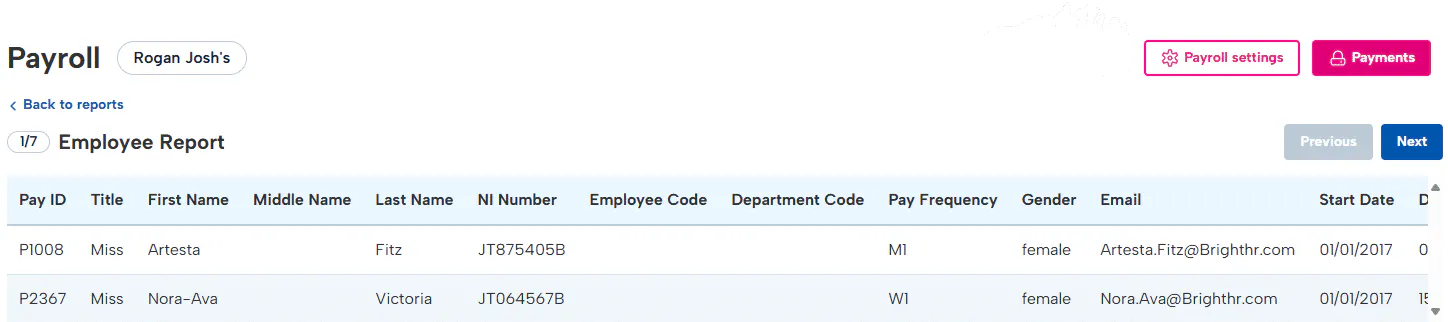
Data Validation / approval
Once reports are available, your assigned approver would need to review the reports to ensure accuracy and approve them to all our team to complete the pay run.
Assigning an Approver
If you haven't already assigned any approvers during the onboarding process, you can do this via the 'Payroll settings' button in the top right of the payroll section.
Please note, no matter your permissions on BrightHR, you need to be assigned here to approve payroll reports.
Approving / rejecting a Pay Run
The process to approve or reject a pay run is simple and can be done with the click of a button.
When the reports are available for validating, you will see the following message along with it for once it has been reviewed.

Approving the pay run is as simple as click the 'Approve pay run button' however, please make sure you have thoroughly reviewed the reports before approving to avoid any issues.
When declining a pay run, you will need to give a reason so that our team can review and adjust appropriately and submit again for approval. Try to give as much detail as you can as to the issue so we can correctly re-adjust.
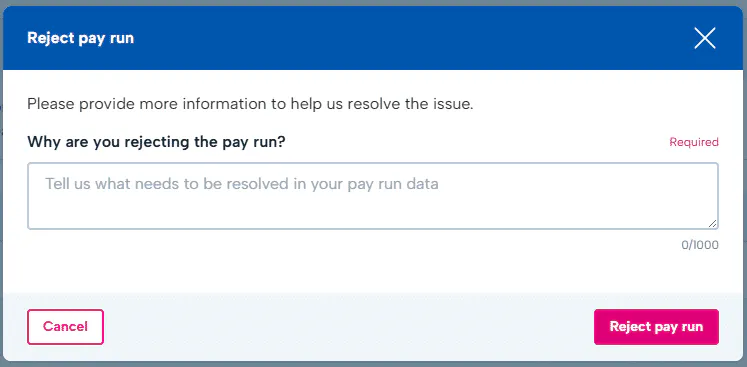

Once we have reviewed and adjusted the reports, you will receive an email to confirm they're available to review again. This process would be the same as before, review the data and then approve or decline.
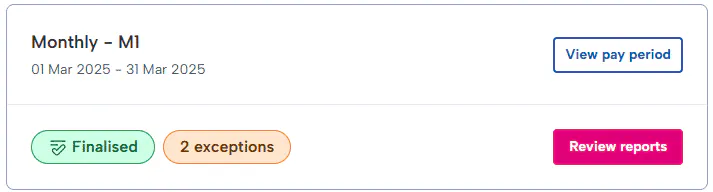
Once approved your pay run will be marked as finalised and you're now ready to move on to processing your employees payments.
Next Step
Pay run done and dusted, time to get your staff paid! Get their money to them faster with Faster payments let's take a look at how.
Paying your Employees with Faster Payments
Now you have completed your pay run, it's time to process your employee payments if you have enabled payments through BrightHR Payroll.
How do I Know how Much to Pay?
First, head in to the payments page via the 'Payments' button in the top right of your payroll engine.
This will take you to the payments page.
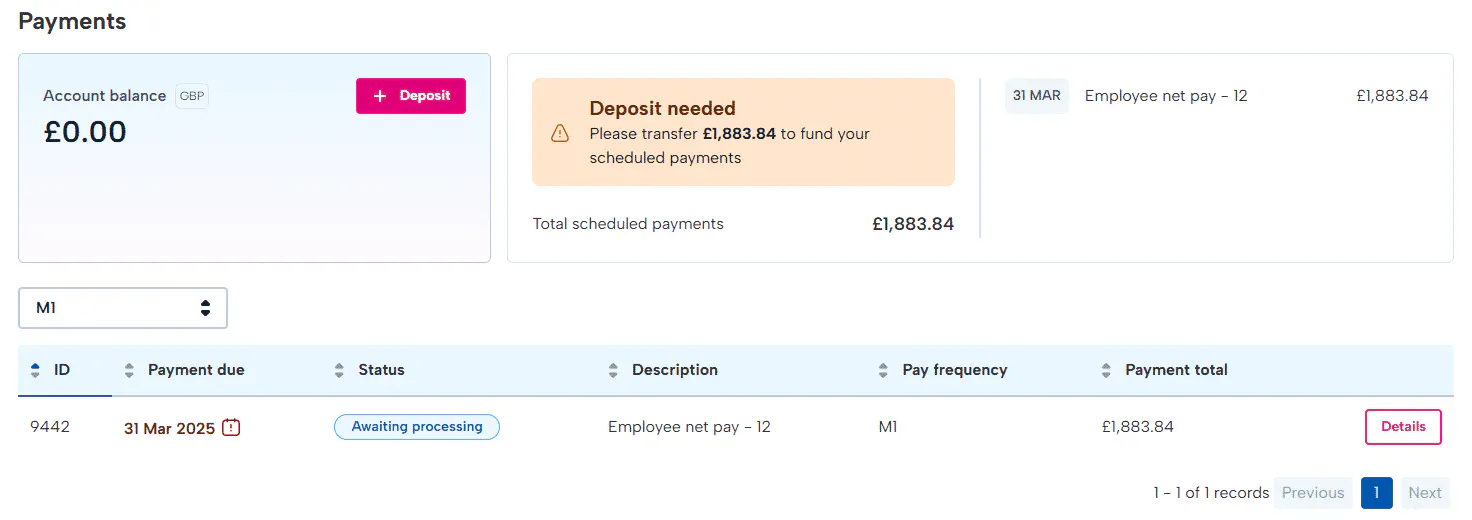
Here you can see a number of details about the balance needed to send payment to your employees as well as options to complete the process.
This will display the amount you have deposited to be paid to the employees this will usually go back to 0 on the day the employees are paid.

Making a Deposit to Complete your Payments
Once you're happy with all the pay run details and pay amount, you will need to deposit the funds so we can complete the payment to your employees bank accounts and HMRC.
All our payments are made using "Faster payments" which will usually take 1 working day to arrive in the employees accounts.