- ...>Completing your company setup for BrightHR Payroll
Completing your company setup for BrightHR Payroll
This guide walks you through completing your company setup for BrightHR Payroll, including PAYE details, HMRC settings, payment preferences, and essential configuration steps.
Completing Your Company Setup For BrightHR Payroll
Let's get up and running with Payroll. In this first lesson, we'll cover the basic payroll setup for your company so you are one step closer to a fully integrated HR and Payroll solution.
Company Setup
Let's get up and running with Payroll. In this first lesson, we'll cover the basic payroll setup for your company so you are one step closer to a fully integrated HR and Payroll solution.
BrightHR Integration
As you'll already be working with our amazing HR platform, one of the best things about choosing to join us for payroll is the seamless integration that links them.
First Step
The first step of the process is to ensure your company is setup. This includes important information such as your PAYE Reference number, Accounts Office Reference (AOR) number and your HMRC gateway credentials - as well as your pay-run information!
This will ensure that BrightHR Payroll can send RTI filings and download important information such as P6s (tax codes), P9s (start of tax year tax code), Student Loan and Post Graduate Loan start and stop notices.
Tax References
You'll need to have these details for your tax references to hand:
This is a 13 character code that was issued to you when you registered as an employer.
The format should be similar to 123/PA12345678.
You can find this on correspondence from HMRC regarding your PAYE scheme and also by logging into your HMRC government gateway account.
If your company has multiple PAYE references, you will need to get these set up with our payroll team.
Government Gateway Credentials
In order for BrightHR Payroll to talk to the RTI system at HMRC, you will need to add your Government Gateway Credentials.
You will be able to find out more about what these are below:
This is the user ID your company uses to sign in to the Government Gateway. The software requires this in order for you to send your RTI submissions.
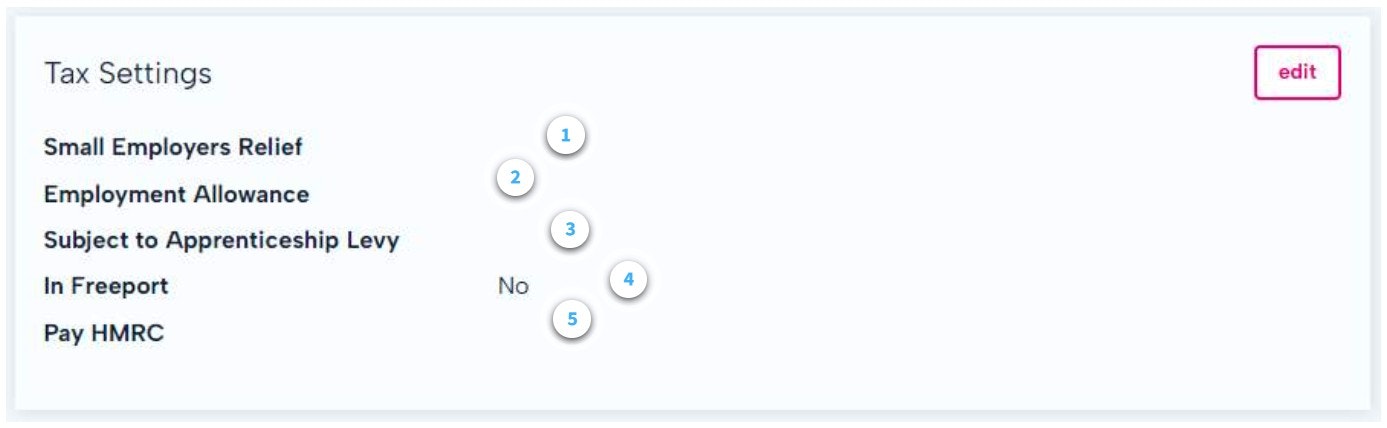
Small Employers Relief - Select this if you are eligible to claim the Small Employers' Relief. This allows qualifying businesses to claim 103% of their employees' statutory payments - including maternity, paternity, adoption, parental bereavement and shared parental pay. You are eligible for this relief if you paid less than £45000 Class 1 National Insurance in the last complete tax year.
Employment Allowance - Select this if you wish to claim Employment Allowance. This allows eligible employers to reduce their annual National Insurance liability by up to £5000.
The claim will be made by selecting this option and generating an Employer Payment Summary (EPS).
You will be eligible as long as the Employers' Class 1 National Insurance liabilities were less than £100,000 in the previous tax year.
- Apprenticeship Levy - Select this if you are required to pay the Apprenticeship Levy.
Employers that are required to pay the levy each month: * Have an annual pay bill of more than £3 million. * Are connected to any companies or charities for Employment Allowance purposes and have a combined annual pay bill of more than £3 million.
You will also be required to enter how much allowance you receive.
In Freeport - Select yes if the company is located in a freeport and is able to apply Freeport NIC relief to new employees.
Pay HMRC - If you usually pay HMRC less than £1,500 per month in PAYE, EEs and ERs National Insurance, you may be able to pay quarterly.
The helpline at HMRC will need to be used for more information.
Other details
Payment File Settings - select the payment file template you wish to use, followed by the payment reference that you wish to be visible to the employees on the transaction.
Email - if you are an existing BrightHR customer, payslips will be available for employees to view on their profile. If you wish to also send these via email, please set the address the email is to come from, accompanied by a display name. This is often set to the company name but it is entirely your choice.
Payslip Note - this enables you to add a piece of text to your employee payslips.
Payslip Settings
Heading over to the 'Company setup' section, you can set up your payslip settings.
Click 'Add Settings' to get started.
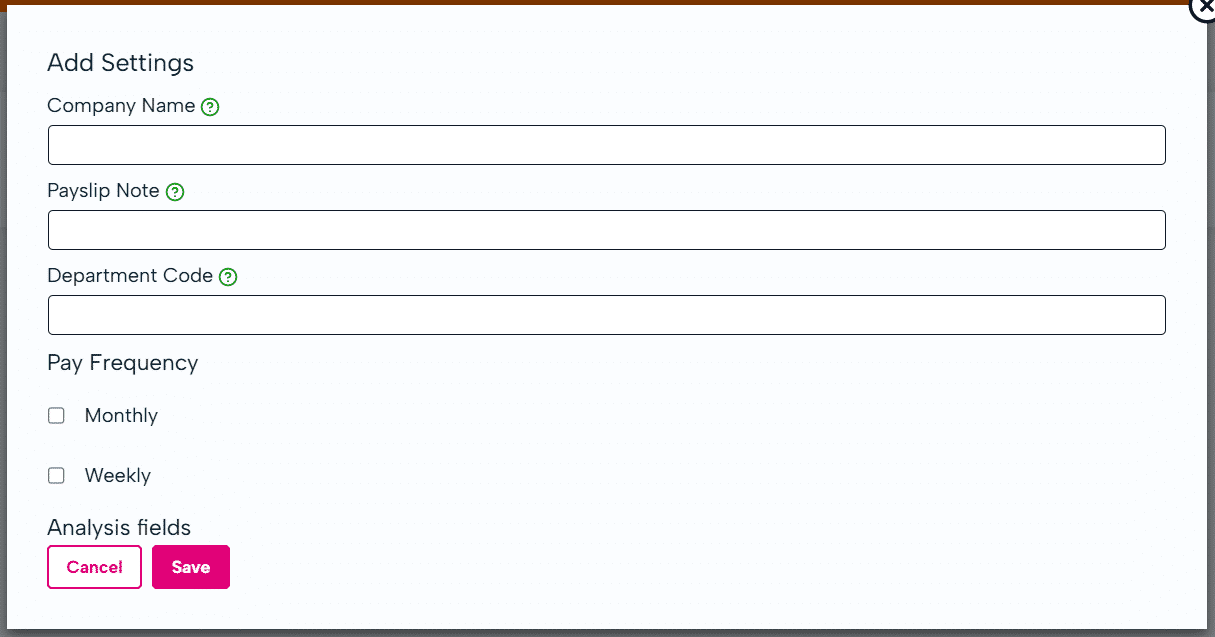
A note to display on all payslips for this company.
The note will included in every payslip, including historic payslips if they are downloaded or emailed again. Once the note is removed it will not be included on any payslips.
Once you have added your payslip settings, you can also add your company logo to your payslips.
Click the the upload icon next to department code to upload your image.

Your employee's payslips will now include your company logo.

Occupational Pay Schemes
Occupational pay schemes (OPS) pay all or part of an employee’s salary during an absence such as sickness or maternity leave
You can configure multiple schemes on BrightHR Payroll to suit different employee contracts specific for your business.
An employee’s entitlement within a scheme depends on their length of service.
You can find the setup of occupational pay schemes in the company settings section. In here, you can add a new scheme.
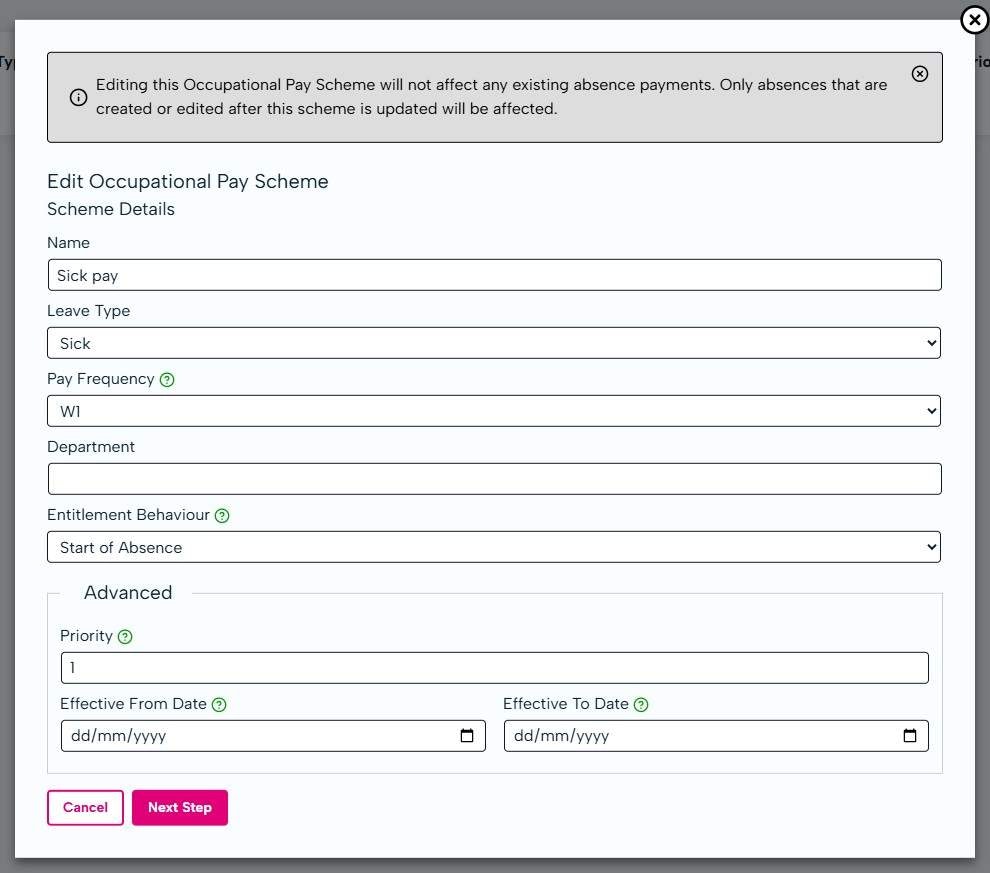
There are 2 steps to setting your scheme, the details and entitlements.
Let's take a look at how to do this:
To setup your scheme you will need to; * Give it a title. * Specify a leave type (i.e sickness). * Select the pay frequency it applies to. * Include the department (if needed). * The entitlement behaviour (either the start of absence or the day of absence).
Start of Absence - For each absence day in the absence period, the length of service is calculated as the number of days between the employee's start date and the first day of the absence period. This means that when an employee takes absence with this behaviour, the entitlement is fixed for the entire absence period.
Day of Absence - Length of service is calculated on each day of the absence period, meaning that the employee's entitlement bracket is evaluated on each absence day. This means that the employee's entitlement is not fixed for the period of the absence.
Advanced settings for scheme details will allow you to set the pay priority, as well as the effective from and to dates.
The above are what is required for the scheme details.