- ...>Timesheets
Timesheet software to help reduce admin
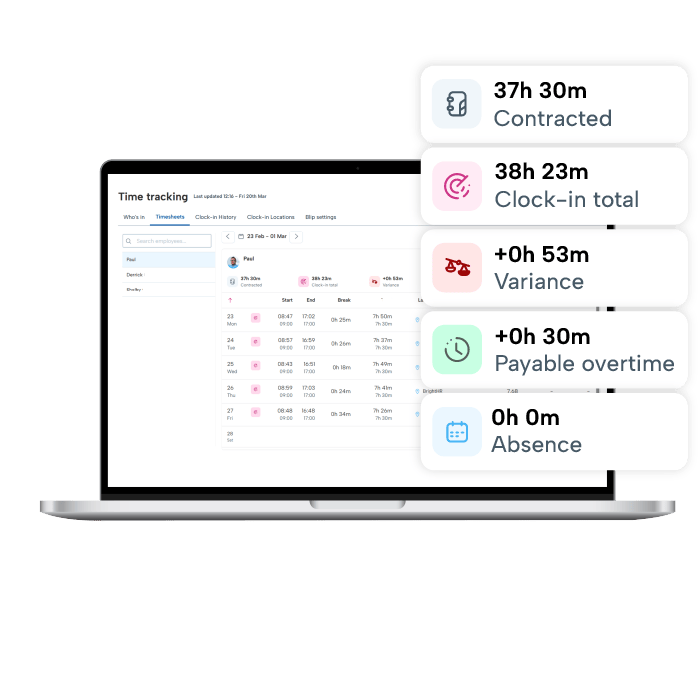
See scheduled hours, actual hours worked, overtime and absences together in a simple online timesheet app.
- Compare scheduled working patterns and rotas vs worked hours
- View overtime and absence records at a glance
- Automatically highlight missing clock-ins
- Export audit-ready payroll data and reports in seconds


Stay compliant with UK employment law
Accurate timesheet records aren't just good practice. They're a legal requirement. Online timesheet software helps you meet Working Time Regulations and keep HMRC-ready records.
- Keep official records of staff hours, breaks, and overtime
- Ensure staff are taking legally required breaks
- Export and save work history for every employee
- Get 24/7 employment law advice from UK-based experts
See timesheet software in action
See timesheet software in action
Easy to use interface, integrated with BrightHR software
Admins and Managers can now instantly see a clear, visual summary of their team’s timesheets. Scheduled hours (from working patterns and rotas) are automatically compared against actual hours recorded through Blip, with variances over a week displayed right on the screen. No more running multiple reports or cross-checking data. Everything you need is in one place, ready for quick action.
- Overtime & absence represented
- Weekly variance calculated for you
- Stay on top of attendance with minimal effort
And with one app for timesheets, leave requests, and absences, employees can take ownership over their working hours:
- View their own timesheets at any time
- Enter start and finish time on mobile
- Record precise work hours and overtime
- Coming soon: Managers can accept or decline timesheets

Simplified timesheets for payroll processing
Prepare payroll faster by exporting timesheet data directly from the online app into your payroll software. Make sure staff are paid accurately for the hours they've worked.
- Export timesheet data in CSV format from Blip
- Automatically calculate overtime hours in exports
- Reduces manual re-keying and payroll errors
- Get CIPP-qualified payroll support included
- Company rounding rules

See your workforce hours clearly before payroll runs
Stop chasing timesheets. Stop cross-checking reports. Start managing time with confidence.
Timesheet software features
Automated timesheet break rules
Calculate breaks automatically with flexible rules that match your company policies:
- Deduct scheduled breaks based on an employee’s working pattern or rota shifts
- Apply a fixed deduction, such as a 60-minute break
- Round break durations up, down or to the nearest increment, such as 5 minutes
Key Benefits:
- More accurate timesheet calculations
- Reduced payroll administration
- Greater flexibility to match company policies
- Improved consistency across employee time records
Explore BrightHR’s time management and payroll tools

Get a real-time view of who's clocked in, out, or on a break with our Blip clocking app.

Create, assign, and edit shifts with ease across any working pattern. Open shifts included.

Sync HR with payroll to streamline your payroll process. Expert advice included.

Manage annual leave requests with ease. Avoid clashes with easy-to-understand reports.

Track overtime hours automatically and control labour costs before they spiral.

Never be understaffed with real-time absence notifications and EAP resources.
Join 120,000+ global businesses that trust BrightHR






Timesheet software for every UK industry

Beauty businesses can accurately record employee hours, monitor attendance and manage payroll for salon, spa and mobile team members with timesheet software.

Manufacturing timesheet software makes it easier to track hours across shifts, sites and production teams, helping businesses maintain accurate attendance and payroll records.
Timesheet software helps healthcare providers track working hours, overtime and attendance across different shifts, locations and employee roles.

Charities and non-profit organisations can record employee and volunteer hours, manage flexible working arrangements and simplify payroll administration with timesheet software.

Transport and logistics timesheet software helps businesses accurately record drivers’ and employees’ working hours across varied shifts, routes and locations.

Construction businesses can track employee and contractor hours across multiple projects and sites, creating accurate records for payroll and job costing. Using Timesheet software enables this.
The use of timesheet software in hospitality helps hotels, restaurants and leisure venues track employee hours, overtime and attendance across changing shifts and seasonal workforces.

Recording working hours, breaks and overtime across retail stores gives businesses accurate information for attendance management and payroll, all within BrightHR timesheet software.

Law firm timesheets help the legal sector accurately record employee working hours, monitor attendance and maintain reliable records for payroll and workforce management.
Insights on Timesheets

Thursday, March 26, 2026
Time tracking for accurate payroll processes

Thursday, August 13, 2026
Industries that benefit from using timesheets
Timesheet software FAQs
Keeping your operations flexible is important. But giving your staff the option of remote or hybrid working patterns can make managing your teams more difficult.
Our time-tracking app—Blip—lets you maintain flexibility with none of the stress. You can opt to create virtual boundaries called geofences around your worksites no matter where they are. Your employees will be auto-alerted to clock in and out whenever they enter or leave the geofenced location. It’s an easy and secure way to help your employees take control of their hours and keep their timesheets accurate.
The Blip time-tracking app is completely free for all BrightHR users.
If you’ve already registered as a BrightHR user, all you need to do is download the Blip app and log in using your BrightHR email address and password. You can set up and onboard your entire team in just a few minutes and then you’re all set!
It's simple and easy! First, just head to the clock in section on the left. From here, you will see a list of users under the 'Who's in' tab divided in to 3 sections, 'Clocked in', 'On break' and 'Clocked out'
You will see underneath the employees names under clocked in the option to clock them in which will then ask you which location you want to clock them in to. To clock a user out, you would simply click 'Clock out' underneath their name.
Please note, you cannot start or end a break and there will be no option to do this.
Yes, you can!
Simply head to the clock ins section and in to the history tab.
Here you will be able to view your employees clock ins and breaks including details of the location they clocked in from, any notes included and any adjustment requests.
You can also make use of our handy filters which allow you to filter by specific employees / teams, clock in locations as well as completed clock ins and/or including notes.
Yes, you can!
Simply head in to the settings tab of Clock-ins where you will find 'Timesheet rules'.
Now click 'Create new rule'. Start by giving it a name and the date you want the rule to be effective from.
You will now see the options below for start time rules and end time rules. There are two options you can apply, either 'Clip to shift' or 'Rounding'.
Clip to shift will automatically round up or down to the start or end time of their shift on a working time pattern or rota. The rounding option allows you to set a specific amount of time to round up or down - for example the nearest 5 minutes, 10, 15 etc. Please note there is a max limit of 30 minutes for the rounding option.
You will also be given options around breaks. The options include a scheduled break based on a working pattern or rota, a fixed break with a duration of your choosing and a rounding rule. The rounding rule, mimics the same behaviour as the shifts rounding rule and will allow you to round up, down or to the nearest increment you select.
Once you have set the rules, select who you want to apply it to and then create the rule.
This rule will then be applied to any clock ins after the effective date.