- ...>Completing your pay run (Managed service payroll)
Completing your pay run (Managed service payroll)
This guide explains how Managed Service Payroll completes your pay run, including approvals, calculations, reporting, payslips, and post‑run checks to ensure accuracy and compliance.
Completing your Pay Run
Next, you'll be taught about what comes at the end of your pay run and how to bring the process to completion.
The following sections will take you through locked pay runs and exceptions as well as documents used for additional payments.
Locked Pay Runs & Exceptions
When cut off point arrives for your pay period, this helps you balance and reconcile your payroll data, BrightHR Payroll does this for you! But there are exceptions...
What is a Locked Pay Run?
A locked pay run would essentially allow you to temporarily freeze any further HR data in order to run and reconcile your payroll.
This would tend to coincide with your cut off date.
Can I Choose when to Lock my Pay Run?
We would manage this for you, this is the beauty of having a payroll team at your disposal. We will also include the date we plan to lock the pay run on your schedule so you know when you need to get any updates included by.
What does it mean for Adding Changes when a Pay Run is Locked?
When your pay run is locked, it will stop changes or updates being processed but this doesn't mean they can't go through at all.
You can make changes or updates through BrightHR or through direct contact with our team which can be processed as "exceptions".
What are Payroll Exceptions?
Payroll exceptions allow you to keep track of any amendments made to BrightHR whilst payroll is locked. The aim of this is avoid data continually flowing through and changing the payroll process.
Processing Exceptions
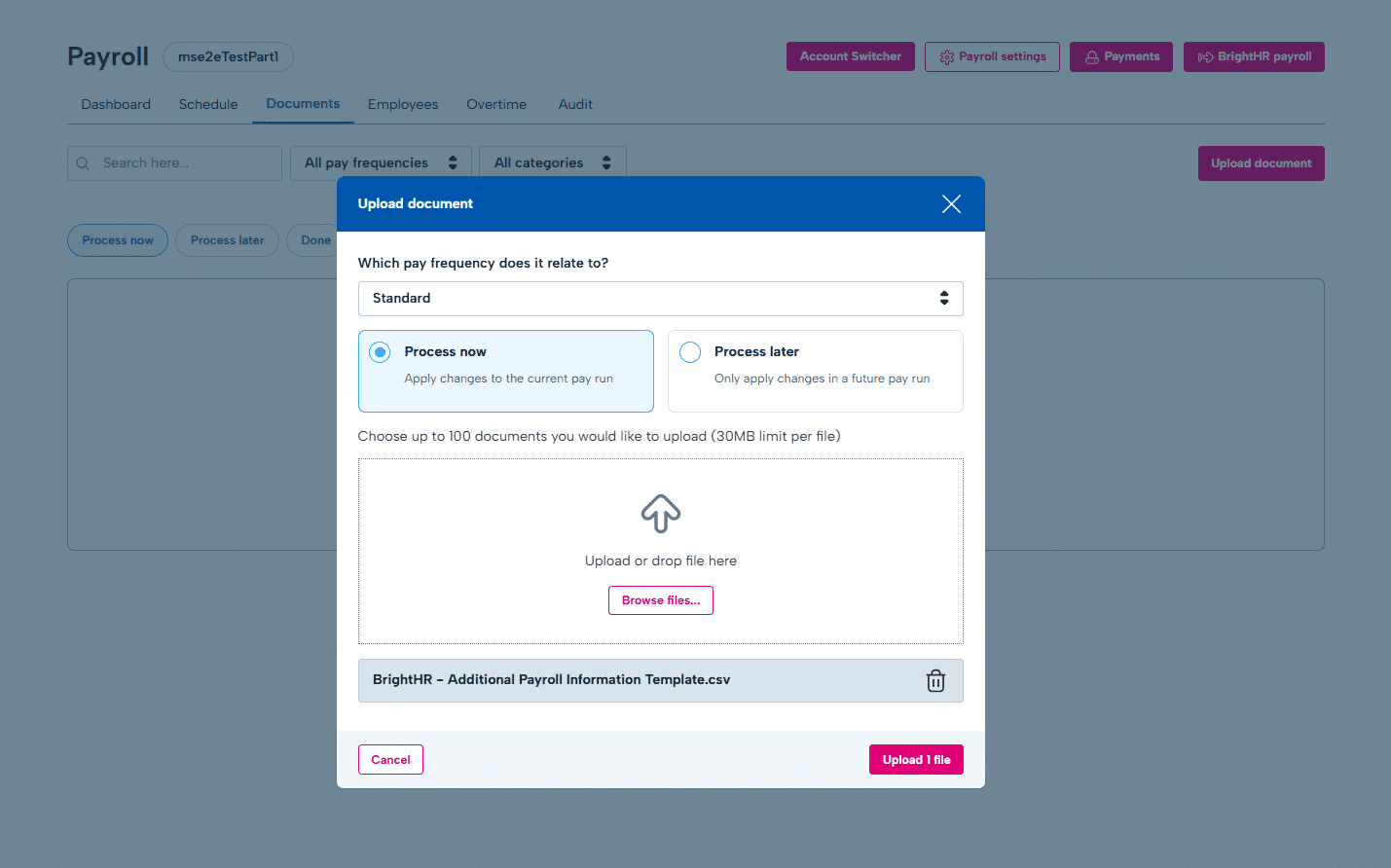
From your point of view, all you need to do to request an exception is make the change on BrightHR or if this is not possible submit an Additional payroll information sheet which a template can be found in the documents section.
The payroll team will then confirm if the exception can be run before payments are made.
Examples of Exceptions Recorded through BrightHR
Below are some examples of things that can be updated in BrightHR and will process an exception on your pay run.
These are some of the changes that can be made through BrightHR.
Changes to be Added to the Template
Additional information or certain details that cannot be recorded on BrightHR will need to be added to an Additional payroll information sheet and uploaded for our team to review. A template to help you can be found in the templates section of documents.
This could include thigs like:
If you're unsure if you should add to BrightHR or the template, review the template to see if the information is available to fill in, if it is, use the template.
Next Step
Locked pay runs and exceptions are a big step towards completing your pay run. Next let's take a look at what document features can help us get to that last step...
Uploading Documents Needed for Completion
We will now take a look at documents that're required to help us accurately complete your payroll as well as things you can access and expect from us.
What Documents do I need to Upload?
Documents you upload to BrightHR Payroll can be anything that can support or change your payroll.
This can range from documents supporting company benefits or pension detail changes to supporting documents for statutory absences such as a MATB1 form.
What Happens when I have Uploaded the Document?
Once you upload your supporting document, this will be available for our payroll team to review and process the information on the document.
Once the document is reviewed and the team have processed the details, the document will be marked as processed in the done tab to confirm it has been reviewed and actioned.
What do the Document Tabs mean on BrightHR Payroll?
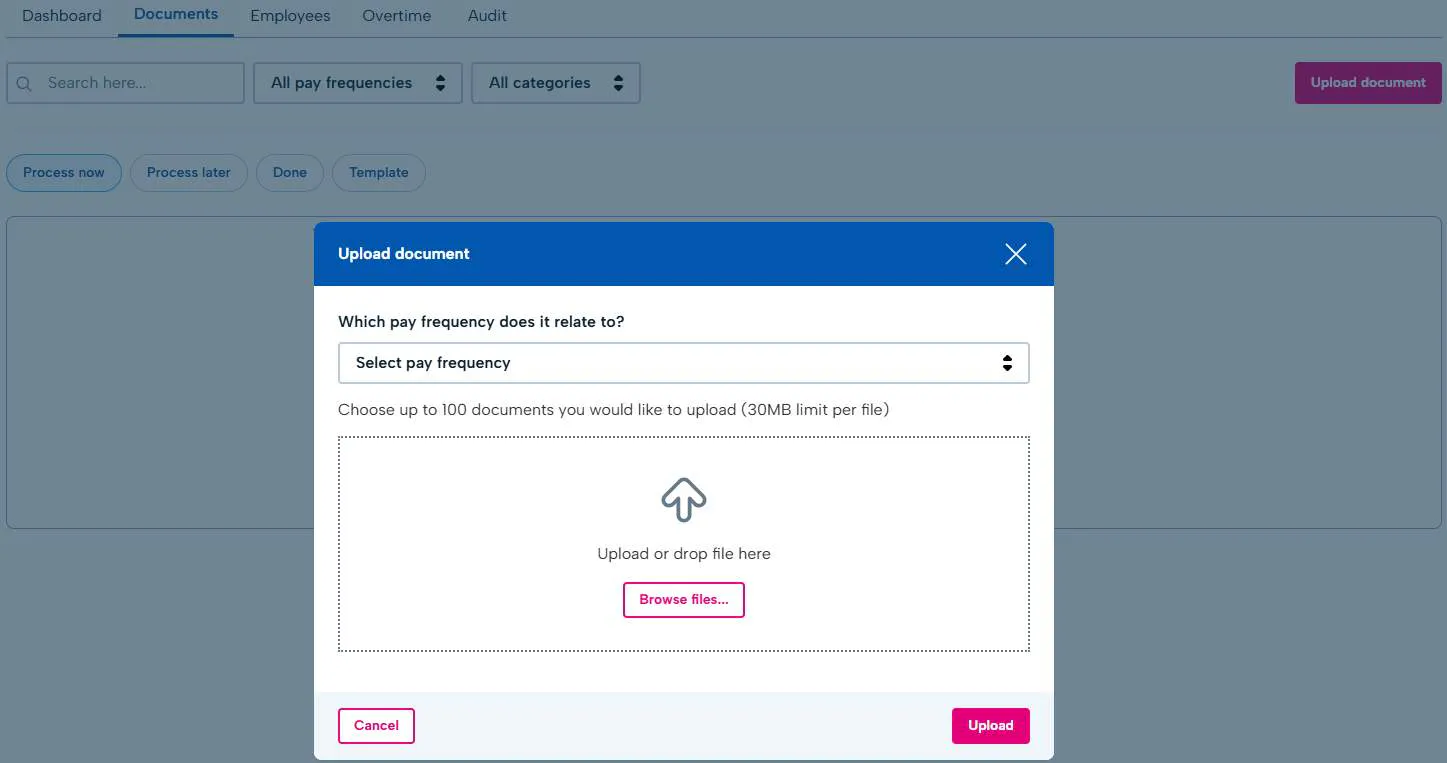
This is where you can upload documents for the team to review and process and will be the first step.
Select the pay frequency it applies to, browse for and select the document to upload.
You can upload up to 100 documents at a time with a maximum file size of 30mb.