- ...>Everything you need to know about syncing your employees from BrightHR to Payroll
Everything you need to know about syncing your employees from BrightHR to Payroll
BrightHR’s syncing guide explains how employee data transfers from HR to Payroll, covering required fields, eligibility checks, troubleshooting, and ensuring accurate, compliant payroll processing.
Sync your new & Existing Employees from BrightHR
In this section, we will learn all about how easy BrightHR makes synchronising your employee information from one platform to the other in a few simple steps, taking all the admin work out of your hands!
Setting up your Employees on BrightHR
The first step for not only your Payroll solution, but your HR platform too is to create your employee profiles on BrightHR. This will allow them to use the HR system and once set up correctly, be eligible to synchronise over to BrightHR Payroll.
You'll need to have these details for your employees to hand: * Start date. * Email address. * Working hours.
Watch the how to video below to see how to set up your staff on BrightHR...
Synchronising Employees to Payroll
Whether you are an existing BrightHR customer and are new to payroll, or joining BrightHR for the first time for both of our services, you'll need to sync your employees across to payroll.
There is, however, a minimum amount of information required before this can happen, which we will look at in more depth below.
Missing Information
The employee data required to be completed for payroll purposes will be highlighted within the Payroll section of BrightHR. You will see a tab for 'Missing Information'.
There are three areas that will need to be fully completed before an employee can become eligible.

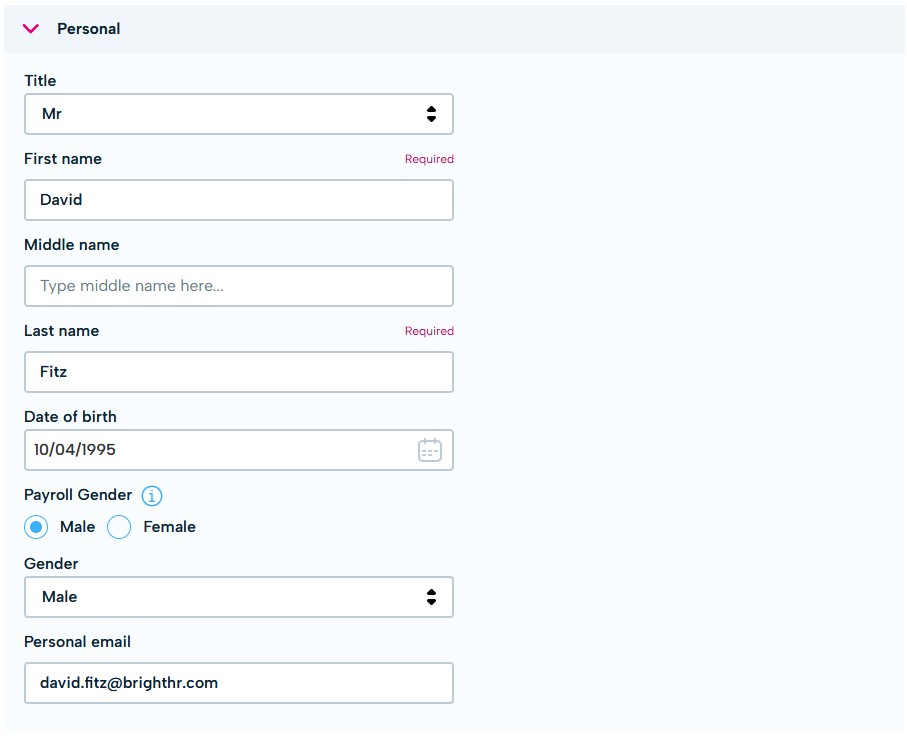
Personal information are the basic details needed to populate their profiles. The personal email is needed if you decide to send their payslips via email - you will be able to upload this directly in to their BrightHR profiles.
Eligible Employee Synchronisation
With the missing information now complete for employees that may have appeared, you'll notice their records automatically move to the 'Eligible' status.
It is here that your employees can finally be added to payroll. This section is multi-select (ie can select more than one record), or, alternatively, employees can be added one by one - entirely your choice.
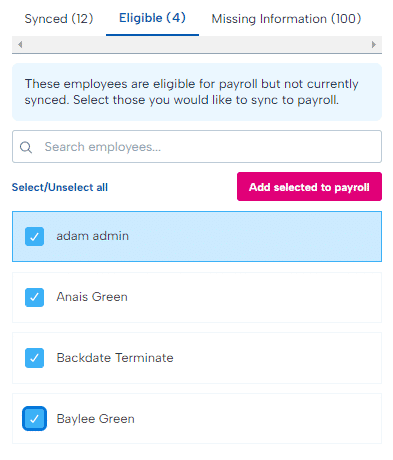
Click 'Add selected to payroll' to complete the process.
The employees will now appear in the 'Synced' tab. This confirms that the integration was successful and they've been added to payroll.
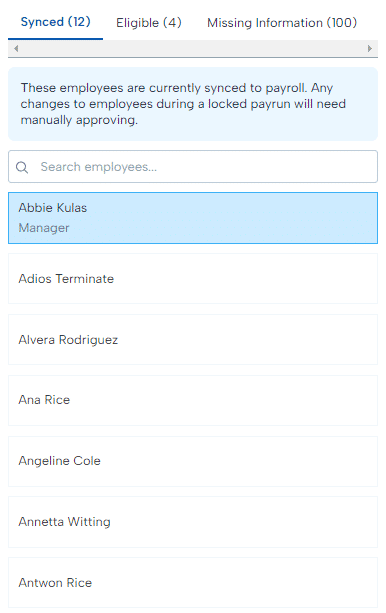
The employees will now be added to the BrightHR Payroll list of employees, and if applicable, be present in the active pay-run.
Multiple PAYE References
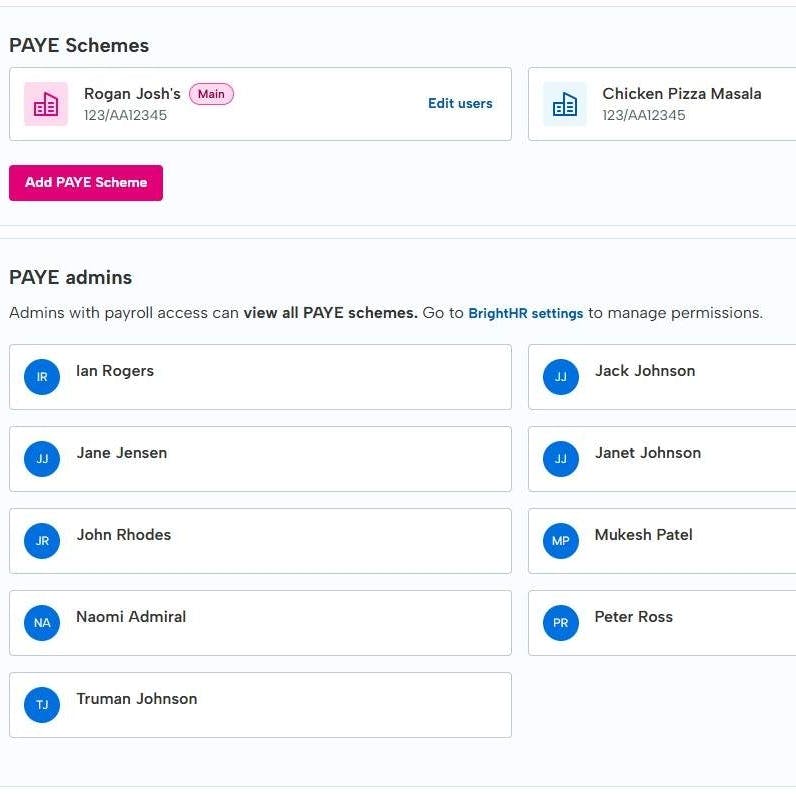
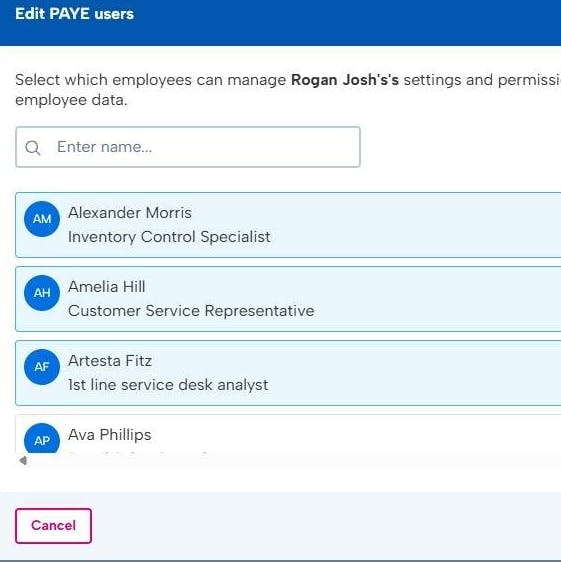
If your company has multiple PAYE references and these have been added by your payroll administrator, you will need to first assign the employees to the correct reference before synchronisation in order for the employees to appear in your eligible employees list.
New Starters
Adding new Starters with a P45
The employee synchronisation process is the same whether you have existing employees or new starters - however there are additional payroll details that need to be completed when they are added to payroll.
If a P45 is provided as part of the onboarding of the new employee, then the relevant figures will be needed: * Date employee left their previous employment * Tax code in previous employment * Week 1 / Month 1 - Tick this if there is an X in the box next to the Week 1 / Month 1 * Previous Employment Taxable Gross * Previous Employment Tax
If they give you a P45 where their employment ended in the previous tax year you will only be asked to add: * Date employee left their previous employment. * Tax code in previous employment. * Week 1 / Month 1 - Tick this if there is an X in the box next to the Week 1 / Month 1.
Using a new Starter Checklist - no P45
HMRC provide a starter checklist which gathers all the required information from an employee so that their details can be entered into a payroll software.
There are a few reasons why the HMRC Starter Checklist should be used: * A new starter does not have a P45. * A new starter has a P45 but it was from a previous tax year. * The new starter has a P45 but information has changed such as an address. * A new starter has a student or postgraduate loan. The P45 does not show which type of student loan it is.
The form can be completed online or a printed copy can be given to the employee.
How to Add Information from a P45 or a Starter Checklist
Once you have these to hand, you can update the information via the employee profile on BrightHR Payroll. Head to employees and then select the employee you want to update this for.
You will then see several sections you can edit using the edit button to the right of each section.
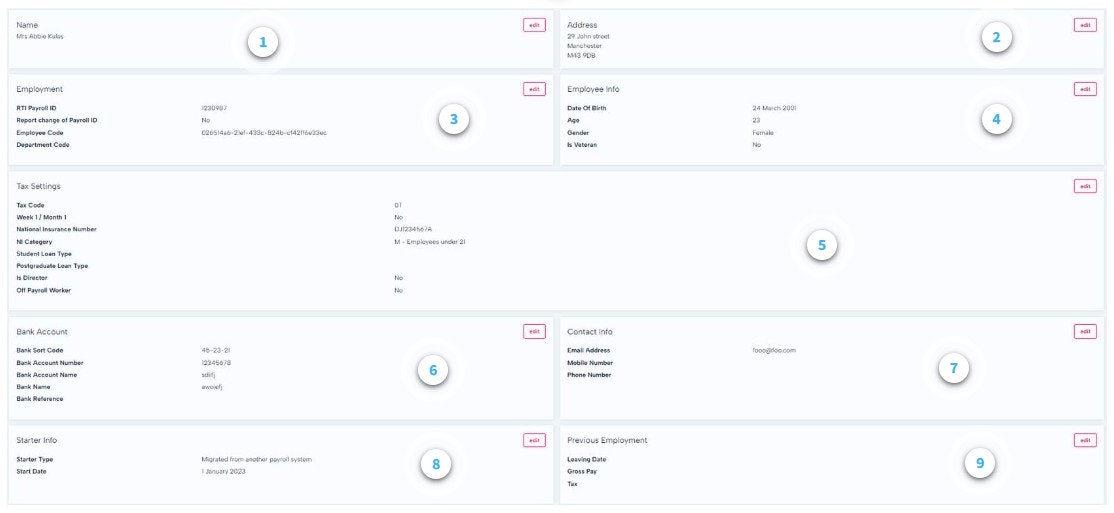
Name - This can be changed here but will be pulled from BrightHR.
Address details - Address details can be edited here but are pulled directly from BrightHR.
Employment
RTI payroll ID - this would be your Payroll number integrated from BrightHR
Employee code - An internal reference you can use to identify an employee group.
Department code - An internal reference that can be used to identify departments (This is used in your payroll journal)
Employee info - Date of birth, age and gender will be pulled from BrightHR.
Tax code - Click here for help finding this.
Week 1/Month 1 - select this if there is an X in the box next to the Week 1 / Month 1 on the P45 or new starter checklist
National insurance number - this is integrated from BrightHR.
NI category - Find this on the P45 or new starter checklist.
Student/post graduate loan type - Find this on the P45 or new starter checklist.
Off Payroll Worker - Off-payroll working essentially refers to any relationship between a worker and a client other than employment. Most often, this involves an intermediary between the worker and the client/end user. Click here for more details.
Bank account - Bank details will be integrated from BrightHR but can be edited here.
Contact details - Contact details will be integrated from BrightHR but can be edited here.
Starter info - Details about whether the employee was migrated and their start date.
Previous employment
Leaving date -the date they left their previous employment.
Gross pay - the gross pay from their previous employment.
Tax - found on their P45.