- ...>Everything you need to know about your first pay run (Managed service payroll)
Everything you need to know about your first pay run (Managed service payroll)
This guide explains how BrightHR’s Managed Service Payroll handles your first pay run, including data checks, approvals, deadlines, reporting, and what to expect during onboarding.
Everything you need to know about your First Pay Run
In this handy course you'll be guided through the process of what to expect with your first pay run with our managed service process.
The following sections will take you through getting started, how to make the most of your payroll schedule and how you can easily manage absences, overtime and other types of payments.
How to get Started on your First Pay Run
After onboarding and completing your account setup, you can now move on to your first pay run with BrightHR Payroll...
What do I need to do to get Started?
The best part about BrightHR Payroll is that we do all the work for you and there are only a few steps you need to take to help us along the way.
Using the details you provided to us during onboarding, we will start your first pay run automatically.
We will start your payroll and provide a schedule of how you should expect things to flow, when approval as expected etc.
We will need your input for ad hoc payments or exceptions such as overtime or variable payments which we will cover in more detail in this guide.
How your Payroll looks from Start to Finish
Next Step
Now we know what to do first and a general look at what to expect, let's look at how your schedule can help the payroll team keep you engaged with the timeline of events for your pay run.
All about your Payroll Schedule
Payroll schedules keep you up to date with how your pay run will operate and when things are due. Making sure you don't miss a thing!
How does it Work?
Your payroll schedule will allow our team to communicate a timeline of events so you can keep track of the progress and any requirements that need to be fulfilled in order to complete your pay run.
It helps you keep track of our progress as well prepare your for deadlines for approvals, exceptions and ad hoc payments.
Let's take a look at each section of the schedule and break things down...
The first entry within the schedule will be the date the pay run will be auto-locked which refers to the cut off date provided during setup.
After the pay run is locked, any changes would need to be processed as exceptions or processed in the next pay run.

Your schedule will be a great tool to help you keep on track with your pay run and ensure deadlines are met to make your pay runs accurate and on time.
If you have any issues or questions about your schedule, please contact the payroll team.
Next Step
We know all about the schedule and how this keeps us on track from the payroll end, but what about HR? Let's take a look at how you can manage things like absences and overtime to feed this data to the payroll engine.
Managing Absence, Overtime & Variable Payments
Next, let's take a look at how we manage sickness, overtime and statutory payments during an active pay run.
Your BrightHR platform makes it easy to log absences which will pull through to the payroll engine this includes sickness and statutory payments such as maternity leave.
As well as absence, you can record payable overtime which can be pushed through as exceptions and processed by our team.
All you have to do is use our award winning HR platform to record these updates!
Sickness, Statutory Absences & More
Any unexpected absences or indeed statutory absences can all be managed through BrightHR and included in your pay run.
Absences added before the cut off date will be processed normally and anything added after the cut off date will be processed as exceptions which our team can approve and adjust accordingly.
How do I add Absences to BrightHR?
See each absence type below and how to add them via BrightHR...
If you need help with adding absences on BrightHR, watch our how to videos below which will show you how to add normal absences and sickness.
Payable Overtime
Payable overtime can be added via BrightHR just like absences however, you can give access for the employees to log the overtime so that you only need to approve the logged overtime which will pull through in to payroll.
Again just like with absence, all it needs is to be added on the system for it to then pull through to payroll, again if logged after cut off it will be pushed as an exception.
You can also select the pay rate for payable overtime, whether normal time, half time, double time etc. which will increase the number of hours for the overtime length to reflect this in their pay.

Once paid overtime is added this will sync with the payroll engine automatically.
Access our how to video below to see this in action...
Variable Hours Payments
Staff members on a variable contract who may not work the same shift pattern will need to manually entered in to the payroll engine using the variable hours feature.
This will only apply to users on the variable profile type on BrightHR which means the system does not know the exact days or hours they work each week.
Then head in to the 'Variable hours' tab and in here you will see each of your variable profile employees.
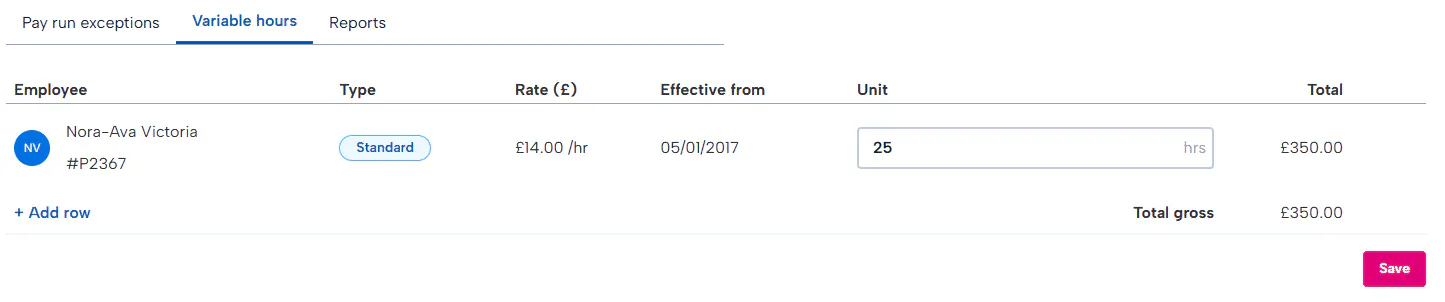
You can now start to add their working hours. Simply enter the number of hours they have worked over this pay period and the payroll engine will calculate based on their hourly rate on BrightHR.
What's Next?
HR sorted! Now we can look to see how we complete our pay run and make it to the finish line of your first pay run with BrightHR Payroll.