- ...>Pension Outputs, Payroll Journals & General Reporting
Pension Outputs, Payroll Journals & General Reporting
This guide covers payroll reporting in BrightHR, including pension output files, payroll journals, and how to generate and export key reports for compliance and accounting.
Pension Outputs, Payroll Journals & General Reporting
In this lesson, we will learn about setting up payroll journals, exporting pension contribution data, and general reporting on BrightHR Payroll.
Setting up your Payroll Journal
Payroll journals are generally used within a business to account for employee salary and oncosts (NI and pension).
Configuring your Payroll Journal
After configuring your journal for the first time, the software will hold the requirement to alleviate you from having to allocate nominal codes etc for each pay period.
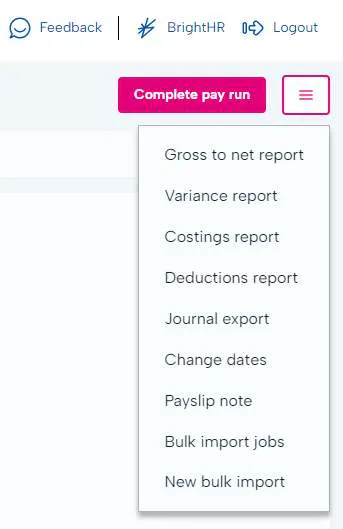
To get started, select 'Journal export' within the pay-run.
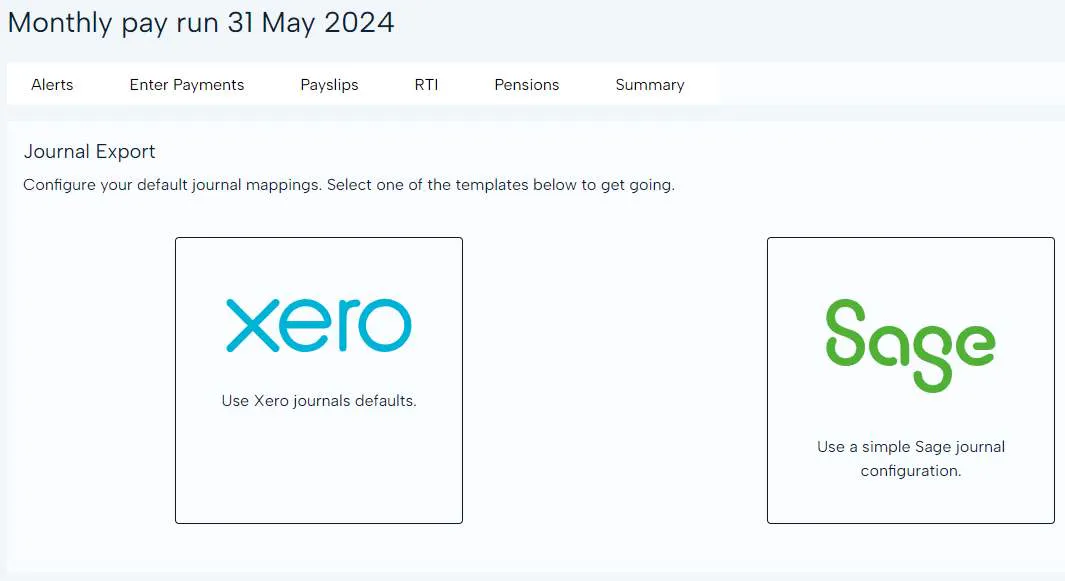
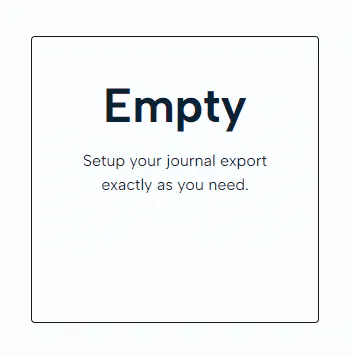
Next, you will need to select the format you wish to export your in. There are 3 format options to choose from: * Xero. * Sage. * Empty (this enables you to create your journal based on your existing accounting software and chart of accounts).
Next, you will need to select the format you wish to export your in. There are 3 options, a format friendly with the Xero software, Sage software and an 'Empty' option to allow you to manage your own format of the journal.
Dependent on the option you select, there will be a number of fields to complete. Please note, they will be pre-populated for Xero and Sage.
You can add rules in to create variations in nominal codes, employee department codes and cost codes for each credit and debit type.
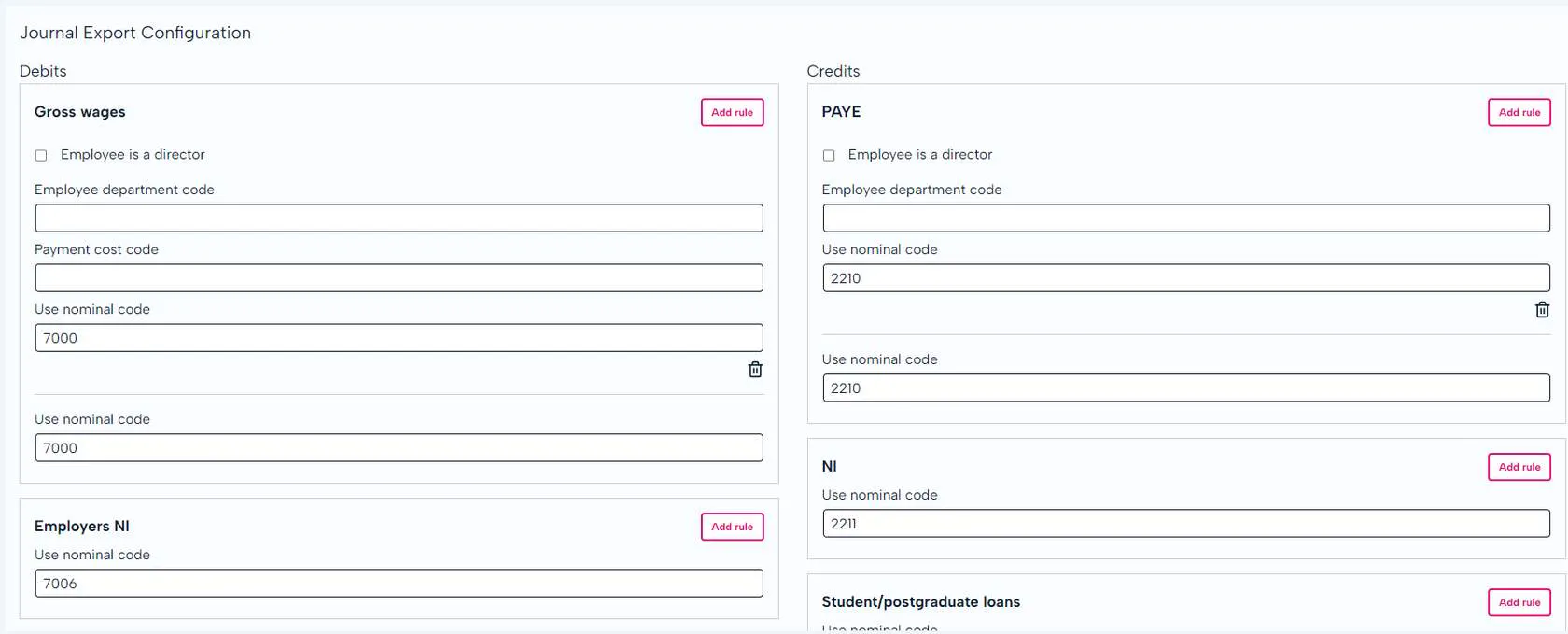
Once set up, this will be used for all journals but can be configured again in the next pay run.
Pension Outputs, Payroll Journals & General Reporting
Reporting is an important part of payroll. This not only helps ensuring the process is as accurate as possible, but also ensures efficiencies within employee data. and finance related data for payroll journals.
Pension Outputs
Now your pay-run has been completed, your pension return will follow.
You will be able to export a report from within the pay run itself, under the "Pensions" tab.
First of all, click the 'Download contribution file' button and this will generate the file and save in your downloads.
Do not open the CSV. This will change formatting of the file and cause it to be rejected when you upload it to your pension provider.
If you do open the file accidentally, do not save over it.
Pension Enrolment Draft Letters
BrightHR payroll give you the ability to send enrolment related emails all from within the system, a similar process to how payslips are sent.


In company settings, you will find communication templates.


You can access 3 types of draft templates, Pension enrolled, Pension not enrolled and Pension postponed.


You can adjust the templates wording that is sent to employees.
Payroll Journals
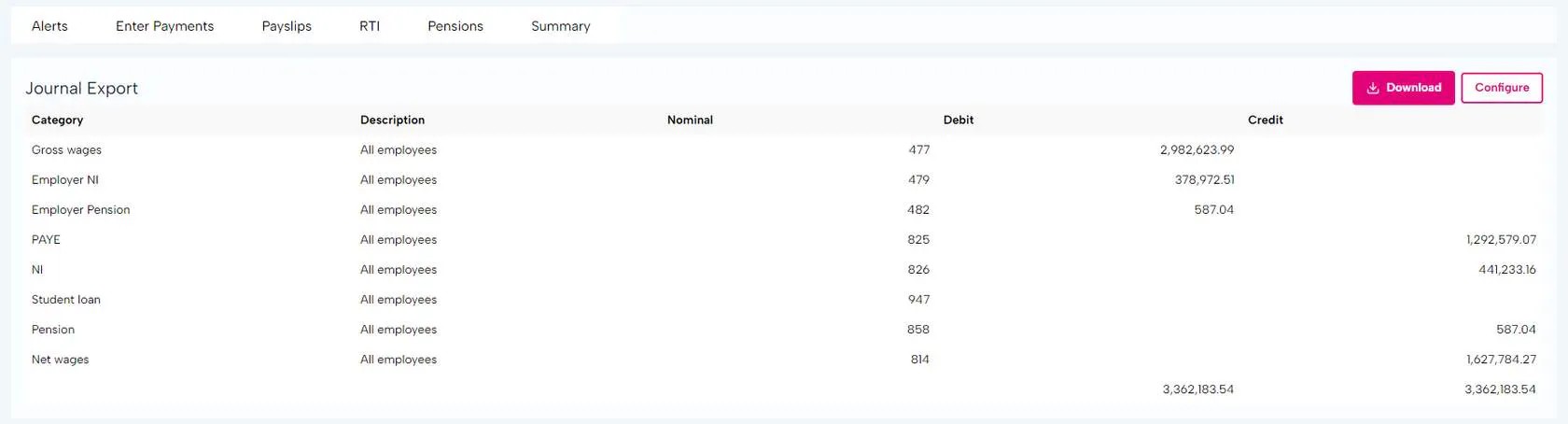
Once you have completed your pay run, BrightHR will allow you to create a payroll journal and export this.
If you have already completed your configuration, you can then download the export or if it's not quite right, you can configure it again.
You can access and export your journal via the pay run by selecting the button with the 3 lines and selecting 'Export journal' from the list. Click 'Download' to save a copy of your journal or if you need to change the configuration, click 'Configure'.
Payroll Reporting
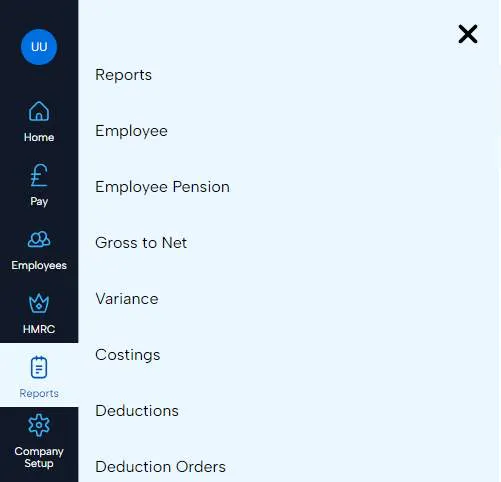
There are various reports that can be run for each of your pay-runs. These can be found by selecting the 'Reports' button on the top right of the window.
It is advised that you use these reports as part of your payroll processes to ensure everything is compliant and accurate.
Shows all employees pay details for the current pay run.
Employee Reporting
Each employee has their own individual profile and as such will require individual reporting. Head to an employees profile where you can find their specific details as well as their reporting options.
For each employee, you can download a P11 report that shows their gross pay, tax and NI paid with a breakdown for each week or month in one file.
Company Reports
The company reports are located in the 'Reports' section and will allow you to run all of the reports available through pay runs and other reports such as employee reports and deduction orders.
Year to Date Reports
Year to date reports allow you to view and pull reports for specific pieces of information for the current tax year.
- Tax year to date tax details.
- Tax year to date National insurance (NI) both EE and ER contribution details.
- Tax year to date Statutory payments claimed by employees.
- Tax year to date pensions both EE and ER contribution details.
- Tax year to date pay rolled benefits report.
Employee Reports
- Employee report - this will allow you to run a basic report to include the employee details such as their personal details, tax details such as tax code and more.
- Employee pension report - this report will give you a summary of each employees pension details for example, if they're enrolled in to a pension, the contribution amount, opt in date etc.
Deduction Orders Report
A deduction order report will pull the details of any deduction orders applied to an employee such as an attachment of earnings. This includes things like; the type of deduction order, the amount, the account details the deduction is to be paid to etc.
P32 Employer Payment Report
A P32 is the Employer Payment Report and is a summary of the payments you need to make to HMRC. This can include tax and national insurance deducted from employees, employer's national insurance, apprenticeship levy, any CIS suffered (if applicable) and any credits applied if you are eligible for the employment allowance.
