- ...>What are the steps to complete your payroll year end
What are the steps to complete your payroll year end
This guide walks employers through completing payroll year end, including final submissions, P60 distribution, tax updates, and preparing payroll for the new financial year.
Learn how:
Steps to Complete at Year End
In this handy course you'll be guided through the process of completing the year end of your payroll on Bright Payroll.
What are the Steps to Complete Year End?
Year end becomes available once you have completed all pay runs for the year and is available towards the end of March to enable you to get ready for the new tax year on the 6th of April.
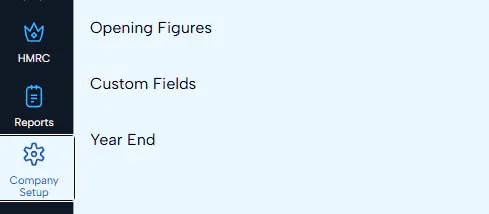
When you're ready to complete the year end, you will see a box on your home screen or you can simply access the 'Year end' section via the 'Company setup' option.
Make sure you have submitted all your FPS and EPS for the year as once you run year end, you will be sending an EPS to HMRC to indicate you are finished for the current tax year.
If you later need to correct errors in your payroll after your final EPS submission, you can send an Additional Full Payment Submission.
Processing Year End
Migrate Tax Codes
For the start of a new tax year, tax codes are changed and the W1/M1 flag needs to be removed. Here is where you will make the changes and apply them to your employees in one go.

Sometimes HMRC issues a P9 tax code notice for an employee where there is a difference from the current year. For example, an employee may have been on a lower tax code but for the new year will be on the standard tax code.
If you have set up your HMRC account to receive tax code notices online, the year end process will check for any P9 notices and apply them.
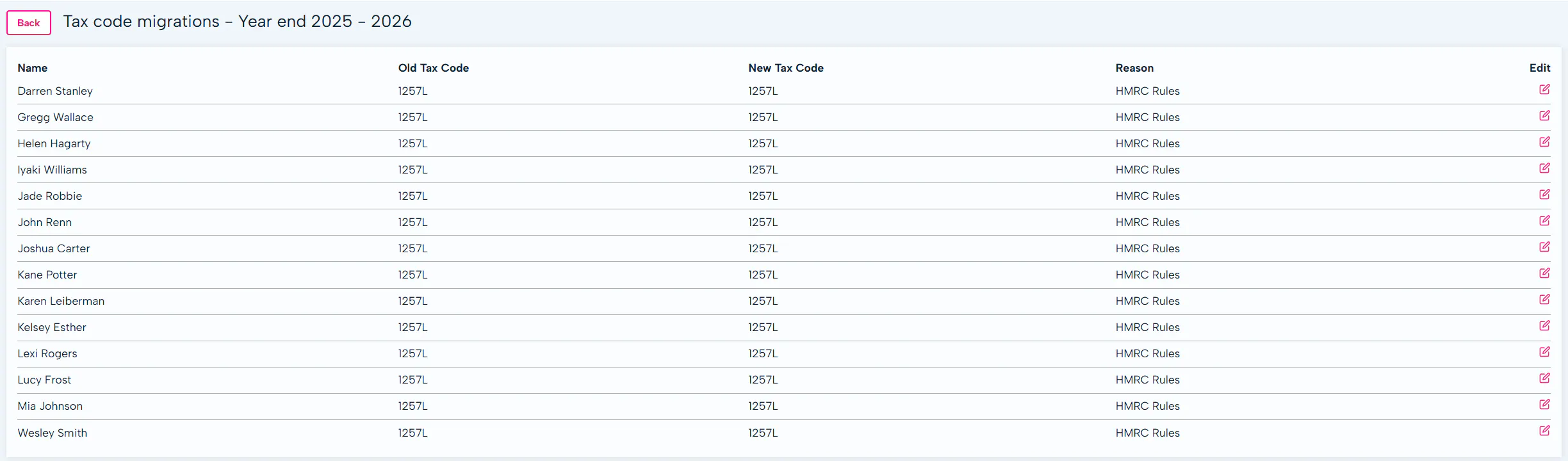
Once applied you can review all the tax code changes and edit if necessary.
Issue P60s to your Employees
This is for all employees who are working for you on the last day of the tax year (5 April).
The P60 summarises an employee's total pay and deductions for the year.

A P60 needs to be issued to your employees by 31st May.
Head in to the 'Issue P60s' section first of all where you see the options to:
We use a HMRC approved "substitute" P60. This can be printed on a blank sheet of paper.
P60's can be accessed in the pay document folders on their BrightHR account.
Create an EPS Final Submission
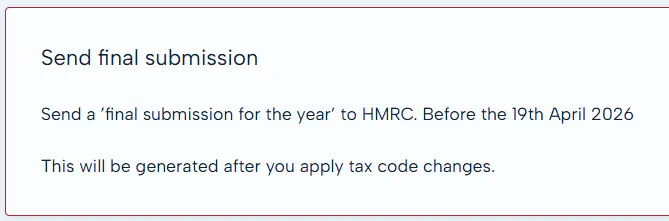
This submission will tell HMRC that you are finished with this tax year and not to expect any more submissions. Needs to be submitted to HMRC by 19th April.
You can submit this after you have applied any tax code changes.