- ...>Get more out of BrightHR with our app - Employee
Get more out of BrightHR with our app - Employee
A guide for employees on using the BrightHR app to request leave, view rotas, clock in, access documents, update details, and stay connected with workplace updates.
Get more out of BrightHR with our app
In this handy course you'll be guided through the process of getting the most out of your BrightHR app, all with our easy to follow step-by-step guide.
Getting Started
Getting Anywhere, Anytime access
We know your time is important to you, that's why the BrightHR software is available to you 24/7 365 days a year. Not only can you access the software anytime using our website, we've also created a handy mobile app so that you can access this software from anywhere!
Just head over to your app store to download this for free and login using your BrightHR email address and password.
On the app you'll be able to:
- View any of your upcoming shifts and rota's.
- Request absences on the go and see real time updates to entitlement.
- View and update personal and emergency information.
- Praise your colleagues for their hard work.
- View your overtime summary to see what's due to be paid or what you can take as TOIL.
- Access your documents that you or your employer have uploaded or even upload them right from in the app.
Your Information & Absences
Your info on the go
A well as using our website to add, edit or view your personal and emergency information you can also use our handy mobile app to do this anywhere, anytime.
Adding Personal information
Just head to the personal section of your profile, using the app, to add an emergency contact and update your personal details.
Want to check your contracted hours? Just select 'Employment' to find this out.
In this section, you'll find all the contractual and employment information that's been stored for you. Now you'll always have this information to hand, wherever and whenever you need it!

Working Status
Along with being able to set a status through the BrightHR website you can also set this through your app with just a few quick taps. Just tap the pencil icon in your profile to add, update or edit the working status set.
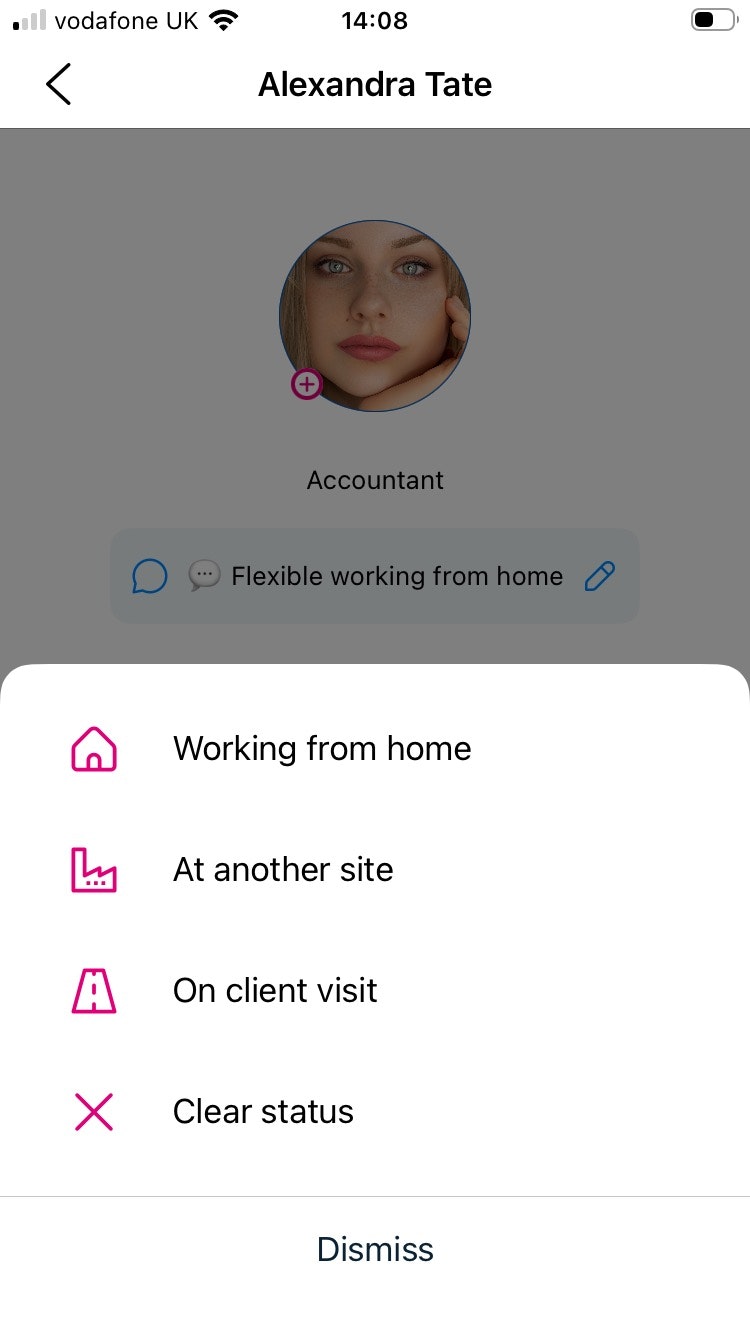
Now you know how, login to your app and set your status.
Now you know how the app can help you view your info anywhere at anytime, let's learn about requesting absences in a few taps through our app.

Absence Requests in a Tap
Want all the great features of our absence management software but in an app? Well, that's what we've done!
You can do just about everything on the app, from checking your calendar to requesting a holiday. Just download it from your app store to get the most out of BrightHR.
Absence Requests
We know you aren't always at your desk when you want to request an absence. That's why we've put together our app!
Requesting absences on the app is easy, just tap the plus at the bottom of your app to get started. You can then select the type of absence you'd like to request, the date range of it and add any notes. Simple!
Follow this step by step guide to requesting absences on the app.


To get started, simply tap the plus button to begin requesting an absence.


Select which type of request you are making either an absence, using TOIL to book an absence or logging overtime worked. Please note, these options may not be available as this is subject to your employers activation.


Choose what absence type your request applies to and if the option isn't available, maybe try using the 'Other' option.
Please note, only annual leave requests will affect your entitlement which will deduct as soon as you request it.


Now select a start date and an end date for your absence and if it is just one day, just select that day.


You can tailor if you want half a day on the first and last absence or specific hours if you are set up in hours.

Review the details you have chosen are correct you can also view any conflicts below.

If there are any conflicts within your team for the dates you're requesting, tap the conflict box to view specific details.

Tap the tick icon in the pink circle to send your request off to your manager and await a decision on approval. You can also see a snap-shot of any other absences for the current leave year.
Now you know how to request absence whenever and wherever you need to all from the palm of your hands!
Viewing your Calendar
On the app you'll have a 'Planner' section along the bottom. This is where you can view your team's absences.
In your planner, you'll see a detailed breakdown of all your team's absences for today, including the date range.
You can also view upcoming absences in the next 7 days by selecting the '7 days' tab along the top.
Or you can select a custom date range to view absence information for, using the 'Choose dates' option along the top.

Annual leave countdown widget
Want to see how long away your absence is and its status all from your home screen? why not try our annual leave widget. This gives you the opportunity to add a widget to your devices home screen showing the amount of days left until your absence as well as the status of it (Approved/Declined/Pending)
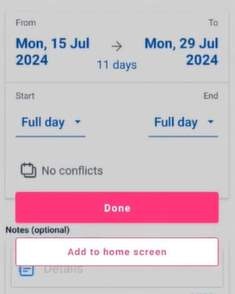
Just simply tap 'Add to home screen' once you've added your absence to add the widget to your devices home screen, simple as that!
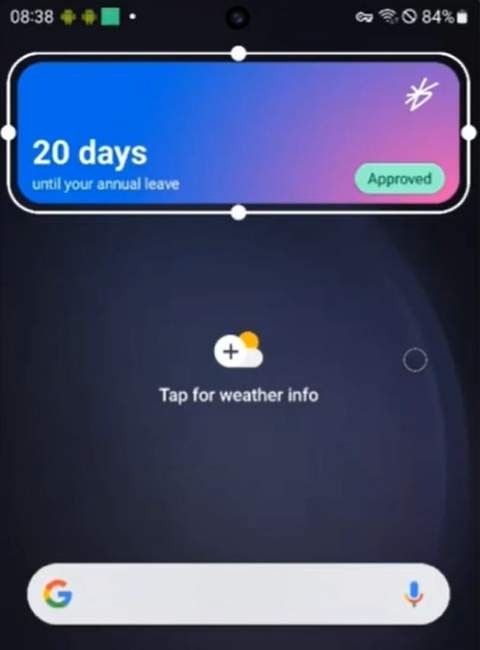
Next, let's take a look at how you can manage, log overtime worked and request absences using TOIL all through the BrightHR app.

Overtime overview
Now we have seen how you can request your absences with a few taps, lets learn how to log your overtime, keep track of whether it has been paid to you and book time of using TOIL.
Logging Overtime just got Easier!
For your convenience, easily log your overtime for approval in a few simple steps right from your phone as well as an overview of what paid requests you have made and they're status if already paid or waiting to be.
- Select your overtime reward - either payable or TOIL (Time off in lieu).
- See real-time updates when your payable overtime is marked as paid or the date you expect to receive your payment.
- Keep track of your TOIL balance or payable overtime amount with a total overview showing TOIL accrued and payable overtime paid/to be paid.
- Select your hourly rate for payable overtime - time and a quarter, time and a half, double time etc.
Logging Overtime on your App
Logging overtime couldn't be easier on our app which you can find from the home screen of the app. See below just how easy it is to log and view your overtime...

Click 'View all overtime' on the home screen of the app to get started.


You will first come to see an overview of your payable overtime. This will include a history of logged overtime, the amount you have been paid and the amount waiting to be paid to you.


You can see an overview here of any Time of in lieu (TOIL) you have logged which will allow you to take this time back as an absence. Again you can see an overview including the balance to be taken, earned TOIL and how much you have used.

To log your overtime, click the pink plus icon in the bottom left. You will then be given the option to log overtime or request TOIL. Once you have selected your option, select the date and enter the hours you worked or the hours you want to take and this will make its way to your manager for approval.
Now you know how to log overtime, keep track of your balance and see when your overtime is due to be paid.
We have learned all about overtime and how to log this, now lets take a look at your document storage and how to access documents.

Accessing your Documents
We have seen how easy overtime can be logged and managed through our app, now lets take a look at how our app can help you keep on top of your documents and give you access anywhere, at any time.
Document Access
With the BrightHR app, you can access and download all of your BrightHR documents that your employer has uploaded and even upload documents of your own.
- View and download documents uploaded to your personal profile such as contracts, appraisal notes or anything your manager or admin has uploaded for you.
- Accept documents your employer has required you to and send read receipts so your employer knows you have read and accepted.
- Access company policies at any time such as your handbook or different policies that your employer has uploaded for the business.
- Upload your own documents as and when you need to straight from your mobile device.
- View what outstanding documents you have to review or accept in our handy to-do list.
Accessing your Documents
See how you can access important documents in a few simple steps...


You can access your documents by tapping the folder on the far right.


You will now see all of the folders you have access to which would include the company folder and your own personal documents.


Inside the folder, you will see any documents or sub folders available.

Once you have selected a document to download, you will be given further information about the document and the option to download which will allow you to view.

The app will then open the document in the file manager on your device.
Document To-do List
When a document is uploaded for you, your employer will have the option to give you to-do tasks such as read receipts, document acceptance and follow-up dates.


Find your document to-do list on the home page of your app.


Your to-do list will list any documents that require any action from you.


A read receipt will automatically complete once you have downloaded the document whereas acceptance requires you to tap the button to confirm you accept the document and its content.


Once completed, both tasks will appear like this to show you have done what is required and your employer will be notified.
Don't worry about missing any required actions on your documents as BrightHR has got you covered with push notifications! Each required action will notify you so you can complete the acceptance process in due time.

We have seen just how easy document management is with BrightHR so lets move on to how you can access your rotas and view your shifts on the move.

Rotas
Viewing Shifts on the go
Any Rota's you've been assigned to will all be available anytime, anywhere using our app.
Whenever you're added to a new Rota or your shift changes, you'll get an automatic notification so you know where to be and when.
Viewing your Shifts
Your next shift will be flagged on the home page of your app.
You'll see the date and time of the upcoming shift.
Just tap on view all shifts to see a list of all your shifts in the next 28 days.

You'll see a list of all your shifts for any rotas you're assigned to.
Including the date of the shift, start and end times as well as the total duration of the shift.
So you'll see at a glance all the details you need for your upcoming shifts.
If you tap on a shift you'll see a full breakdown of all the shift details.
Once you've opened up the details of a shift, you'll see the start and end time for that shift. The date that the shift is on and any labels/notes that have been added.
You'll also have any conflicts with that shift listed. So if you've got an absence booked that afternoon, you and your manager will be able to see this at a glance.

Open Shifts
View and accept open shifts all from our handy app to let your employer know you're happy to pick up an extra shift.

View any available open shifts on any rota you're assigned to.

View a shift and tap 'Claim shift' to claim it and add it to your upcoming shifts.
Learn all about how you can give your colleagues the praise they deserve at anytime wherever you are!

Praise & E-learning
Giving Praise Anywhere, at Anytime
Now you know how to check what shifts your on at a glance and who you're working with, now you can give your hard working colleagues the praise they deserve with our handy recognition tool which you can access anywhere right through the app.
What is Praise?
Praise is a brilliant feature which if enabled gives you access to praise your colleagues and see what colleagues have given you praise.
- Praise can be given anytime someone really impress's you or goes above and beyond in their role.
- A points system can give you the chance to give an even bigger thank you by awarding up to 20 points to contribute towards a leaderboard.
- Easily view your past praise, a tally of your total points and all past activity.
Giving Praise through the BrightHR App
Have a look just how easy it is to give praise on the BrightHR app in a few simple steps.

You can find praise on the home page of the app - if you cannot see this, your employer needs to enable it.

You can see a breakdown of all recent activity as well as apply custom date ranges.

The leaderboard will show you how many praise points have been accrued over a certain period.

The 'Me' tab will show your own personal activity - you can see what you have sent, and what your colleagues have sent for you.

When adding praise, leave a nice message and then select up to 5 of your company set values.

Next, select just how impressed you were with 4 different options with 20 points being the maximum.

Your colleague will now receive a notification making their day by showing your praise!
Now you know how to brighten your colleagues day with some amazing praise, lets take a look at how you can keep on top of any training your employer requires you to complete all from the palm of your hand.

Complete E-learning on the go
Have training you need to complete but don't have time at your desk? no need to worry because with the BrightHR app you can complete any of our E-learning course from the palm of your hand anywhere, anytime.
E-learning on the go
Complete E-learning courses that have been assigned to you by your manager all from the comfort of your phone or tablet device or even broaden your learning perspective and browse through our HR E-learning courses all available for you to complete on the app.
- E-learning courses re-sized to be easy and accessible on your mobile devices.
- Upload your certificate for your manager right from the app.
- Complete assigned courses in your own time or on the go.
How to access E-learning & complete through the App
See how simple and easy accessing your assigned training can be.

You can find E-learning on the home page of the app. Tap 'View assigned courses'

You will be able to see any of the HR courses that have been assigned to you and are still to be completed.

Once you have selected an assigned course, you will be given the option to start the course and also to upload your certificate which will mark this as completed.

Once you have started the course, this will open up in your web browser.

Once you have completed your training, you will be given a certificate to confirm your completion which you can then upload to mark your assigned E-learning course as complete and make your certificate available for your manager to access!
Next, we will look at goals and reviews and how you can update and complete them!

Performance
Goals & Reviews made Simple
Pressed for time? Away from your desk? No problem. With our mobile app, you can complete performance reviews, view your goals, and update them instantly—all from the palm of your hand. Stay on track anytime, anywhere.
Performance Reviews
Once a review has been assigned by your manager, you will be able to access this via the performance section on the home screen.
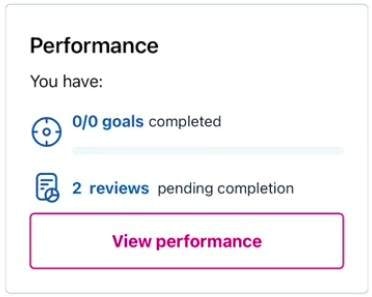
Completing a Performance Review
To complete a performance review on the app is simple, click in to the review in question and add your answers. You can now submit your answers for your manager to review.
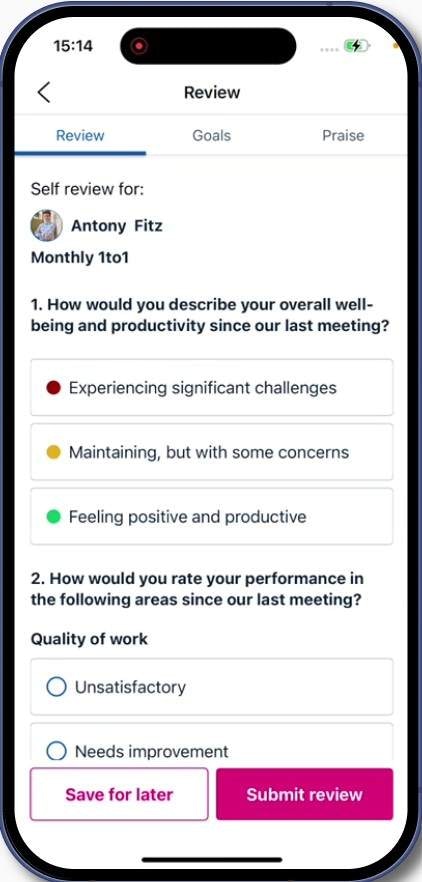
You can also review any goal progress as well as praise received during the review period to use this in your responses.
Once submitted a notification will be sent to your manager so they are aware you have completed your side of the review.
Once the review has been completed by your manager, you will receive an email notification with a link to download the review. Here, you can review your managers answers on the review.
Goals
When goals are set up on BrightHR, you will see these pull through on to the app for you to update and complete.
Head to the performance section and head in to goals.
Here you will be able to view, update and complete any active goals that have been set for you.
Tap on a goal, make an update or set it to mark as complete.


Notifications will be sent through the app if your manager or an admin makes any updates to a goal.