- ...>Getting to Grips with Permissions
Getting to Grips with Permissions
BrightSafe’s permissions guide explains how to add employees, assign roles, and manage access levels in BrightSafe. It covers admin, user, and employee permissions, additional controls like responsible person and hazard notifications, and how to link sites and places of work for accurate access management.
Getting to Grips with Permissions
Adding Employees
First Step
So that you can share E-learning courses with your employees, assign tasks to them and record accidents the first thing you'll need to do is get your employees set up on BrightSafe. Don't worry- it's easier than it sounds!
Once you add your employee's to BrightHR they'll automatically show on BrightSafe, so you won't have to spend hours adding the same information. We've done this for you.
Adding Employees Not added your staff to BrightHR yet? No problem, check out this handy how-to-video below that'll show you how to get started.
Setting up Permissions
Now your employees are added you can start to set up permissions for them. There are three different permission types on BrightSafe; Employees, Users and Admins.
As the main contact for your account, you will automatically be set as an admin and have full access to the account. When you add an employee they will be set as having employee access unless you choose to give them additional access.
Admins hold all the power. They can access all areas within BrightSafe. There’s nothing they can’t do—they’re your superusers.
Admins can:
- Create and review risk assessments.
- Report accidents and near misses within the company.
- Change user permission types.
- Upload and manage documents for the company.
- Create and re-assign tasks for all employees.
- Access and complete E-learning courses.
- Update users and other admins as a learning manager to manage E-learning assignment and reporting.
Additional Permissions
Responsible Person
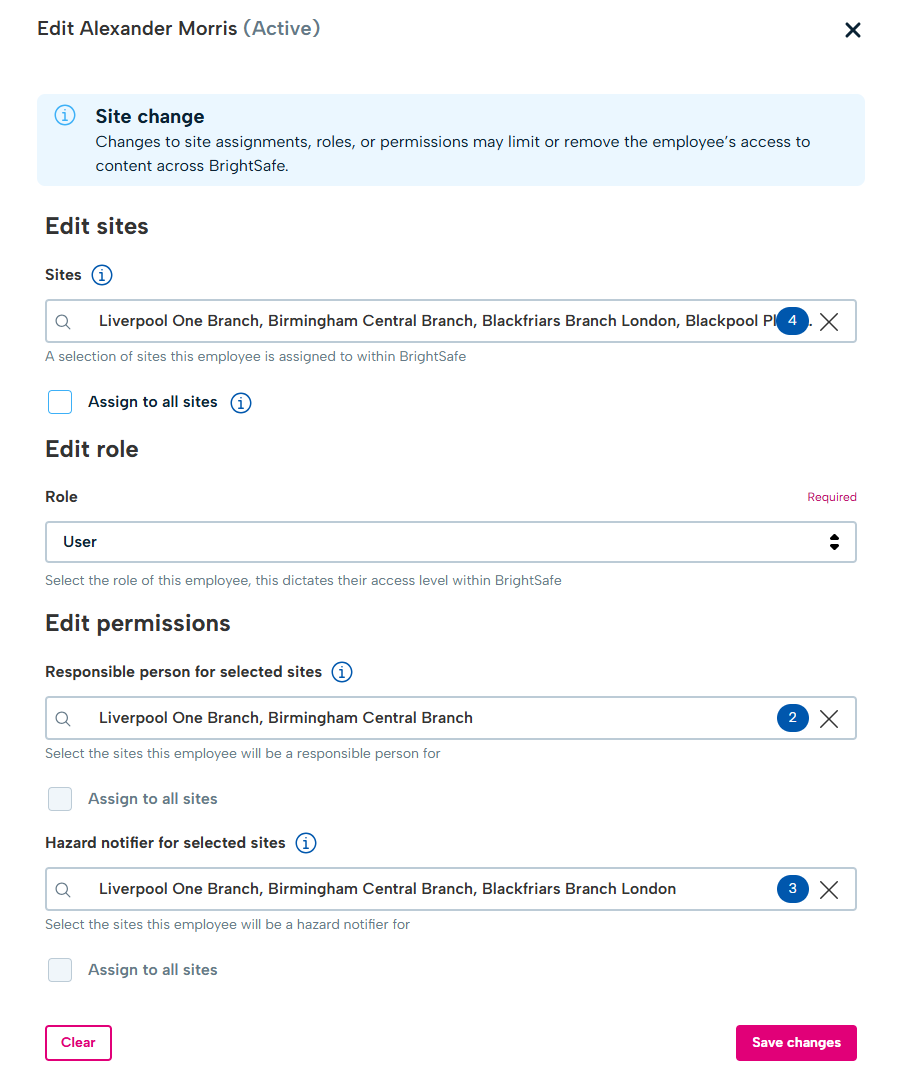
On top of these permissions, you can also set Users and Admins as a 'Responsible Person'. When you set someone as a responsible person this gives them access to complete a follow-up investigation on BrightSafe for any accidents reported within the business as well as export them, close accident reports after the investigation is complete and delete open accident reports.
Hazard Notifications
In addition, you can also set Users and Admins to 'Receive hazard notifications'. When set this person will receive an email notification when a hazard has been added or closed on your BrightSafe account.
Learning Manager
This setting accessed via 'E-learning' will allow admins, users or employees to assign, access certificates, monitor progress and pull reports on E-learning that has been assigned and completed.
Sites
Sites
When setting up permissions you can choose whether to assign all sites to that person or specific sites.
Whichever place of work they're assigned to on BrightHR will be the same site they're assigned to on BrightSafe or if they're unassigned you can update them here.
Need a little extra help setting up places of work on BrightHR? No problem, just check out this handy how-to video showing you everything you need to know.